Mac Keyboard Differences from PC Layouts, Explained
Mac keyboard differences are easier to spot when you compare PC layouts, MacBook keys, and Magic Keyboard models before choosing what works for you.

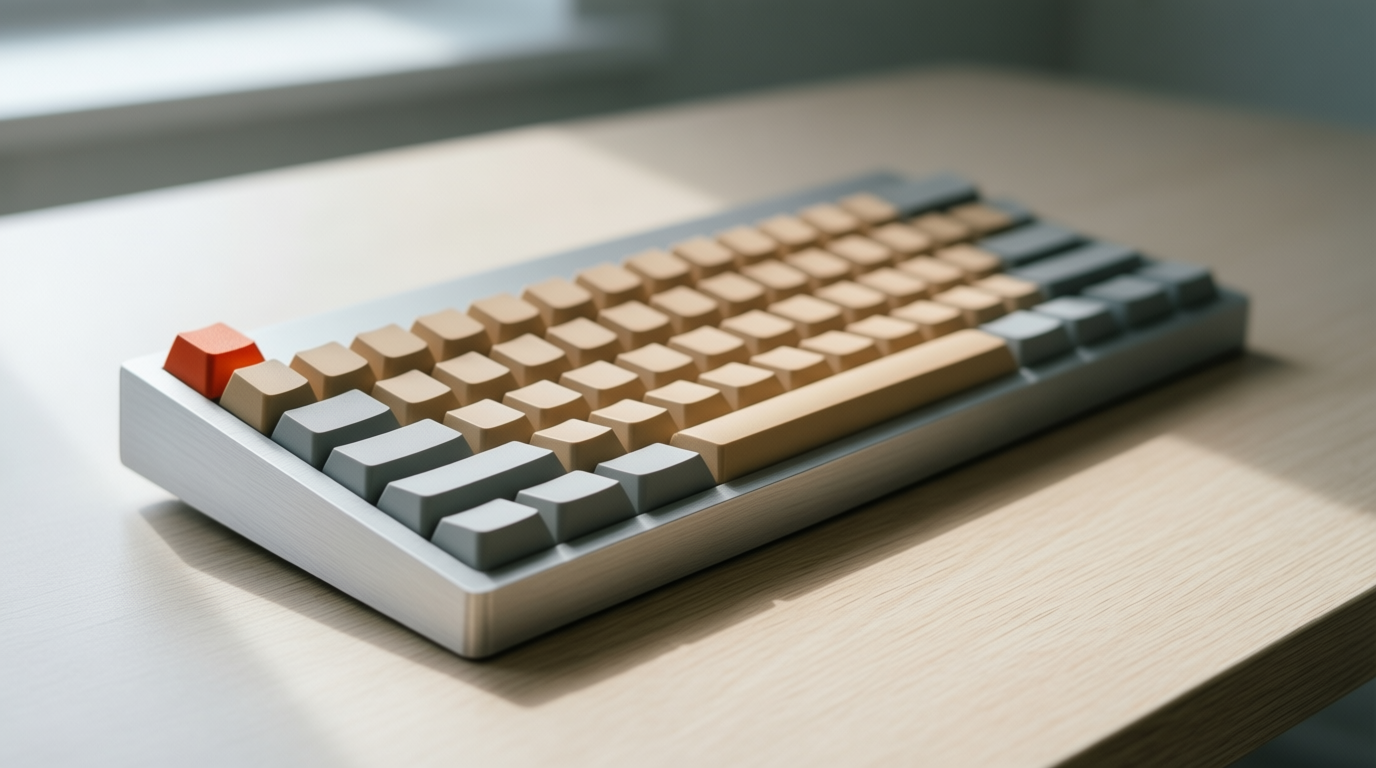
The short versionMac keyboard differences are the changes in key positions, shortcuts, layouts, and typing feel compared with PC keyboards and other Mac models. Command replaces most Ctrl shortcuts, while regional layouts and model features such as Touch ID, a number pad, and function keys vary; choose a keyboard based on your typing needs, preferred feel, size, and connection. Most USB or Bluetooth keyboards work with a Mac, though non-Apple models may lack Touch ID or require an adapter.
Switching from a PC to a Mac can feel like moving into a friend’s kitchen: the layout looks familiar, but a few drawers are in new spots. Most keys are right where you expect them, and the few that moved are where the confusion lives.
Here’s what we’ll cover: Mac and PC layouts, Magic Keyboard models, built-in MacBook keys, iPad options, and whether a non-Apple keyboard will work with your Mac. We’ll also look at how Apple’s designs evolved.
Mac Keyboard Differences from a PC Layout
A Mac keyboard looks familiar, but several keys sit in different spots or do different jobs.
How the Command and Option keys differ
On a Mac, Option (⌥) sits where the Windows key is, and Command (⌘) sits beside the space bar, where Alt would be. Command does most of Ctrl’s work, so ⌘C copies where Ctrl+C would. It’s less about where a key sits and more about what it does.
On keys and menus, ⌘ means Command, ⌥ Option, ⌃ Control, and ⇧ Shift. Option also types special characters, like © (Option+G).
On Windows, remapping usually needs a third-party tool or a registry edit. On a Mac, it’s built in:
- Open System Settings and select Keyboard.
- Click Modifier Keys and choose a new key from the drop-down.
- Click OK.
Think of an analyst who drafts on a MacBook and builds spreadsheets on a Windows desktop. Swapping Control and Command makes the corner key copy and paste on both machines. Your hands stop guessing.
Here’s how they line up:
| Action | Mac | Windows |
|---|---|---|
| Copy | ⌘C | Ctrl+C |
| Paste | ⌘V | Ctrl+V |
| Undo | ⌘Z | Ctrl+Z |
Keys that replace PC equivalents on Mac
Most keys work as expected, including Return, Tab, and Delete, which acts as Backspace. Four differ:
- Clear sits where Num Lock would be, since Mac keypads have no Num Lock toggle.
- Equals (=) on the keypad saves a reach when you’re totaling numbers.
- Help takes Insert’s spot on extended keyboards. On compact models, Fn plus Delete gives you forward delete.
- Eject used to sit in the top-right corner. Newer keyboards put Touch ID there instead, and where power sits varies by model, so check yours.
How the layout shifts by region
Mac keyboards come in regional layouts, and the same symbol can move. On a US keyboard, @ sits on Shift+2. On a UK keyboard, Shift+2 types the double quote, and @ moves to Shift+apostrophe.
Picture a UK support agent who types customer email addresses all day. A UK layout keeps the @ under their fingers, so fewer addresses get retyped.
Check that the layout matches your region before you order, since some third-party keyboards come only in the US layout.
How the function key row behaves
The top row is less about typing and more about doing. By default, its keys control brightness and volume, and the Mission Control key shows your open windows. Hold Fn with a top-row key to get the standard F1 through F12 keys instead.
Some MacBook Pro models swapped the top row for a Touch Bar, a touch strip whose controls changed with the app. Apple later restored physical function keys on newer models.
Picking an Apple Magic Keyboard Model
Apple’s Magic Keyboard comes in several versions, and the right one depends on your Mac, your desk, and how you type. Here’s how the choices break down.
Which models include Touch ID
The Touch ID key sits on the F12 row, and it works only with Apple silicon Macs, the chips Apple designs for its own computers. If you have an Intel Mac, you’ll need an older model instead.
Each keyboard stores up to three fingerprints, so you can register more than one finger.
Compact or full-size with a numpad
A compact model is built for portability. It drops the numeric keypad, so the board is narrower and easier to tuck into a bag.
The full-size model keeps the keypad and the navigation keys (the ones that move your cursor through a document), and its Space bar is larger. Key counts vary by model, so check the layout before you buy.
Consider a remote bookkeeper who enters long columns of figures all day. The full-size keypad lets her type those numbers without stretching to the number row, and that adds up over a long week of month-end work.
Colors, language versions and prices
Magic Keyboard comes in white, black, and silver, and some color variants are designed to match an iMac, so your desk looks like one setup. Black costs extra, so ask yourself whether it’s worth the premium.
Apple also sells many language versions, so pick the one that matches the characters you type most. Prices come in tiers by model, so the cheapest option may not have the features you need.
Choose based on how you type, not just which color matches your Mac.
Connecting it and battery life
Depending on the model, you can connect over Bluetooth or with a cable. Older models charge through Lightning, Apple’s own connector, while newer models use USB-C (Universal Serial Bus Type-C).
Battery life is a strong suit, with a charge that can last about a month.
Apple’s support guide on charging wireless accessories confirms the Magic Keyboard has a built-in rechargeable battery, so there are no spare batteries to buy. Less fuss, more typing.
What’s so special about Apple’s Magic Keyboard?
What sets it apart is the slim, low-profile design, which keeps the keys close to the desk. Underneath each key sits a scissor-switch mechanism, a pair of crossed supports that guide the key as you press it.
The Magic Keyboard has little key travel (the distance a key moves when you press it), so each press feels shallow. Some typists love that quick response, while others need time to adjust.
The slim body also makes the Space bar and arrow keys feel cramped. The question isn’t so much about quality as about fit.
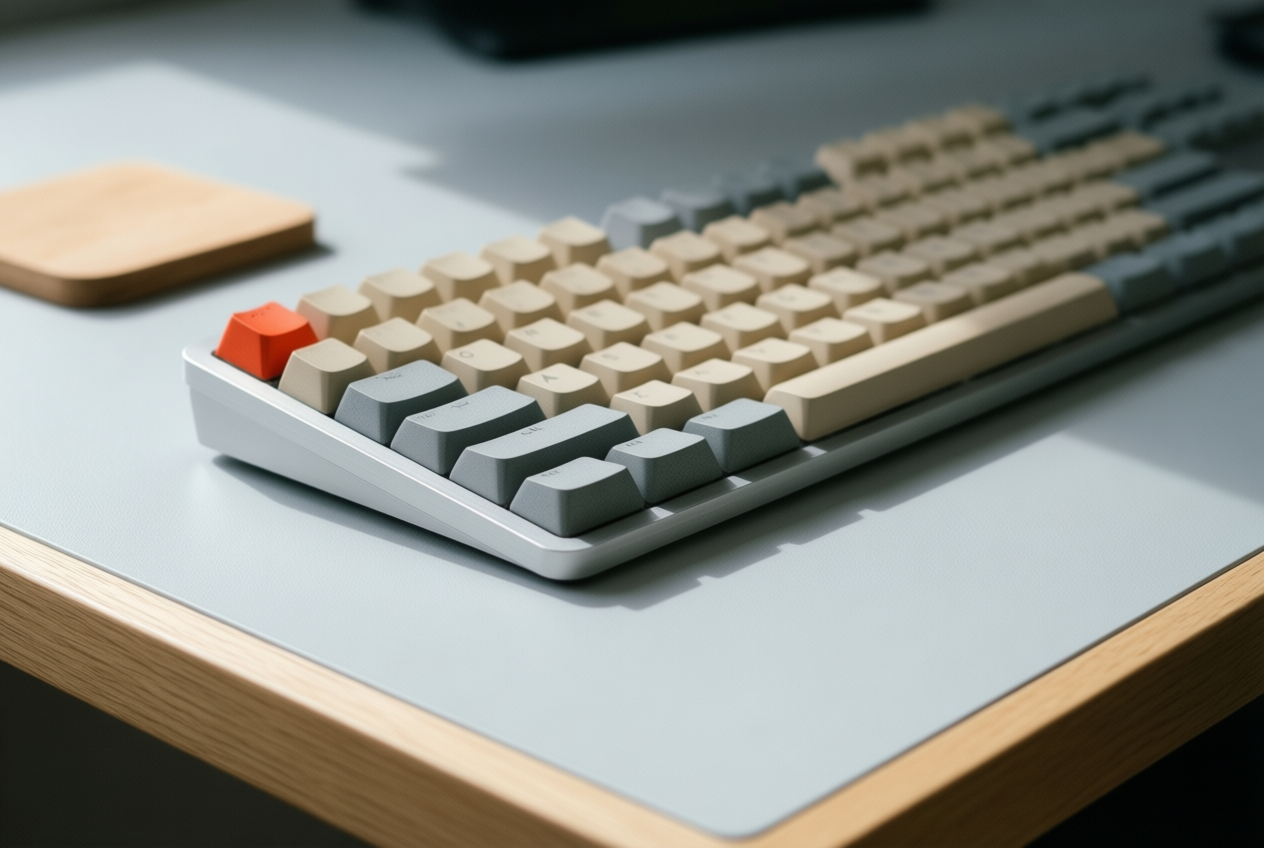
New function row keys like Emoji
The Emoji key lives on the Fn (function) key, so you can reach it without leaving home position. You also get keys for:
- Spotlight (Mac search)
- Dictation (speaking instead of typing)
- Focus (the mode that quiets notifications)
The compact model keeps the familiar F1 through F12, while the full-size model extends the row up to F19.
How Built-in MacBook Keyboards Differ
Two MacBooks can look nearly identical and still type differently. Here’s where we’ll look: Pro versus Air, the function row, and the mechanisms Apple has swapped over time.
Why Pro and Air keys feel different
The difference is less about whether a key works and more about how it feels under your fingers. Pro keys have a deeper, thunkier sound and better actuation accuracy (the point where a key registers your press). Air keys feel spongier.
How the laptop function row changed
The function keys are narrower than you may be used to, so your fingers have less room to land. The Touch ID key, which doubles as the power button, is full size and stands out from its narrower neighbors. Escape is sized differently too.
Expect a short muscle memory adjustment. Consider a home office writer who swaps a full-size keyboard for a MacBook over a long weekend. Their fingers keep landing on the wrong keys, and they miss Escape twice before Monday. The fumbling fades quickly.
Key mechanisms Apple swapped over time
Apple has changed the mechanism under the keycaps more than once. Here’s the sequence:
- Butterfly mechanism (2015). Apple introduced its butterfly design in 2015, and D’Onfro’s 2015 research on typing speed and accuracy notes that it better stabilized the key cap and increased typist precision.
- Silicone membrane (2018). In 2018, Apple added a silicone membrane beneath the keycaps. iFixit, as The Verge reported, was first to spot it, and a leaked Apple repair document later confirmed it helps block dust and debris.
- Scissor mechanism (2019). Apple returned to a scissor mechanism in 2019.
Keyboards for Your IPad
An iPad can carry real typing work, but the keyboard you pair with it decides whether it feels like a laptop or a tablet on a stand. We’ll start with Apple’s options, then cover how third-party keyboards fit in.
Apple-made iPad keyboard accessories
Apple’s keyboard accessories differ mostly in build and extras:
- Smart Keyboard. A slim, folding cover. Its keys aren’t butterfly keys like those on older MacBooks, so expect a different feel.
- Magic Keyboard with trackpad. Adds a built-in trackpad, so you can move the cursor without reaching for the screen.
- Folio and second-generation models. Folio versions are protective cases with a keyboard built in. Check the model against your iPad’s size and generation before you buy, since these accessories don’t fit every iPad.
Apple’s keyboards use the Smart Connector, a set of small metal contacts along the iPad’s edge that passes power and data between the two. There’s no keyboard to charge and no pairing menu to dig through.
Consider a support agent who answers tickets on an iPad: they snap the keyboard on and start typing. Less setup. More typing.
Using a Bluetooth keyboard with iPad
Third-party keyboards work with iPad too, so you aren’t limited to Apple’s lineup. The real question is less about which keyboard you pick and more about how it connects.
Most Bluetooth keyboards pair through the Bluetooth section of Settings, but they need their own battery charged, which is the trade-off for the wider choice.
For a side-by-side look at more options, see our iPad keyboard roundup.
Keyboard Tech and How to Pick One
Keyboards differ in how their keys are built, how big they are, and how they connect. Here’s how we’ll break those down.
Choosing between mechanical and membrane
Most keyboards fall into two camps. A mechanical keyboard gives each key its own spring-and-stem switch that you feel and hear with every press. It’s built to last.
A membrane keyboard presses onto a flexible layer underneath, so it’s quieter and cheaper, which is why budget desktops often use it.
A scissor switch is the middle ground: the low, flat mechanism under most laptop keys, with crossing arms for short, stable travel.
Switch types, from linear to magnetic
For most typists, the feel matters more than the sound. A linear switch presses smoothly from top to bottom. A tactile switch has a small bump you feel partway down. A clicky switch adds an audible click, which your coworkers may not love.
Hall effect switches skip physical contacts and use a magnet and sensor to track how far each key has moved. That’s what enables features like rapid trigger, covered below. Hot-swappable boards let you swap switches without soldering.
Picking a keyboard size for your desk
Size comes down to three layouts:
- Full-size: includes a numpad (the number keys on the right) for heavy number entry.
- Tenkeyless (TKL): drops the numpad, freeing desk space and bringing your mouse closer.
- 75% and 65%: trim the function row and some navigation keys, so a few keys need a key combination.
Measure your desk first. If there’s no room for a mouse beside the board, a TKL or smaller layout may fit better.
How keyboards connect to your devices
A wired keyboard never needs charging, while a wireless one frees the cable but needs batteries. Bluetooth is built into most laptops and tablets, so it needs no extra hardware.
A 2.4GHz (a radio band) connection uses a small USB receiver, or dongle, for a steadier link with less lag.
Many Bluetooth boards pair with several devices, and a key press switches between them, handy if you move between a Mac and a Windows PC.
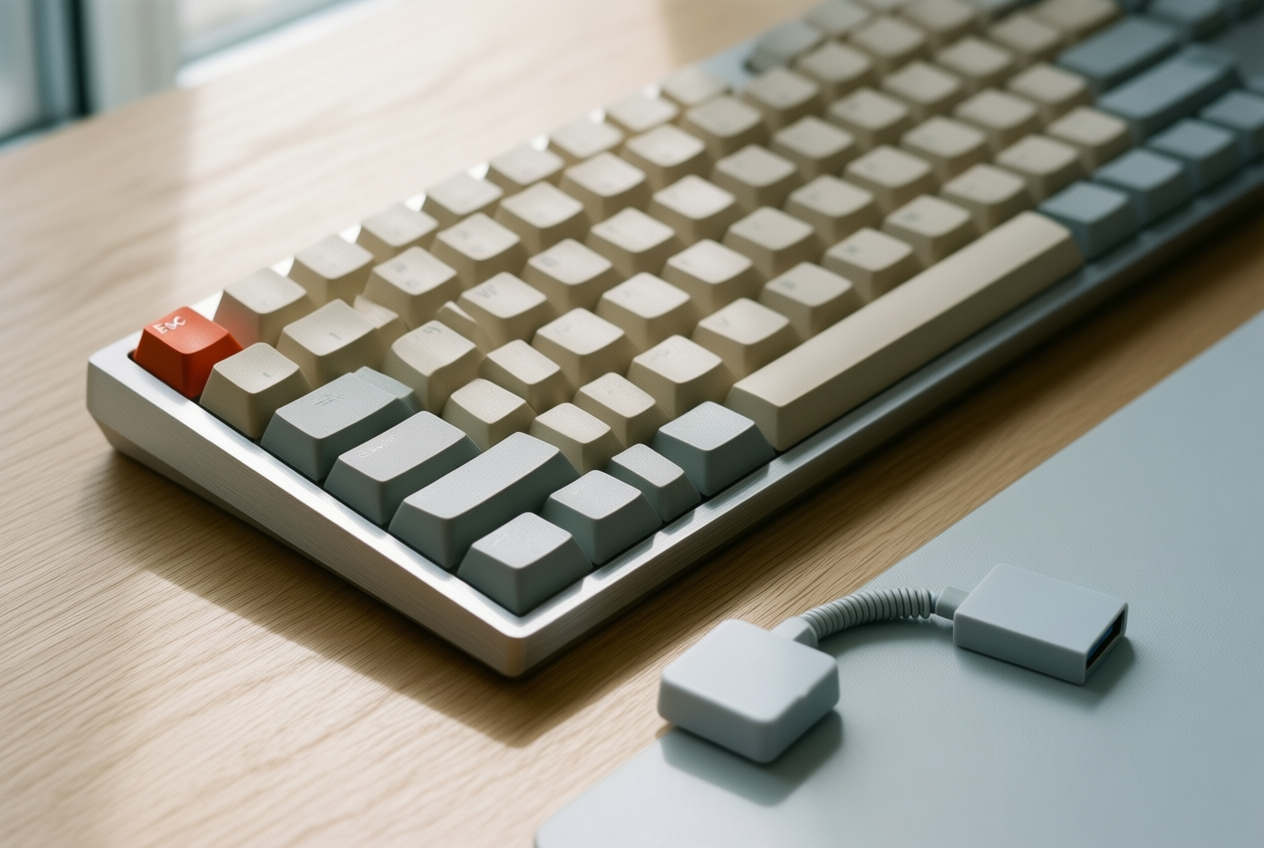
USB-A (Universal Serial Bus Type-A, the flat, rectangular plug) is common on keyboards, so a computer with only USB-C ports (the smaller, oval plug) needs an adapter.
Customizing keys and adding extras
Remapping changes what a key does, not where it sits. Swap Caps Lock for something you’ll actually use, or move a key you press constantly. A macro goes further, sending a whole sequence of keystrokes with one press.
Backlighting helps in dim rooms. Some boards add a volume dial you can turn without looking, a nice touch on a long call. Companion software handles remapping and setup, and some boards save those settings to the keyboard itself.
Matching a keyboard to how you use it
Start with how you spend your day. For office typing, steady feedback and ergonomics (a setup that fits your body) matter most. Think of a support agent typing from a laptop at the kitchen table, with an external board on a stand.
A TKL board with tactile switches keeps her mouse close, so her shoulders stay relaxed through a long shift of replies.
Gaming puts speed first. A rapid trigger resets a key as soon as you ease off, so repeat presses register faster. Creatives and tinkerers often want hot-swap sockets and programmable keys.
For long days of typing, the best board is the one you stop noticing.
Will Any Keyboard Work with a Mac?
Yes, nearly any keyboard that connects over USB (Universal Serial Bus) or Bluetooth will type on a Mac, non-Apple boards included. The real question isn’t whether it types but how well it fits your work, so here’s how the options break down.
Logitech models by use and budget
Logitech’s lineup spans several needs:
- MX Keys S for power users
- POP Icon as the budget pick
- Craft with a dial for extra controls
- Wave Keys with an ergonomic wave shape
- K950 for a slim profile
Think of a remote support agent who types on a MacBook all day and watches her spending. The POP Icon gets her a working board for less, and she can step up to the MX Keys S later if her typing load grows.
Satechi’s slim and mechanical options
Satechi adds a few more if you want a low profile or a mechanical feel:
- Slim X is backlit, so the keys glow in dim rooms.
- Slim EX switches between several devices, handy if you bounce between a Mac and a PC.
- Slim W is wired, so there’s nothing to charge or pair.
- SM1 is mechanical, with a separate switch under each key.
Premium mechanical and gaming boards
The Keychron Q6 Max, Keychron Q1 HE, and Lemokey L1 HE sit at the top of the range. The HE in the Q1 HE and L1 HE stands for Hall effect switches, which sense a magnet’s position instead of relying on metal contacts to register a press.
Expect heavy aluminum builds that stay planted while you type. Heavy is a feature here. They’re expensive, though, so they suit typists who’d notice the difference every single day.
Budget and niche picks to consider
The Alogic Echelon and HP 975 keep costs low.
The Logickeyboard Final Cut Pro is labeled with Final Cut Pro shortcuts, a niche fit for video editors, and the Signature Comfort Plus combo bundles a keyboard and mouse if you’re outfitting a desk from scratch.
Compromises to expect with non-Apple keyboards
Non-Apple boards work, but expect a few trade-offs:
- No Touch ID. Touch ID, the fingerprint sensor on Apple’s keyboards, isn’t on non-Apple boards, so you give up fingerprint unlock from the keyboard.
- Backlight drains battery. On wireless models, a lit keyboard uses more power, so you’ll charge it more often.
- US-only layouts. Some boards come only in a US layout, so the symbols may not sit where your fingers expect.
- USB-A receivers. Some boards use a USB-A receiver, the traditional rectangular plug. If your Mac has only USB-C ports (the smaller oval plug), you’ll need an adapter.
Know them going in.
How Apple Keyboards Evolved over Time
Apple’s keyboards didn’t reach their current shape overnight. Here’s a quick look back, and why it explains where your keys sit today.
From Apple II and Lisa to Macintosh
The Numeric Keypad II added a number pad for people who needed one. The original Macintosh lacked arrow keys, so moving the cursor meant reaching for the mouse. The Lisa keyboard also brought the first Command key, which now anchors most Mac shortcuts.
Keyboards of the ADB era
Keyboards of this period connected through the Apple Desktop Bus (ADB), an older connector for keyboards and mice.
Extended keyboards added more keys to the layout, and the arrangement reflected the IBM (International Business Machines) design that PC users already knew.
Some models added adjustable height for better ergonomics, the science of fitting equipment to your body. It’s less about speed and more about how your wrists feel at 4 p.m. The AppleDesign keyboard, though, never caught on.
Think of an analyst who types long columns of figures all day. A number pad on an extended keyboard keeps both hands near the digits instead of stretching across the board.
From translucent USB to wireless models
Next came translucent USB keyboards, see-through plastic models that used the Universal Serial Bus (USB). The Pro Keyboard removed the power key. Aluminum models followed in wired and Bluetooth versions, a short-range wireless connection.
Apple’s last wired keyboard was discontinued in 2017, when a 9to5Mac report from that year noted the $49 wired model with a numeric keypad seemed to be gone from Apple’s online store.
Cords came and went. Your hands still look for the same keys.
Once you know which keys moved, a Mac keyboard stops feeling strange. The Command key takes over most of the jobs Ctrl handles on a PC, and the rest is just a matter of repetition.
Your hands already know most of the way. Carry your shortcuts from your Windows desk to your MacBook, teach them the few keys that changed, and the Mac will feel like home.
References
- Dependence of typing speed and accuracy on device type and familiarity — hdl.handle.net (2019)
- Charge the batteries in wireless accessories — support.apple.com
- iFixit tests how the anti-dust membrane in new MacBook Pro really works — theverge.com
- Apple removes wired keyboard with numeric keypad from its online store — 9to5mac.com
Questions
What are the buttons on a Mac keyboard?
A Mac keyboard has the familiar letter and number keys, plus Return, Tab, Delete, Shift, Control, Option, and Command. Many models also have function keys for brightness, volume, and other controls; full-size models add a numeric keypad. Some keyboards include Touch ID, while older or extended models may have keys such as Help or Eject.
What are the symbols on a Mac keyboard?
Common Mac keyboard symbols include ⌘ for Command, ⌥ for Option, ⌃ for Control, and ⇧ for Shift. You may also see symbols for functions such as brightness, volume, Mission Control, and Touch ID. The position of characters such as @ varies by regional keyboard layout.
Will any keyboard work with a Mac?
Yes. Nearly any keyboard that connects to a Mac by USB or Bluetooth can type, including non-Apple keyboards. You may need a USB adapter, and some features such as keyboard-based Touch ID are limited to Apple keyboards; key layouts and shortcut behavior can also differ.
What's so special about Apple's Magic Keyboard?
Apple's Magic Keyboard has a slim, low-profile design and scissor-switch keys with short key travel, which some typists find quick and responsive. It has a built-in rechargeable battery, and models vary in features such as a numeric keypad and Touch ID. Its shallow feel and compact Space bar and arrow keys may not suit everyone.
Sources
- Charge the batteries in wireless accessories - Apple Support (CA), support.apple.com
- Dependence of typing speed and accuracy on device type and familiarity, hdl.handle.net,
- iFixit tests how the anti-dust membrane in new MacBook Pro really works | The Verge, theverge.com
- Apple removes wired keyboard with numeric keypad from its online store - 9to5Mac, 9to5mac.com
spaceShortcut Sheets: the twenty keys to learn first in each appFind your app