US Keyboard Layout Explained: Keys, Symbols and Setup
US keyboard layout differences can hide apostrophes and symbols. Compare UK and ISO keys, switch layouts, and type accents without slowing down.

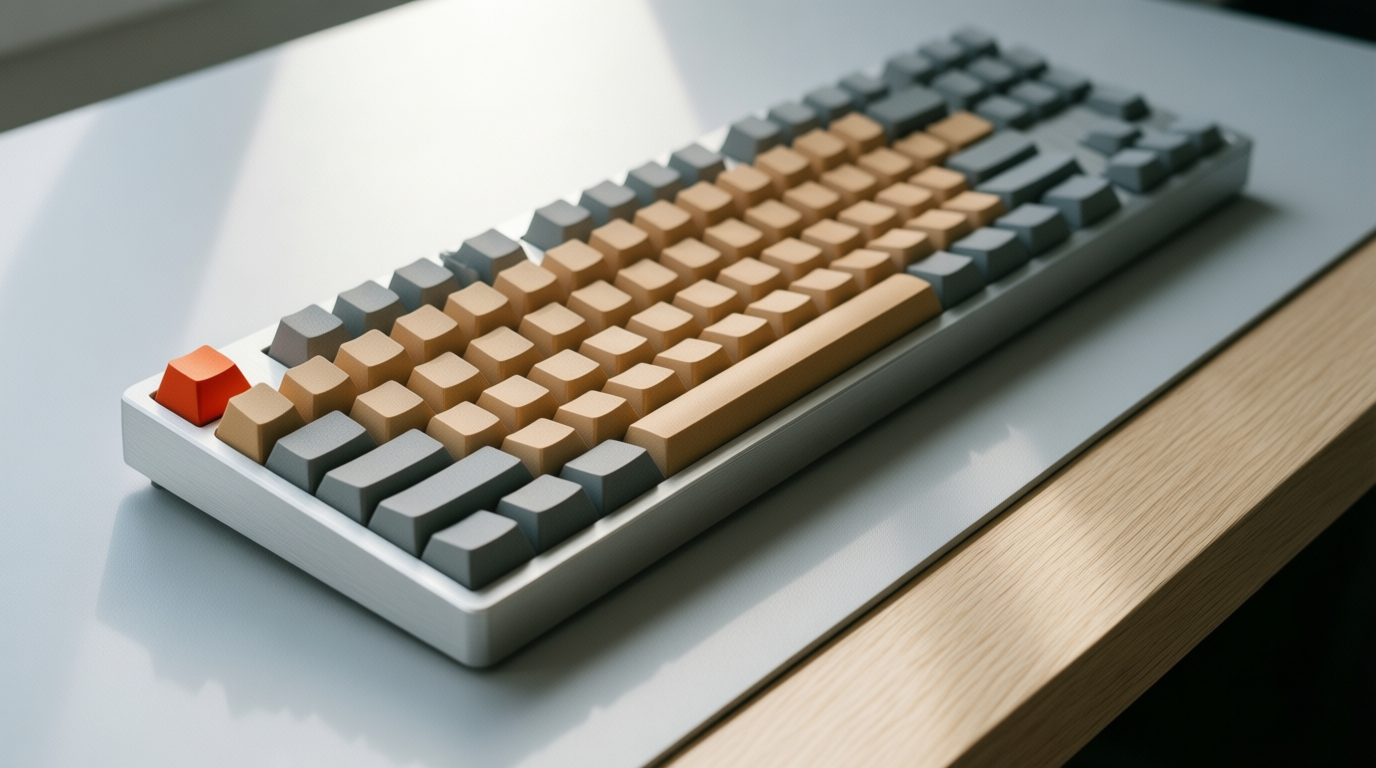
The short versionThe US keyboard layout is a QWERTY arrangement used for English typing in the United States, with software mapping each physical key to a character. It differs from UK and ISO layouts mainly in symbol placement and key shape, so check that your computer’s input setting matches your keyboard; US International can also type many accents with key combinations. In practice, the right layout keeps symbols predictable, while keyboard size and shortcuts determine how easily you reach other keys.
Ever reached for an apostrophe on a borrowed laptop and found it sitting somewhere unexpected? Keyboards can look nearly identical while quietly moving a few keys, and that’s where a lot of typing slowdowns begin.
The US keyboard layout is the standard arrangement for English typing in the United States, with the familiar QWERTY row across the top.
In this post, we’ll explain what it is, how it differs from the UK and ISO layouts (the common international standard), and how to type accents and symbols.
You’ll also learn how to check or change your layout, plus a few keyboard-first habits that save you trips to the mouse.
US Keyboard Layout Basics and QWERTY’s Origins
Before you change a setting or hunt for a missing symbol, here’s what people mean by “layout” and where QWERTY came from.
Three things people mean by layout
People use layout to mean three things:
- the physical shape of the board
- the order of its letters
- how your computer reads each key press
That last meaning is input mapping, and it’s where the software comes in. Your operating system gets a code from each key and decides which character it becomes. Physical layout tells you where keys are; input mapping decides what they type.
On a US board, the number row runs across the top, three letter rows sit below it, and your fingers rest on the home row, the ASDFGHJKL line in the middle.
A support agent who works from home types on a laptop at the kitchen table and an external keyboard at a desk. The letters sit in the same places on both, so there’s nothing to relearn.
How QWERTY was patented and sold
According to a keyboard layout comparison, Christopher Latham Sholes, a Milwaukee publisher, politician and philosopher, patented his typewriter in 1868.
Four years later, History of Information reports the patent sold for $12,000 to Densmore and Yost, who licensed it to E. Remington & Sons. The result was marketed as the Remington No. 2.
You’ve likely heard QWERTY was built to stop typebars from jamming. Historians of typewriter design debate that story, as On the Prehistory of QWERTY discusses.
The home row is a leftover too. ASDFGHJKL still carries traces of an alphabetical arrangement, even though QWERTY as a whole doesn’t run A to Z. The layout stuck.
How the US Layout Compares to Others
Most keyboards use QWERTY, a letter order named for its first six top-row keys. Symbols, keys, and standards shift by region, so here’s how we’ll compare.
Where US and UK symbols differ
Letters stay put, but the symbols move:
- @ and double quote trade places.
- £ and # sit in different spots.
- Backslash sits above Enter on US boards and somewhere else on UK boards.
- Mac layouts differ further: Cmd does much of Ctrl’s job, and Win has no Mac match, so Ctrl, Alt, Win, and Cmd don’t line up.
Consider a support agent who types email addresses all day at home. If her keyboard is set to UK but her hands expect US, every @ comes out as a double quote. One setting change puts every address right.
Telling ANSI, ISO, and JIS keyboards apart
Three standards show up on physical keyboards: ANSI (American National Standards Institute), ISO (International Organization for Standardization), and JIS (Japanese Industrial Standards). Look for these:
- Enter key: ANSI’s is flat and wide, while ISO’s is taller and L-shaped.
- Left Shift: ANSI’s runs long, while ISO’s is shorter.
- Key count: ANSI boards have 104 keys, and ISO boards have 105.
- Japanese keys: JIS boards add extra keys for Japanese input.
- Region: ANSI is the US standard, and ISO covers the UK and Europe.
Country versions of QWERTY
Many countries adjust QWERTY for their own letters:
- QWERTZ swaps Y and Z, common in German-speaking countries.
- AZERTY, used in France, swaps A with Q and Z with W.
- On AZERTY, the number row types accented letters like é by default; digits need Shift.
Layouts that try to beat QWERTY
Dvorak places frequently used keys on the home row, the resting row your fingers return to. An article on August Dvorak’s early work lists increasing home row typing among his corrections.
A genetic-algorithm study of an English keyboard layout notes that Colemak was released in 2006 as an alternative that aims to resolve some of Dvorak’s shortcomings.
Whether either one types faster than QWERTY is debated, so be skeptical of big speed claims. Switching is a settings change, not a hardware purchase: you’ll pick the layout in your operating system.
Shortcuts follow the letter, not the spot: Ctrl+C still copies on Dvorak or Colemak, but the C key now sits somewhere new. Expect some fumbling.
Checking and Changing Your Layout
Not sure which layout you’re on? We’ll check it first.
Figure out which layout you’re using
Check these four things:
- Shift+2 and Shift+3 test. Press both in any text field. A US layout types @ and #, while a UK layout types ” and £.
- Input indicator. The taskbar or menu bar shows a short code like ENG for the active layout.
- Enter key and top row. A US Enter key is one straight key, while many international (ISO) boards have a taller, L-shaped one. Top-row symbols shift too.
- Keycaps versus software. A key marked # can still type £ if your computer is set to UK, because the software decides what the key types.
Switch layouts on your computer
On Windows, press Windows + Space to cycle through your layouts. Add or remove them under Time & language in Settings.
On a Mac, open System Settings, then Keyboard, then Text Input sources. Each layout becomes an input source you switch from the menu bar.
Unsure what a key sends? Turn on Keyboard Viewer from the Mac input menu and hold Shift or Option to see it change.
Need accents? Add a second layout rather than replacing your main one. A support agent answering French customers keeps US as the default and switches for replies needing é or ç, skipping the character map.
Remap keys with keyboard software
Keyboard makers often ship their own remapping software. Keychron Launcher, for example, remaps keys on supported Keychron boards.
Set the keymap (the table linking each key to its characters) to match your layout so labels match your output. Other QWERTY (standard letter order) keyboards follow the same idea with their own software.
Do it once, and your symbols stay put.
Type Accents and Symbols on US Keyboards
Accents and symbols don’t have to send your hands to a character map. Here’s how to reach them from the keys you already use.
US International layouts for more languages
Windows offers a US International layout with accented letters and symbols for many languages. Its key feature is the dead key: it prints nothing on its own, then waits for your next keystroke and combines the two.
That makes typing accents a two-step habit. Hands stay on the keys.
Microsoft Keyboard Layout Creator (MSKLC) is the tool for building or adjusting a layout.
Adding accent marks with key combinations
You type the mark first, then the letter, not the other way around. Press the apostrophe key, then e, and you get é. A remote support agent answering a customer named José types J, o, s, the apostrophe, then e, and never reaches for the mouse.
Keys also hold extra characters on other layers. Shift gives the upper symbol, and AltGr (usually the Right Alt key) reaches a third set of accents and symbols.
| Mark | What it looks like | Example |
|---|---|---|
| Acute | slanted line above | é |
| Tilde | wave above | ñ |
| Cedilla | hook under the letter | ç |
| Caron | small v above | š |
| Ogonek | small tail under the letter | ą |
| Ring | small circle above | å |
Use this table as a quick lookup.
Superscripts, quotes, and currency symbols
Superscripts and subscripts (the 2 in m² or H₂O) sit outside everyday keys, so a symbols picker is usually quicker. The backslash key (\) is an auxiliary key here, so check its key map before assuming it types a plain slash.
Smart quotes (“ ” ‘ ’) curl toward the words, and angle quotes (« ») are guillemets used in many European languages. The euro (€), yen (¥), and multiplication sign (×) are covered too.
How Windows US International differs
The apostrophe is itself a dead key, so a plain one takes an extra step. Press the apostrophe key (beside the semicolon), then Space. Type it right before a vowel, as in ‘em, and you get ém instead.
Some accents appear in more than one chart entry, so charts look busier than the layout. AltGr assignments are more natural for many European languages, so characters land where you’d guess.
It isn’t fully backward compatible, so an old habit may act differently. Test common characters after switching.
Picking the Layout That Fits You
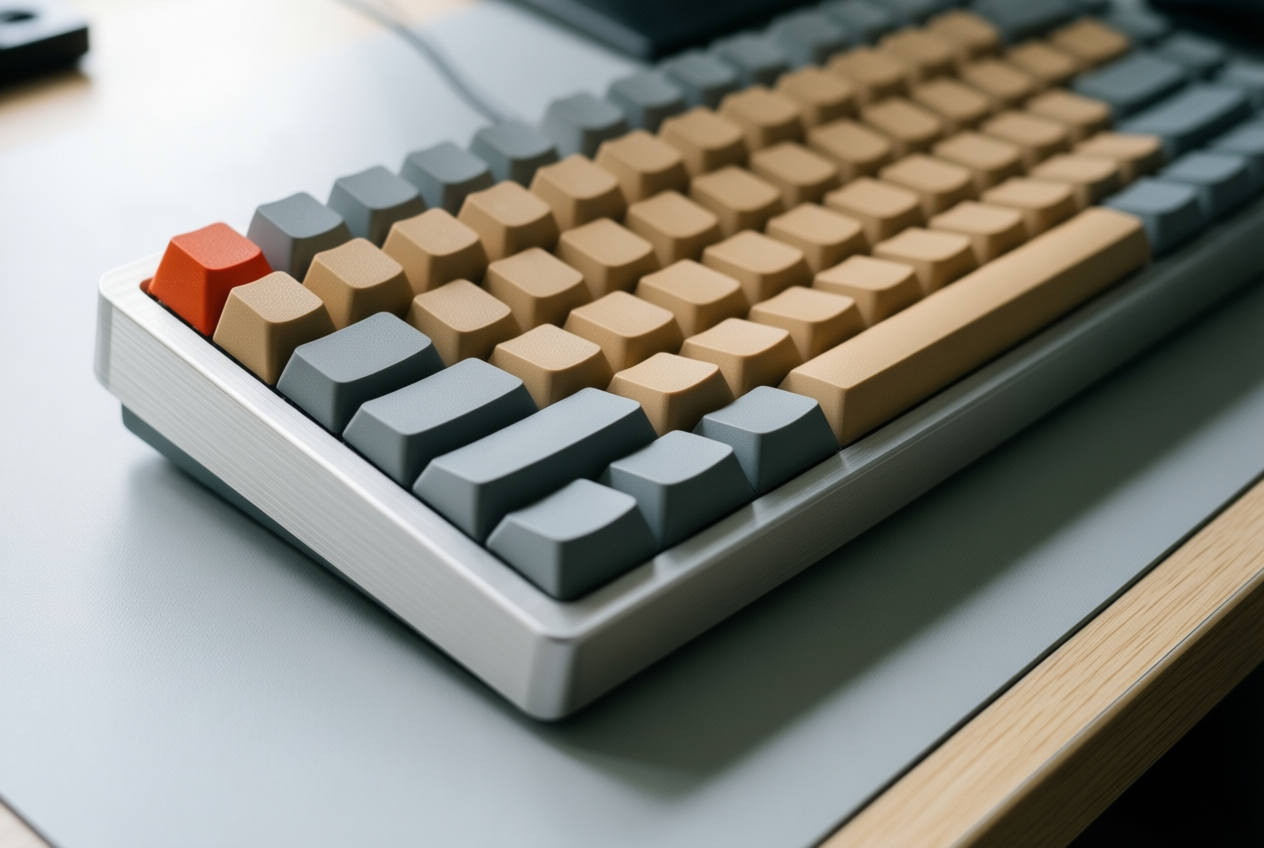
Not every keyboard suits every desk or computer. Here’s how to choose one that fits yours.
Tips for choosing a keyboard
- Match keycaps and computers. Pick a keyboard whose layout matches your computer, so the labels and the characters on screen agree.
- US typists usually use ANSI. ANSI (American National Standards Institute) is the common US layout, so start there.
- Keep QWERTY unless you’re retraining. QWERTY is the standard letter arrangement, and switching means relearning muscle memory.
- Pick size by desk and number use. A full-size board suits daily number entry, while a compact one frees desk space if you rarely use the keypad.
- No speed advantage, US vs UK. Neither layout types faster, so choose by the keys and symbols you use most.
So how do you type on a keyboard without looking? Start with the home row, the middle row of letters.
Rest your index fingers on F and J, which have small raised bumps you can find by feel, then let your other fingers settle on A, S, D, K, L, and semicolon.
Using ISO boards with a US computer
Your computer reads which key position you pressed, not the character printed on the cap. That’s why the language setting has to match your ISO (International Organization for Standardization) keycaps.
Think of a paralegal who plugs an ISO board into a US laptop and keeps typing the wrong symbols. Match the setting to the keycaps, and the symbols line up.
The leftover hassle is symbol placement. ANSI and ISO boards put some symbols in different spots, so expect some fumbling at first. Then your hands adjust.
Keyboard Sizes, from Full to Compact
Keyboards come in a handful of standard sizes, and the smaller ones don’t shrink what you can do so much as relocate it. Here’s what each size drops and where those keys go.
Common sizes and what each drops
- Full-size (104 keys): The layout most people picture, with a function row, a navigation cluster, and a number pad on the right.
- Tenkeyless (TKL): Drops only the number pad. Everything else stays where you expect it.
- 75%: Drops the number pad and tightens the gaps, keeping the function row.
- 65%: Drops the function row but keeps the arrow keys and a short column of navigation keys.
- 60%: Drops the function row, the navigation column, and usually the arrows.
Widths follow the same pattern. A full-size board is the widest because the number pad adds a whole block on the right, while a 60% board is little more than the main typing area.
The keys that go missing usually live in an Fn (function) layer. You hold the Fn key and press a key with a second label printed on it, such as an arrow or Home.
Keep the arrow keys for shortcuts, since arrows pair with Shift to select text and with Ctrl (Cmd on a Mac) to jump by word. Consider an analyst who selects rows of data with Shift and the arrows dozens of times a day.
On a 60% board, each selection means holding Fn with one hand, and that extra step repeats all day. A 65% that keeps the arrows lets the same selection happen in a single motion. Your arrows should stay put.
Once you know where your keys sit, the layout stops being a guessing game. A quick check of your settings, a few symbol shortcuts you use every day, and a handful of modifier keys will keep your hands right where they belong.
Take five minutes today to confirm your layout matches your keyboard, then pick one shortcut to practice this week. Your fingers will thank you for every trip to the mouse you skip.
References
- Creating an Ergonomically Optimal Keyboard Layout for the English Language Using Genetic Algorithms — urn.kb.se (2024)
- Comparing Different Keyboard Layouts: Aspects of QWERTY, DVORAK and alphabetical keyboards — researchgate.net (2003)
- On the Prehistory of QWERTY — doi.org (2011)
- August Dvorak (1894-1975): Early expressions of applied behavior analysis and precision teaching — pmc.ncbi.nlm.nih.gov (1988)
- History of Information — historyofinformation.com
Questions
What is the standard keyboard layout called?
The standard keyboard layout for English typing in the United States is the US QWERTY layout. QWERTY is named for the first six letters on the top row.
What are the key differences between a US English keyboard and an international English keyboard?
A US English and an international English keyboard may keep the same QWERTY letter positions but differ in physical key shape and symbol placement. For example, US and UK layouts put @ and double quotation marks on different keys, and ISO boards commonly used internationally have a taller L-shaped Enter key and a shorter left Shift than ANSI boards. The exact differences depend on the country-specific layout.
How to type an apostrophe on a keyboard?
On a standard US layout, press the apostrophe key, usually beside the semicolon. On a US International layout, the apostrophe key acts as a dead key: press it and then Space to type a plain apostrophe, or follow it with a vowel to make an accented character such as é.
How to put on keyboard?
To put a keyboard on a desk, place it in front of you with the space bar nearest your body and the keys facing up. Connect it by USB or pair it wirelessly, then check that your computer’s input layout matches the keyboard’s keycaps.
How can I identify my keyboard layout?
Check the symbols produced by Shift+2 and Shift+3: a US layout types @ and #, while a UK layout types double quotation marks and £. You can also check the language or input indicator in your taskbar or menu bar, and compare the Enter key shape and keycaps with the computer’s layout setting.
Why is the keyboard layout QWERTY?
QWERTY is named for the first six letters on the top row. It originated with Christopher Latham Sholes’s typewriter design, patented in 1868, and became established through its adoption and commercial use; the claim that it was designed specifically to prevent typebars from jamming is debated.
Should I switch to Dvorak or Colemak?
Consider Dvorak or Colemak if you are willing to retrain your typing habits and want to try a different arrangement. Dvorak puts frequently used keys on the home row, while Colemak is a later alternative; claims that either is faster than QWERTY are debated, and switching can make typing and shortcuts feel unfamiliar at first.
Which keyboard layout is better, ISO or ANSI?
Neither ISO nor ANSI is universally better; the right choice depends on your region, typing habits, and preference. ANSI is common in the United States and has a wide left Shift key, while ISO is common in many European countries and has a taller Enter key and an extra key near the left Shift.
Sources
- Comparing Different Keyboard Layouts: Aspects of QWERTY, DVORAK and alphabetical keyboards, researchgate.net,
- History of Information, historyofinformation.com
- On the Prehistory of QWERTY, doi.org,
- Creating an Ergonomically Optimal Keyboard Layout for the English Language Using Genetic Algorithms, urn.kb.se,
- August Dvorak (1894-1975): Early expressions of applied behavior analysis and precision teaching, pmc.ncbi.nlm.nih.gov,
spaceShortcut Sheets: the twenty keys to learn first in each appFind your app