How to learn touch typing as an adult: a daily routine
A touch typing routine you can keep beside a working day: the home row, which finger takes each key, fifteen minutes a day on free sites, and accuracy first.
The short versionRest your fingers on the home row, learn which finger takes which key, and practice for fifteen to twenty minutes a day on a free site such as keybr.com or TypingClub without looking down. Keep accuracy ahead of speed, use the new method for low-stakes typing at work first, and bring Shift, Cmd and Ctrl into the habit from the start.
Rest your fingers on the home row, ASDF under the left hand and JKL; under the right, learn which finger takes each key, and practice for fifteen to twenty minutes a day on a free site without looking at the keyboard. Go for accuracy, not speed. Expect to type more slowly than you do now at first: Wikipedia’s article on touch typing says a beginner’s touch typing starts out far slower than hunt-and-peck, and that slow start is what puts people off. The routine below is built to get you through it alongside a working day. It promises no timeline and no speed, because those depend on how often you practice and how set your old habits are. The keys are those of a US-layout keyboard, Mac and Windows, and the practice sites are as their own pages describe them in October 2026.
Set up before the first lesson
Ten minutes of setup saves you learning reaches you’ll have to unlearn:
- Learn on the keyboard you type on all day. If that’s a laptop, learn on the laptop, so the reaches you practice are the ones you’ll use at work. If you’re choosing a new keyboard, any standard layout will do for learning; the switch underneath is a matter of feel, which Linear, tactile or clicky: keyboard switches explained sorts out.
- Set the chair and keyboard height first. It’s easier to build a habit in a position you can keep. The ergonomic desk setup checklist goes through it in order, chair first.
- Check the layout setting. The computer’s keyboard layout should match the keys in front of you (US for a US keyboard), or the punctuation keys won’t type what they show.
- Pick a time. Fifteen minutes at the same point in the day, such as before you open email, is easier to keep than whenever there’s a gap.
The home row and which finger takes which key
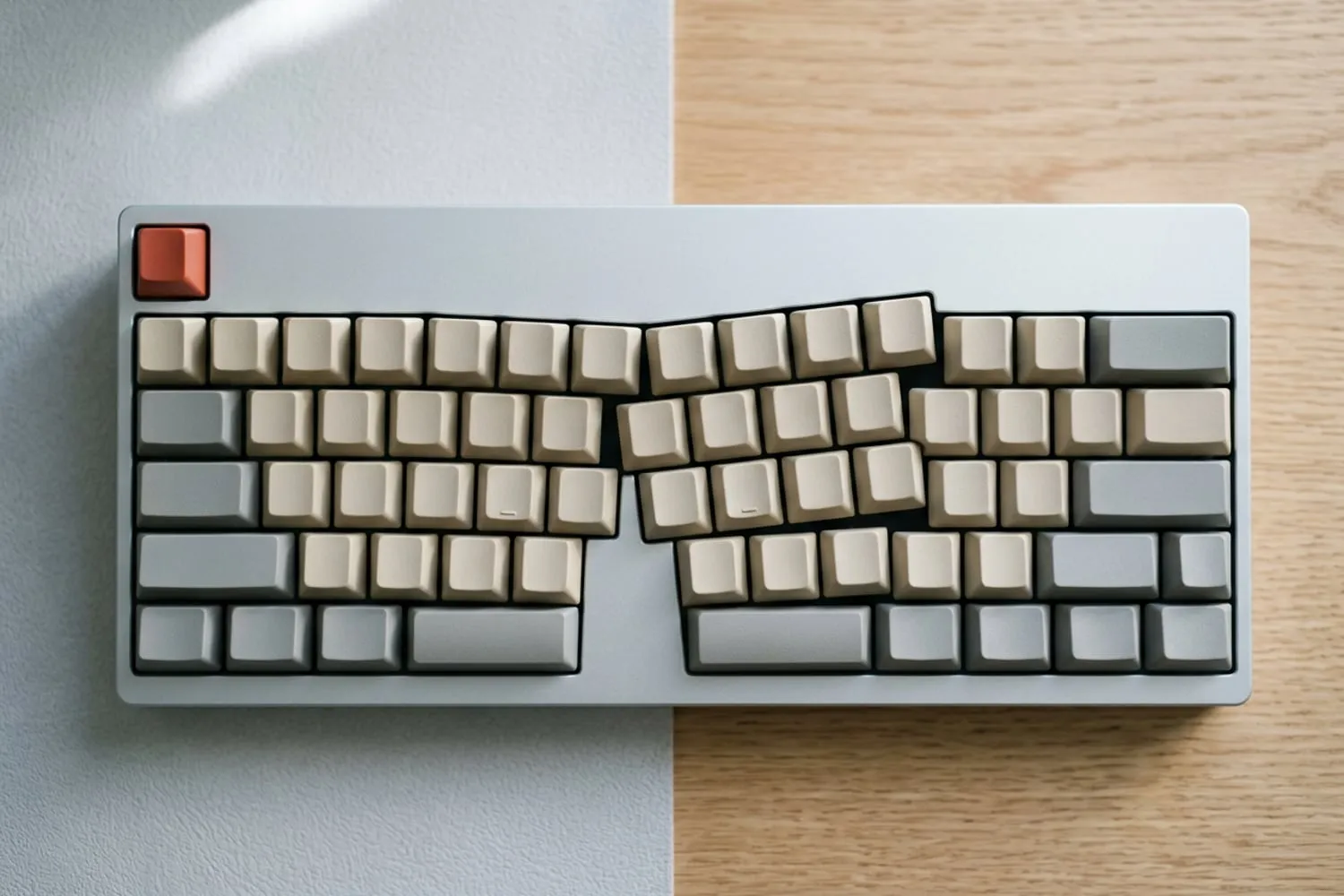
The home row is the middle row of letters. Your left fingers rest on A, S, D and F, your right fingers on J, K, L and the semicolon, and your thumbs hover over the space bar. The small bumps on F and J are there so your index fingers can find home by feel. Every other key is a reach from home and back again.
| Finger | Left hand | Right hand |
|---|---|---|
| Index | R, F, V and T, G, B; 4 and 5 | U, J, M and Y, H, N; 6 and 7 |
| Middle | E, D, C; 3 | I, K and the comma; 8 |
| Ring | W, S, X; 2 | O, L and the period; 9 |
| Little | Q, A, Z; 1, `, Tab, Caps Lock, left Shift | P, ; and /; 0, -, =, [, ], ’, \, Enter, Backspace, right Shift |
| Thumbs | Space bar | Space bar |
The index fingers work hardest: each covers two columns, its own and the one toward the middle of the keyboard. Some charts hand a key or two at the edges to the neighboring finger. Pick one chart and keep to it, because what matters is that each key always goes to the same finger.
A fifteen-minute daily routine
The routine fits a working day: short sessions, the same time each day, real text at the end.
- Two minutes: find home. Hands on the keyboard, eyes on the screen. Feel for the bumps on F and J, then type a few lines of home-row letters slowly: asdf jkl; and the words they make, such as add, lad, sad, ask, flask.
- Ten minutes: one lesson, without looking down. Use a lesson on keybr.com or TypingClub. When you lose your place, put your index fingers back on the bumps instead of looking.
- Three minutes: real text. Type something you actually need, such as a reply or the notes for a meeting, with the new method, as slowly as it takes.
- Once a week: one test. A Monkeytype test with the same settings every time. Write down the speed and the accuracy, and compare each week’s numbers only with your own earlier ones.
On a day with more time, add five minutes to the lesson rather than saving up for a long session at the weekend.
Tip: when you catch yourself looking down, don’t look harder. Put your index fingers back on the bumps of F and J and start the word again.
Accuracy first, then speed
Speed at the keyboard means fingers that go to the right key without being told. Rushing a lesson mostly practices the wrong reaches, so slow down until mistakes are rare, then let the pace rise a little at a time.
- Fix mistakes without looking. Backspace belongs to the right little finger; reach up, press it and retype the word.
- Watch the accuracy figure, not the speed. The practice sites show both. If accuracy falls when you push, you’ve pushed too far.
- Keep an even rhythm. Steady keystrokes, the hard letters as fast as the easy ones, rather than bursts and stops.
- Set a modest target on keybr. keybr starts with a few of the most common letters and adds the next one when you reach the target speed you set, so a modest target brings letters in at a pace you can keep accurate.
Getting through the slow start at work
For a while the new method will be slower than the one you have, and work doesn’t wait. Split your typing in two:
- Low stakes, new method: chat messages, search boxes, your own notes, first drafts. Nobody is waiting on these, so being slow costs little.
- High stakes, old method if you must: a deadline, a live call, anything someone is waiting for. Use whatever gets it done, then switch back.
Each week, move one more kind of typing over to the new method: chat first, then email, then documents. On a deadline day, keep the two-minute home-row warm-up even if the lesson has to go; it keeps the daily habit unbroken.
Free practice sites and how to use them
All three run in a browser and cost nothing:
| Site | What it is | Use it for |
|---|---|---|
| TypingClub | A step-by-step course of lessons, games and videos, free for individuals and schools | Learning the finger map, a few keys at a time |
| keybr.com | Lessons generated around your weakest keys, adding letters as you reach your target speed | The ten-minute daily lesson |
| Monkeytype | A typing test with timed, word-count and quote modes, punctuation and numbers | A weekly check, with the same settings each time |
Start with TypingClub’s first lessons until the home row and its reaches are familiar; it needs no account, though a profile saves your progress. Then move the daily lesson to keybr.com, which builds each lesson around your weakest keys. Keep Monkeytype for the weekly test. All three are on the Kit, with the systems they run on.
Bring in the modifier keys
Learn Shift, Cmd and Ctrl inside the new habit, not after it, or you’ll end up touch typing letters and hunting for every shortcut.
- Shift with the other hand. Hold Shift with the little finger of the hand that isn’t typing the letter: right Shift for a capital typed with the left hand, left Shift for one typed with the right.
- Cmd with the thumb, on a Mac. Cmd sits beside the space bar, where your thumb reaches it without the fingers leaving home.
- Ctrl with the little finger, on Windows. On most Windows keyboards Ctrl sits in the bottom-left corner, a stretch down from the left little finger on A. Keep the other fingers on the home row while you press it.
- The arrow keys and back. The right hand leaves home for the arrows; come back by feeling for the bump on J.
Then the first shortcuts. Copy, cut, paste and undo (C, X, V and Z, with Cmd on a Mac or Ctrl on Windows) all sit under the left hand. Next come the keys that move and select text by the word and the line, which work in almost every app: text-editing shortcuts that work in almost every app has them, Mac and Windows side by side. After that, take the app you use most from Shortcut Sheets, twenty keys in the order to learn them. More on speed tests, practice sites and other layouts is in Typing.
Questions
How long does it take to learn touch typing?
There is no honest single answer, so we don’t give one: it depends on how often you practice, for how long, and how set your old method is. A better measure than a date is the routine itself. When you can get through a whole lesson without looking down, the method is yours, and the daily practice from there is for speed.
Is it too late to learn touch typing as an adult?
No. The method is the same at any age: the home row, one finger for each key, and a little practice every day. What makes it harder for an adult is usually that the old method already works, so the slow start costs something at work. Keeping the new method to low-stakes typing at first keeps that cost small.
Should I look at the keyboard while I’m learning?
No. Keep your eyes on the screen and find your place by feel, from the bumps on F and J; looking down is the habit you’re replacing. If a key won’t come, look at a finger chart on the screen rather than at your hands.
What do the bumps on F and J do?
They let your index fingers find the home row without looking. Rest the left index finger on the bump on F and the right on the bump on J, and the other fingers fall onto A, S, D and K, L, ;. A number pad usually has a bump on 5 for the same reason.
How is typing speed measured?
In words per minute, with a word counted as five characters, spaces included. Monkeytype, for one, counts the characters in the words you typed correctly, divides by five and scales the result to a minute; its accuracy figure is the share of keys you pressed correctly. Sites differ in the details, so compare results from the same site with the same settings.
Sources
- Touch typing, Wikipedia
- keybr.com (README), keybr.com on GitHub
- About, Monkeytype
- TypingClub, TypingClub
spaceShortcut Sheets: the twenty keys to learn first in each appFind your app