Linear, tactile or clicky: keyboard switches explained
What linear, tactile and clicky switches feel like, which suit a shared office or calls, how to read the spec sheet, and how to choose one without guessing.

The short versionLinear switches press smoothly all the way down, tactile switches add a bump you can feel where the key registers, and clicky switches add a click to the bump. For a shared office or video calls, choose linear or tactile, silent versions if quiet matters most, and buy a hot-swap board so you can change the switches later.
Mechanical keyboard switches come in three kinds: linear switches move smoothly from top to bottom, tactile switches put a small bump in the press, and clicky switches add a click to that bump. For a keyboard you’ll use all working day, in a shared office or on calls, start with linear or tactile, and leave clicky for a room of your own. Then buy a board with hot-swap sockets, so that if the first choice is wrong you change the switches, not the keyboard.
The force and travel figures below are the switch makers’ own, from their published pages, mostly Cherry’s for its MX switches. Nothing here comes from a sound or feel test.
The three kinds in one line each
- Linear: the same smooth push from the top to the bottom, with no bump and no click.
- Tactile: a bump partway down that tells your finger the key has registered, with no click.
- Clicky: a bump and a click at the same point, so you hear the press as well as feel it.
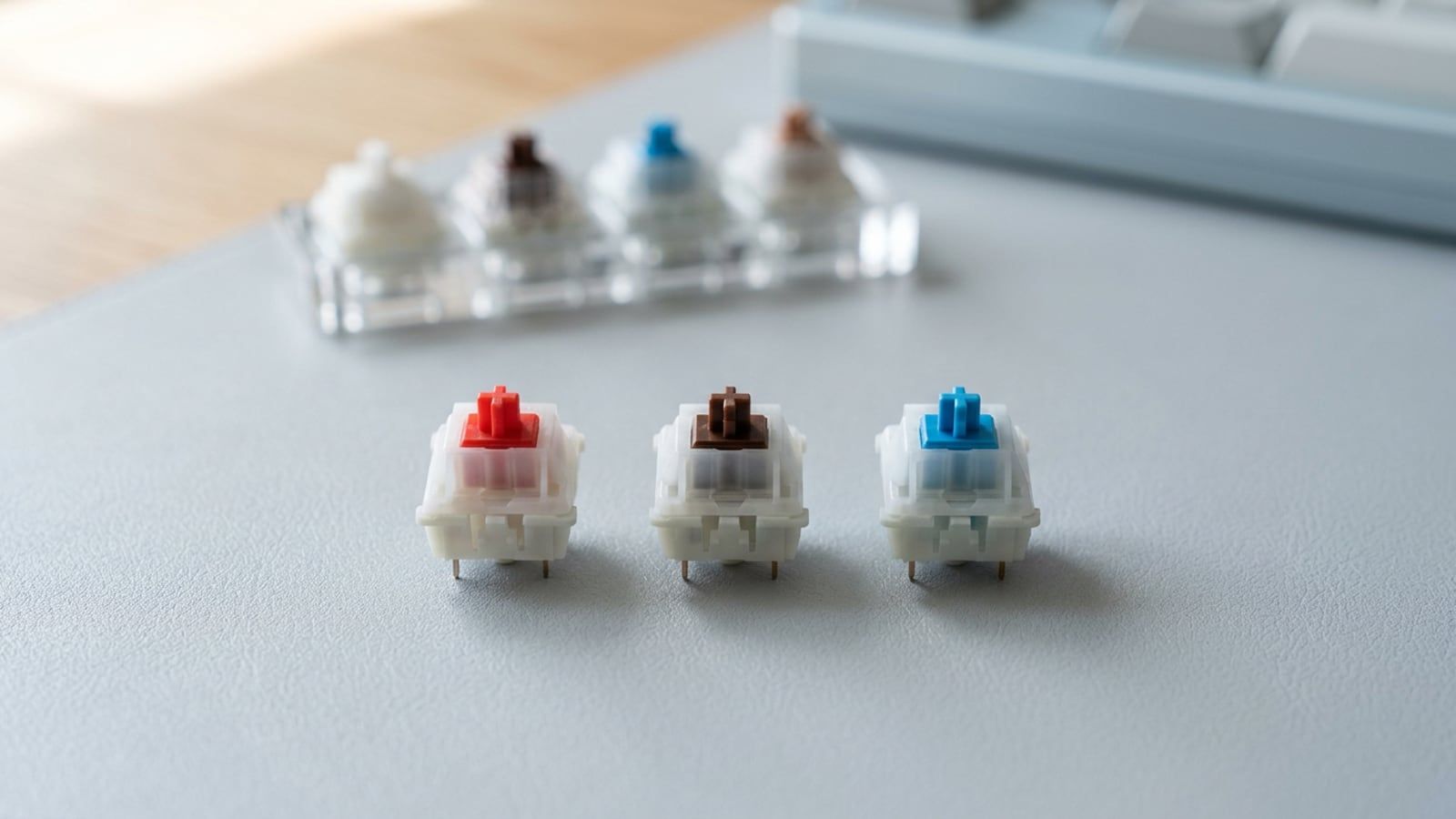
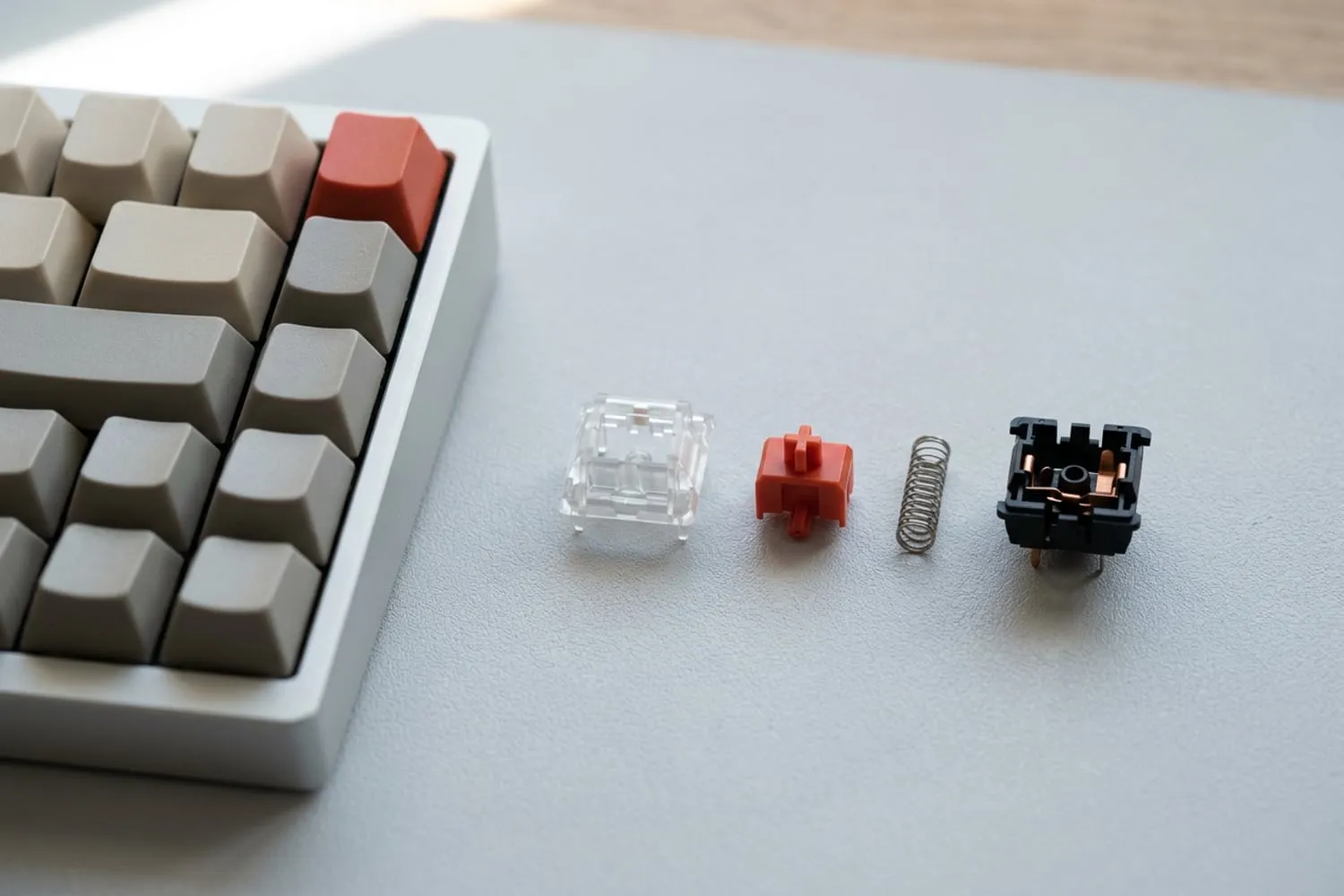
Inside each switch a spring pushes a stem, the part the keycap fits on, back up after every press, and the key registers once the stem has gone far enough down to close the contacts. Wikipedia’s article on keyboard technology describes the parts: a housing, a spring and a slider, with a separate tactile leaf or click bar in some switches. It also notes that Gateron, Kailh and others copied Cherry’s color code, which is why a red switch is usually linear, a brown tactile and a blue clicky. The color tells you the kind, not the figures, which differ from maker to maker, and newer names, like the Gateron Jupiter Banana on Keychron’s boards, don’t follow it at all.
Linear: smooth all the way down
A linear switch has nothing in the way: the spring resists a little more the further you press, and the key registers partway down without telling you. Cherry describes its MX Red, the best-known linear, as smooth and direct. By Cherry’s spec sheet, it registers 2 mm down, takes 45 cN at that point (30 cN to start the press and 100 cN at the bottom), and travels 4 mm in all. The MX Black is the same press with a stiffer spring, 60 cN.
With nothing to mark the point where the key registers, it’s easy to press every key to the bottom, and that bottoming out is most of the sound a linear switch makes.
Tactile: a bump you can feel
A tactile switch puts a small hump in the press: the resistance rises, then gives, and the key registers about where it gives. Cherry’s MX Brown is the common example: it registers 2 mm down, Cherry rates it at 55 cN, and Cherry calls its feedback noticeable. There’s no click; the bump is felt, not heard.
Where the bump sits varies: Keychron describes the Gateron Jupiter Banana on its V1 Max as having an early bump near the top of the press. No spec sheet tells you how a bump feels, which is the case for trying a switch before you commit to a board of them.
If you’re learning to touch type, there’s no need to change switches at the same time: the routine in how to learn touch typing as an adult works on whatever keyboard you have.
Clicky: a bump and a click
A clicky switch adds a sound to the bump. Cherry pitches its MX Blue at people who want to hear and feel the point where the key registers: it registers 2.2 mm down, and Cherry rates it at 60 cN, the firmest of Cherry’s three best-known colors.
The click is the point of a clicky switch, and it’s the reason not to take one into a shared room. Cherry’s own overview of its MX switches says that, because of the clicking noise, the MX Blue isn’t suitable for large offices.
Noise in a shared office and on calls
Every mechanical switch makes some sound, and it comes from three places: the click, which only clicky switches make; the stem hitting the bottom; and the stem springing back to the top when you let go. Silent switches damp the last two. Cherry’s MX Silent Red and Silent Black have a two-part stem with built-in damping that Cherry says reduces the noise at the bottom and the top of the press, and Cherry names them as the best choice for an office.
From what the makers say about how each kind works, roughly from quietest to loudest:
- Silent switches, damped at the bottom and the top of the press.
- Plain linear and tactile switches: no click, but the bottom-out and the return.
- Clicky switches: a click on every keystroke, by design.
On calls, the microphone picks up typing along with your voice. Muting while you type works with any switch; a board without a click means you need it less often.
Force, travel and low-profile switches
A switch maker’s spec sheet gives three numbers worth reading:
- Operating force (or actuation force): how hard you press before the key registers, in centinewtons (cN) or grams-force (gf). One gf is just under 1 cN, so the two compare directly.
- Pre-travel (the actuation point): how far the key goes down before it registers.
- Total travel: how far the key goes down to the bottom: 4 mm for Cherry’s full-height MX Red, Brown and Blue.
These are Cherry’s figures for its own switches:
| Cherry switch | Kind | Operating force | Registers at |
|---|---|---|---|
| MX Red | Linear | 45 cN | 2.0 mm |
| MX Black | Linear | 60 cN | 2.0 mm |
| MX Silent Red | Linear, damped | 45 cN | 1.9 mm |
| MX Brown | Tactile | 55 cN | 2.0 mm |
| MX Blue | Clicky | 60 cN | 2.2 mm |
| MX Low Profile Red | Linear, low-profile | 45 cN | 1.2 mm |
For a working day, the force is the figure to compare with a keyboard you know. If your current one feels heavy, look for a lower number; if you set off keys just by resting your fingers on them, a higher one. Makers don’t all label these the same way, and some quote more than one force: Cherry’s own MX Brown page gives 45 cN in its properties and 55 cN in its highlights. Compare figures from one maker where you can.
Low-profile switches
Low-profile switches are mechanical switches cut down in height, for slim keyboards. Cherry’s MX Low Profile Red registers 1.2 mm down and travels 3.2 mm in all, against 2.0 mm and 4.0 mm for the full-height MX Red. Keychron says the Gateron low-profile switches in its K3 Max are 31% slimmer than normal-profile switches; they come in red (linear), blue (clicky) and brown, which Keychron describes as in between. ZSA’s split Voyager uses Kailh’s low-profile Choc switches. Both boards are on the Kit.
They aren’t the same thing as a laptop keyboard. Laptop keyboards most often use scissor switches, which Wikipedia describes as a compact kind of rubber dome over a membrane rather than a mechanical switch.
Hot-swap: change your mind later
On a hot-swap keyboard the switches sit in sockets instead of being soldered to the circuit board, so you can pull one out and press another in. That turns the switch choice from a bet into a starting point: if the bump turns out to annoy you, or the office asks for quiet, you buy a set of switches, not a new keyboard. To change one:
- Unplug the keyboard, or switch it off if it’s wireless.
- Lift the keycap off with a keycap puller.
- Squeeze the switch’s two clips with a switch puller and draw the switch straight up.
- Check that the new switch’s pins are straight, line them up with the socket, and press the switch in until it sits flat.
- Test the key before you put the keycap back on.
Check the pins before you buy switches. Full-height switches come in a 3-pin version, two metal pins and a plastic post in the middle, and a 5-pin version with two more plastic legs that steady it in the board. Keychron says the sockets on its V1 Max take both: most 3-pin and 5-pin MX switches, such as Gateron, Cherry MX and Kailh. A board that takes only 3-pin switches needs the two extra legs clipped off a 5-pin one.
Low-profile boards take only the switches their maker names. Keychron says the K3 Max takes Gateron and Keychron low-profile mechanical switches only, and only the versions sold as hot-swappable have sockets at all, so check which version you’re buying.
How to choose without buying three keyboards
- Rule out by the room. If you share an office or spend the day on calls, leave clicky out, and look at silent switches if quiet matters most. In a room of your own, all three kinds are open.
- Try a switch tester. Keyboard makers and shops, Keychron among them, sell testers: a small base with a handful of different switches, each under a keycap. Press each one the way you type, for a few minutes rather than once.
- Compare the figures with a keyboard you know. If the one you have feels too heavy or too light, the operating force tells you which way to move.
- Buy hot-swap, with the switch you liked. Keychron sells the V1 Max with Gateron Jupiter Red (linear), Brown or Banana (tactile) switches, or as a barebone board without switches or keycaps, so you fit your own; the prices are on the Kit.
- Give it a working week. Judge a switch after a week of real work, not the first afternoon. If it’s wrong, swap the keys you press most first, then the rest.
A new keyboard is a good moment to start on the keys themselves: pick the app you use most on Shortcut Sheets and learn its first five shortcuts on the new board. The switch is half the choice; the other half is size, and keyboard sizes explained sets out which keys each layout keeps and which it hides behind Fn. More on keyboards for work is in the Keyboards section.
Questions
Which switches are quietest for an office?
Silent switches, such as Cherry’s MX Silent Red, which damp the sound at the bottom and the top of each press; Cherry recommends its silent switches for offices. Plain linear and tactile switches come next, with no click but some sound as the keys bottom out and spring back. Clicky switches are the loudest by design, and Cherry says its MX Blue isn’t suitable for large offices.
Are tactile switches good for typing all day?
They can be: the bump tells your finger the key has registered, without a click to tell the room. Cherry calls its tactile MX Brown very suitable for office use. Whether a bump suits your hands is a matter of feel, so try one on a switch tester before you buy a board full of them.
What does hot-swappable mean?
A hot-swap keyboard has sockets on its circuit board, so the switches pull out and press in without soldering. You can change the feel or the sound of the whole board, or replace one faulty switch, with a switch puller. Check which switches the sockets take: full-height boards differ on 3-pin and 5-pin switches, and low-profile boards take only the low-profile switches their maker names.
What is actuation force?
It’s how hard you have to press a key before it registers, given in centinewtons (cN) or grams-force (gf), which are close to equal. Cherry rates its MX Red at 45 cN and its MX Black and MX Blue at 60 cN. A lower figure means a lighter press; compare figures from the same maker where you can, since makers label and measure them differently.
Are low-profile switches mechanical?
Yes. Low-profile switches such as Cherry’s MX Low Profile, Gateron’s low-profile switches and Kailh’s Choc are mechanical switches made shorter, with less travel: Cherry’s MX Low Profile Red travels 3.2 mm against 4 mm for its full-height MX Red. Laptop keyboards are usually different: they use scissor switches, a slim kind of rubber dome that isn’t mechanical.
Sources
- [How to] DIY keyboard, part 3: CHERRY MX Original overview, Cherry
- CHERRY MX RED, Cherry
- CHERRY MX BROWN, Cherry
- CHERRY MX LOW PROFILE RED, Cherry
- Keyboard technology, Wikipedia
- Keychron V1 Max QMK/VIA Wireless Custom Mechanical Keyboard, Keychron
- Keychron K3 Max QMK/VIA Wireless Custom Mechanical Keyboard, Keychron
spaceShortcut Sheets: the twenty keys to learn first in each appFind your app