Text-editing shortcuts that work in almost every app
The keys that move, select and delete text by the word, the line and the paragraph, Mac and Windows side by side, plus a ten-minute drill that makes them stick.

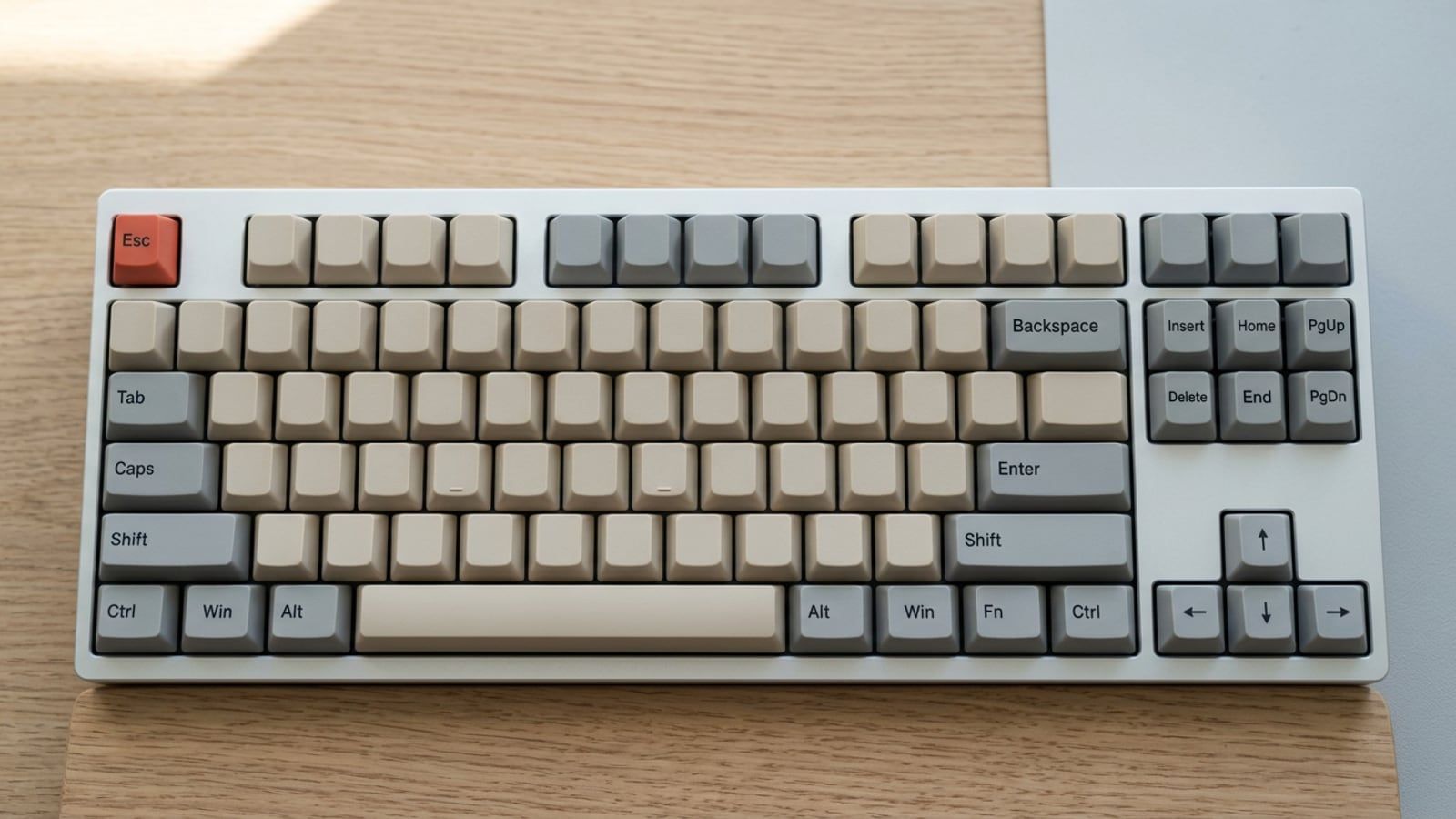
The short versionHold Option on a Mac or Ctrl on Windows to move the cursor a word at a time, use Cmd+arrows on a Mac or Home and End on Windows for the line, and add Shift to any of them to select what you pass. Learn delete-a-word and paste-as-plain-text next, then drill them on a real document until your hand stops reaching for the mouse.
Every app has shortcuts of its own, but the keys that move the cursor, select text and delete it belong to the operating system. That makes them the rare shortcuts you learn once and use everywhere: in email, chat, documents, form fields and the browser’s address bar. You edit text in almost every app, all day, so these are the keys to learn before any app’s own list. Every key below was checked on October 28, 2026 against Apple’s and Microsoft’s own shortcut lists, for macOS 27 Golden Gate and Windows 11.
Why learn the text keys first
Fixing one word with the mouse is a round trip: hand off the keys, find the pointer, double-click the word, hand back to the keys, retype. From the keyboard it is two or three combos, and your hands stay where they are. The saving is small each time, but it repeats every time you correct a typo, rewrite a sentence or trim a subject line.
The other reason is reach. Most app shortcuts work only in that app. These work wherever there is a text cursor, so a few minutes of practice pays off in every program you open.
The mouse still wins in one case: a word you can see on screen that sits far from the cursor. Click there once, then let the keys take over.
Move by word, line and document
Hold a modifier and the arrow keys stop crawling one character at a time. These four moves cover most of the trip around a document:
| Move to | Mac | Windows |
|---|---|---|
| Previous or next word | Option+Left/Option+Right | Ctrl+Left/Ctrl+Right |
| Start or end of the line | Cmd+Left/Cmd+Right | Home/End |
| Previous or next paragraph | Option+Up/Option+Down | Ctrl+Up/Ctrl+Down |
| Top or bottom of the document | Cmd+Up/Cmd+Down | Ctrl+Home/Ctrl+End |
One difference catches people who use both systems. Going right, Option+Right on a Mac stops at the end of the next word, while Ctrl+Right on Windows stops at the beginning of the next one. Going left, both land at the start of the previous word. If you’re moving from one system to the other, Mac keyboard shortcuts for Windows users maps the rest of the keys, from Ctrl and Alt to Home, End and Ctrl+Alt+Delete.
On a Mac, Home and End scroll to the top or bottom of the document instead of moving along the line, so Cmd+Left and Cmd+Right are the line keys. Macs also keep Control+A and Control+E for the start and end of a line or paragraph, the same keys Emacs uses.
Add Shift to select what you pass
Every move in the table becomes a selection when you add Shift: the cursor travels the same way and highlights everything it passes. The ones worth learning first:
- The previous word: Option+Shift+Left on a Mac, Ctrl+Shift+Left on Windows. Press it again to take the word before as well.
- Back to the start of the line: Cmd+Shift+Left on a Mac, Shift+Home on Windows.
- To the end of the paragraph: Option+Shift+Down on a Mac, Ctrl+Shift+Down on Windows.
- Everything from here to the end: Cmd+Shift+Down on a Mac, Ctrl+Shift+End on Windows.
- The whole document: Cmd+A on a Mac, Ctrl+A on Windows.
To select the last three words of a line, press Cmd+Right on a Mac or End on Windows, then Option+Shift+Left or Ctrl+Shift+Left three times. That is four combos with your hands on the keys, against a reach, a careful drag and a reach back.
Tip: when a selection runs one word too far, don’t start again. Keep Shift held and press the arrow the other way, and the selection shrinks back from the end that was moving.
Delete and paste without the mouse
Two more keys finish the set: one that deletes in bigger pieces, and one that pastes without dragging in someone else’s formatting.
Delete a word, not a letter
Option+Delete on a Mac and Ctrl+Backspace on Windows delete the whole word to the left of the cursor. When a word comes out wrong, one press removes it, instead of holding Delete and watching letters go one at a time.
Windows also deletes the word to the right with Ctrl+Delete. On a Mac keyboard without a Forward Delete key, Fn+Delete deletes one character to the right.
Paste without the formatting
Text copied from a web page or an email brings its font, size and color with it. Cmd+Option+Shift+V on a Mac pastes it in the style of the text around it; Apple calls this Paste and Match Style. Ctrl+Shift+V on Windows pastes it as plain text. If an app ignores the key, look in its Edit menu for a paste command with “plain text” or “match style” in the name.
A ten-minute drill that makes them stick
Reading a table doesn’t build muscle memory; using the keys on real text does. Open a document or an email draft you don’t mind changing, at least a few paragraphs long, and keep the mouse out of reach:
- Press Cmd+Down on a Mac or Ctrl+End on Windows to jump to the end, then Cmd+Up or Ctrl+Home to come back to the top.
- Step down through the paragraphs with Option+Down or Ctrl+Down, and back up with Option+Up or Ctrl+Up.
- Stop in any paragraph, jump to the end of the line with Cmd+Right or End, then walk back two words with Option+Left or Ctrl+Left.
- Select those two words with Option+Shift+Right or Ctrl+Shift+Right, pressed twice, and type over them.
- Undo with Cmd+Z or Ctrl+Z, then redo with Cmd+Shift+Z on a Mac or Ctrl+Y on Windows.
- Copy a line from a web page and paste it with Cmd+Option+Shift+V or Ctrl+Shift+V, and check that it took the document’s style.
Run through it at the start of the day for a week. The test is not speed: it is whether your hand stays on the keys the next time a word needs fixing. Wikipedia’s table of keyboard shortcuts sets the same commands side by side for Windows, macOS, Linux and Emacs, if you want the longer list. The macOS Shortcut Sheet keeps the word, line, delete and paste keys in rows 8 to 11, with the Windows keys beside them, on one page to print. Once these are second nature, the sheet for the app you use most gives you the twenty keys worth learning next.
When your keyboard is missing keys
Laptops and compact keyboards, 75% and smaller, drop some of the navigation keys or move them behind Fn. On many Windows laptops, Home and End are printed on the arrow keys and pressed with Fn; the small legend on the key tells you which.
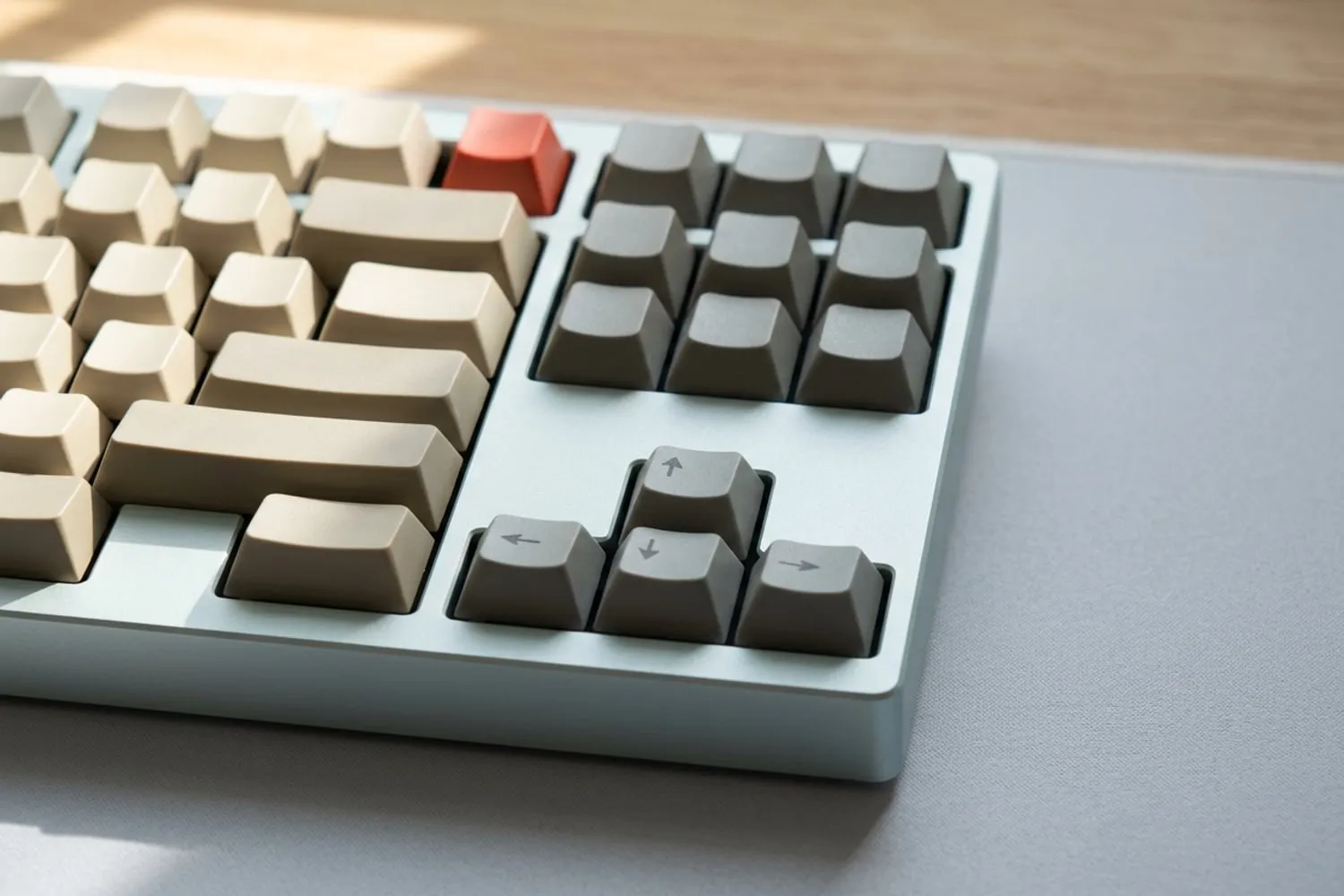
If you use the line keys all day on Windows, a tenkeyless (TKL) or full-size board gives Home, End, Page Up and Page Down keys of their own; keyboard sizes explained shows which keys each layout keeps and which it moves behind Fn. Keychron sorts its keyboard range by size, from 100% through 80% (TKL) down to 60%. If you work on a Mac and a Windows PC, one keyboard for both means one set of key positions for your hands: Logitech’s MX Keys S works with Windows and macOS and switches between up to three devices with one key. Keychron’s V1 Max and K3 Max and the MX Keys S are on the Kit, with their prices and the systems they support. The keys worth learning app by app, from Excel to the browser, are in Shortcuts.
Questions
Why does the cursor stop in a different place on a Mac and on Windows?
The two systems define the word jump differently. Apple’s list says Option+Right moves to the end of the next word, and Microsoft’s says Ctrl+Right moves to the beginning of the next word. Going left, both stop at the start of the previous word.
What do the Home and End keys do on a Mac?
They scroll to the top or bottom of the document rather than moving along the line. On a Mac laptop they are Fn+Left and Fn+Right. For the start and end of the line, use Cmd+Left and Cmd+Right, or Control+A and Control+E.
Do these keys work in every app?
They work in almost any text field that uses the operating system’s own editing: email, chat, documents, forms and the address bar. Some apps replace them with their own keys, such as a terminal or a code editor set to Vim keys. If one does nothing, check that app’s own shortcut list.
Sources
- Mac keyboard shortcuts, Apple Support,
- Keyboard shortcuts in Windows, Microsoft Support
- Table of keyboard shortcuts, Wikipedia
spaceShortcut Sheets: the twenty keys to learn first in each appFind your app