Mac keyboard shortcuts for Windows users: the key map
Which Mac keys do the jobs of Ctrl, Alt, the Windows key, Home, End, Delete and Ctrl+Alt+Delete, and how to swap the modifier keys so the Mac fits your hands.

The short versionOn a Mac, Cmd does most of what Ctrl did on Windows, Option is Alt, Control is mostly right-click and text moves, and Cmd+Space does the search the Windows key opened. If your hands keep reaching for the old keys, swap the modifiers in System Settings, Keyboard, Keyboard Shortcuts, Modifier Keys, where Restore Defaults undoes it.
On a Mac, Cmd does most of what Ctrl did on Windows: Cmd+C copies, Cmd+S saves, Cmd+Z undoes. Option is the Mac’s Alt, Control is left mostly for right-clicking and moving through text, and the Windows key’s search goes to Cmd+Space, which opens Spotlight. That one rule covers most of the move. The rest of this map covers the keys a Mac keyboard doesn’t have, the window and app keys that work differently, and how to swap the modifier keys in System Settings when your hands won’t give up the old ones. Every key was checked on October 28, 2026 against Apple’s and Microsoft’s own lists, for macOS 27 Golden Gate and Windows 11.
The one rule: Cmd does what Ctrl did
Apple’s page on Windows keys on a Mac keyboard puts it in one line: swap in Command for Control for many common shortcuts. Here are the modifiers side by side:
| On Windows | On a Mac | What the Mac key does |
|---|---|---|
| Ctrl | Cmd (⌘) | Most shortcuts: copy, paste, save, find, undo, new tab, print |
| Alt | Option (⌥) | Special characters such as é, moving by word in text, hidden menu items |
| Win, to search | Cmd+Space | Opens Spotlight, the Mac’s search for apps, files and settings |
| Ctrl | Control (⌃) | Control-click to right-click, a few text moves, Mission Control with Control+Up |
| Shift | Shift | The same: selects as you move, and capitals |
Ctrl has two heirs, then: Cmd takes its shortcuts, and Control keeps the odd jobs. Control+A and Control+E jump to the start and end of a line, Control+Up shows every open window, and Control+Space switches the input language if you type in more than one. Apple’s list also calls the key Ctrl, and the tables below and the Shortcut Sheets write it that way: on a Mac, Ctrl always means Control, never Cmd.
The position changes too. Cmd sits beside the space bar, so Cmd+C is pressed with the thumb and a finger rather than with the little finger out in the corner, where Ctrl sits on most Windows keyboards. Holding Option while a menu is open shows extra commands, which is worth knowing early: Apple hides some of them there.
Keys a Mac keyboard doesn’t have
Mac keyboards, laptops above all, leave out several keys a Windows keyboard has. Each job is still there:
| Windows key | On a Mac |
|---|---|
| Backspace | Delete, which deletes to the left |
| Delete | Fn+Delete, which deletes to the right |
| Enter | Return |
| Home and End | Cmd+Left and Cmd+Right, for the start and end of the line |
| Ctrl+Home and Ctrl+End | Cmd+Up and Cmd+Down, for the top and bottom of the document |
| Page Up and Page Down | Fn+Up and Fn+Down |
| Print Screen | Cmd+Shift+3 for the whole screen, Cmd+Shift+4 for part of it |
| F1 to F12 | Fn plus the top-row key, which alone controls brightness, volume and the like |
On newer Mac keyboards the Fn key carries a globe and Apple calls it Fn or Globe. Fn+Left and Fn+Right act as Home and End, but with the Mac’s meaning: they scroll to the top or bottom of the document without moving the cursor. That is why Cmd+Left and Cmd+Right are the line keys on a Mac.
Cmd+Shift+5 opens the screenshot toolbar, which also records the screen, the job of the Snipping Tool on Windows.
Everyday Windows shortcuts and their Mac keys
The shortcuts used dozens of times a day, from Microsoft’s Windows list and Apple’s Mac keyboard shortcuts:
| Job | Windows | Mac |
|---|---|---|
| Copy, cut, paste | Ctrl+C, Ctrl+X, Ctrl+V | Cmd+C, Cmd+X, Cmd+V |
| Undo, redo | Ctrl+Z, Ctrl+Y | Cmd+Z, Cmd+Shift+Z |
| Paste as plain text | Ctrl+Shift+V | Cmd+Option+Shift+V |
| Select all, find | Ctrl+A, Ctrl+F | Cmd+A, Cmd+F |
| Move a word at a time | Ctrl+LeftorRight | Option+LeftorRight |
| Start or end of the line | HomeorEnd | Cmd+LeftorRight |
| Delete the word before | Ctrl+Backspace | Option+Delete |
| Rename the selected file | F2 | Return, in Finder |
| File properties | Alt+Enter | Cmd+I (Get Info) |
| Delete a file | Delete | Cmd+Delete (Move to Trash) |
| Move a file | Ctrl+XthenCtrl+V | Cmd+CthenCmd+Option+V |
| Emoji and symbols | Win+. | Ctrl+Cmd+Space,orFn+E |
Two of these trip people up. Finder has no cut for files: copy the file with Cmd+C, then press Cmd+Option+V where it should go, and it moves. And Apple calls plain-text paste Paste and Match Style: it gives the pasted text the style of the text around it.
The word jump also stops in a different place. Going right, Option+Right on a Mac lands at the end of the next word, while Ctrl+Right on Windows lands at the start of the one after. The text-editing shortcuts that work in almost every app cover the full set for moving, selecting and deleting text on both systems.
Windows, apps and the desktop
Two habits from Windows need resetting here, because the Mac thinks about apps and windows differently.
Closing is not quitting. Cmd+W closes the window, but the app keeps running, with a dot under its icon in the Dock. Cmd+Q quits it. On Windows, Alt+F4 closes the window and, for most apps, the app with its last window.
Cmd+Tab switches apps, not windows. To move between two windows of the same app, two documents or two browser windows, press Cmd+` (the key above Tab). Alt+Tab on Windows does both jobs in one list.
| Job | Windows | Mac |
|---|---|---|
| Search for an app or file | Winthentype | Cmd+Space |
| Switch apps | Alt+Tab | Cmd+Tab |
| Switch windows of the same app | Alt+Tab | Cmd+` |
| Close the window | Ctrl+W in most apps | Cmd+W |
| Quit the app | Alt+F4 | Cmd+Q |
| Minimize the window | Win+Down | Cmd+M |
| Fill the screen with the window | Win+Up | Fn+Ctrl+F |
| Window to the left or right half | Win+LeftorRight | Fn+Ctrl+LeftorRight |
| See every open window | Win+Tab | Ctrl+Up |
| Show the desktop | Win+D | Fn+H |
| Screenshot part of the screen | Win+Shift+S | Cmd+Shift+4 |
| Clipboard history | Win+V | Cmd+SpacethenCmd+4 |
| Force quit a frozen app | Ctrl+Shift+Esc | Option+Cmd+Esc |
| Lock the screen | Win+L | Ctrl+Cmd+Q |
The Windows column comes from Microsoft’s Keyboard shortcuts in Windows. On the Mac, window tiling needs macOS Sequoia 15 or later, and clipboard history in Spotlight needs macOS Tahoe 26 or later. If the Fn tiling keys do nothing on a keyboard that isn’t Apple’s, the same commands are in the menu bar under Window, Move & Resize.
Cmd+Space is the one key here worth learning on day one, since it opens any app, file or setting by name. If you find you want more from it, such as snippets, window keys or a longer clipboard history, Raycast vs Alfred vs Spotlight compares the launchers that can take over that key.
Make the Mac match your hands
If the old Ctrl habit keeps winning after a few weeks, change what the keys do instead. Apple puts the setting in Modifier Keys:
- Choose Apple menu, System Settings, then click Keyboard in the sidebar.
- Click Keyboard Shortcuts, then click Modifier Keys in the sidebar.
- If more than one keyboard is connected, choose the one to change from the menu at the top.
- Set the Control key’s menu to Command and the Command key’s menu to Control.
- Click Done. To undo it all, come back and click Restore Defaults.
The swap puts Cmd’s jobs on the key nearer the corner, where Ctrl sat on your PC. It has a price: the key labels no longer match what the keys do, Cmd+Tab moves with it, and every guide, the Shortcut Sheets included, names the keys by their printed labels. If you’ll sit at other Macs, learning the default layout pays off for longer; the swap suits your own Mac when the old habit won’t give way.
Caps Lock is the other common change. Apple’s own example sets it to Control, for people used to keyboards that have Control where a Mac has Caps Lock. For rules the built-in setting can’t make, such as one key acting as Escape when tapped and Control when held, Karabiner-Elements does it for free; it is on the Kit with the launchers and text expanders.
Using a Windows keyboard on a Mac
Most USB and Bluetooth keyboards made for Windows work on a Mac. Apple’s shortcut list says to press Alt in place of Option and the Windows logo key in place of Command, and that is how the keys behave when you plug one in.
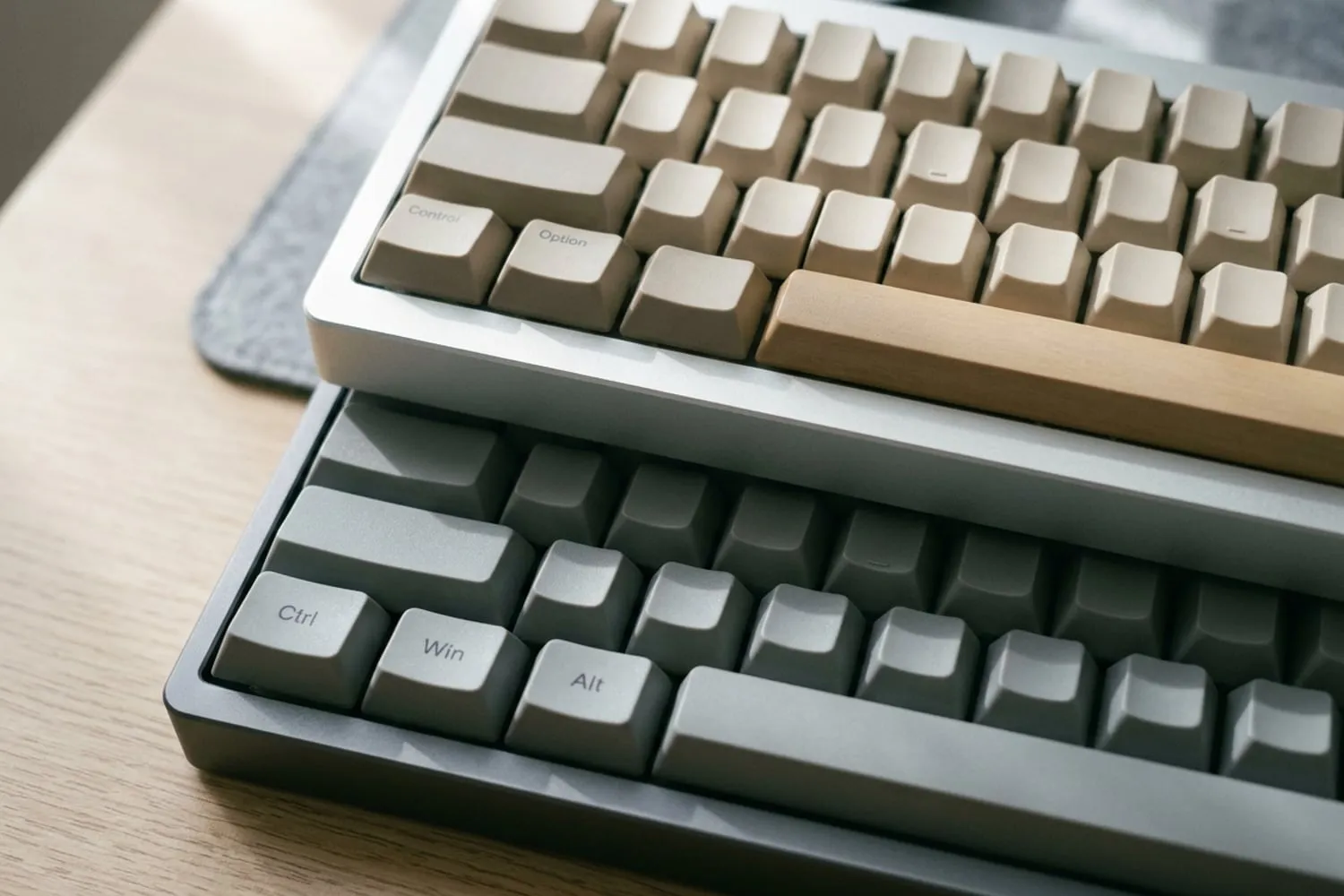
The catch is the order. Beside the space bar, a Mac keyboard has Command, then Option, then Control; a Windows keyboard has Alt, then the Windows key, then Ctrl. So on a Windows keyboard, Command is one key further from the space bar than your thumb expects, and Option sits where Command should be. The fix takes a minute:
- Open System Settings, Keyboard, Keyboard Shortcuts, Modifier Keys.
- Choose the Windows keyboard from the menu at the top, so the Mac’s own keyboard stays as it is.
- Set the Option key to Command and the Command key to Option, then click Done.
A Windows keyboard’s Home and End keys work too, with the Mac’s meaning: they scroll to the top and bottom of the document rather than moving along the line.
Keyboards built for both systems save the remapping. The Keychron V1 Max ships with Mac and Windows keycaps, and Logitech’s MX Keys S works with Windows and macOS and switches between three paired devices at a keypress; both are on the Kit, with their prices.
If you use both every day
A Mac at home and a PC at work, or the other way round, is easier with a plan than with two sets of habits fighting:
- Keep the defaults and learn the rule. Cmd on the Mac is Ctrl on the PC and Option is Alt, with one exception to remember: in text, Option+arrow moves by word, as Ctrl+arrow does on Windows. Once the rule is in your hands, most shortcuts translate without thinking.
- Or remap one side only. If you swap keys, do it on the Mac and leave Windows alone, so at least one machine matches every guide and every colleague’s computer.
- Use one keyboard for both. A keyboard that switches between computers keeps the keys in the same place for your hands; set its modifiers once on the Mac side.
- Keep both sheets by the screen. The macOS sheet gives the Windows keys beside each Mac key, and the Windows sheet gives the Mac keys beside each Windows one, so each one doubles as a map for the other system.
More on getting the most out of each system, and switching between them, is in Mac & Windows.
Questions
What is Ctrl+Alt+Delete on a Mac?
There is no single key for it. Option+Cmd+Esc opens Force Quit for an app that has stopped responding, and Ctrl+Cmd+Q locks the screen. The closest thing to Task Manager is Activity Monitor, in the Utilities folder inside Applications, or press Cmd+Space and type its name.
Where is the Windows key on a Mac keyboard?
A Mac keyboard has none. Apple’s own guide says Control and Command are the modifier keys that play its part, and Cmd+Space opens Spotlight, which searches for apps and files the way the Start menu does. On a Windows keyboard plugged into a Mac, the Windows key works as Command.
How do I right-click on a Mac?
Hold Control and click. On a trackpad, click with two fingers, which macOS sets up as a secondary click by default, and a mouse’s right button works as it does on Windows.
Can I swap Cmd and Ctrl on a Mac?
Yes. Open System Settings, Keyboard, then Keyboard Shortcuts, Modifier Keys, and set the Control key to Command and the Command key to Control. The swap applies to the keyboard chosen at the top of that window, and Restore Defaults puts every key back. The key labels and every guide, the Shortcut Sheets included, still use the original names, so you translate as you read.
Can I use a Windows keyboard with a Mac?
Yes, by USB or Bluetooth. Alt works as Option and the Windows key as Command, but they sit in each other’s places, so Command is one key further from the space bar than on a Mac keyboard. Swap Option and Command for that keyboard in Modifier Keys, or choose a keyboard that ships with Mac keycaps.
Sources
- Windows keys on a Mac keyboard, Apple Support
- Mac keyboard shortcuts, Apple Support,
- Change the behavior of the modifier keys on Mac, Apple Support
- Keyboard shortcuts in Windows, Microsoft Support
- Mac window tiling icons and keyboard shortcuts, Apple Support
spaceShortcut Sheets: the twenty keys to learn first in each appFind your app