Ergonomic desk setup checklist: chair, keyboard, screen
Set up a desk for long days in the order each step depends on: chair, keyboard, mouse, screen and light, with OSHA’s, Cornell’s and HSE’s figures named.

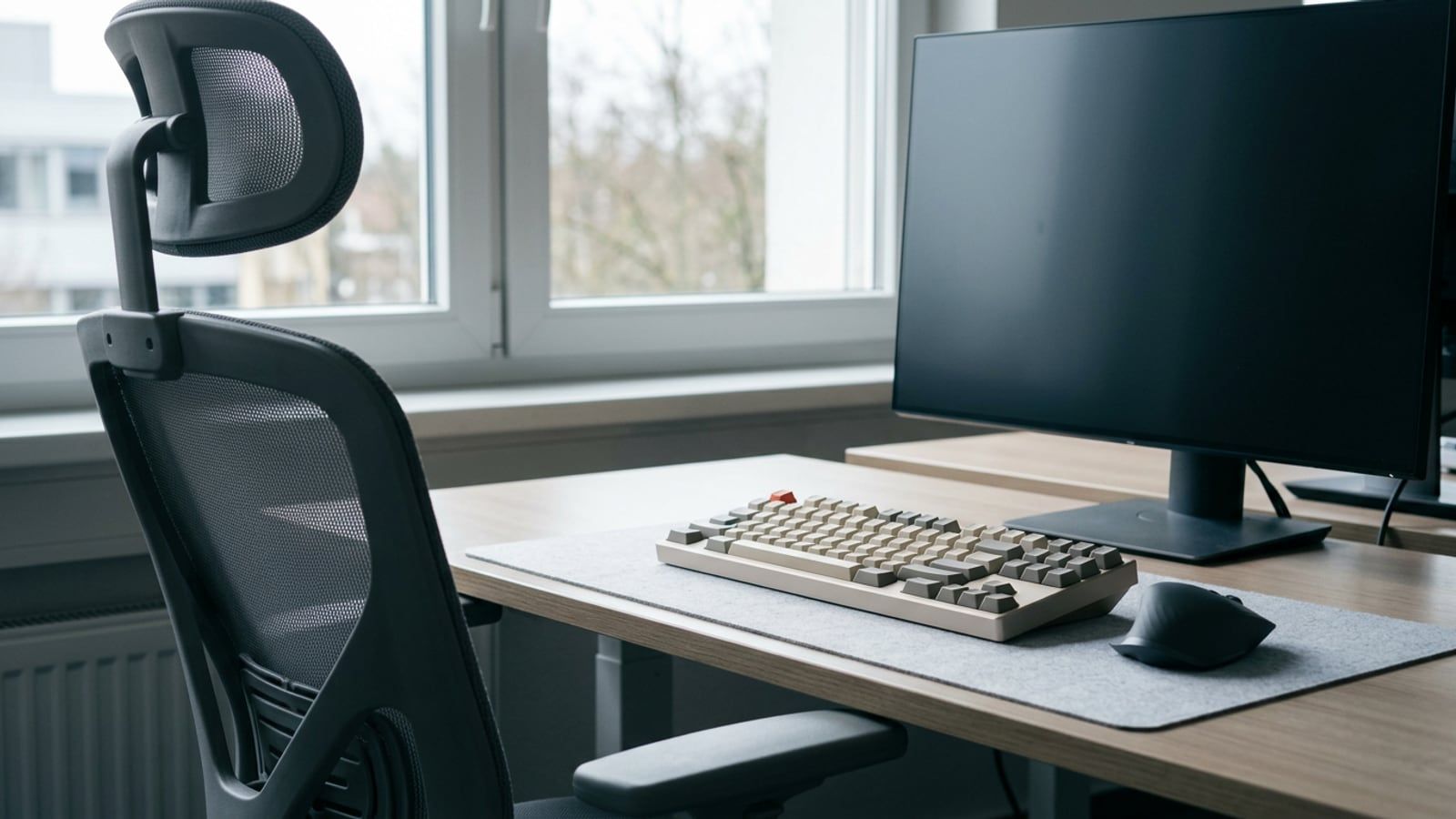
The short versionSet the chair first, then bring the keyboard to just below elbow height with the B key centered on you and the mouse right beside it. Put the screen directly in front of you, at least 20 inches away with its top line at or below eye level, and turn it side-on to the windows.
Set up a desk in the order the adjustments depend on each other: the chair, then the keyboard, the mouse, the screen and the light. In short: feet flat and thighs supported, the keyboard just below elbow height and centered on the letters, the mouse right beside it, and the screen straight ahead, at least 20 inches away, with its top line at or below eye level. The figures come from OSHA’s Computer Workstations eTool, Cornell University’s workstation guidelines and the UK Health and Safety Executive’s guidance on posture at a screen, read in October 2026, each named where it’s used. This is a setup checklist: if something hurts, that’s a question for a doctor or physical therapist.
Set it up in this order
Each adjustment starts from the one before it, so doing them out of order means doing some twice:
- Chair. Seat height decides where your elbows and eyes end up.
- Desk and keyboard height. The keyboard comes to your elbows, not the other way round.
- Keyboard and mouse placement. Both go where your arms already hang.
- Screen. Its height follows your eyes; its distance follows the keyboard.
- Light. It depends on which way the screen ends up facing.
If your desk is fixed and too high, the order still holds: raise the chair until the keyboard is right, then put a footrest under your feet, as OSHA suggests.
Chair first
Sit all the way back and work from the floor up:
- Seat height. OSHA’s test: the whole sole of each foot rests on the floor, with the back of the knee slightly higher than the seat. HSE puts it as the seat supporting the front and back of your thighs equally.
- Seat depth. HSE asks for a gap of 2 to 3 cm, about an inch, between the front of the seat and the back of your knee.
- Backrest. The lumbar support goes into the small of your back. Cornell recommends a slight recline, around 100 to 110 degrees, over sitting bolt upright at 90.
- Armrests. Low enough that your shoulders relax. OSHA’s advice for armrests that can’t be adjusted to fit, or that stop you pulling up to the desk, is to remove them or stop using them.
Tip: set the chair up in the shoes you work in. Switching to slippers changes where your feet land, and the right seat height with them.
Not every chair has all four adjustments. The Kit lists three, from the IKEA MARKUS to the Herman Miller Aeron, with what each one adjusts; the Branch Ergonomic Chair is the one with seat depth.
Desk and keyboard height
With the chair set, let your arms hang and bend your elbows. HSE puts the keyboard just below elbow height. OSHA says your elbows should be about level with the keyboard and bent between 90 and 120 degrees, with your shoulders relaxed and your wrists straight rather than bent up, down or to the side.
There’s no single right desk height, because it depends on you and your chair. Cornell gives 28 to 30 inches as suitable for most adults when the surface is also used for writing on paper. If yours doesn’t meet your elbows:
- Too high: raise the chair, and add a footrest if your feet no longer rest flat.
- Too low: OSHA suggests stable risers under the desk legs.
- Neither will move: a keyboard tray that adjusts in height and tilt, with room for the mouse.
- Height-adjustable: set it to your elbows, not to a number.
Then check the keyboard’s feet. OSHA warns that extending the feet at the back can bend your wrists upward, and advises raising or lowering the back or front of the keyboard until your wrists are straight; Cornell prefers a tray that tilts the keyboard slightly away from you, called negative tilt.
Keyboard and mouse placement
Center the letters, not the board
Put the keyboard directly in front of you, close enough that your elbows stay by your sides and your forearms are roughly parallel to the floor (OSHA). Then check what you’ve centered. On a full-size keyboard the number pad sits on the right, so lining up the board’s edges with your body leaves the letters to your left. Cornell’s fix: center the B key on your midline.
That pushes the mouse further right, past the number pad. OSHA lists a keyboard without a number pad as one way to make room for the mouse; which keys each keyboard size drops shows what a tenkeyless or 75% board gives up for it.
Put the mouse right beside it
- Close and level. Next to the keyboard on the same surface, not out at the far edge of the desk (OSHA). HSE puts it in line with your elbow.
- Upper arm relaxed. Cornell’s guideline: keep your upper arm relaxed and as close to your body as you can.
- The right size and hand. OSHA advises a device that fits the hand that uses it, and trying one before you buy. The vertical mouse and trackball on the Kit say which hands they suit.
- Less of it. OSHA’s pointer advice includes using keyboard shortcuts in place of some mouse work, such as saving and printing. That’s what the rest of this site is about.
Screen height, distance and angle
Set the screen last, from where you now sit:
- Straight ahead. Directly in front of you, so your head and torso face forward (OSHA).
- Distance. At least 20 inches from your eyes, OSHA says, and generally 20 to 40; HSE says about an arm’s length. OSHA notes a smaller monitor may need larger text.
- Height. The top line of the screen at or below eye level (OSHA); HSE puts the top of the screen level with your eyes. Cornell is more exact: your eyes in line with a point about 2 to 3 inches below the top of the monitor’s casing.
- Tilt. Tilt the screen until it faces your line of sight, which OSHA says usually means no more than 10 to 20 degrees.
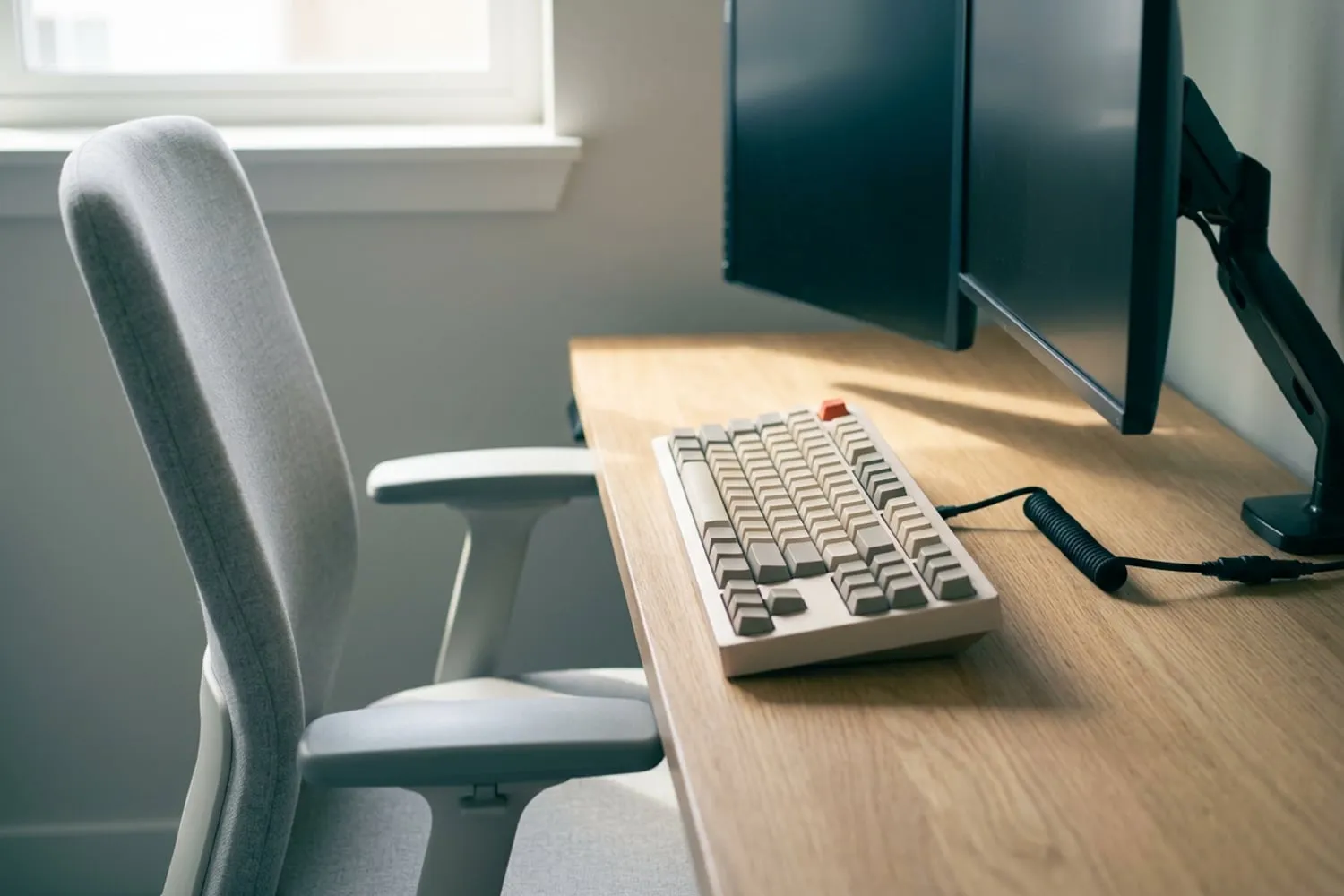
A screen that’s too low goes up on a stand, an arm or a stack of books; OSHA notes that one set on top of the computer case is too high for all but the tallest people. If you wear bifocals or progressives, you look through the bottom of the lens, which tips your head back. OSHA suggests a lower screen tilted up toward you, or single-vision glasses for computer work, which is a question for your optometrist.
One habit no screen height fixes is looking down at the keys as you type. Learning to touch type keeps your eyes on the screen.
Laptops and second screens
A laptop all day
A laptop’s screen and keyboard are joined, so they can’t both be in the right place: as Cornell’s guidelines put it, raise the screen to a comfortable height and the keyboard isn’t. Cornell calls a laptop fine for short periods. For a full day, split it in two:
- Raise the laptop on a stand until the top of its screen meets the height rule above, and add a separate keyboard and mouse (HSE).
- Or close it and connect it to an external monitor through a dock, the setup Cornell recommends for sustained use.
One USB-C or Thunderbolt cable can do the docking. The Dell UltraSharp 27 4K on the Kit has a hub built in that charges the laptop over the same cable; the CalDigit TS4 dock and the Anker 565 hub connect a laptop to a monitor you already own.
Two screens
UC Davis’s dual monitor guidance depends on how you use them:
- One most of the time: the main screen and the keyboard directly in front of you, the second to one side at about 30 degrees to the first.
- Both about equally: side by side and aligned with the keyboard, which is centered in front of you.
- Either way: both at the same height, so a laptop beside a monitor goes up on a stand. OSHA’s limit for any screen is 35 degrees to the left or right.
Moving windows between them is a job for the keys. On Windows 11, Win+Shift+Left or Right sends the window in front to the other monitor, and Win+Left or Right snaps it to half the screen it’s on. On a Mac running macOS 27, Fn+Ctrl+Left or Right tiles it to half the screen, and there’s no built-in key to send it to the other display. Both are on the Windows Shortcut Sheet, checked October 28, 2026, with the Mac keys beside the Windows ones.
Light and glare
From OSHA’s eTool:
- Windows to the side. Turn the screen so windows are at right angles to it, not behind it or behind you, and use blinds to let light in without it shining into your eyes.
- Lamps aimed away. Place a desk lamp so its light doesn’t reflect off the screen.
- Ceiling lights. If tilting the screen back puts an overhead light in it, tilt it down slightly or add a glare filter.
- A clean screen. A layer of dust adds to glare.
- Dark text on light. Dark characters on a light background show reflections less than light ones on dark, worth knowing before you switch on dark mode in a bright room.
Cornell’s test is the simplest: you shouldn’t see any bright glare on the screen.
If you stand to work
A standing desk doesn’t change the rules, only where they’re measured from. OSHA’s standing posture has your legs, torso, neck and head roughly in line and upright, feet slightly apart. Then:
- Raise the desk until the keyboard is just below elbow height again.
- Check the screen: a monitor on the desk rose with it, but a laptop on a stand or a monitor on a wall arm may need resetting.
- Save both heights. Electric desks with memory presets, such as the IKEA MITTZON on the Kit, keep sitting and standing a button apart.
Standing all day isn’t the aim. OSHA recommends changing position often through the day, and Cornell’s guidelines, noting that standing still is more tiring than sitting still, suggest sitting to type and standing for other tasks, such as calls.
The checklist on one screen
Run through it top to bottom whenever you change the chair, the desk or the screen:
| # | Check | Aim for |
|---|---|---|
| 1 | Seat height | Feet flat on the floor or a footrest, back of the knee just above the seat |
| 2 | Seat depth | A gap of 2 to 3 cm, about an inch, behind the knee |
| 3 | Backrest | Lumbar support in the small of the back, a slight recline |
| 4 | Armrests | Shoulders relaxed, nothing stopping you pulling up to the desk |
| 5 | Keyboard height | Just below elbow height, elbows by your sides |
| 6 | Keyboard tilt | Wrists straight; feet folded if they bend the wrists up |
| 7 | Keyboard position | Directly in front of you, the B key on your midline |
| 8 | Mouse | Beside the keyboard on the same surface, upper arm relaxed |
| 9 | Screen position | Directly in front of you |
| 10 | Screen distance | At least 20 inches, about an arm’s length |
| 11 | Screen height | Top line at or below eye level; lower for bifocals |
| 12 | Laptop | On a stand with a separate keyboard and mouse, or docked to a monitor |
| 13 | Second screen | The main one in front, or both side by side with the keyboard centered |
| 14 | Light | Windows at right angles to the screen, no glare on it |
| 15 | Standing | The same heights again, saved as presets if the desk has them |
A checklist can get the heights and distances right; it can’t tell you why something hurts. Pain, numbness or tingling that keeps coming back is for a doctor or physical therapist, who can look at you rather than at the desk. The mice, monitors, desks and chairs around the keyboard have a section of their own: Desk Setup.
Questions
How high should my monitor be?
With the top line of the screen at or below eye level, according to OSHA’s Computer Workstations eTool, which puts the center of the screen 15 to 20 degrees below eye level. Cornell’s guidelines put your eyes in line with a point about 2 to 3 inches below the top of the monitor’s casing. If you wear bifocals or progressives, set it lower and tilt it up toward you.
How high should my desk be for typing?
High enough that the keyboard sits just below your elbows with your shoulders relaxed, which is the height HSE gives. There is no single number, because it depends on you and your chair; Cornell gives 28 to 30 inches as suitable for most adults when the desk is also used for writing on paper. If your desk is too high, raise the chair and add a footrest.
Where should the mouse go?
Right beside the keyboard, on the same surface, close enough that your upper arm stays relaxed by your side. HSE puts it in line with your elbow. On a full-size keyboard the number pad pushes it further out, which is why OSHA lists a keyboard without a number pad as one way to make room.
Should I use a wrist rest?
OSHA says opinions vary. If you use one, its advice is to keep your hands moving freely above it while you type and to rest on it only in pauses, with the heel of your hand on the pad rather than your wrist. It also says a wrist rest belongs in a workstation set up as a whole, not as a fix for a keyboard at the wrong height.
How do I set up a laptop to work on all day?
Separate the screen from the keyboard: raise the laptop on a stand until the top of its screen is level with your eyes, and use a separate keyboard and mouse, as HSE advises. Or close it and connect it to an external monitor through a dock, which Cornell recommends for sustained use. Cornell’s guidelines call a laptop on its own fine for short periods.
Sources
- Computer Workstations eTool, Occupational Safety and Health Administration (OSHA)
- Computer Workstation Ergonomics Guidelines, Cornell University Ergonomics Web
- Working safely with display screen equipment: good posture, UK Health and Safety Executive (HSE)
- Dual Monitor Setup, UC Davis Safety Services
spaceShortcut Sheets: the twenty keys to learn first in each appFind your app