Full Screen on Laptop: Shortcuts for Windows and Mac
Full screen on laptop clears menus and taskbars from view. Compare Windows and Mac shortcuts, browser settings, and quick ways to exit when stuck.

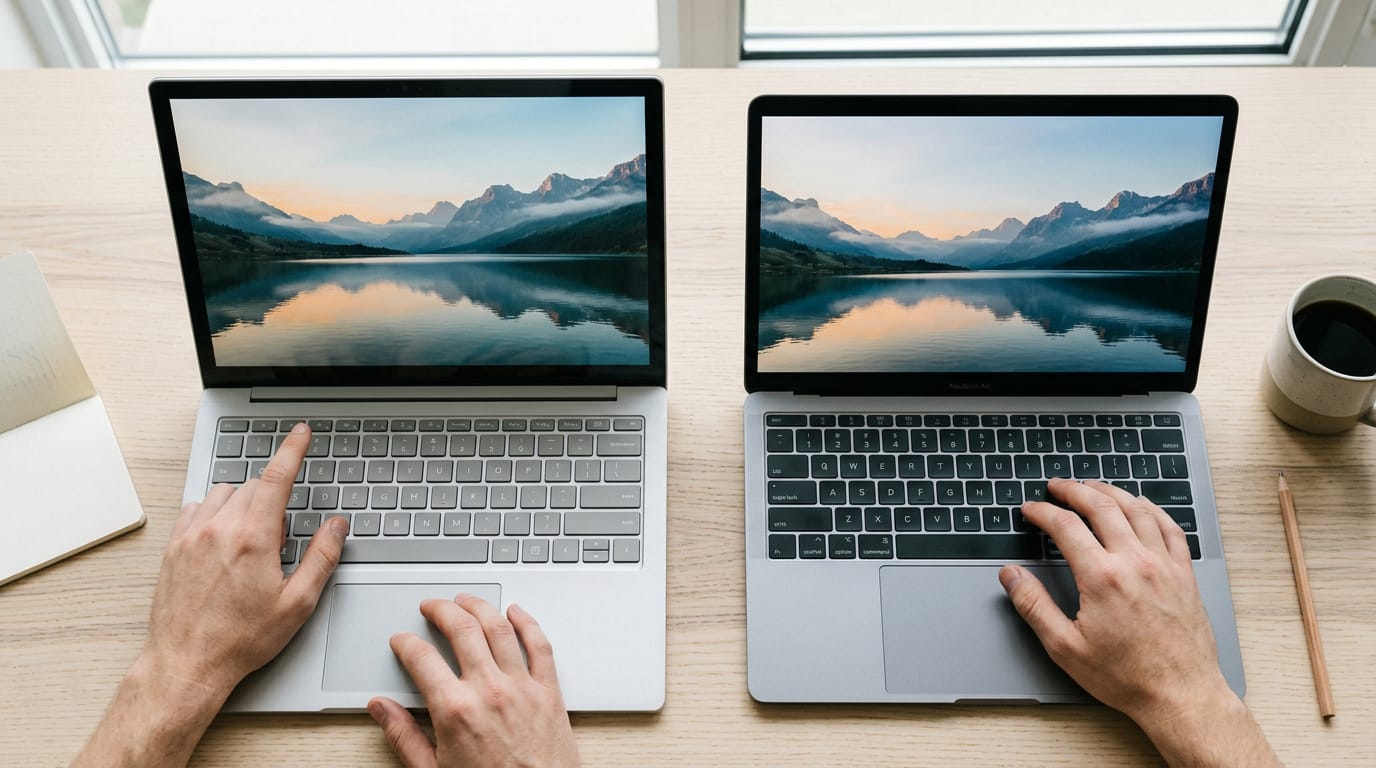
The short versionFull screen on a laptop makes one app fill the display while hiding items such as tabs, menus, and the taskbar, unlike maximize, which keeps window controls visible. Use the shortcut or app setting for your device, such as F11 on many Windows laptops or Control + Command + F on Mac, and use the same control to exit. It can make documents, videos, and games easier to focus on, but hidden controls may take an extra step to reach and it usually does not make demanding tasks run much faster.
Think about a long spreadsheet on a laptop. Toolbars, the taskbar, and a row of browser tabs crowd every edge, leaving a narrow strip to actually work in. Full screen mode clears that away.
Full screen means a window fills the whole display with its menus and taskbar tucked out of sight, so the content gets all the room.
In this post, we’ll cover every way to go full screen on a Windows or Mac laptop, including the Fn-key quirks, browser and app settings, and how to get back out.
What Full Screen on Laptop Does
Full screen gives one app your entire display, and it’s a bigger change than it looks. Knowing what it hides, and how it compares with maximize and split view, helps you pick the right mode for the job.
What full screen covers on your display
Full screen mode makes the app you’re using fill the whole display. To make room, it hides:
- Toolbars and tabs
- The taskbar
- The title bar and menus
What’s left is your content. That’s the whole point.
How full screen differs from maximize
Maximize and full screen look alike at a glance, but they do different jobs. Maximize gives a window more room. Full screen takes over the display.
| Maximize | Full screen | |
|---|---|---|
| Taskbar | Stays visible | Hidden |
| Title bar | Stays visible | Hidden |
| Best for | Working in a large window beside other apps | Focusing on one app with nothing else in view |
They also use different keys, so don’t expect one shortcut to do both jobs.
Windowed and split view versus full screen
Full screen is the single-app option. Here’s how it compares with the other layouts:
- Windowed keeps every menu visible and shares the screen with other windows.
- Split View shows two apps side by side.
- Full screen gives one app the whole display.
Leaving full screen returns the window to its original size.
Why full screen helps focus and viewing
According to Microsoft Support’s guide to staying on task, full-screen mode can help you focus by reducing distractions. Think of a support agent working from her kitchen table with a ticket queue, a chat window, and a shared inbox all open.
Full screen on the ticket reply leaves only the draft in view, so she spends less time hunting for the next thing to click. Less scanning, faster replies.
It helps in other ways too:
- Video and presentations get more of the display, so more content is visible and less clutter surrounds it.
- Gaming is a natural fit, since the game can take over the whole screen.
- Deep work benefits when you keep one writing or analysis app in full screen for a block of focused time.
Downsides of going full screen
Full screen isn’t always the answer, so weigh these tradeoffs:
- Hidden controls: essential buttons and menus can disappear with the toolbars.
- Disorientation: moving from a busy screen to a single app can feel strange at first.
- Unsupported apps: some apps don’t offer full screen at all, so the option may not be there.
- Missing navigation: buttons like back and forward can vanish with the toolbar.
Once you know they’re coming, they’re easy to plan around.
Shortcuts to Go Full Screen on Windows
On Windows, one key handles most full-screen jobs, but laptops add a few quirks, so we’ll walk through them one at a time.
Pressing F11 to switch on and off
F11 is the main Windows shortcut for full screen, and it works in browsers and File Explorer. It’s a toggle, not a one-way trip: press F11 to go full screen, then press it again to exit.
Wondering whether F11 or F12 is the full-screen key? It’s F11, not F12.
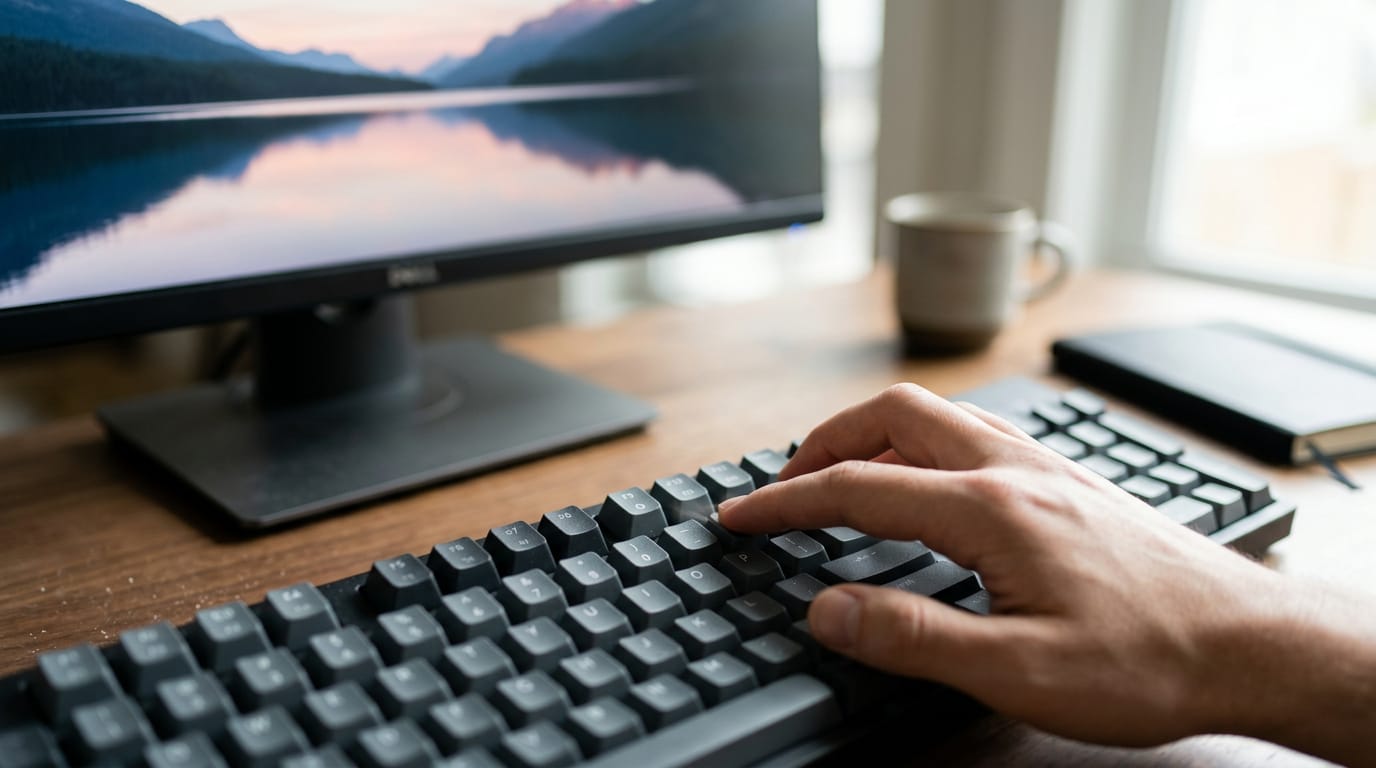
Pressing Fn and F11 on laptops
Some laptops share F11 with a media or volume function, so pressing it alone may change the sound instead of the screen. Hold the Fn (function) key with F11 to send the full-screen command instead.
Picture a remote editor reviewing a client’s draft in her browser. She taps F11 and gets a volume change instead. Holding Fn with F11 gives her the full-screen view she wanted. Her hands never leave the keyboard.
If your F-keys act backwards, check Fn Lock. It swaps which behavior the F-keys use by default, so flipping it back is often all it takes. Compact keyboards may not have an F11 key at all, so the app-specific shortcuts below are your next best bet.
Windows 11 and Store app quirks
Some apps play by their own rules. Photos, Calculator, and Settings ignore F11, so in Windows 11, try Win + Shift + Enter (the Windows key with Shift and Enter) instead. Older programs may only maximize, which fills the screen but isn’t true full screen.
If that’s what you see, you’ve got a maximized window, not a full-screen one.
Shortcuts that work in specific apps
Some apps have shortcuts of their own, which are worth learning for the tools you use every day:
- Alt + Enter: works for games and for VLC media player.
- F5: starts a PowerPoint slideshow, which fills the screen.
- F or double-click: works in video players.
- Ctrl + L: works in PDF (portable document format) readers.
Learn the one your main app uses. It’s the one you’ll reach for every day.
Going Full Screen in Your Browser
Full screen hides the tabs, address bar, and toolbars so the page fills your display. Chrome, Edge, Firefox, and Opera all offer it.
Browser shortcuts for full screen
- Windows: press F11 in Chrome, Edge, Firefox, or Opera.
- Mac: press Command + Control + F.
Full screen doesn’t close anything. It just hides the tabs and toolbars, and pressing the key again brings them back. Nothing gets lost.
How do I full screen without F11?
If your laptop has no F11 key, each browser has a menu route.
- Chrome and Edge: open the three-dot menu and find full screen near Zoom.
- Firefox: open the hamburger menu (the three stacked lines) and choose full screen.
- Opera: open the menu and look under Page.
The menu takes a few more clicks than F11, but it works without the key. Think of a home-office editor who wants her manuscript filling the screen during a long writing session.
A couple of clicks through the menu gets her there, and she never has to hunt for F11.
Moving around while in full screen
Once you’re in full screen, a few habits keep you moving.
- Mouse gestures and shortcuts. Stay on the keyboard where you can, and use a gesture when your hand is already on the mouse.
- Move to the top to exit. Push your cursor to the top edge of the screen to bring the toolbar back and leave full screen.
- Touch on touchscreens. On a touchscreen laptop, you can tap and scroll instead of using the trackpad.
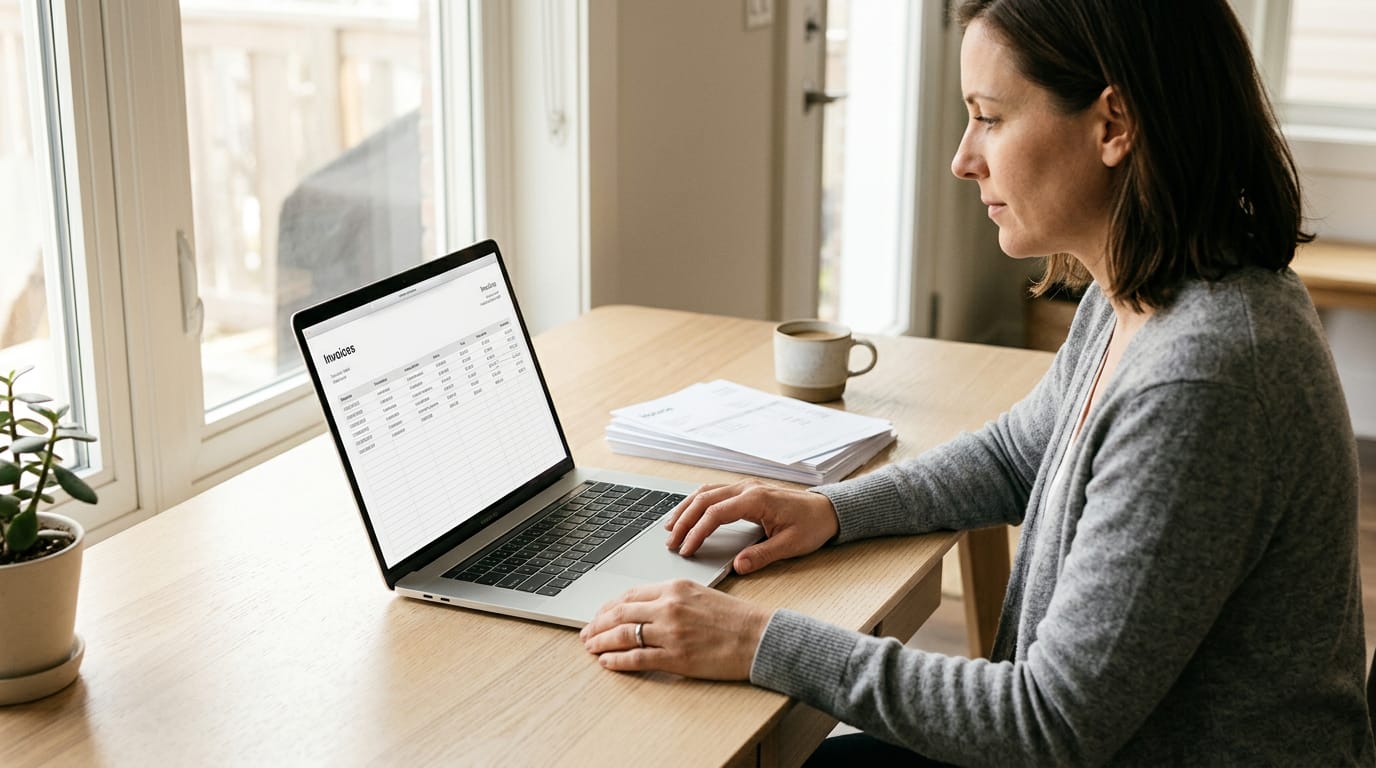
Consider a home-office bookkeeper who reviews invoices in full screen all afternoon. One trip to the top edge brings the tabs back when she needs her spreadsheet. Less clutter, same work.
Going Full Screen on a Mac
Full screen gives one app the whole display and hides the menu bar, so the work is all you see. Here’s how to get in, get out, and move between full-screen apps from the keyboard.
Mac shortcut and the green button
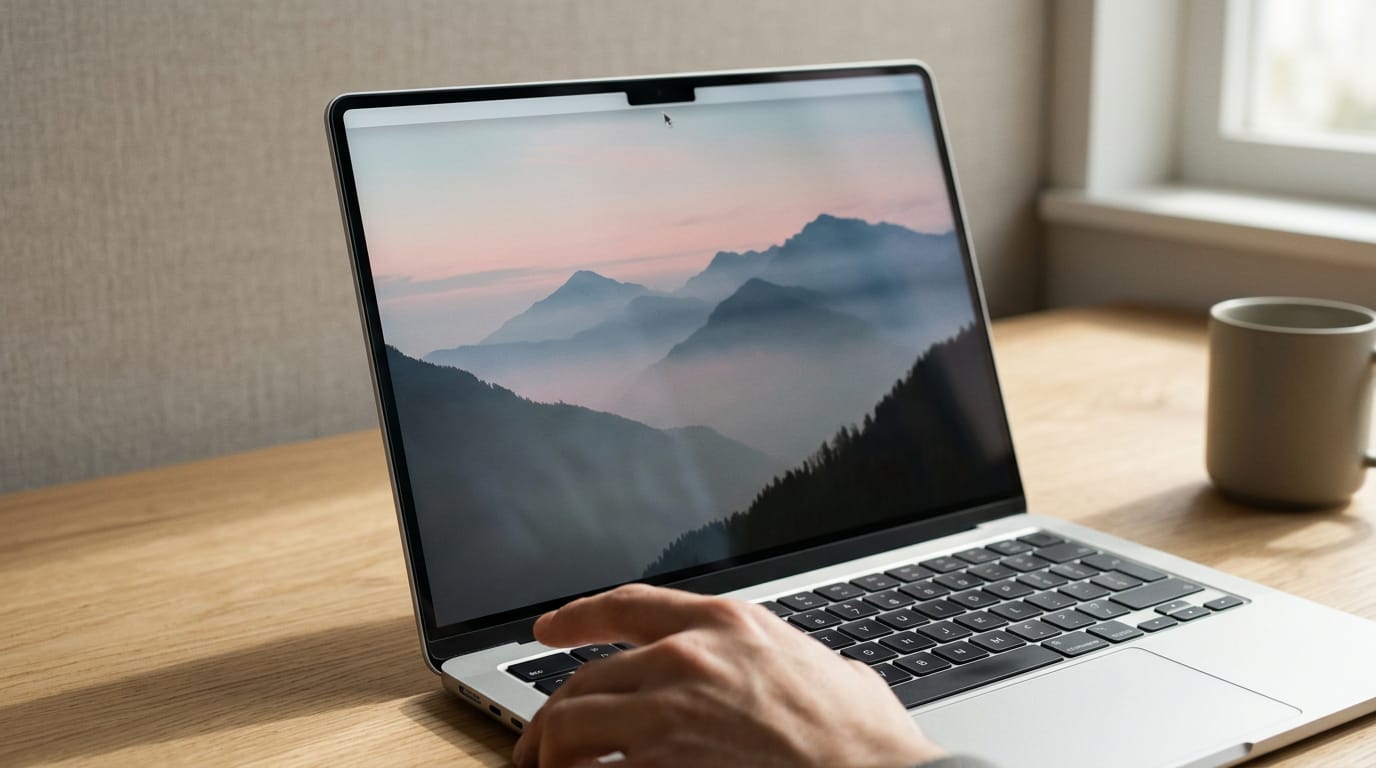
Press Control + Command + F, and the front window fills your screen. Prefer the mouse? Click the green button in the top-left corner instead.
- Exit by hover: Move your pointer to the top of the screen to reveal the menu bar, then click the green button or press Control + Command + F again.
Nothing closes along the way. The window is hidden, not closed.
Switching between full-screen apps on Mac
Each full-screen app gets its own space. For example, a home office worker might keep a spreadsheet full screen on one space and a video call on another.
A three-finger swipe on the trackpad moves between them, so the call is one gesture away instead of a hunt through open windows.
- Mission Control (F3): Press F3 to see every open space and window, then click the one you want.
- Split View: Click and hold the green button, then pick a side to tile the window beside another app.
- Menu bar on hover: The menu bar stays hidden in full-screen apps until your pointer reaches the top edge.
No trackpad? Press Control + Left Arrow or Control + Right Arrow to move between spaces. Hands stay on the keys.
Playing Games and Videos Full Screen
Videos and games both look better edge to edge, and the fix is usually one key or one menu setting.
Making a video fill the screen
Most players give you a fullscreen control, so start there:
- YouTube’s square icon. Click the square in the bottom-right corner of the video to expand it.
- Media player buttons. Look for a fullscreen button on the control bar, usually at the far right.
- F11 or Alt + Enter in VLC. In the VLC media player, either key toggles fullscreen on and off.
- Esc to exit. Press Esc to drop back to the normal window.
Consider a home office worker rewatching a training video with the sound on. One click on the square fills the screen, and one press of Esc puts their notes back in view.
It’s less about finding the right button and more about keeping your hands on the keys.
Getting games to fill your screen
Games handle display settings differently, so try these in turn:
- Alt + Enter toggle. Try this first. It switches a game between a window and fullscreen, and pressing it again switches back.
- In-game display settings. Open the options menu, find the display section, and choose fullscreen. Match the resolution to your laptop’s screen so the picture stays sharp.
- Steam fullscreen or borderless option. If the game runs through Steam, check its settings for a fullscreen or borderless option. Borderless fills the screen without window edges.
Set it once, and you’re done.
Leaving Full Screen and Fixing Problems
When full screen won’t exit, check the key, the app, and the window.
Ways to leave full screen
- Repeat the same shortcut. Use whichever combination got you in, such as F11 on Windows or Cmd+Ctrl+F on Mac.
- Move mouse to top edge. Pointing at the top edge often reveals the controls, including the exit.
- Esc in slideshows and videos. Esc exits both, so there’s no button to hunt for.
- Click green button on Mac. The green button in the window’s top-left corner toggles full screen.
Why won’t the full screen shortcut work?
Work through these checks:
- Try Fn + F11. Many laptops use the top row for brightness and volume, so hold the Function (Fn) key with F11.
- Update graphics drivers. Outdated display drivers can cause odd full screen behavior, so update them.
- Check conflicting programs. Screen recorders and overlay tools may grab the shortcut, so close them and retest.
- Try Win + Shift + Enter or Alt + Enter. Some apps use these instead of F11.
In Windows 11, the window itself is often why it won’t maximize. Some dialog boxes have a fixed size, and snapped windows may need moving first. If it’s still stuck, check scaling and resolution in Display settings and use the recommended values.
A home office analyst whose spreadsheet sat in a narrow strip switched to the recommended scale, and her charts filled the screen again.
Why the taskbar stays visible
Incoming notifications can keep the taskbar on screen even with auto-hide on. Windows is reacting to activity, not ignoring your settings.
If the taskbar stays put, click once on the page to return focus, and it usually slides away.
One click, and the page fills the screen again.
Speed, Battery and Other Devices
Full screen changes how you work more than how fast your laptop runs. Here’s what it does for speed and battery, and how the idea plays out on phones, headsets and external monitors.
Speed gains and battery impact
Full screen gives one app the whole display, so fewer windows compete for screen space and memory. That helps when you’re juggling several programs, but don’t expect a dramatic jump. Heavy tasks gain little.
A large spreadsheet recalculation or video export runs at the same pace either way.
Battery’s a more modest story. Unplugged, the screen is usually the biggest power draw, so full screen won’t rescue a low battery. Dimming the display does more. Consider a freelance copy editor working from her kitchen table on battery.
Full screen keeps her manuscript front and center, so she spends less time switching windows.
Phones, VR headsets and cursor limits
On phones, full screen usually comes from an app’s expand icon or a rotation setting. Turning the phone sideways often does the rest. Virtual reality (VR) headsets take the idea furthest: the picture fills your whole field of view for immersive viewing.
Cursor limits are the trade-off. Phones and headsets rely on touch or controllers instead of a mouse. On a laptop, menus and toolbars hide in full screen until you move the pointer to the top edge, so right-click or menu commands can take an extra step.
On a docked laptop, full screen fills only the display the window is on. Consider a developer at a home desk who puts the code editor full screen on an external monitor and keeps chat on the laptop. Both stay visible, and the code isn’t crowded out.
Full screen is a small switch with a big payoff. Once you know how to reach it on a Windows or Mac laptop, you can clear the clutter the moment a task calls for it, whether that’s a long document, a movie, or a game.
Whether you’re docked at a desk or working from the couch, the goal stays the same: less hunting for windows, more time on the work. The screen was never the problem. Now you know how to use all of it.
References
- Focus: Stay on Task Without Distractions in Windows — support.microsoft.com
Questions
How do I full screen without F11?
Open your browser’s menu and select Full screen: use the three-dot menu in Chrome or Edge, the hamburger menu in Firefox, or the menu’s Page section in Opera. You can also use the app’s own full-screen control, such as the square icon in a video player.
Why won't my window maximize to full screen in Windows 11?
Some Windows 11 windows, including fixed-size dialog boxes, cannot be maximized, and snapped windows may need to be moved first. For apps that support it, try Win + Shift + Enter; also check display scaling and resolution and use the recommended settings.
Is F11 or F12 full screen?
F11 is the common full-screen key on Windows; F12 is not. On some laptops, press Fn + F11 if the F-key row is set to control media or other functions.
Sources
- Focus: Stay on Task Without Distractions in Windows | Microsoft Support, support.microsoft.com
spaceShortcut Sheets: the twenty keys to learn first in each appFind your app