Dual Monitor Setup Guide: Hardware, Settings and Layout
Dual monitor setup keeps notes beside your work. Compare docks, adapters and splitters, extend or mirror displays, and fix second-screen problems.

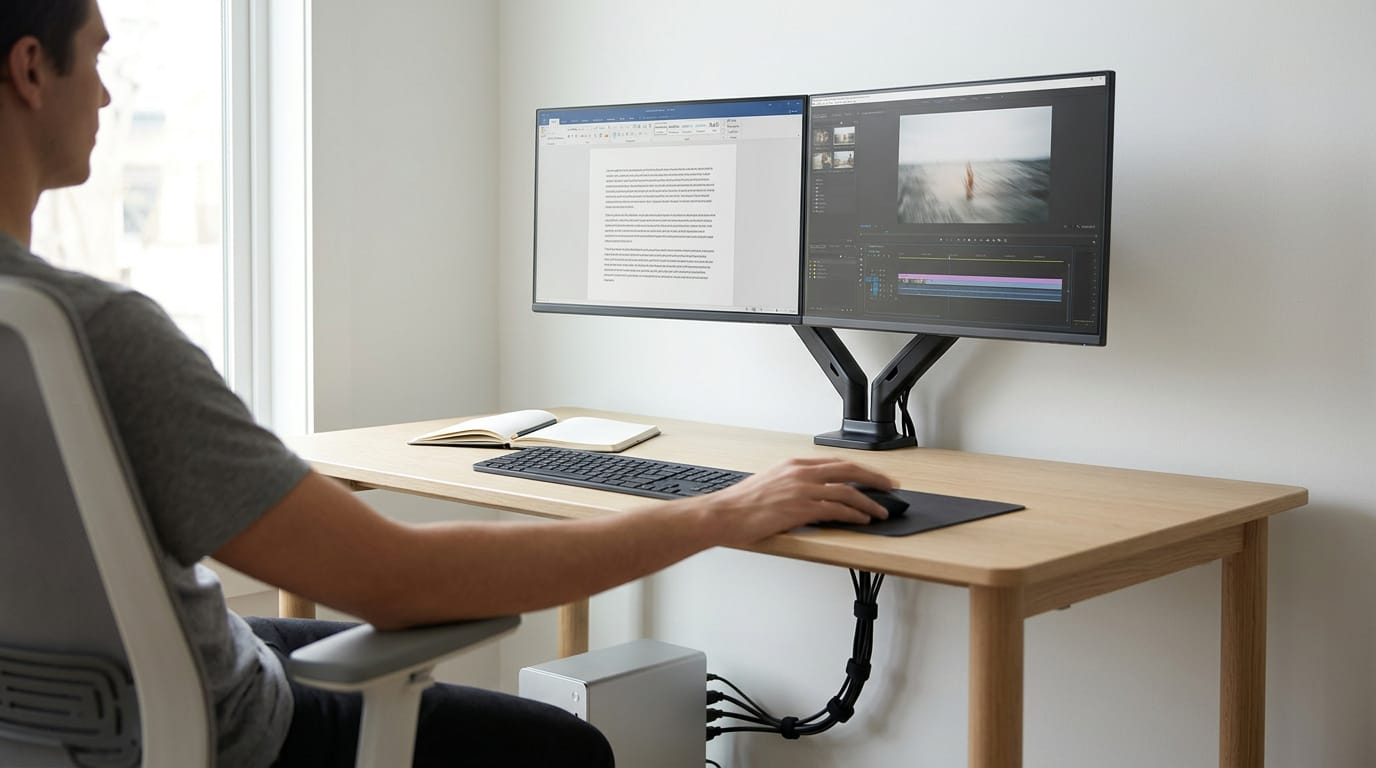
The short versionA dual monitor setup connects two displays to one computer, giving you more workspace by showing different apps or information at the same time. For an effective setup, check that your computer supports both screens, choose compatible cables or a dock, extend rather than mirror the desktop, and position the displays for comfortable viewing. The right arrangement reduces window switching and keeps reference material visible, while shortcuts and space-saving mounts make the setup easier to use.
Picture writing a report with your notes spread across the desk and only one sheet to work on. Most of us do the same thing on a single laptop screen, clicking back and forth between a document and the email or spreadsheet we need.
A dual monitor setup is two displays connected to one computer, so your notes can live on one screen while your work lives on the other.
In this guide, we’ll walk through the hardware you need, display settings, layout, and troubleshooting, plus the home office extras most guides skip: keyboard shortcuts for moving windows, small-desk mounting, and one-cable laptop docking.
Dual Monitor Setup and Why It Helps
A second screen is one of the simplest ways to get more room to work. Here’s what it changes and where it fits into your day.
Two monitors giving you extra room
Two monitors on one computer act as a single workspace. Windows spread out instead of stacking, which gives you more screen real estate, or total space to work in. It’s less about how many windows you open and more about where they sit.
Each screen can show different content. Consider a support agent with the ticket on the left and the help center on the right. Every reply skips a trip back to the taskbar.
Ways a second screen boosts productivity
A study called Usability in multiple monitor displays reports that two monitors can improve productivity by making it easier to:
- multitask
- keep reference material visible
- move content between screens
Try it with the style guide open on one screen and your draft on the other. Drag a paragraph across the gap instead of copying and pasting through window switches.
The study presents this as something two monitors can do, not a guarantee, so you’ll want to test it on your own workday.
Where two monitors fit into your day
Two screens pay off most when several things need to be open at once:
- Programming and debugging. Code on one screen, error output on the other.
- Video editing and design. Timeline on one screen, preview on the other.
- Gaming with side tasks. Game on one screen, chat or guide on the other.
- Meetings with notes. Video call on one screen, notes on the other.
Less switching, and your hands stay on the keys.
Hardware You Need Before You Start
Before you buy anything, confirm your computer can drive a second screen. A few minutes of checking saves a return trip.
Check your computer’s video outputs
A second screen usually needs a spare video output, the port that sends the picture out. Those come from your graphics card, which is either a dedicated card or integrated graphics built into the processor.
Check your model’s specs or manual, since the number of supported screens varies.
Which cables and ports to use
Your cable depends on the ports on both your computer and your monitor. The usual options are:
- HDMI (High-Definition Multimedia Interface), common on TVs and many monitors
- DisplayPort (DP), a popular choice for computer monitors
- DVI (Digital Visual Interface), an older connection
Some USB-C (Universal Serial Bus Type-C) ports can send video too, but only when they support DP Alt Mode (DisplayPort Alternate Mode) or Thunderbolt, a high-speed standard. The question isn’t whether a port fits. It’s what the port can send.
The plug looks the same either way, so check your manual or the labels beside it.
Can I use my PC as a second monitor?
Yes, and your laptop’s own screen can be part of the answer. The common routes are:
- Laptop as one of two screens: Keep the laptop display on and add one external monitor beside it.
- Laptop lid closed (clamshell mode): Close the lid, and the external monitors carry the whole workspace.
- Docking stations: A box that plugs into your laptop and adds video outputs and ports.
- USB-C to dual HDMI adapter: Gives one USB-C port two HDMI outputs.
- USB-to-HDMI or VGA adapters: Add a display through a USB port. VGA (Video Graphics Array) is an older analog connection.
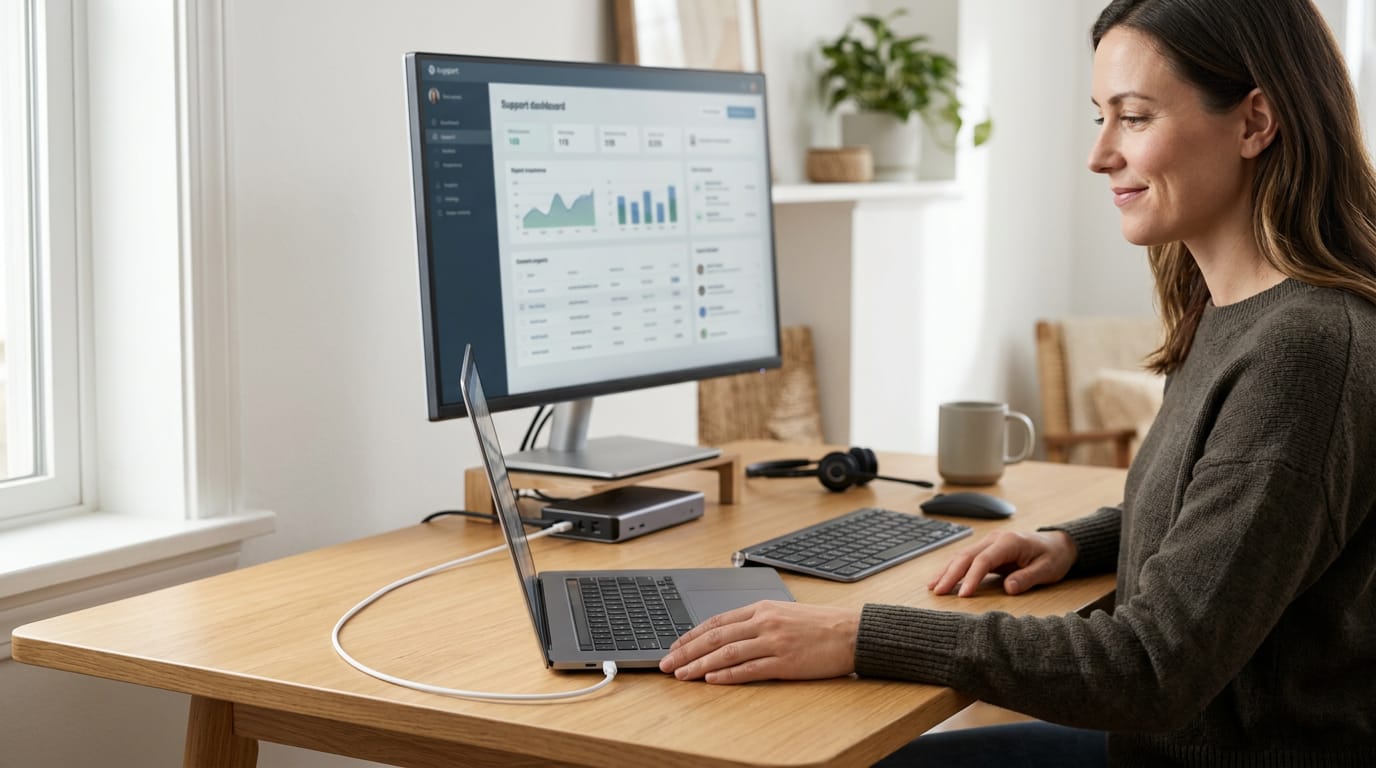
Picture a support agent with a work laptop on a small desk. A one-cable dock connects it to the monitor and keyboard through a single USB-C cable.
Each morning they plug in once, and at lunch they unplug once instead of untangling a pile of cables. One cable. That’s the whole routine.
Chaining monitors or using one as a hub
Some monitors pass video along rather than pulling it all from your computer. A monitor with a video output can feed a second display in a daisy chain: your computer connects to the first monitor, and the first monitor connects to the second.
You can chain through DisplayPort or USB-C when both monitors support it.
Some monitors also work as a central hub. Plug your computer into the monitor, and your keyboard or other devices plug into the monitor instead. The monitor becomes the middle of the desk, not just another screen.
Why some Macs only drive one display
Not every Mac can run more than one external monitor. Some Macs support only one external display, so a second screen won’t work through the built-in ports alone.
The workaround is a DisplayLink adapter, which sends video over USB with help from software on your computer. Check that it supports your version of macOS before you buy.
Setting up Your Displays
Once your cables are connected, your computer needs to know how the two screens sit on your desk. Windows and Mac differ a little here, and mismatched monitors add one more decision.
Setting it up on Windows
Windows makes this quick:
- Right-click an empty part of the desktop and choose Display settings.
- Choose Extend these displays. This creates an extended desktop, one wide workspace across both screens.
- Drag the monitor boxes until they match how they sit on your desk.
- Set the monitor you use most as your main display.
- Adjust resolution and scaling for each screen so text looks sharp on both.
Mac setup, step by step
On a Mac, open System Settings, choose Displays, then:
- Turn off Mirror Displays. Mirroring shows the same content on both screens, but you want your second screen to extend your workspace, not copy the first.
- Arrange displays by dragging the screen previews until they match your desk.
That’s all it takes.
Using monitors of different sizes
Mismatched monitors work fine together, so you don’t need a matched pair. Picture a support agent working from a kitchen table with a laptop and an older monitor she already owns.
She makes the bigger screen her main display for the ticket queue, and she can read a full customer thread without scrolling. Same desk, fewer headaches.
- Larger monitor as primary. Put the bigger screen in the main display spot, where your main work lives.
- Scale for pixel density. Pixel density is how many pixels fit into each inch of screen. Different densities can make the same text look different sizes, so adjust scaling per screen until the text matches.
Virtual desktops, consoles and VR setups
A virtual machine (VM) is a second computer running inside your own.
VMware and Citrix both support multiple monitors with virtual desktops, and VMware’s guide to multiple monitors for one virtual machine explains that a VM can be configured to use several monitors when the host system, your own computer, has them.
Consoles rarely support dual-monitor setups, so check before you plan around one. Virtual reality (VR) and augmented reality (AR) headsets aren’t really relevant to a desk like this, so we’ll leave them out.
Mirroring or Extending Your Displays
Once your second monitor is connected, you’ll decide how it behaves. Your computer can treat it as an extra workspace or as a copy of your main screen, and that choice changes how your day feels.
Extending your desktop across screens
In extended display mode, your operating system recognizes each monitor as a separate screen. Your desktop stretches across both, so each screen can hold different content at the same time.
To move a window to the other monitor, drag its title bar past the edge of the screen. It slides across to the other display, and you can keep working without closing anything.
Extending is best for multitasking. Consider a support agent who keeps the ticket queue on the left monitor and the customer’s history on the right, so replying never means closing one window to open another.
The win is seeing more at once, not switching faster. Nothing gets buried.
When mirroring shows the same screen
Mirroring sends the same image to both monitors, so each screen shows identical content. Whatever appears on one appears on the other.
This is useful for presentations.
Think of a freelance writer showing a draft to a client in a conference room: mirroring puts the same page on the projector as on the laptop, so the client sees exactly what you see and you never have to hunt for the right window.
A common cause of identical screens is mirroring. If both monitors suddenly show the same thing, open your display settings and switch the mode back to extended. Your second workspace comes right back.

Picking the Right Monitors for Your Setup
Not every pair of monitors plays well side by side, so choose with your desk and daily work in mind.
Sizes to look for and matching pairs
24-inch and 27-inch screens are the common choices, and both suit a home desk. Picture a support agent with the ticket queue on the left and a knowledge base on the right.
Two matching 27-inch panels keep her text the same size on both sides, so her eyes don’t readjust every time she glances across.
Matching is preferred, so spend your budget on quality per screen. Two better monitors beat a bundle of two weaker ones.
An ultrawide is one long, curved screen that can stand in for two monitors, but two separate screens give you a cleaner break between apps.
Picture and comfort features worth checking
It’s less about how many features a monitor lists and more about how well it suits your eyes and neck. Four are worth checking:
- Wide viewing angle: Text stays clear when you glance at the screen from slightly off to the side.
- Ergonomic adjustable stand: Ergonomic means designed for comfortable posture. Look for height, tilt, and swivel.
- 4K sharpness: 4K, a very high-resolution picture, keeps small text crisp on long writing days.
- Brightness and glare: A matte finish and enough brightness cut reflections from windows and lights.
Your neck will thank you.
Monitor picks at every budget
Here’s how the picks break down by budget:
- Best overall: The Dell U2725QE is the one we’d start with if you’re unsure where to begin.
- Mid-range: A step down from the top pick, with most of the comfort features you’d want on typing-heavy days.
- Lower mid-range: Solid for email, documents, and spreadsheets, as long as the stand adjusts.
- Budget 1440p: A 1440p screen (a middle-ground resolution sharper than standard) suits a tight budget.
- Notable mentions: Worth a look if none of the picks above fit your desk.
How graphics power affects your choice
Every extra screen asks more of your computer’s graphics. A dedicated GPU (graphics processing unit, a separate chip for visuals) is optional for two monitors.
The question isn’t just how sharp a screen is, but how hard your laptop has to work to run it.
A high-resolution pair can strain a laptop that relies on built-in graphics, while a lower resolution like 1440p eases that load. Check your laptop before you buy.
Splitters, Adapters, Docks and Switches Compared
These options promise a second screen but do very different jobs, so match each one to your desk.
Why HDMI splitters only copy your screen
An HDMI splitter (HDMI stands for High-Definition Multimedia Interface, a common video connection) takes one signal and sends it to several screens, so every screen shows the same picture.
- Copies the same image. Every screen matches your laptop.
- Doesn’t extend your desktop. No extra room for windows.
- Good for signage and classrooms. Everyone sees the same slide.
A home office worker who buys a splitter for a second monitor finds her email mirrored on both screens. A splitter copies your screen; it doesn’t extend it.
Checking USB-C adapters and docks before buying
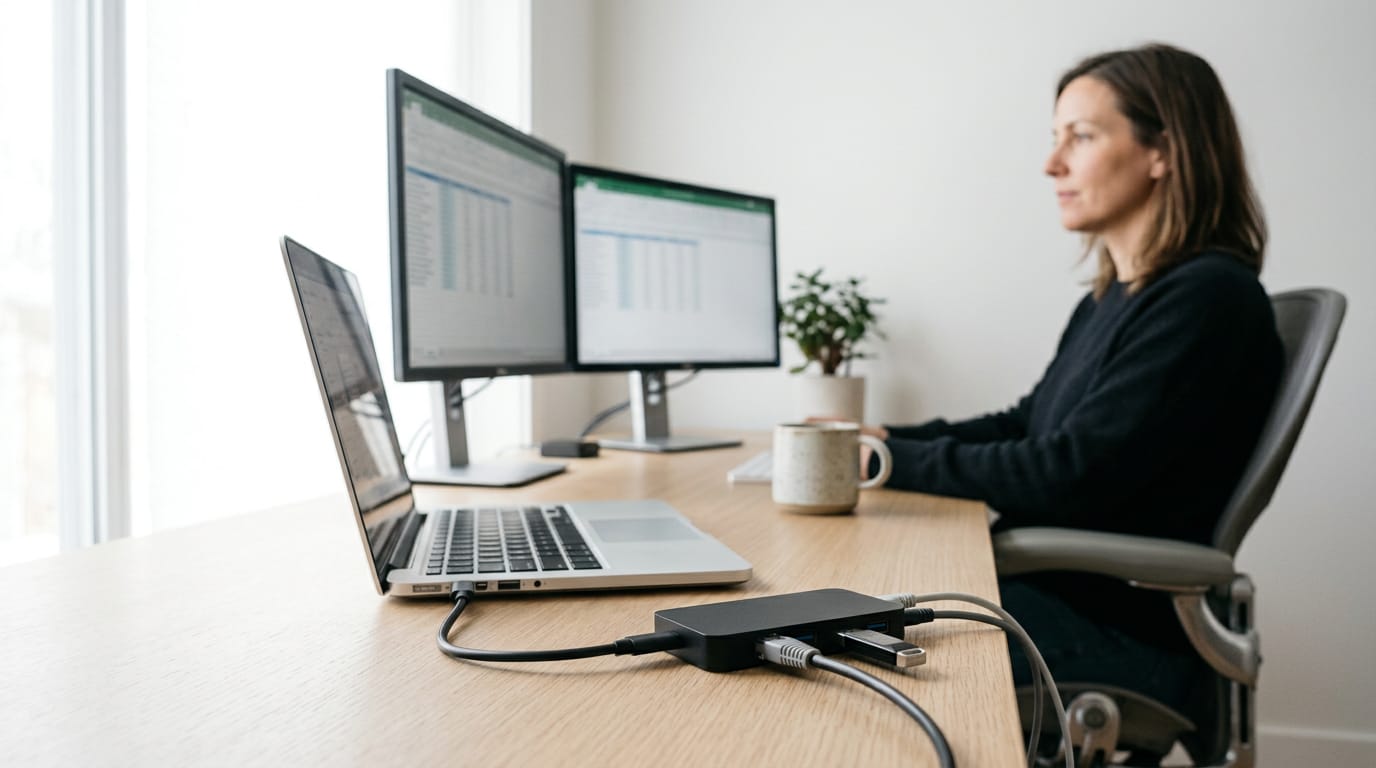
USB-C (short for USB Type-C, a small reversible port that carries video, data and power) is on many newer laptops. Check these before you buy:
- Resolution and refresh rate. Confirm the dock covers your monitors’ sharpness (resolution) and smoothness (refresh rate).
- Power delivery. Some docks charge your laptop through the same cable, so check the rating covers your charger.
- Extra ports. Look for the ports you’ll use, such as standard USB (Universal Serial Bus) or Ethernet.
Docks usually use one of two methods:
- MST (Multi-Stream Transport, which carries several monitor signals over one connection) uses your laptop’s own video output but needs compatible monitors and laptop.
- DisplayLink (sends the picture over USB using driver software) suits older laptops but leans on your processor.
A remote bookkeeper with an older laptop and one USB-C port can add two monitors with a DisplayLink dock, skipping a new machine.
When a matrix switch makes sense
A matrix switch (a box that routes several computers to several displays) is built for shared spaces, not a single desk.
- Multiple sources to displays. One box handles several computers feeding the same screens.
- Meeting and control rooms. Fixed displays stay easy to manage from one spot.
- Not for basic office use. For one laptop and one desk, a switch is extra cost and cables you don’t need.
Portable extenders for a laptop screen
A portable extender (a thin screen that travels with your laptop) suits a small desk because it needs very little room. Many connect over USB-C or HDMI, so check which port is free.
Picture a support agent working from the kitchen table some days. The extender holds her ticket queue beside the laptop, then packs into her bag. Two screens, one bag.
Arranging Screens for Comfort and Flow
Two screens only help when they sit where your body can use them. Here’s how to place them, then how to move windows without reaching for the mouse. Your chair and keyboard matter too, so a desk setup checklist covers them alongside the screen.
Placing your monitors on the desk
Center your primary screen, the one you look at most, directly in front of you, with its top edge near eye level. Angle the second screen to one side so a glance across is enough and your neck stays still.
Side by side suits wide spreadsheets, and vertical stacking suits a reference screen. Either way, match the heights rather than the sizes, because your eyes care more about where a screen sits than how big it is.
A dual monitor stand holds both at one height, and a monitor arm lifts them off the desk, freeing room for your keyboard.
Rotating one screen into portrait orientation suits long documents, code, and ticket queues.
Managing windows with software and shortcuts
Your operating system can do much of the arranging. Snap features on Windows fill half a screen when you drag a window to an edge or press the Windows key with an arrow key.
For smooth cursor movement, match your display layout to your desk so the pointer slides where you expect. Then show the taskbar on the secondary screen too.
Keyboard shortcuts do the rest. Press the Windows key, Shift, and an arrow key to send the active window to the other screen.
Consider a support agent with a small home desk: the ticket queue sits in portrait on the left and the customer chat on the main screen. When a chat lands on the wrong side, one keystroke sends it across. Eyes stay put. Hands stay on the keys.
Fixing Problems with Your Second Screen
When your second screen stays dark or just repeats the first one, the fix is usually simpler than it looks. We’ll start with the quick checks, then move on to the setting behind a mirrored image. If the screen still stays dark after those checks, monitor issues on Windows 10 covers the likely causes and fixes.
Quick fixes to try first
- Update graphics drivers: A graphics driver is the software that lets your computer talk to its graphics hardware. If yours is out of date, install the latest version from your graphics card maker.
- Check cable connections: Unplug each cable and plug it back in firmly at both ends, and confirm each monitor is in the port you think it is.
- Restart computer: A restart clears out a display that’s stuck in a bad state, so try it before you dig through settings.
- Use Detect displays: In your display settings, use the Detect displays option so your computer looks for screens it hasn’t picked up yet.
Why both screens show the same image
When both screens mirror each other, your computer is probably in duplicate mode, which sends one picture to every screen. That’s handy for a presentation, but it wastes the space you bought the second monitor for.
Open your display settings and set the screens to extend your desktop rather than duplicate it.
Picture a support agent whose laptop and monitor both show the same ticket. Switching to extend takes seconds and lets the ticket sit on one screen and the reply box on the other. Problem solved.
- Splitter not extending: A splitter sends one video signal to two screens, and if it only copies the picture, it can’t extend your desktop. Check whether yours supports extended displays, or connect each monitor directly.
A second screen is one of the simplest upgrades you can make to your workday. Start with the right hardware, set up your displays carefully, and arrange them around how you actually work.
Then add a few window-moving shortcuts, a mount that fits a small desk, and a single cable that connects your laptop to everything, and the whole setup starts to feel like it was built for you.
Your eyes get more room, and your hands get to stay on the keyboard. That’s the real payoff of a second monitor.
References
- Usability in multiple monitor displays — doi.org (2008)
- Use Multiple Monitors for One Virtual Machine — techdocs.broadcom.com (2026)
Questions
How to connect 2 monitors to a PC with one HDMI?
Use a USB-C to dual-HDMI adapter or a docking station if your PC’s USB-C port supports video, such as DP Alt Mode or Thunderbolt. You can also use a DisplayLink USB dock, which adds display outputs through software. An HDMI splitter will usually duplicate the image rather than create two independent screens.
How do I separate my screens 1 and 2?
Open your computer’s Display settings and select Extend these displays instead of Duplicate or Mirror. Then drag the numbered screen diagrams to match the monitors’ positions on your desk. On Windows, identify the screens by selecting Identify.
How do I get my two screens to show different things?
Set the displays to Extend, not Duplicate or Mirror, in your computer’s display settings. In extended mode, each monitor is a separate workspace, so you can drag different windows onto each screen.
How do I set up dual monitors?
Connect each monitor to a video output supported by your computer, then open Display settings. Choose Extend these displays on Windows or turn off Mirror Displays on a Mac, and arrange the screen previews to match your desk. Set the preferred monitor as the main display and adjust resolution or scaling if needed.
How do I get dual monitors to show different things?
Set your computer’s display mode to Extend rather than Duplicate or Mirror. On Windows, open Settings > System > Display, select the second monitor, and choose Extend these displays; on macOS, open System Settings > Displays and turn off mirroring. You can then drag windows between screens and arrange the displays to match their physical positions.
Do I need two HDMI ports for two monitors?
No. You need two usable video outputs, but they do not both have to be HDMI. You can connect monitors through combinations of HDMI, DisplayPort, compatible USB-C, or a dock or adapter that supports your computer and displays.
Can I run 2 monitors from 1 HDMI port?
Sometimes, but it depends on the hardware. An HDMI splitter generally sends the same image to both monitors, while a compatible USB-C dual-HDMI adapter or dock can provide separate displays; check that your computer supports the adapter and the number of screens you want.
Is it worth having dual monitors?
It can be worthwhile if you regularly keep several windows open, such as a document and reference material, or a video call and notes. Two monitors give you more workspace and can reduce window switching, but the benefit depends on your work habits and setup.
Sources
- Usability in multiple monitor displays, doi.org,
- Use Multiple Monitors for One Virtual Machine, techdocs.broadcom.com,
spaceShortcut Sheets: the twenty keys to learn first in each appFind your app