Monitor Scaling vs. Resolution: What Each Setting Does
Monitor scaling can make text tiny or fuzzy across screens. See how to adjust Windows scale and resolution, then match settings across multiple monitors.
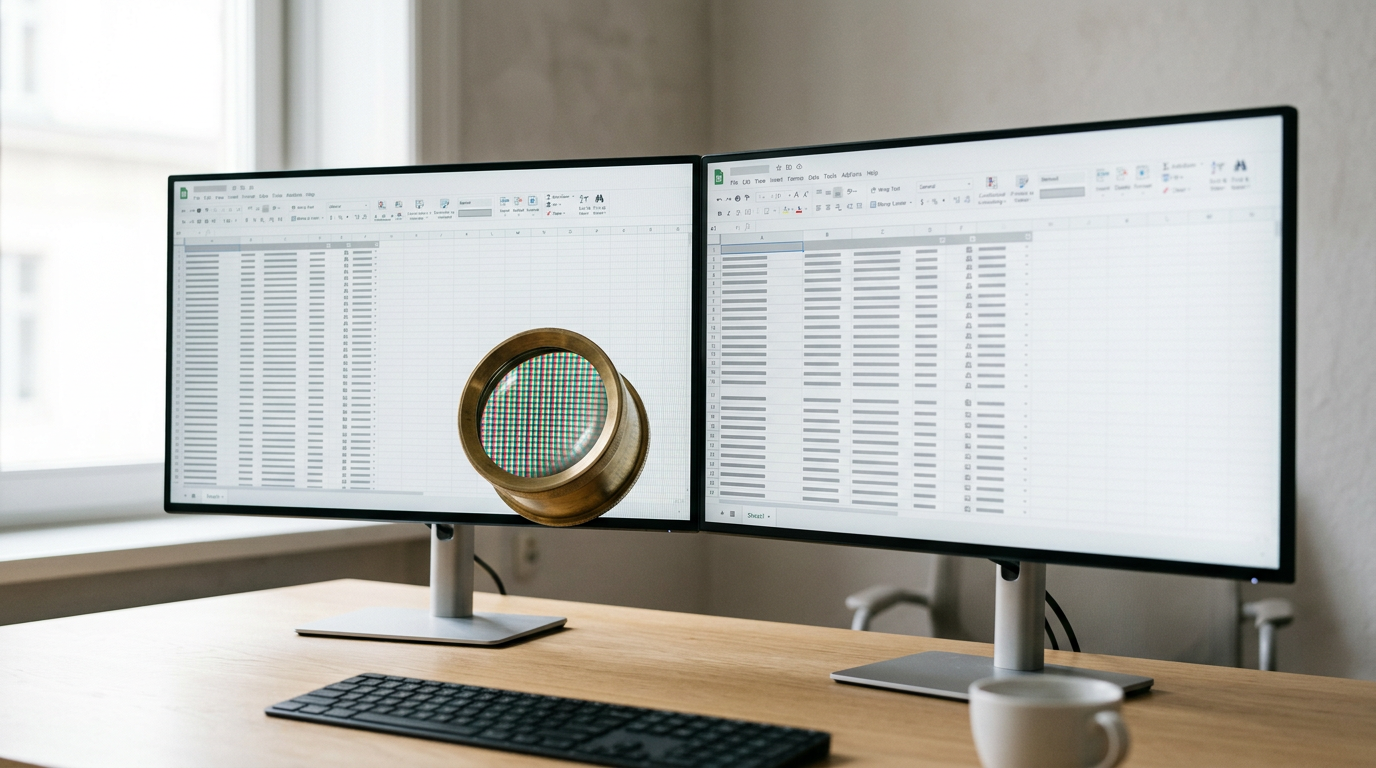
The short versionMonitor scaling changes the apparent size of text, icons, and other screen elements, while resolution determines how many pixels the display uses. Keep your monitor at its designed resolution, then adjust the scale until text is comfortable to read from your usual viewing distance; on multiple screens, set each display separately because size and distance affect what looks right. The goal is clear, readable content without squinting or sacrificing more screen space than necessary.
Ever notice how text looks razor sharp on one screen and tiny or fuzzy on the one beside it? If you’ve bounced between a laptop and a desk monitor all week, you’ve probably felt that shift.
Two settings control it: scaling, which decides how big everything appears, and resolution, which sets how many tiny dots called pixels fit on the display. They’re easy to mix up, but they do different jobs.
In this post, we’ll explain what each one does, show you where to change them in Windows and on a Mac, and cover setups with more than one screen. You’ll also see how screen size and viewing distance guide the right scale for your desk.
Why Monitor Scaling Causes Display Problems
Two settings drive most display trouble: resolution, which sets how much fits, and scaling, which sets how big things look.
Why high-resolution screens make everything small
Laptops and tablets ship with high-resolution screens that pack many pixels (tiny dots that form an image) into a small space, so text looks tiny until people raise Windows scaling.
A support agent with tiny ticket text does exactly that and reads comfortably again.
Problems when scaling goes above 100%
Raising scaling past 100% fixes small text but can bring new problems:
- Out-of-proportion interface. Windows and apps can look mismatched.
- Cut-off text. Text fields and labels can get clipped.
- Unbalanced features. Buttons and menus can feel uneven and harder to use.
- Login screen. The mismatch is visible even before you sign in.
The goal isn’t bigger text. It’s readable text, and you can undo any of these in Settings > System > Display.
Choosing a scale for 4K monitors
If you’re asking whether to use monitor scaling or GPU (graphics processing unit) scaling, start with the Windows setting, which you can change and test in seconds. GPU scaling lives in your graphics card’s software instead.
On a 4K monitor (about 4,000 pixels across), 150% or 175% are the sensible starting points. Try 150% first. At 175%, things can feel too big and less fits on screen, so a custom value such as 155% can land between them.
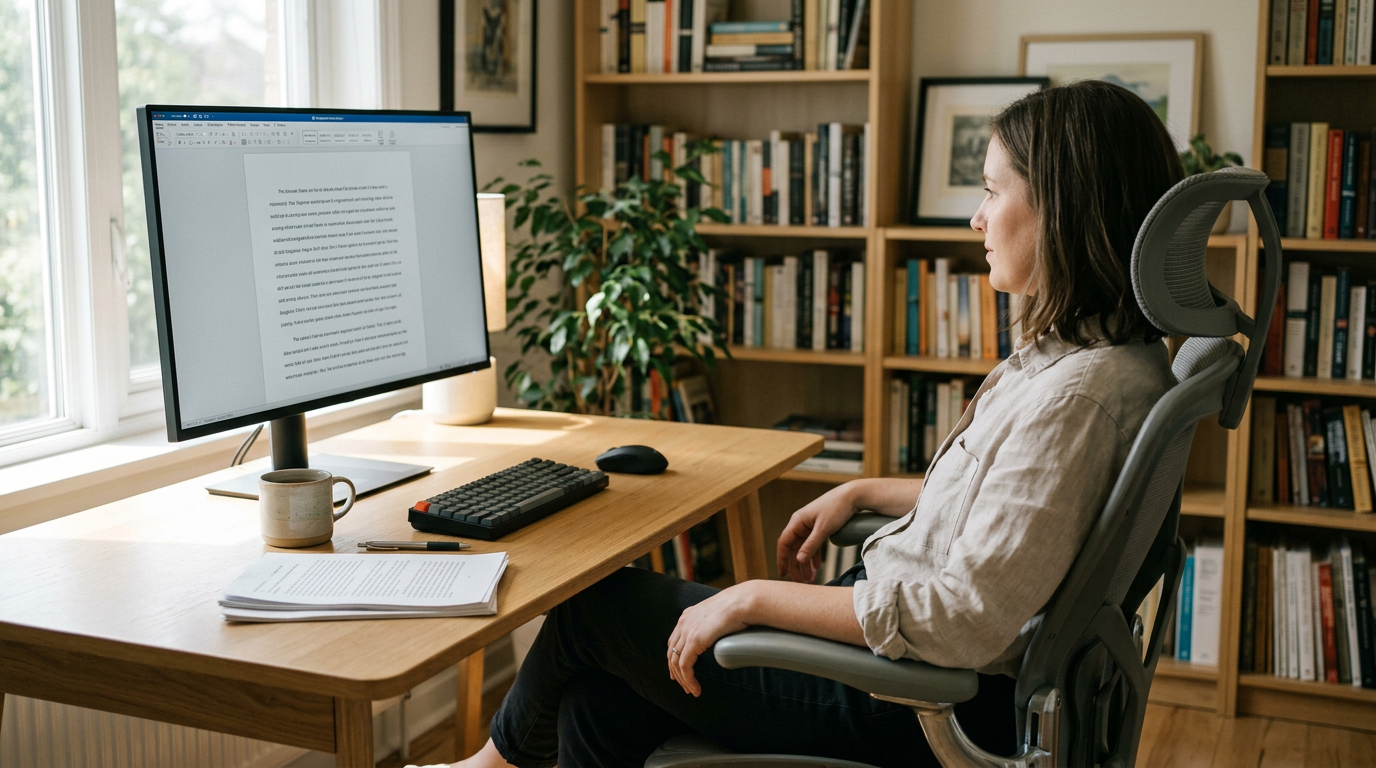
A writer who sets a new 4K monitor to 150% can read manuscripts all afternoon without leaning in.
4K versus 1920x1080 dimensions
So are 4K monitors still 1920x1080 dimensionally? Not quite. A 4K monitor has 3840x2160 pixels, four times as many as 1920x1080, though both share the same 16:9 shape.
That extra density makes text sharper at the same size, and scaling controls how big it looks. Same shape, more pixels.
How Do I Change Display Scale in Windows?
Windows 10 and Windows 11 both start from a right-click on the desktop, so the steps below work on either version. Start with a reset, and only enter your own value if the text still doesn’t fit.
Set your scale back to 100%
Begin by resetting the display scale to 100%. Some software lists 100% in its system requirements, so it’s the safest starting point. Here’s the route:
- Right-click an empty part of your desktop and choose Display settings. This is also how you open Display settings in Windows 10.
- Open the Display scale dropdown.
- Select 100%.
Think of a bookkeeper who plugs a second monitor into her laptop at home and finds her spreadsheet text tiny on one screen and oversized on the other. Resetting each screen to 100% is her first step, and she stops squinting by mid-afternoon.
Entering your own scale value
If 100% makes everything too small, Windows 11 lets you type your own percentage using custom scaling. The goal is readable text, not the biggest text you can fit on the screen.
Be careful with this one. A custom value can end up applied to both monitors, not just the one you were adjusting. Check your second screen after you apply it, so you’re not stuck with a size that only suits one display. Check both.
If you’re looking for the active signal mode in Windows 11, that’s a separate display option from scale, so treat it as its own setting. Mac displays handle scaling through their own settings, so the Windows steps above won’t match what you see on a Mac.
Adjusting Your Screen Resolution
If your text still looks tiny after you’ve set scaling back to 100%, the next lever is resolution, the grid of pixels your screen draws, written as width by height. Changing it is quick, but it takes a little testing.
Drop resolution when text looks tiny
Start by setting scaling back to 100%, then reduce resolution if text still looks tiny. Fewer pixels means each item takes up more of the screen, so text gets bigger.
The options you see depend on your screen’s make and size, so your list may not match a colleague’s. For a 21-inch monitor, 1920 x 1080 is a good place to start.
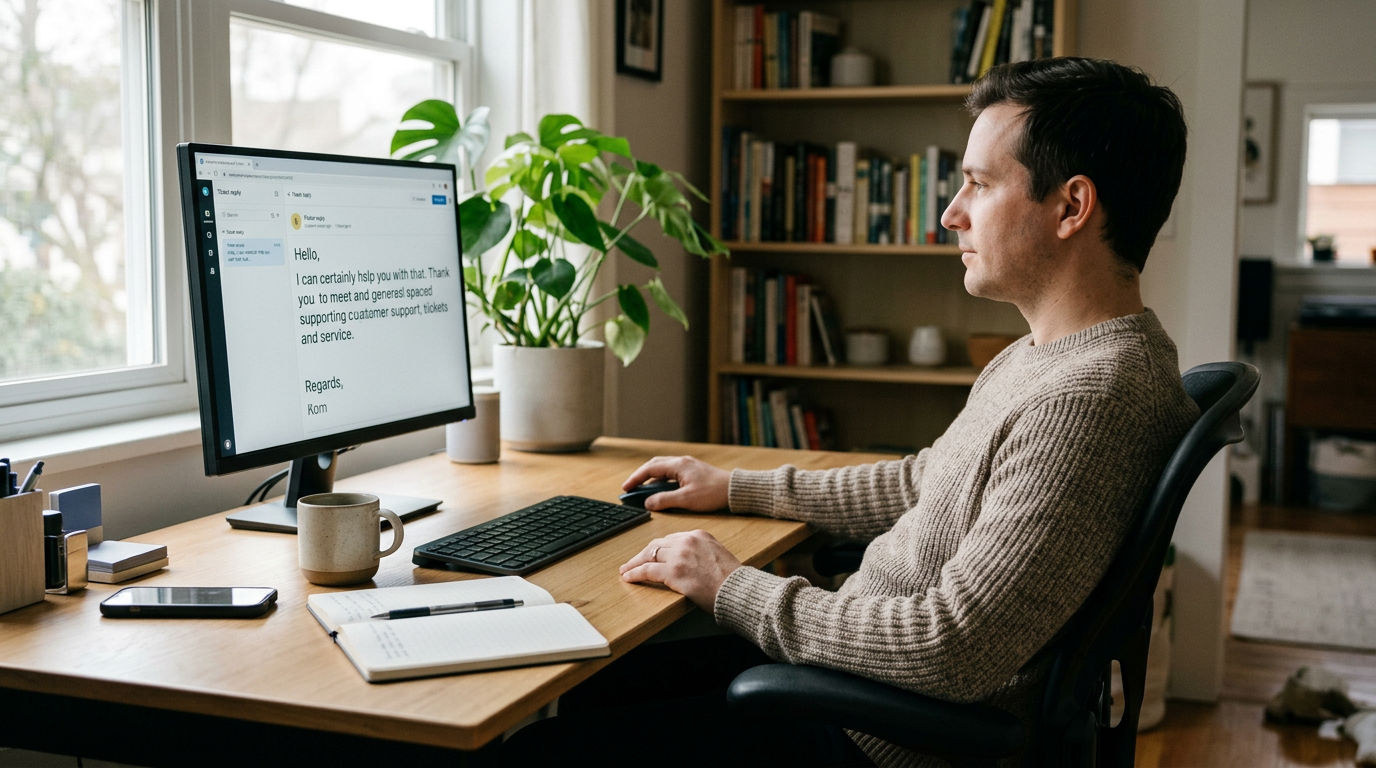
Picture a support agent typing ticket replies on a 21-inch monitor at a home desk. By midday the text looks like fine print, so they drop the resolution and find it readable again at arm’s length.
Don’t settle on the first option. Try a few:
- Select an option and read your main app for a minute.
- Ask whether you can read it without leaning in.
- Move to the next option and repeat.
Trust your eyes. Aim for readable rather than roomy: a setting that fits more on screen isn’t a win if you have to squint.
Making the changes stick
When you land on a setting that works, close the Display Settings dialog. Then log out or restart your machine, and check that the text still reads well before you start typing.
Say you’re a writer who finally finds a resolution that’s easy on the eyes. You close Display Settings, restart, and get back to typing, so you aren’t fiddling with settings during your first deadline.
Monitor Scaling Across Several Screens
Scale is set per screen, not per computer. When your monitors differ in size or distance, you’re in a mixed-DPI setup (DPI means dots per inch, or how tightly pixels pack into each inch).
Giving each monitor its own scale
In Windows, open Settings, choose System, then Display, and select the monitor you want to change. Each screen has its own Scale setting. On a Mac, use Displays in System Settings.
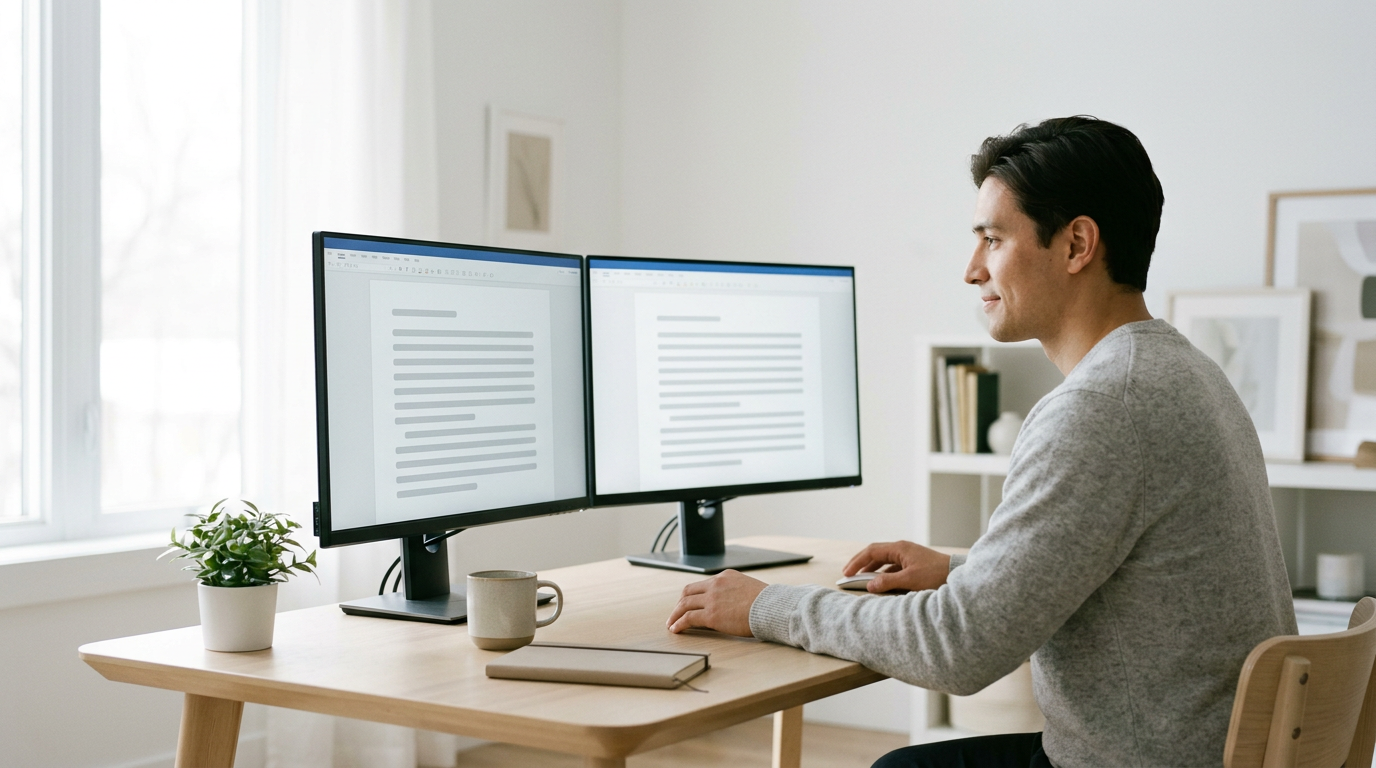
Take a home office writer with two 4K (ultra-high-definition) monitors. One sits straight ahead, the other on a side shelf farther back. Same pixel count, different distance, so the side screen usually needs a larger scale to look the same size.
Once each screen has its own setting, text looks the same size on both. The squinting stops.
When standard steps miss, a custom scale lets you enter your own value. If both screens sit at similar distances, apply the same custom value to each so the desk matches. If distances differ, tune each separately.
Can each monitor have its own custom value? Yes, each display keeps its own setting.
A laptop plus an external monitor follows the same rule, with a few extras:
- Keep the laptop at its own setting. Its pixel density differs from the external screen’s, so copying the external number rarely looks right.
- Aim for similar text size. Dragging windows feels smoother when text sizes match.
- Raise the laptop. A stand that brings its screen to eye level keeps your neck out of the reading.
Blurry text usually signals a mixed-DPI setup struggling. Some apps handle scaling poorly and go soft on a screen with different settings.
Drag the window to each screen to compare, and if it stays fuzzy, update the app or keep it on the screen where it looks sharpest.
Once you understand scaling and resolution, the rest is just a few small adjustments. Keep resolution at the setting your monitor is designed for, then nudge the scale until text feels comfortable from where you actually sit.
When you add a second screen, check each one on its own, since a setting that looks perfect on one display can feel off on another.
A well-tuned screen means fewer squints, fewer trips to zoom in, and a desk you can work at comfortably from morning until the end of the day. Your eyes will thank you for the few minutes it takes.
Questions
How do I change the active signal mode in Windows 11?
In Windows 11, open Settings > System > Display, then select Advanced display. Choose the display you want to adjust and select a different mode under Display information or Choose a refresh rate, depending on the option you mean by active signal mode. The available modes depend on your monitor and graphics hardware.
How do I change the Display settings in Windows 10?
Right-click an empty area of the desktop and choose Display settings, or open Settings > System > Display. From there, you can adjust options such as scale, resolution, and display orientation.
Are 4K monitors still 1920x1080 dimensionally?
No. A 4K monitor typically has a resolution of 3840 × 2160 pixels, while a 1920 × 1080 monitor has one quarter as many pixels. Both are usually 16:9, so they have the same aspect ratio, not the same pixel dimensions.
Should I use GPU or monitor scaling?
For most people, start with Windows scaling, which adjusts the size of text and interface elements while keeping the display at its intended resolution. Use GPU scaling when you specifically need the graphics card to resize an image, such as when a game or older application does not fill the screen properly.
spaceShortcut Sheets: the twenty keys to learn first in each appFind your app