Monitor Issues on Windows 10: Causes and Fixes
Monitor issues Windows 10? Use keyboard-first checks to fix black screens and missing displays, tracing faults from cables and settings to drivers.

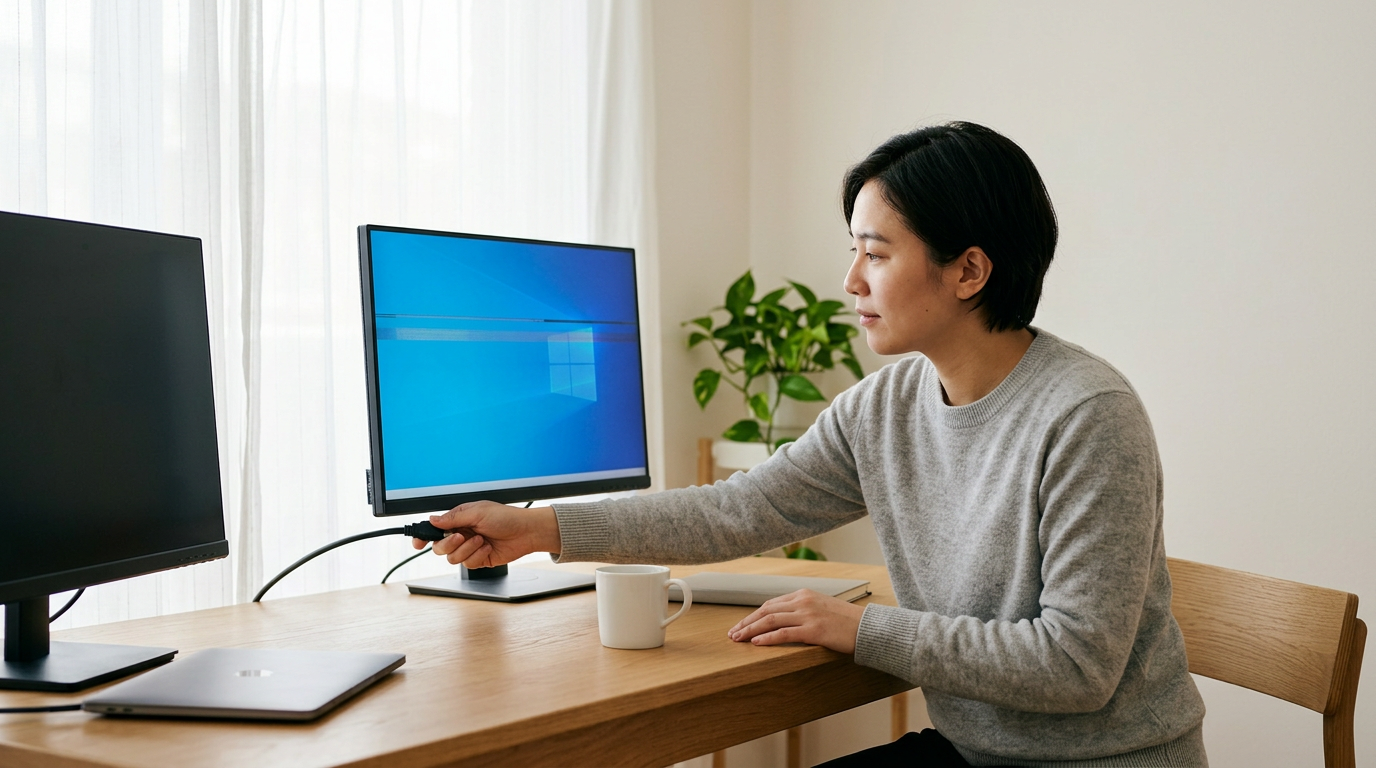
The short versionMonitor issues in Windows 10 are problems such as a black screen, flickering, distorted colors, or a display that Windows cannot detect. The cause is usually the monitor, cable or port, graphics driver, or display settings, so check connections and input first, then test Windows display options and updates. Isolating the failing part before changing anything helps you choose a quicker fix and avoid replacing hardware unnecessarily.
Your screen goes black mid-call, or the second monitor on your home office desk suddenly shows nothing. It’s like a TV losing signal right when the big play hits.
Most Windows 10 monitor problems trace back to one of four places: the monitor, the cable, the display driver (the software that lets Windows talk to your graphics hardware), or a display setting. Finding the right one is the real trick.
In this post, we’ll walk through a symptom-to-fix path for each, with keyboard-first steps so you can recover without reaching for the mouse.
Diagnosing Monitor Issues on Windows 10
The fault could sit in the monitor, the cable, the driver or a setting. Work through these checks in order.
Screen symptoms you might notice
Symptoms can look alike, but they point to different faults:
- Flickering or distorted screens: The picture shakes, tears or shows stripes.
- Black screen or no display: Nothing shows on screen.
- Wrong colors or brightness: The picture looks washed out or too dim.
- Dead pixels: Tiny spots stuck on one color, which no setting can fix.
- Monitor not detected: Windows doesn’t see the screen at all.
Rule out problems outside the monitor
Rule these out first:
- Check the computer powers on: Look for the power light and fans.
- POST completion check: POST (Power-On Self-Test) is the startup check before Windows loads.
- Boot into Windows: A sign-in screen means the PC runs, so look at the display.
- Linked power and boot guides: See the linked guides for more depth.
A home office worker’s monitor goes dark after she undocks her laptop. Once the sign-in screen appears, she knows the laptop is fine and skips buying a new monitor.
Why won’t my PC detect my monitor?
If your PC suddenly stops detecting a monitor that worked yesterday, something usually changed: a loose cable, the wrong input selected, or a recent driver or Windows update. Check the cable first.
For now, don’t try to fix anything. Just find the failing part.
- Test on another computer: Works there? Your PC is the suspect. Fails there too? Suspect the monitor.
- Run the monitor self-test: Many monitors have one in their on-screen menu.
- Unplug the primary screen: See if the secondary still works.
- Check graphics card diagnostics: Use your card maker’s tool to confirm it sees your displays.
- Task Manager flicker test: For a flicker, open Task Manager (Ctrl+Shift+Esc) and see whether the flicker continues.
Getting the Connections Right
Most monitor problems start where a cable meets a port, so we’ll check those first.
Confirm cables and power are working
Picture a home office worker facing a black screen on Monday. Checking the cable ends first can save her a long detour.
- Secure both cable ends. Push each plug fully in at the monitor and the computer.
- Check the monitor’s power outlet. Confirm it’s switched on and plugged into a working outlet.
- Swap the power or video cable. Try a spare you know works.
- Replace old VGA and DVI cables. VGA (Video Graphics Array) and DVI (Digital Visual Interface) are older types worth replacing.
Test the cable before you blame the monitor.
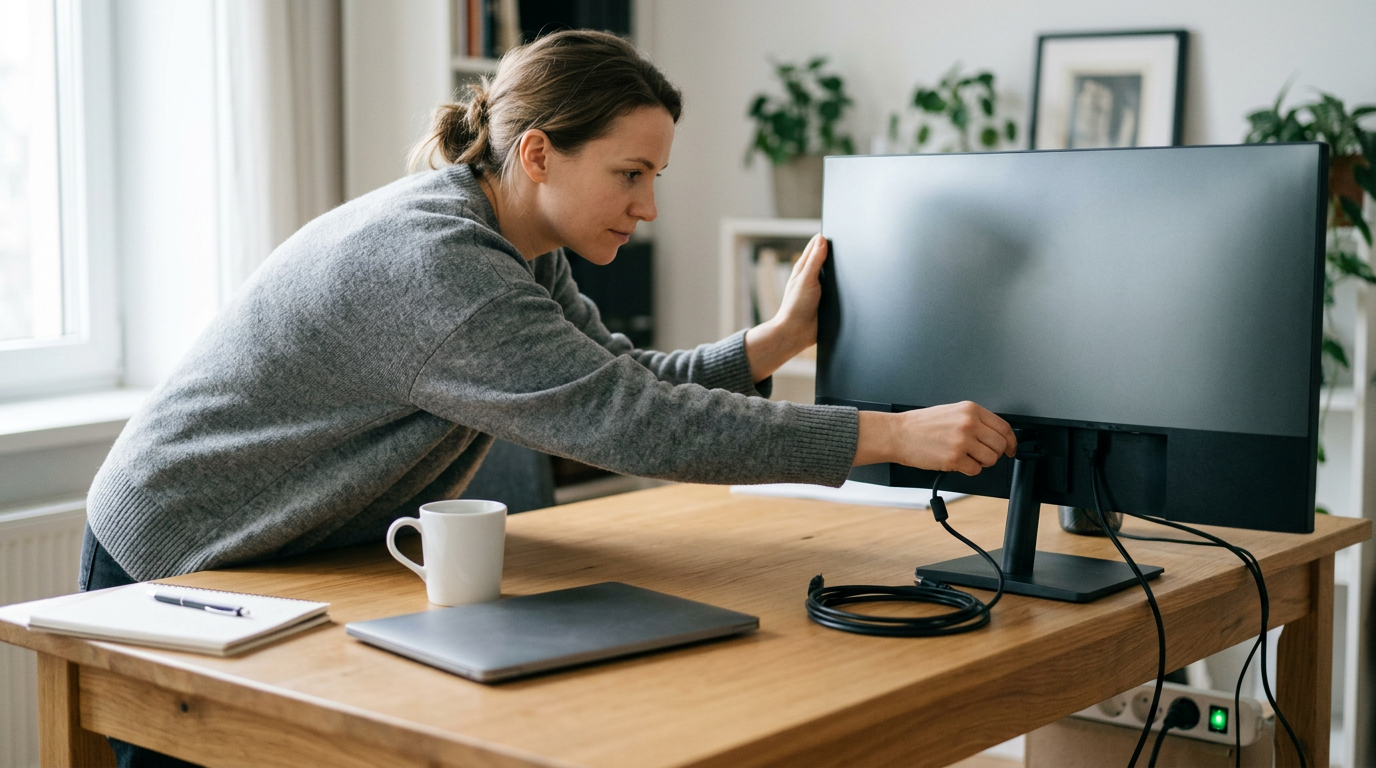
Choose the right input, port and adapter
A monitor shows only the input it’s set to, so a good cable can still show nothing.
- Select the correct input source. Use the monitor’s buttons or menu to match the input to your cable.
- Try a different graphics port. If your computer has another video output, move the cable there.
- Use dedicated GPU ports. A GPU (graphics processing unit) drives your display, so use its ports rather than built-in video outputs.
- Remove adapters or switches. Each one is another place for the signal to drop, so connect directly where you can.
- Disconnect other peripherals. Unplug extra devices briefly to see if one is in the way.
Fix a monitor that keeps losing signal
When the picture keeps dropping out, change one thing at a time. Start simple.
- Watch the monitor turning on and off. Note when it happens, since that pattern is a clue.
- Power off and on the display. Switch it off, wait a few seconds, then switch it back on.
- Swap the power strip or outlet. Plug the monitor straight into a wall outlet instead.
- Try different monitor and PC ports. If the problem follows the cable, the cable is at fault. If it stays with one port, that port is.
Limits that hubs and docks can cause
- Check hub specs. Confirm the resolution and refresh rate (how many times a second the screen redraws) the hub supports.
- Refresh rate caps on hubs. Some hubs hold the refresh rate below what your monitor can do, so motion may look less smooth than it should.
- Resolution limits with multiple screens. Resolution is the amount of detail on screen. Adding a second monitor through a hub can lower it on both.
- Laptop dock setups for home desks. A freelance editor with a dark second monitor can try another dock port and check the dock’s specs.
Sorting Out Windows Display Settings
Check the settings before you blame the hardware. Windows has quick fixes for detecting, sizing, and tuning your screens.
Get Windows to detect your screens
If a monitor doesn’t appear, open Settings, then System, then Display, and select Detect. Pick Extend to use the second screen as extra workspace, or Duplicate to mirror your main screen.
Press Win+P to open the project menu, then use the arrow keys and Enter to pick Extend without touching the mouse. Hands stay on the keys. Then arrange the screen tiles in Display settings to match your desk.
Picture a paralegal in a spare bedroom who plugs a second monitor into her laptop. One press of Win+P and a pick of Extend gives her the case file on one screen and her email on the other.
Sizing text, images and resolution
Start with the recommended resolution. If text and icons look tiny, adjust scaling under Scale and layout. Scaling enlarges text and apps, and you can set it per screen when a laptop and monitor differ.
If the image looks zoomed or stretched, recheck the recommended resolution. Some TVs crop the picture’s edges, a problem called overscan, so look for an underscan option in your graphics settings.
Under Display orientation, pick Portrait if you’ve rotated a monitor sideways for long documents.
Setting the right refresh rate
The refresh rate is how many times per second the screen redraws the image. Set it under Advanced display settings. A rate your monitor doesn’t support can leave the screen blank with a no-signal message.
If a screen flickers, try another rate from the same list. Avoid overclocking dual setups, since pushing two monitors past their rated rates invites flicker. To confirm the rate you chose is running smoothly, run TestUFO, a browser-based motion test.
When colors or brightness look off
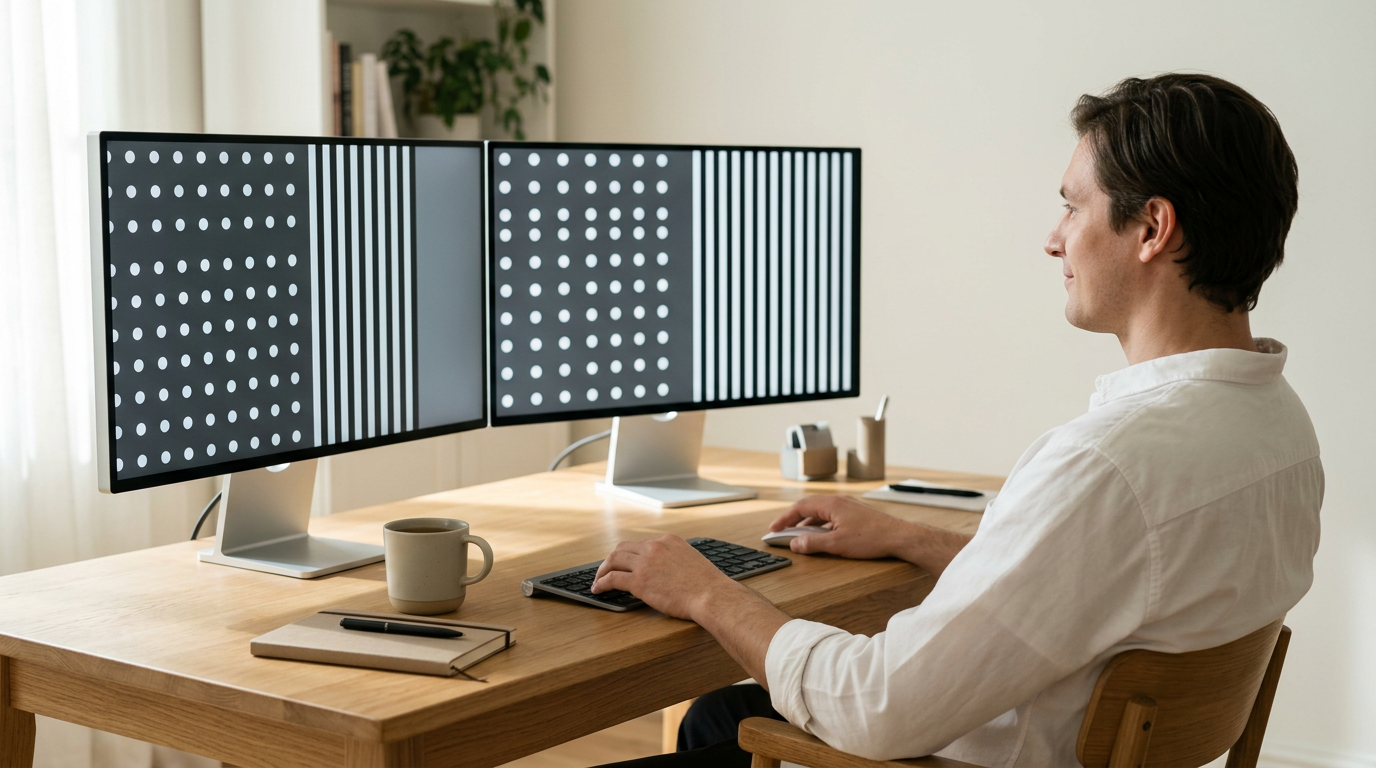
Start with quality cables. A worn or cheap cable can cause color shifts or a dropped signal, so swap in one you trust first. Then reset the monitor to factory defaults from its on-screen menu to clear odd brightness or color settings.
To match two screens, run Windows’ display color calibration tool, then adjust each one until they look alike side by side. Identical monitor models are easiest to match, since you’re matching screens rather than forcing two different panels together.
Keep Drivers and Windows up to Date
When a monitor misbehaves after an update, the fix often lives in software, not the screen.
Update your graphics driver and BIOS
A graphics driver controls how Windows drives your display, and an outdated one can cause screen trouble. Get updates from the manufacturer’s site or Windows Update. Your BIOS (Basic Input/Output System) is the firmware that starts the machine.
On a Dell, SupportAssist can check for driver and BIOS updates. Restart after any install, or the old version keeps running.
Undo a driver or Windows update
Started after an update? Undo that change before you guess. In Device Manager, open your display adapter’s properties and choose Roll Back Driver on the Driver tab, if it’s available. Check Windows Update to see what installed and when.
Updates can also reset display settings, so recheck resolution and your main screen. Undo what changed, not everything. Think of a support agent in a spare room with a second monitor. After an update, that screen goes black mid-shift.
A rollback brings it back before the next ticket. If the screen stays broken, Safe mode starts Windows with a basic display adapter: a generic driver that keeps a usable picture on screen.
Quick resets to try first
Windows+Ctrl+Shift+B refreshes the display, so try it first. For a hard reset, hold the power button until the computer shuts off, then turn it back on. Restart the computer and monitors together so both reconnect.
Windows+P opens the project menu, where you can pick:
- PC screen only
- Duplicate
- Extend
- Second screen only
Working blind? Windows+P still works while Windows responds: arrow keys to choose a mode, then Enter. Hands stay on the keys.
Spotting Hardware Faults and Getting Help
Rule out the hardware first. Here’s how we’ll separate a screen fault from a cable fault.
Stop lines and noise on the screen
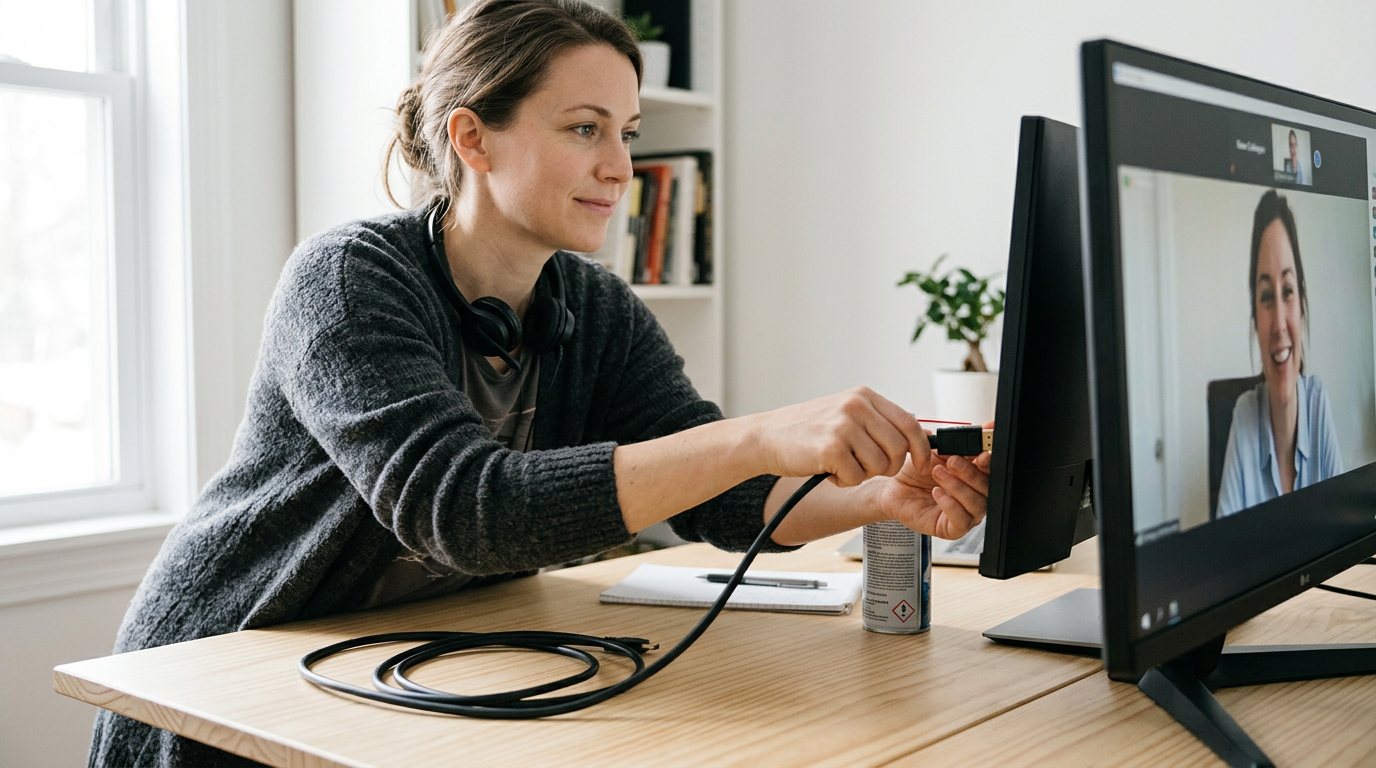
Lines, flicker, or static often start at the connection. Reseat the video cable, blow out the ports with compressed air, and check these:
- Shielded cables: Shielding helps block interference from nearby electronics.
- Shorter cables: Long cables pick up more noise, so use only the length you need.
- Lines across the screen: If they persist with a fresh cable, the monitor itself is the likely culprit.
A home office support agent’s monitor flickers mid-call. She swaps in a shorter shielded cable, the flicker stops, and she skips a repair request entirely.
Dead pixels and keeping it cool
A dead pixel stays black, while a stuck pixel stays locked on one color. The fix depends on which one you’re seeing.
Open any solid-color test page, press F11 for full screen, and watch for spots that ignore the color change. Some monitors also have a built-in self-test in their on-screen menu.
- Ventilation and dust: Keep vents clear and dust off the back so air can move.
- Keep away from sunlight: Angle the screen away from direct sunlight, which can wash out the image and add heat.
Repairs, returns and where to get help
If the checks don’t clear it, pick the path that fits.
- Contact manufacturer support: Reach the maker with your model number and test results.
- Warranty-based repair: If it’s still covered, ask for a warranty repair first.
- Retailer return or replacement: If you bought it recently, check the return window.
- Community forums: Owners of the same model often share fixes, so search first.
Keep notes in one window and the support page in another, and switch with Alt+Tab. Preparation keeps the call short.
Problems with Several Screens and Games
Most of these problems come from settings, not hardware, so check those first.
Stop games opening on the wrong screen
- In-game display selection. Many games let you pick a screen in their own settings.
- Set primary display. Make your main monitor the primary display so games open there.
- Show only on one monitor. Press Win+P and choose a single-screen option to test on one display.
- Borderless or full screen mode. Borderless windowed mode fills the screen without taking it over, so switching back is smoother.
- Dual Monitor Tool mouse lock. Dual Monitor Tool, a separate utility, can keep your cursor on the screen you’re using.
Get a third monitor working again
- Plug in monitors one at a time. Add each screen, check that it works, then add the next.
- Choose Extend these displays. In display settings, set Multiple displays to Extend these displays for one wide desktop.
- Update graphics drivers. An outdated driver can be why a third screen isn’t detected.
A support agent whose third screen went blank after an update can reconnect displays one at a time, then press Win+P and pick Extend without leaving the keyboard.
Fix windows that shift after sleep
- Rapid Hot Plug Detect (RHPD) issue. RHPD is the signal a monitor sends when it connects. If it misfires after sleep, windows can land on the wrong screen.
- Windows 11 remember locations. On Windows 11, check its settings for the option that remembers where windows belonged.
- Switch DisplayPort to HDMI. If your hardware has both, switching from DisplayPort to HDMI (High-Definition Multimedia Interface) can rule out a faulty cable.
- Win+Shift+Arrow to move windows back. Tap Win+Shift+Arrow until a misplaced window returns to the right screen. Your hands stay on the keys.
Most monitor problems on Windows 10 come down to four suspects: the monitor, the cable, the driver, or the settings. Once you know which one you’re dealing with, the fix is usually quicker than you’d expect.
Keep your hands on the keyboard wherever you can, and save the mouse for the moments that truly need it. Your deadlines will thank you.
The next time the screen goes dark, you’ll know exactly where to look.
Questions
How do I tell if my monitor is faulty?
Look for persistent symptoms such as a black screen, flickering, distorted lines, incorrect colors, or dead pixels. Test the monitor with another computer and run its built-in self-test if available. If the problem follows the monitor across computers and cables, the monitor is likely faulty.
How can I troubleshoot a faulty monitor?
Check that the monitor and PC are powered on, reseat both ends of the video cable, and select the correct monitor input. Try a known-working cable, another port, and the monitor on a different computer; then check Windows Display settings and graphics drivers. Changing one thing at a time helps identify whether the fault is the monitor, cable, PC, or settings.
Why is my PC suddenly not detecting my monitor?
A loose cable, incorrect input, or recent driver or Windows update can stop Windows detecting a monitor. Reseat the cable, verify the monitor's input, then open Settings > System > Display and select Detect. You can also press Win+P and choose Extend or Duplicate.
Why is my screen glitching in Windows 10?
Screen glitching in Windows 10 can result from a loose or poor-quality cable, a display driver problem, or an unsupported refresh rate or display setting. Reseat or replace the cable, try a different refresh rate under Advanced display settings, and update or roll back the graphics driver if the issue began after an update. If flickering continues, open Task Manager with Ctrl+Shift+Esc: whether it flickers too can help distinguish an app problem from a display-driver problem.
spaceShortcut Sheets: the twenty keys to learn first in each appFind your app