Where to Find Dell Monitor Model Number: Complete Guide
Where to find your Dell monitor model number on its label, screen menu, Windows, box, or Dell lookup tools, then match the right mount, dock, or cable.

The short versionA Dell monitor model number is the identifier for the exact display you own, usually printed on a label on the back of the screen. You can also check the on-screen menu, your computer’s display information, the box or purchase records, and, on some older models, a hidden card near the USB ports; Dell’s lookup tools may not recognize every monitor. Keep the number handy and use it to check compatibility before buying a mount, dock, cable, or other accessory.
If you’ve ever bought a monitor mount only to find it doesn’t fit, you know how much one small detail matters. For a Dell monitor, that detail is the model number, the string of letters and digits that identifies your exact screen.
Think of it as your monitor’s ID card. Once you have it, matching a stand, a dock, or a cable to your screen gets much easier. In this post, we’ll walk through every way to find it: the label, the on-screen menu, Windows, the box, and Dell’s lookup tools.
Where to Find Dell Monitor Model Number
Before you order a mount, dock, or cable, you need the exact model number. Dell’s lookup tools can help, but they don’t always find monitors, so here’s where each route works and where it stalls.
Why Dell lookup tools often miss monitors
Four things can cause an empty result:
- PCs dominate. The tool mostly pulls up computers, not monitors.
- Tags go unrecognized. Monitor tags are often missed by the system.
- Batches go unrecorded. Monitors bought from a reseller in a bulk batch may not be recorded.
- Regions vary. Sales in some regions may not appear at all.

How serial numbers differ from service tags
A serial number isn’t tied to the service tag. They’re separate numbers, but both identify your monitor.
As for what Dell serial numbers look like, each one is its own string of characters, not a copy of the tag, so copy whichever you need exactly as it’s printed.
How can I identify my Dell device?
Start on the lookup page and pick one of these routes:
- Enter service tag or product ID. Type in the identifier from your monitor’s label.
- Auto-detect this PC. Skip it for a monitor, since it’s built around your computer.
- Choose from all products. Browse the full list when you don’t have an identifier handy.
- How to find product identifier. Follow that link to see where the number lives.
Think of a remote designer buying a wall mount for her desk. She looks up the model first, then orders a mount and a dock that match, so nothing ends up in a return box. Checking now beats returning later.
If you hit a no-match or not-authorized error, don’t keep retyping the same entry. Recheck it against the label, then try another route.
Where to Find the Model Number Label
The model number is printed on a label on the monitor’s back. If you’d rather not reach behind the screen, the on-screen menu (OSD, or on-screen display), Windows or macOS, and your box, invoice, or order email can also show it.
Check the sticker on the back
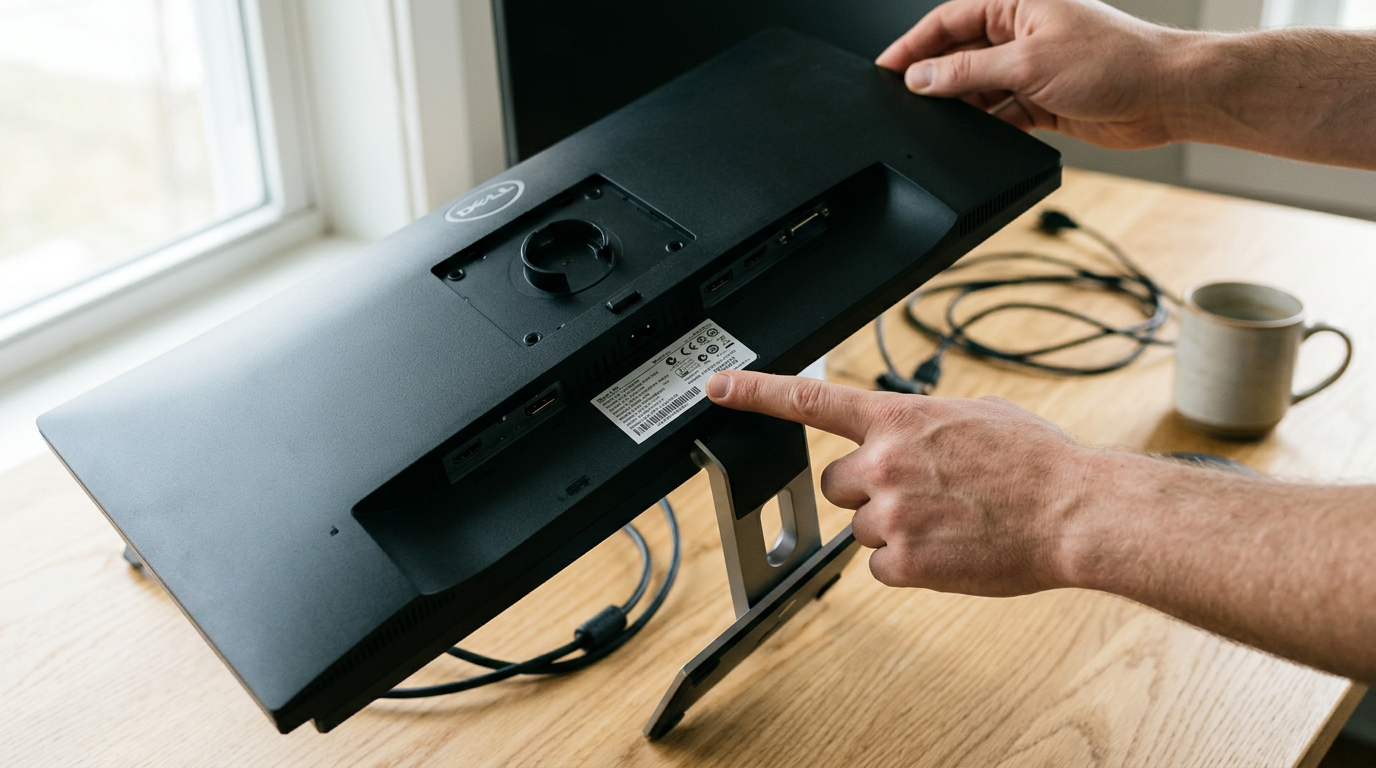
Turn the monitor around to find the sticker. It lists the model number, regulatory info, a serial number, and a service tag. The model number tells you what monitor you have, while the serial number and service tag tell you which unit it is.
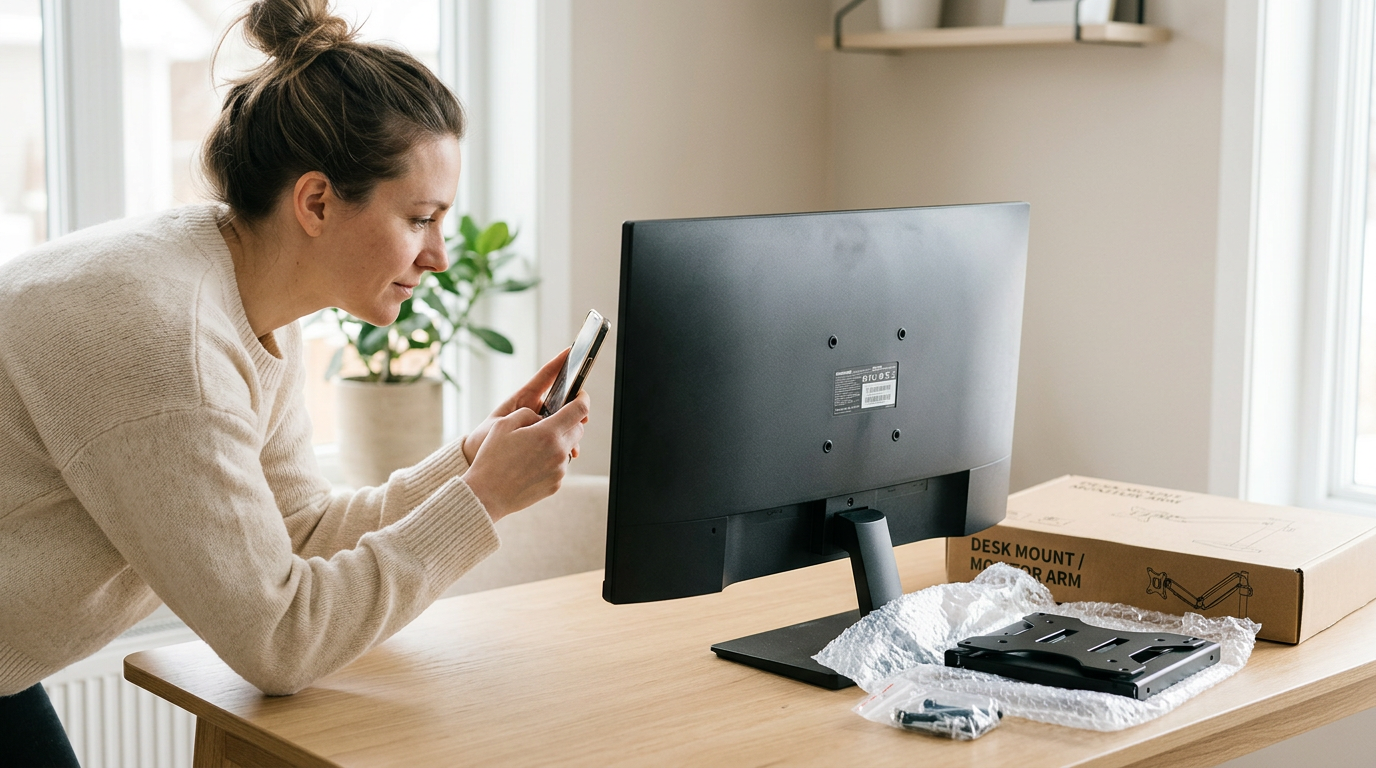
Label placement varies by model, so don’t assume it’s in the same spot on every Dell. If your monitor is on an arm, photograph the label before you mount it, because the back gets hard to reach afterward.
For example, a home office worker who wants a new arm can open that photo on her phone instead of unhooking her screen. She gets the model in seconds and can shop for a compatible mount without another trip behind the desk.
Look for a hidden card on older models
The Dell 1909W and select UltraSharp models have no externally visible stickers. Look for a card tucked on the left side, above the USB ports.
The model number is on the card’s front, and the regulatory info is on the back. It’s easy to miss, but it’s there.
Check the user manual for your model
If the card or label is hard to find, check your monitor’s user manual. It includes model-specific label guidance, so follow the instructions for your exact monitor rather than a general description.
Other Dell Help for Your Monitor
Once you have your model number, Dell offers more help than the label alone.
Find manuals on Dell’s monitor support site
Start with the Monitor Support site for manuals and documentation on your display. The support knowledge base adds short answers to common questions.
Your model number also tells you what fits. Consider a freelance editor setting up a spare-bedroom office who wants a monitor arm, dock, or cable. She looks up her model before she buys, not after the box arrives. One lookup, no return label.

Check warranty status and renewal options
Checking coverage is far less stressful now than in the middle of a failure. These options cover the basics:
- Check support status to see whether your monitor is still under warranty.
- Extend or renew coverage if your warranty is close to ending.
- Register or transfer devices so the record matches the current owner.
- Out-of-warranty offers are worth a look if your coverage has lapsed, so check before you assume you’re out of luck.
Ask the Dell forum or contact support
When the manuals don’t cover your problem, you have a few places to turn:
- Dell Community forum: search for your model first, since others may have already worked through the same issue.
- Contact support: reach out directly for an answer from Dell.
- Start a discussion: if nothing matches, post your question with your model number.
Consider a home office worker whose dock keeps dropping her display. She searches the forum for her model and tries a fix that worked for someone else. One search could save the afternoon.
Checking the model number takes a minute, and it can save you a return trip, a wasted weekend, or a mount that won’t hold your screen.
Whether you read it off the back of the panel, the on-screen menu, or the box, you’ll know exactly what you’re working with.
Keep it written down somewhere handy, like a note on your phone, so the next cable or dock you shop for is a quick match. Find the number once, and every purchase after that gets easier.
Questions
How can I find out what model my laptop is?
On Windows, open Settings > System > About to check the device name and model, or search for System Information and look for “System Model.” On a Mac, choose Apple menu > About This Mac. You can also check the label on the laptop’s underside, its original packaging, or your purchase records.
How can I identify my Dell device?
Check the label on the device for its model name and identifying number, such as a service tag or product ID. For a Dell computer, enter its service tag on Dell Support, or use SupportAssist to identify the device; for a monitor, check the back label or its on-screen menu.
Where can I find the Express Service Code on my Dell laptop?
Look for the Express Service Code on the label on the bottom of the laptop, or find it in Dell SupportAssist or the BIOS. It is also a numeric code generated from the Dell Service Tag, so you can enter the Service Tag on Dell’s support site to look it up.
What do Dell serial numbers look like?
Dell serial numbers are strings of letters and digits, but their format can vary by product and identifier type. A Dell Service Tag is commonly a seven-character alphanumeric code; it is different from a serial number, so copy the exact identifier shown on your device.
spaceShortcut Sheets: the twenty keys to learn first in each appFind your app