Full Screen Key Shortcut Explained for Every Device
Full screen key shortcut: press F11 in many Windows browsers and apps, then see how to exit when it fails and find the right option for Mac.

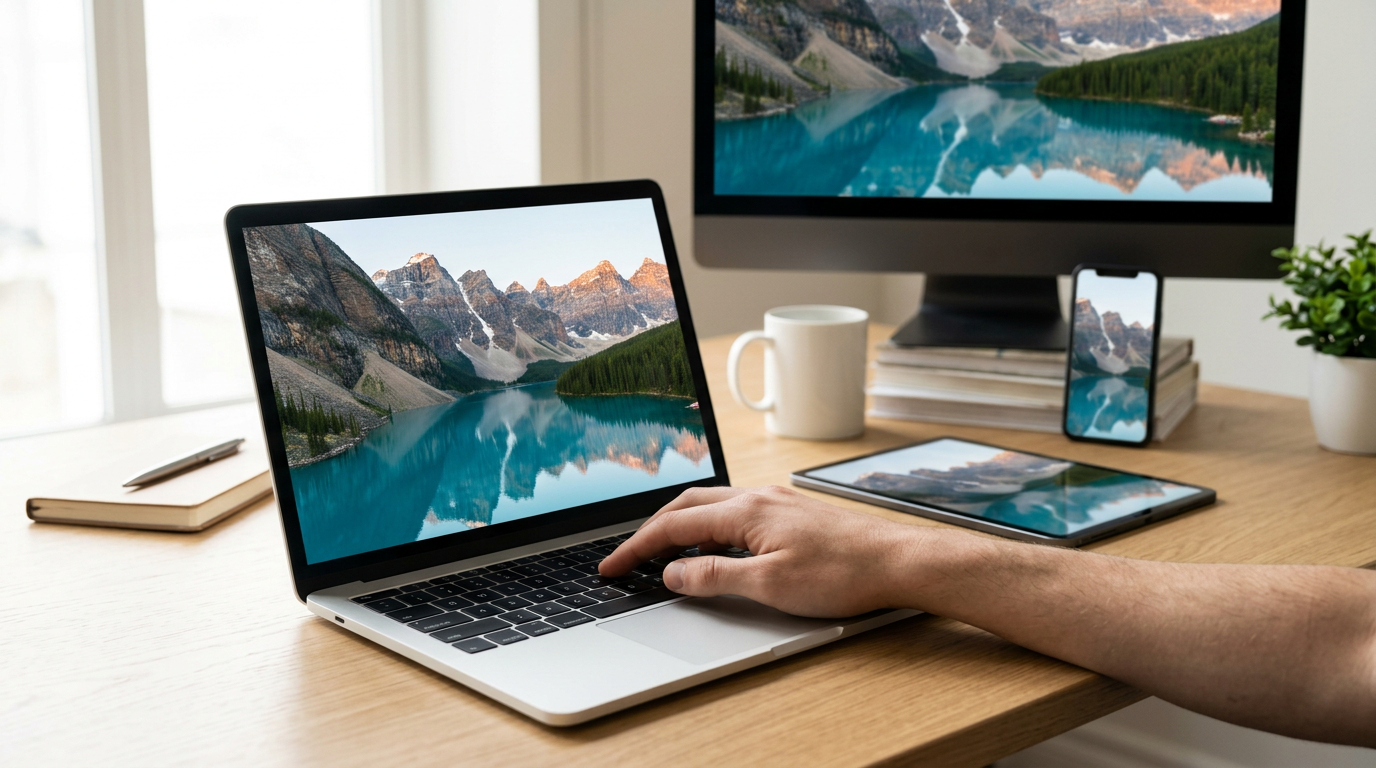
The short versionA full screen key shortcut makes an app fill the display while hiding window controls and other screen clutter. On Windows, F11 toggles full screen in most browsers and apps, though laptops may require holding Fn; on Mac, Control + Command + F works in most apps. Use the same shortcut to exit when possible, and remember that maximizing a window is different because the taskbar and title bar may remain visible.
Picture drafting a report with your email, notes, and a spreadsheet all competing for space on screen. Sometimes you just want the page to fill everything, so nothing pulls at your eyes. That’s exactly what full screen mode is for.
The quick answer on Windows: press F11 to toggle full screen in many browsers and apps. Your hands never have to leave the keyboard.
Here’s how it works across Windows, Mac, browsers, and apps, including how to get out again when F11 doesn’t cooperate.
The Core Windows Full Screen Key Shortcut
Want the whole display without hunting for a corner button? One key does it.
Is F11 the full screen key?
Yes. F11 enters full screen in most apps, browsers included. Press F11 again to toggle back to the normal window.
A home office analyst with a dashboard open can tap F11 to fill the screen with numbers, then tap again to return to chat without touching the mouse.
Is F11 or F12 full screen? F11 is the one. F12 isn’t the full screen key, so if it does nothing, that’s expected.
Hold Fn before F11 on laptops
Tap F11 and you may get brightness or volume instead, but holding Fn (the function key) first gets you the F-key itself. Gaming keyboards can add a multi-function key that changes what the F-keys do, so check that layer if F11 still does nothing.
A support agent who taps F11 to widen a ticket gets a volume bar instead. Hold Fn, then press F11. That’s the whole fix.
Leaving full screen with your keys
Here’s how exiting works:
- F11 exits full screen, the same key that got you in.
- Esc (Escape) exits in some apps, but not all of them.
- Esc is more limited in browsers, so F11 is the safer bet there.
The key that got you in can get you out. Hands stay on the keys.
How Each App Goes Full Screen
Full screen is the mode that hides everything except the work in front of you, and every app builds it a little differently.
Before we get to each one, know the difference: a maximized window fills the monitor but keeps its title bar and taskbar in view, while full screen actually removes them.
Going full screen in browsers
In Chrome, Edge, and Firefox, press F11 to switch full screen on and off. It’s the fastest route. Hands stay on the keys. Prefer the mouse? Open the three-dot menu and choose the full-screen icon.
Some toolbars may stay visible even in full screen, so don’t assume something’s broken if one is still showing.

Watching streaming video full screen
On YouTube, press F while a video plays and it fills your screen. Consider a support agent working through a product training video during a quiet hour: one keypress, and the rest of the page drops away.
If you’d rather click, the player’s full-screen icon does the same job. To leave, press Esc or F again.
Full screen in Office and Google apps
Each suite hides its clutter in its own way, so here’s what to look for:
- Auto-hide Ribbon. In Office apps, this option collapses the toolbar until you need it.
- Google Docs View menu. Open View and pick full screen to hide the toolbars and leave just the page.
- Full Screen hides toolbars. Once it’s on, the document is all you see, which suits long drafting sessions.
- Video calls, keyboard-only. Keep the call full screen and stay on the keys. Consider an analyst walking a client through a shared spreadsheet: the numbers fill the screen, and the client never sees a menu bar.
If you’re asking about Zoom on Windows, the exact keys are best read straight from the app, so check the keyboard shortcuts in Zoom’s settings or help on your own install and pin the few you’ll use.
Outlook’s full-screen controls deserve the same check, since each app keeps its own set.
Making File Explorer go full screen
Open File Explorer with Win + E (the Windows key plus E). Once the window is up, press Fn + F11 to take it full screen. Win + E opens the window, but Fn + F11 is the separate step that makes it full screen.
On many laptops, Fn (short for function) is the key you hold alongside F11.
Setting up full screen for games
Most games handle full screen in their own display settings, so look there before reaching for any shortcut.
- Enable in game settings. Open the display menu and switch full screen on.
- Borderless windowed option. This fills the screen without taking over the display, which often makes switching to another window quicker. It’s a good pick if you flip between a game and a chat window during the day.
Exiting Full Screen and Fixing Problems
Getting out of full screen is easier than most people expect, and F11 isn’t the only way. Here’s how to leave cleanly and fix the problems that tend to pop up.
How to exit full screen without F11
To get out of full screen mode without F11, try these steps:
- Move your cursor to the very top of the screen to reveal the hidden toolbar.
- Click the exit button, which often looks like a small circle.
- If you see a square restore button on the toolbar, click it to return the window to its normal size.
Think of a support agent at a home desk who gets stuck in a browser’s full screen view mid-ticket. A quick nudge to the top edge brings the exit into view, and they’re back in the queue in seconds.

Keys to restore, close, or switch windows
Keyboard shortcuts give you more control once a window is back to normal:
- Alt + Space opens the window’s control menu, where you can choose Restore.
- Alt + F4 closes the program, so save your work first.
- Windows + M minimizes all open windows at once.
- Alt + Tab switches between windows, and Windows + Tab opens Task View to show them all.
The real difference is closing versus minimizing. Alt + F4 ends a program, while Windows + M just puts everything aside.
What to do when apps freeze
When an app stops responding, the keyboard is your fastest way out. Press Ctrl + Alt + Del, then choose Task Manager from the screen that appears. Under Processes, select the frozen app and click End task.
If freezes keep happening, malware or potentially unwanted programs (PUPs) can be the culprit. PUPs are bundled extras that sneak onto a computer. Run your antivirus scan and check for updates.
Ending the task takes seconds; stopping the cause takes a little more care.
Common full screen problems and fixes
- F11 not working on a laptop. Many laptops set the top row of keys to control brightness or volume by default, so hold Fn while you press F11.
- Browser bar still showing. Move your cursor to the top edge to reveal the bar, then use the exit or restore button to leave full screen.
Why Full Screen Helps You Work
Full screen hides everything except your current app, so less competes for your attention.
What full screen gives you
Fewer things on screen means fewer interruptions, and that’s the distraction-free focus most people want. It also helps in three more ways:
- Better video and gaming viewing. Movies and games fill the whole monitor.
- Presentations. Slides look cleaner without your taskbar showing.
- More screen real estate. Your app gets the whole display.
Hide the taskbar for true full screen
A maximized window can still show the taskbar along the bottom. To hide it:
- Right-click the taskbar and choose Taskbar settings.
- Check the auto-hide box labeled “Automatically hide the taskbar.”
Once it’s on, the taskbar slides away until you point at the bottom edge. That’s the gap between merely maximized and truly immersive. Edge to edge, no clutter.
Multitasking across desktops and monitors
Virtual desktops let you organize open apps into separate workspaces. A study in Computers in Human Behavior describes each as a dedicated workspace for one goal-oriented task.
Consider a support agent who keeps tickets on one desktop and the knowledge base on another. On Windows, Win+Ctrl+Right Arrow switches to the next one, so hands stay on the keys.
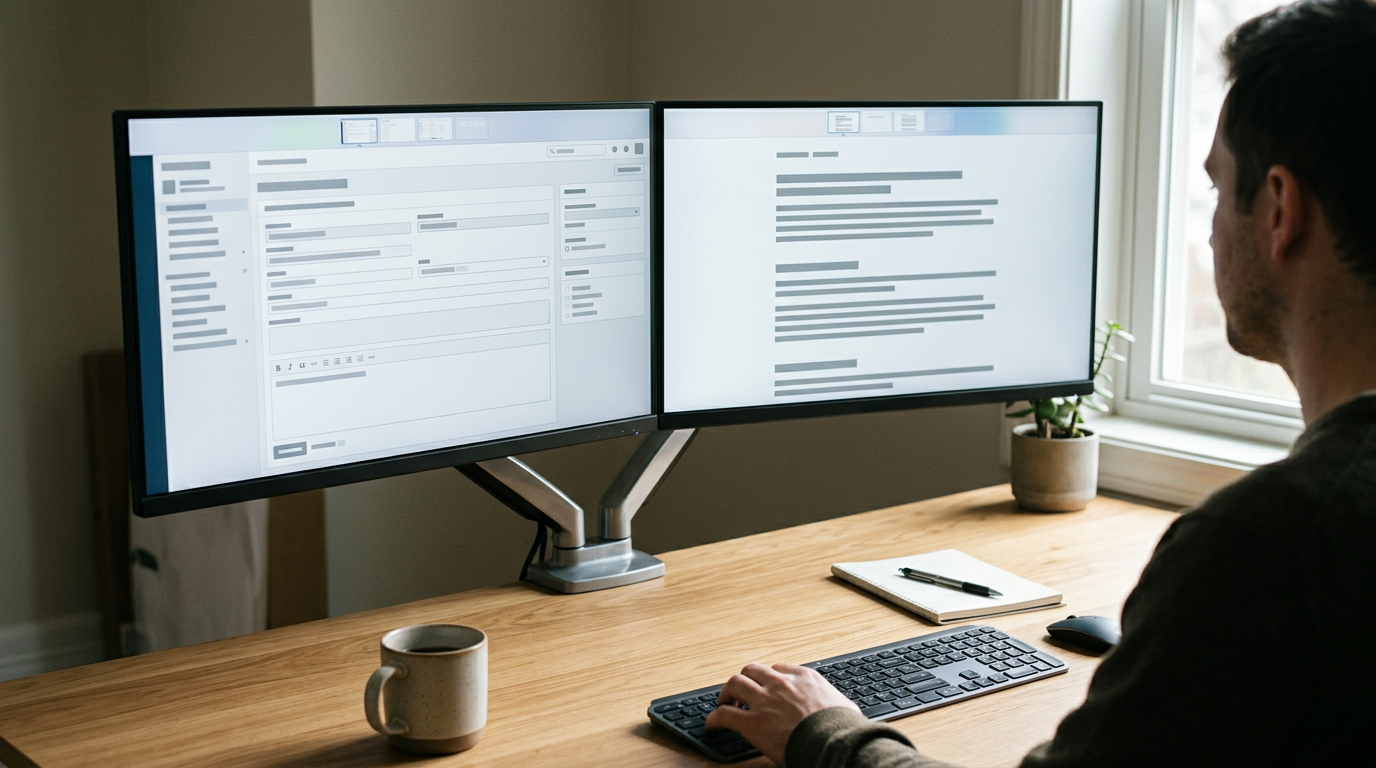
Dual monitor placement matters too. Keep your main app full screen on one monitor and reference material on the other, so you skip the alt-tabbing.
Gaming can also gain performance in full screen, since the game gets the display to itself.
On a big monitor, snapping two apps side by side often beats full screen. Press the Windows key with Left or Right Arrow to snap a window to half the screen.
Mac and Other Ways to Size Windows
No F11 key? You can still fill your screen without it. Here’s how full screen works on a Mac, then we’ll cover the quicker Windows options.
Going full screen on a Mac
On a Mac, full screen does more than enlarge a window: it takes over the display, tucking the menu bar away until you need it. Four routes get you there:
- Control + Command + F. Press these keys in most apps to turn full screen on, and again to leave.
- Green button click. Click the green button in a window’s top-left corner.
- Safari shortcut. Safari uses the same keys, and its toolbar slides out of view so the page gets the room.
- Swipe between full-screen windows. On a trackpad, swipe left or right with three or four fingers to move between full-screen apps.
Think of a copywriter at a desk with a laptop and a second monitor. Control + Command + F gives the draft the laptop screen to itself, and nothing competes for attention. The mouse stays parked.
Other ways to resize and minimize windows
Without F11, Windows offers these quick options:
- Maximize square button. Click the middle button in a window’s top-right corner to fill the screen with it. The taskbar stays visible, so it’s not quite full screen.
- Drag to top edge. Drag the title bar to the top of the screen and let go to maximize.
- Windows + Up Arrow. Press the Windows key with Up Arrow to maximize the active window without touching the mouse.
- Snap Layouts in Windows 11. Hover over the maximize button to see layout options, then click one to park the window beside others.
- Minimize window with keyboard. Press Windows + Down Arrow to minimize the active window. On a Mac, use Command + M.
Full screen is one of those small shortcuts that quietly adds up. Once F11 and its Mac equivalent feel automatic, you’ll spend less time chasing windows and more time on the words in front of you.
Keep the exit key in mind too, so a stubborn window never costs you a minute of fumbling. Your hands stay where they belong, and your focus stays on the work.
The best screen is the one that gets out of your way, and your keyboard can make that happen in a single keystroke.
References
- Dedicated workspaces — dl.acm.org (2016)
Questions
What are the keyboard shortcuts for Zoom on Windows?
Zoom for Windows shortcuts vary by version and settings. Open Zoom’s desktop app and check Settings or the in-app keyboard shortcuts list for the current commands, such as muting, starting video, and screen sharing.
How do I exit full screen on Outlook?
In Outlook, press Esc to leave full-screen mode if the current view supports it. You can also move the pointer to the top of the screen to reveal the toolbar, then click the exit or restore control.
How do I minimize a window using the keyboard?
Press Windows + Down Arrow to minimize the active window. Windows + M minimizes all open windows.
How to full screen without F11 key?
Use the app’s full-screen control in its menu or toolbar, or maximize the window with Windows + Up Arrow. On a Mac, press Control + Command + F in most apps to enter full screen.
How do I enlarge the screen on my laptop?
To make the screen contents larger, increase display scaling or text size in your laptop’s display or accessibility settings. To make an app fill the display, press F11 in many apps, or hold Fn and press F11 if your laptop uses the function row for other controls.
What does Ctrl+Shift+N do?
In Windows File Explorer, Ctrl + Shift + N creates a new folder. In Google Chrome, the same shortcut opens a new Incognito window.
Is F11 or F12 full screen?
F11 is the full-screen key in many apps and browsers; F12 generally is not. On some laptops, hold Fn while pressing F11 to use the full-screen command.
Sources
- Dedicated workspaces | Computers in Human Behavior, dl.acm.org,
spaceShortcut Sheets: the twenty keys to learn first in each appFind your app