What Is the Launcher Key? A Complete Guide
What is the launcher key? On Chromebook, it opens apps and search. See how it differs from Quick Insert and remap it on a Lemokey keyboard, too.

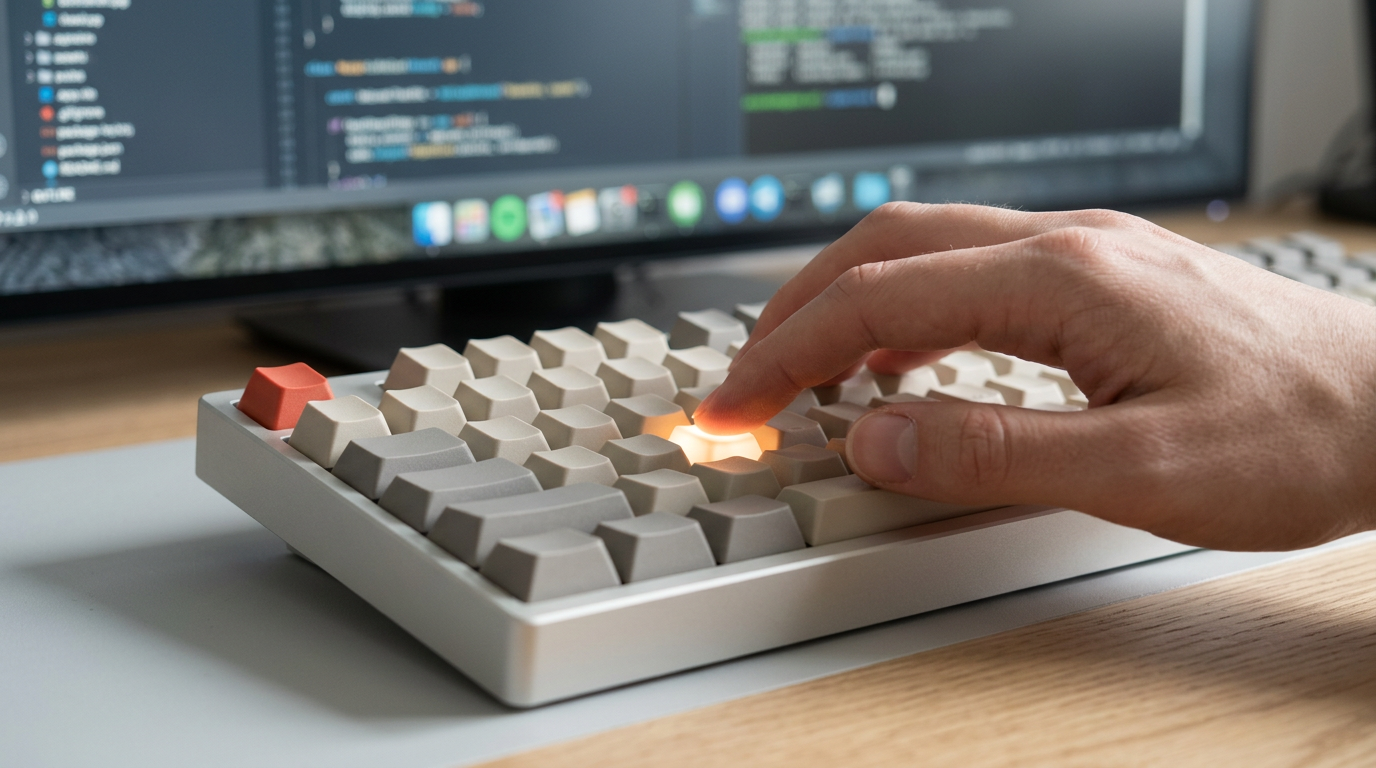
The short versionThe Launcher key on a Chromebook opens the app launcher, where you can search for and open apps by typing instead of reaching for the mouse. It is separate from Quick Insert, and key settings can remap actions to make layouts more consistent across devices. In practice, organizing frequently used apps and choosing familiar key assignments can make keyboard-first navigation simpler and faster.
Think of your keyboard as a house with a front door you use all day long. If you keep reaching for the mouse to open apps, that door is stuck in the wrong spot.
The Launcher key on a Chromebook opens your apps and search right from the keyboard, so your hands can stay put.
Here’s what we’ll cover: what the Launcher key is and does, how it matches the Windows and Mac keys you may already use, and how it differs from Quick Insert. We’ll also look at remapping it and a few keyboard-first habits for your home office.
What Is the Launcher Key on Chromebook?
A launcher is a screen that gives you one place to open apps and search. On a Chromebook, the Launcher key opens it, so you can stay on the keyboard.
How the key opens the launcher
Press the Launcher key and the launcher opens. If you’ve used the Windows Start button, the idea is similar, but you can keep typing from there.
Launcher + F opens Quick Insert, a separate feature you can reach without leaving the keyboard.
Consider a freelance editor who types all day. She presses the Launcher key, types the first few letters of her word processor, and hits Enter. She’s launching an app, not hunting for it. Do that all day and the mouse barely gets touched.
You may also see Ctrl+Shift+L and Ctrl+Alt+Z in these searches. Ctrl+Shift+L locks your screen, which is handy when you step away from your desk.
The sources behind this section don’t document what Ctrl+Alt+Z does, so check a current shortcut list before you rely on it.
Finding the grid icon on your shelf
Prefer clicking? The shelf has a nine-box grid icon. Click it and a pop-up window of applications opens, with default apps and apps tied to your Google Account. Each page holds up to sixteen apps, and the bar buttons take you to any extra pages.
The key is the faster route; the grid is your backup.
Moving and Organizing Your Apps
Rearranging apps is one of the few launcher jobs that still asks for a pointer, so let’s make each move count. Once your layout is set, opening and closing the launcher takes almost no thought at all.
Drag apps into a new order
Think of a support agent who wants the ticket queue, help center, and chat app up front. Here’s how to get them there:
- Drag an app icon to the spot you want it.
- To move an app to another page, drag it toward the edge of the launcher and wait for the window to shift.
- Drop it where you want it.
Arrange apps by how often you use them rather than how neatly they sort. That agent’s three tools now sit on the first page, so every shift starts with no hunting through pages.
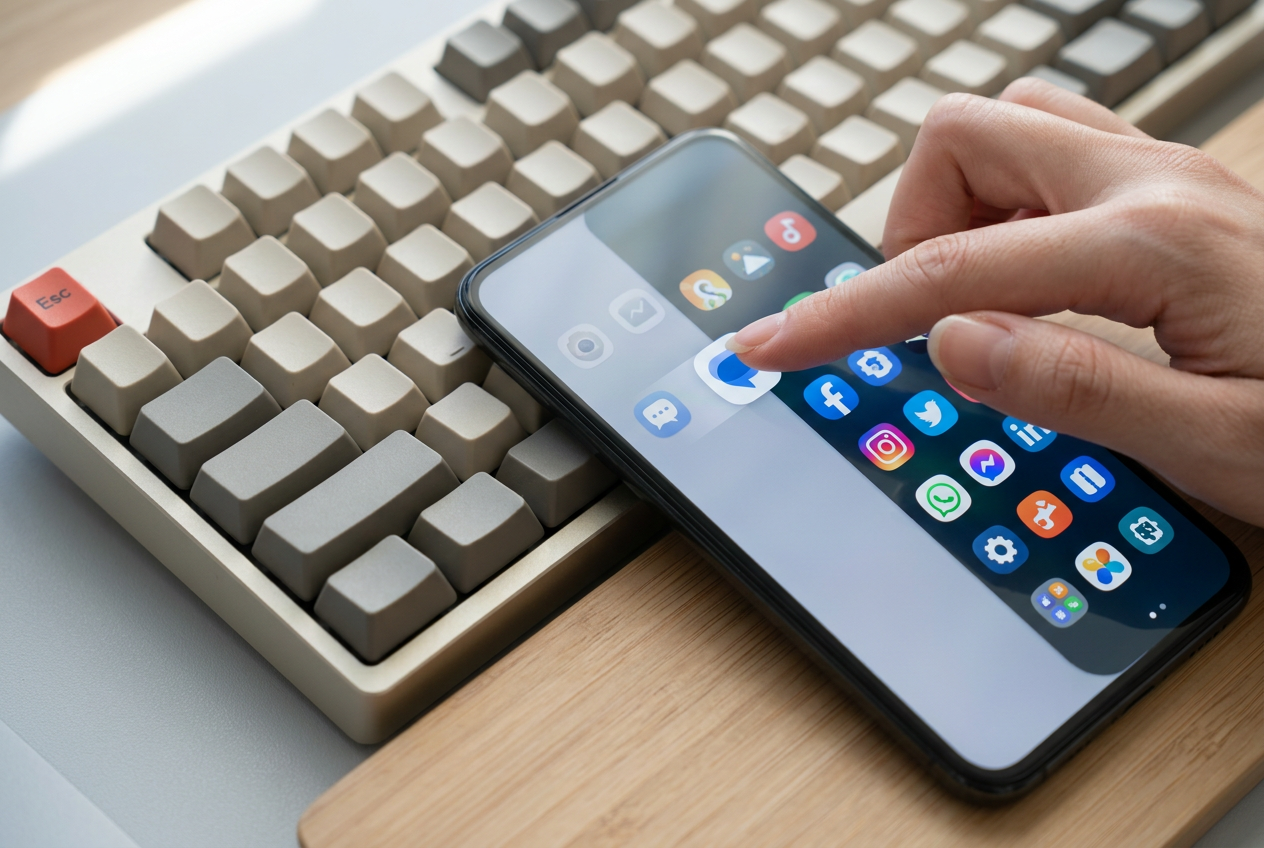
Open the launcher and close it again
Opening and closing should be the easy part. Start on the shelf, the bar along the bottom of your screen where your app icons live:
- Click the launcher icon to open it.
- Click outside the launcher to close it.
- Or click the shelf icon again to close it.
Picture a writer with a draft open who only needs a quick search. Clicking outside the launcher puts that draft right back in front of them, with no detour. Open it, use it, close it. That’s the whole loop.
How Quick Insert and the Launcher Differ
Quick Insert and the Launcher are separate keys, and on some newer hardware, they don’t sit where you’d expect.
The new key layout on Galaxy Chromebook Plus
The Galaxy Chromebook Plus introduces a dedicated Quick Insert key, placed between CTRL and ALT. Your thumbs already know that spot, so the surprise is less about what the key does and more about where it sits.
Few devices have this layout yet, though an Acer model may be next.
Why the switch disrupts your routine
Consider a support agent who works on a Galaxy Chromebook Plus at the kitchen table and on a full-size keyboard at her home desk. Her paste-and-switch rhythm feels natural on one machine and clumsy on the other.
The friction usually shows up in four places:
- Multi-paste habits: Your fingers know how to paste several times in a row, and a moved key breaks that rhythm.
- Virtual Desk swapping: Switching desks gets harder when the keys you reach for have changed.
- Multiple devices: Two machines mean two layouts, and your hands can’t keep up with both.
- Other keyboards: Remapping other keyboards is troublesome, so your fix may not carry over.
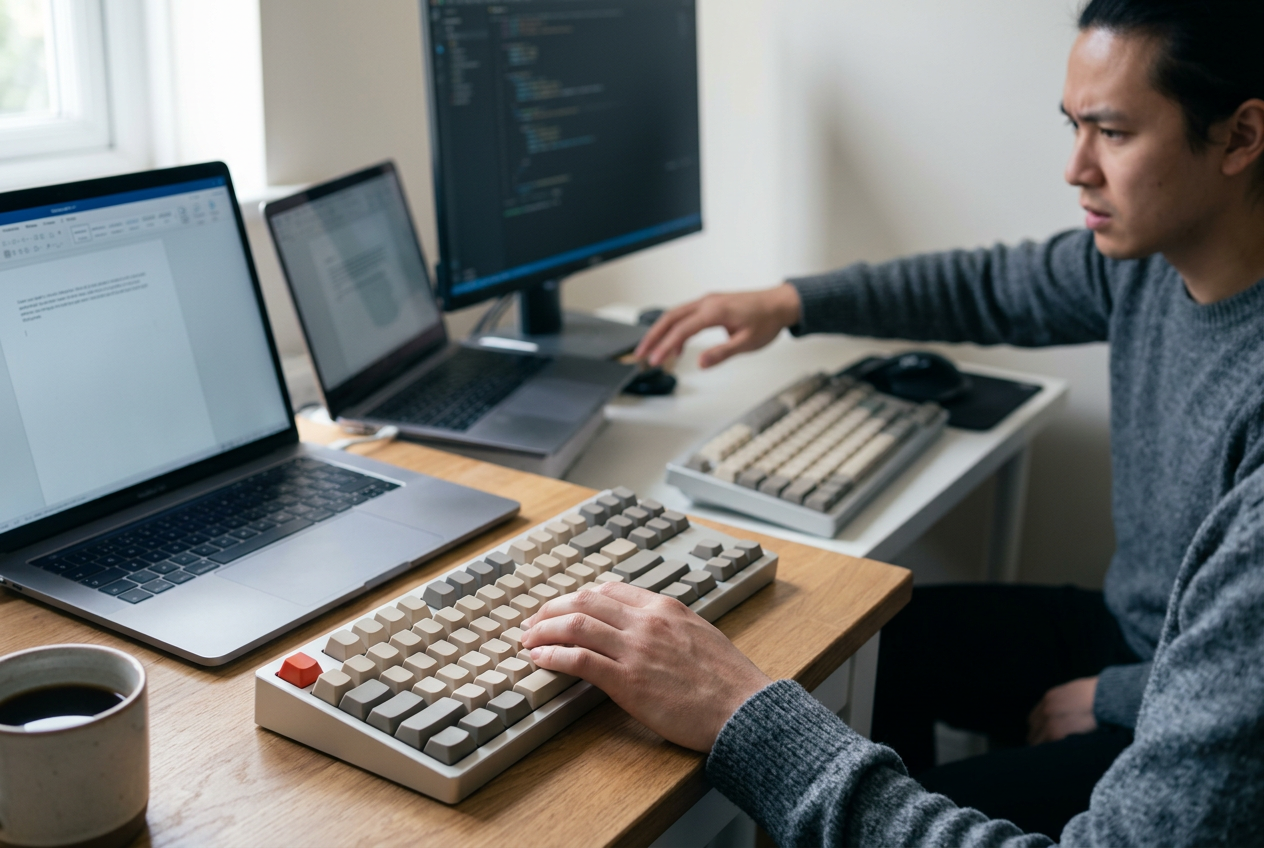
Swap the keys in Settings
You don’t need new hardware to fix the mismatch. Here’s the path:
- Open Settings, then go to Device > Keyboard and inputs.
- Use the Customize keyboard keys drop-downs to set each key’s action.
- Map Quick Insert to Launcher so the new key does the job your hands already know.
- Add a Launcher + F shortcut.
- Press Ctrl + Launcher + S to open the Keyboard Shortcuts app.
Finally, keep one key layout across devices. When your Chromebook and desk keyboard match, you stop switching mental maps. Your hands just know.
Programming Your Lemokey Keyboard in a Browser
Your Lemokey keyboard can do more than type. Here’s how to reprogram it in a browser.
Setting up the free web app
Start with the free web app for Lemokey keyboards. It lets you remap keys and knobs and flash keyboard firmware (the board’s built-in software). Open it in Chrome, Opera, or Edge, then:
- Connect your keyboard.
- Authorize the connection when the browser asks.
- Pick the key or knob you want to change.
Give keys new jobs and record macros
Select a key, then choose its function. For longer tasks, record a macro (a saved run of keystrokes that plays back on one press) or select keystrokes from a list. You can also assign one key to a key combination, like Ctrl+Shift+V.
Check the press and release order, since a macro can come out reversed.
Consider a home office worker who records a macro for her email signature, so she never reaches for the mouse at the end of a message.
Don’t mix up the Lemokey Launcher with the Chromebook Launcher. A remap changes what the board sends, and your Chromebook decides the rest.
Using layers for special key functions
A layer gives the same keys a second set of jobs. The board starts on Layer 0, the default, and has two Mac layers and two Windows layers to match your system.
Set fn as MO(1), a momentary layer key: you’re on layer 1 only while you hold fn. Let go, and you’re back on Layer 0.
For example, put Power on layer 1 and it’s tucked behind fn, out of your typing path. Be careful, though: it can bring up a shutdown pop-up, and a stray press mid-sentence is the last thing you want. Hands stay on the keys.
Once the Launcher key feels natural, you’ll stop noticing it, and that’s the point. Whether you’re on a Chromebook, a Windows PC, or a Mac, the goal is the same: open what you need and get back to work.
Knowing how it differs from Quick Insert and how to remap it gives you room to set things up your way.
The mouse will always have its place, but your hands don’t have to wait for it.
Questions
What is a launcher on a Chromebook?
A launcher on a Chromebook is a screen for opening apps and searching from one place. Press the Launcher key to open it, then type a search or an app name.
What does Ctrl+Shift+L do on Chromebook?
Ctrl+Shift+L locks your Chromebook screen. Use it when you step away from your device.
What does Ctrl+Alt+Z do on Chromebook?
Ctrl+Alt+Z is not identified as a standard Chromebook shortcut here. Its function may depend on your device or settings, so check the current Chromebook keyboard shortcut list before relying on it.
spaceShortcut Sheets: the twenty keys to learn first in each appFind your app