Windows Sign in White Screen Explained and How to Fix It
Windows sign-in white screen? Follow quick checks and keyboard-only fixes to restore your login, diagnose display problems, and protect lost files.


The short versionA Windows sign-in white screen is a blank display that appears instead of the login prompt or desktop, even though the computer has started. It can stem from a graphics or hardware fault, a troublesome driver, app, update, damaged system files, malware, or a user profile issue, so restart first, then isolate and repair likely causes one at a time. Back up accessible files before making changes, start with simple checks, and save resetting or reinstalling Windows for last.
Picture pressing the power button, settling in for the workday, and getting a blank white screen where your sign-in prompt should be. That’s the Windows sign-in white screen: Windows starts up but never gets far enough to show you the login.
The good news is that it usually has a fixable cause, and most fixes don’t need a mouse. Here, we’ll cover why it happens, a fix order that starts with the quickest checks, and a keyboard-only path to get you back to work.
Why Windows Sign in White Screen Happens
A sign-in white screen stops a workday cold: you log in and see a blank page instead of your desktop. We’ll look at what it looks like, what starts it, and what it costs you.
What people report when it happens
It’s less about the computer being off and more about the sign-in being stuck. Reports include:
- White screen after login. A blank page right after you enter your password.
- Mouse cursor still moves. The pointer works, but nothing else responds.
- Ctrl-Alt-Del unresponsive. Pressing it does nothing you can see.
- Auto-restart after minutes. The computer restarts itself a few minutes later.
- Only one user account affected. Other accounts still sign in.
Other common display problems include flickering, a black screen, and wrong colors.
Common reasons it starts
Possible causes include:
- Faulty hardware. A failing part in the computer.
- Bad graphics drivers. A driver links Windows to your screen’s hardware, and a bad one can blank the display.
- Software interference. Another program clashes with sign-in.
- Unstable Windows update. An update that didn’t install cleanly or doesn’t play well with your computer.
- Missing system files. Core Windows files that sign-in needs are damaged or gone.
- Malware infection. Malicious software has gotten onto the computer and is interfering.
How it disrupts work and data
- Productivity loss. Every minute at the blank screen is time off your work.
- Possible data loss. If it restarts on its own, unsaved work could be lost.
- No error information shown. The screen won’t say what went wrong.
- Work from a backup laptop meanwhile. You may need to switch machines while you troubleshoot.
Consider a home office support agent who logs in at 8:30 to a blank page. They switch to the backup laptop, sign in, and keep answering tickets. The queue keeps moving.

First Steps to Recover and Diagnose
A white screen at sign-in looks alarming, but you can work through it one step at a time. Start with the fastest fix.
Force a restart when stuck
A home office worker who logs in at 8 a.m. needs the quickest reset first:
- Keyboard restart: press Ctrl+Alt+Del, then Alt+R.
- Task Manager: Ctrl+Shift+Esc opens it directly, so you can end a frozen process.
- Hard stop: hold the power button until the machine shuts off.
- Battery pull: on a laptop with a removable battery, take it out and reinsert it.
- Fast Startup: this Windows feature saves part of your session at shutdown, which can carry memory (RAM) problems forward. If the screen keeps returning, use a full restart instead.
Try safe mode to isolate the cause
Safe mode starts Windows with only its core drivers and services, so it’s for isolating the cause, not fixing it. Pressing F8 at startup may not work on your PC.
Instead, press Windows+R, type msconfig, open the Boot tab, check Safe boot, and restart. Clear that box afterward.
If the white screen vanishes, a third-party app or driver (software from outside Microsoft) is the likely culprit. A clean sign-in in safe mode suggests your account itself is fine.
If the screen stays white, contact IT support or open the Windows Recovery Environment (WinRE), the built-in repair menu.
Run the built-in Windows troubleshooters
Windows includes troubleshooters for common problems. Press Windows+I, search for troubleshoot, and run the one that fits.
For details on your setup, press Windows+R, type msinfo32, and press Enter to open System Information, which lists your Windows version, processor, and memory.
For Microsoft’s official steps, check its black screen guide if your symptoms look similar. Hands stay on the keys.
How Do I Repair Corrupted Windows 10?
We’ll walk through the fixes from smallest to biggest, starting with your most recent change. Stop as soon as you’re signed in again.
Undo a bad update, then update
If the white screen appeared right after an update, that update is your first suspect. To remove it:
- Open Settings and select Update & Security.
- Choose View update history, then Uninstall updates.
- Remove the newest update and restart.
Then check for the latest Windows 10 build, so you’re not stuck on a version that may be the problem.
Remove recently installed apps and services
If the update wasn’t the trigger, look at what you installed last. A new app, driver, or background service can clash with sign-in. Uninstall the newest program, then review recent installs in Programs and Features.
If you suspect a startup service, disable it in the Services list and restart.
Consider a support agent working from home who installed a screen recorder. The next morning, the sign-in screen goes white. Uninstalling it through Programs and Features gets them back to the queue before the first ticket.

Roll back to a restore point
If removing the app doesn’t help, roll back to a restore point, a saved snapshot of Windows settings and system files. Pick one from before the white screen began. Rolling back can also fix missing system files.
Restoring can remove later programs and changes, so save open work and back up personal files first.
For corrupted system files, run System File Checker (SFC) from an administrator Command Prompt with sfc /scannow. If it can’t fix everything, follow up with Deployment Image Servicing and Management (DISM), a second built-in repair tool.
Scan for malware that corrupts drivers
Malware can corrupt drivers, the software that lets Windows talk to your hardware. Run a full scan with Windows Defender, the built-in antivirus, or your third-party antivirus if you use one.
If the white screen only appears on your account, create a new user profile and sign in to it. A clean sign-in suggests the trouble is in your old profile, not Windows itself.
Last resort: reset or reinstall. Reset this computer and keep your files, or reinstall Windows. Reset after the smaller fixes, not instead of them. Save it for last.
Fix Hardware and Display Problems
A white screen can be a hardware or display fault as easily as a software one, so it’s worth checking these early. Work outward from the parts nearest the screen.
Reseat the graphics card and update drivers
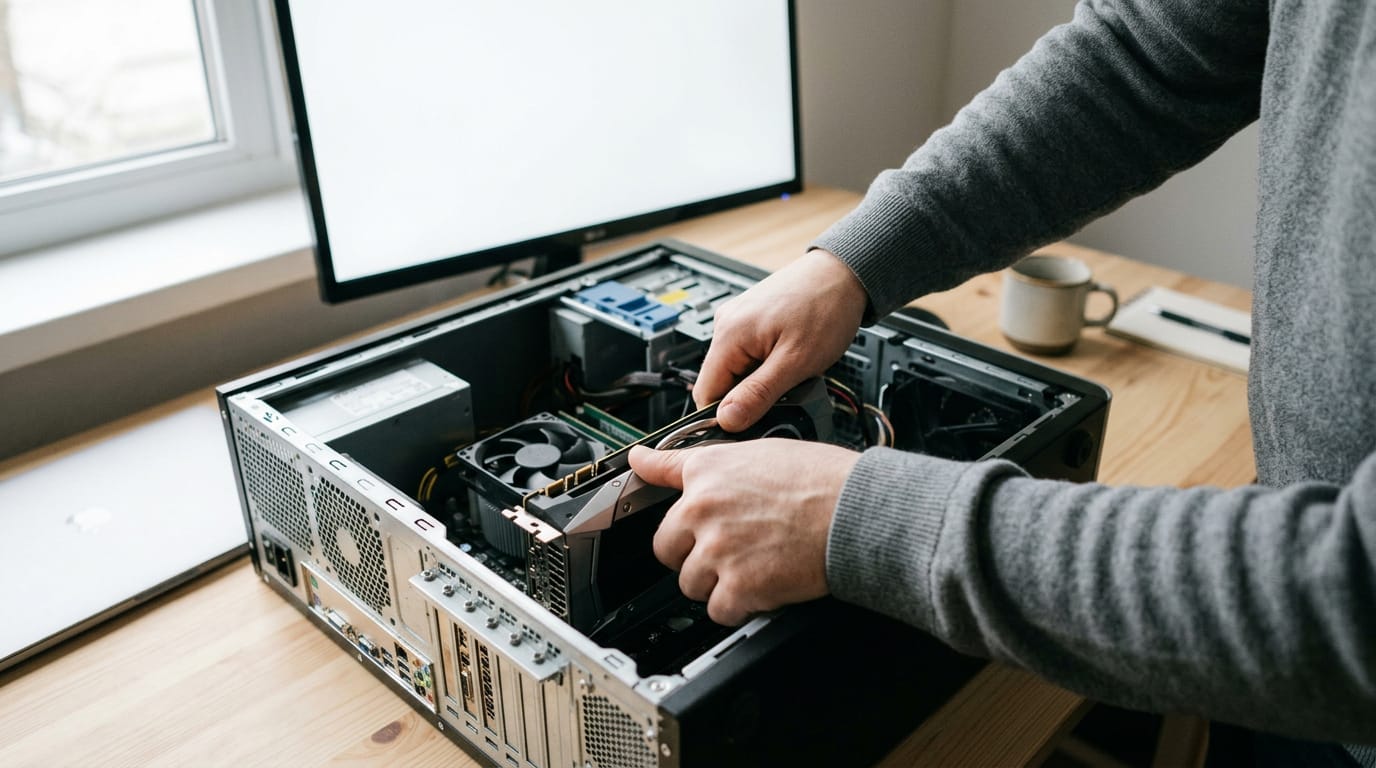
Picture a home office worker who added a graphics card over the weekend and came back Monday to a white sign-in screen. Power down, unplug the PC, and open the case. Press the card firmly back into its slot.
If the screen stays white, remove the card and plug your monitor into the motherboard’s built-in video port. A few minutes with the case open can get that worker back to work.
Next, update the display adapter driver through Device Manager. If you can reach the desktop, press Windows+X, then M to open it. Expand “Display adapters,” right-click your graphics device, and choose Update driver. Restart once it finishes.
Unplug extras and test cables and monitor
Disconnect every external device except your keyboard and monitor, then restart. That’s the quickest thing to rule out.
Next, swap in a new HDMI or VGA cable, since a loose or worn one can drop the signal. If you have another monitor handy, try it. If the sign-in appears there, the original monitor is the likely culprit.
Change one thing at a time, not everything at once, so you know which fix worked.
Check whether RAM is loose or damaged
Loose memory sticks can cause a blank screen. Power down and unplug the PC, open the case, and reseat each stick until its clips snap shut. Restart, and if the problem persists, test each stick alone to find the bad one.
Replace any faulty stick with a matching one. A bad stick won’t fix itself.
Protect and Recover Your Lost Files
If the sign-in screen has gone white, you’ll be tempted to start fixing right away. Hold off for a few minutes, because your files come first.
Back up files and recover lost data
Work through these five points before you change anything:
- Back up before fixes. Copy your work folders before you run any repair, not after. Picture a home office bookkeeper whose sign-in screen turns white the morning a client’s quarterly report is due. If you can still reach her folders, she selects them, presses Ctrl+C, and pastes them onto an external drive with Ctrl+V. That copy keeps the report safe whatever happens next.
- Professional recovery tool. When normal copying isn’t possible, a dedicated tool can read files directly from the drive. Reach for one when you can’t get to your folders at all, and treat it as a fallback rather than a first move.
- Preview and filter files. Before you restore anything, look at what the tool found. Preview each file and filter by type or date, so you recover the documents you need, not every fragment on the drive.
- Supports many file types. A good tool covers documents, spreadsheets, photos, and video, so one scan can handle most of what you use all day.
- Keep work files synced to cloud. Cloud sync keeps a current copy of your work off the machine, so a white screen can’t lock you out of your own files.
Copy first. Repair second.
Working through the causes in order saves you time, because the quick checks often solve the problem before any repair is needed. Start simple, move to system file and display fixes only when you need them, and protect your files along the way.
When a blank screen lands on a busy morning, the keyboard-only path means you don’t have to put your work on hold. You’ll know exactly where to start next time, and your workday doesn’t have to wait on a white screen.
Questions
What are some common computer display screen problems?
Common computer display problems include a blank white or black screen, flickering, incorrect colors, and a screen that stops responding. They can be caused by faulty hardware, bad graphics drivers, software conflicts, unstable updates, damaged Windows files, or malware.
How do I repair corrupted Windows 10?
To repair corrupted Windows 10, first undo a recent update or uninstall a recently added app or driver. If that does not help, use System Restore, run `sfc /scannow` in an administrator Command Prompt, and then run DISM if SFC cannot repair everything. Back up important files before trying a reset or reinstall, which should be a last resort.
How to fix blurry monitor screen in Windows 10?
In Windows 10, update the display adapter driver through Device Manager: press Windows+X, then M, expand Display adapters, right-click your graphics device, and choose Update driver. Also check the monitor cable and connection, and try another cable or monitor to rule out a display fault.
Why does my screen keep going black in Windows 10?
A Windows 10 screen may keep going black because of a faulty display or cable, a bad graphics driver, a software conflict, an unstable update, damaged system files, or malware. Disconnect external devices and check the cable first, then restart and investigate recent updates, apps, and drivers.
spaceShortcut Sheets: the twenty keys to learn first in each appFind your app