How to Switch Tab with Keyboard: Windows, Mac and Chromebook
How to switch tabs with a keyboard: get Windows, Mac, and Chromebook shortcuts, plus ways to find tabs and move between windows without a mouse.

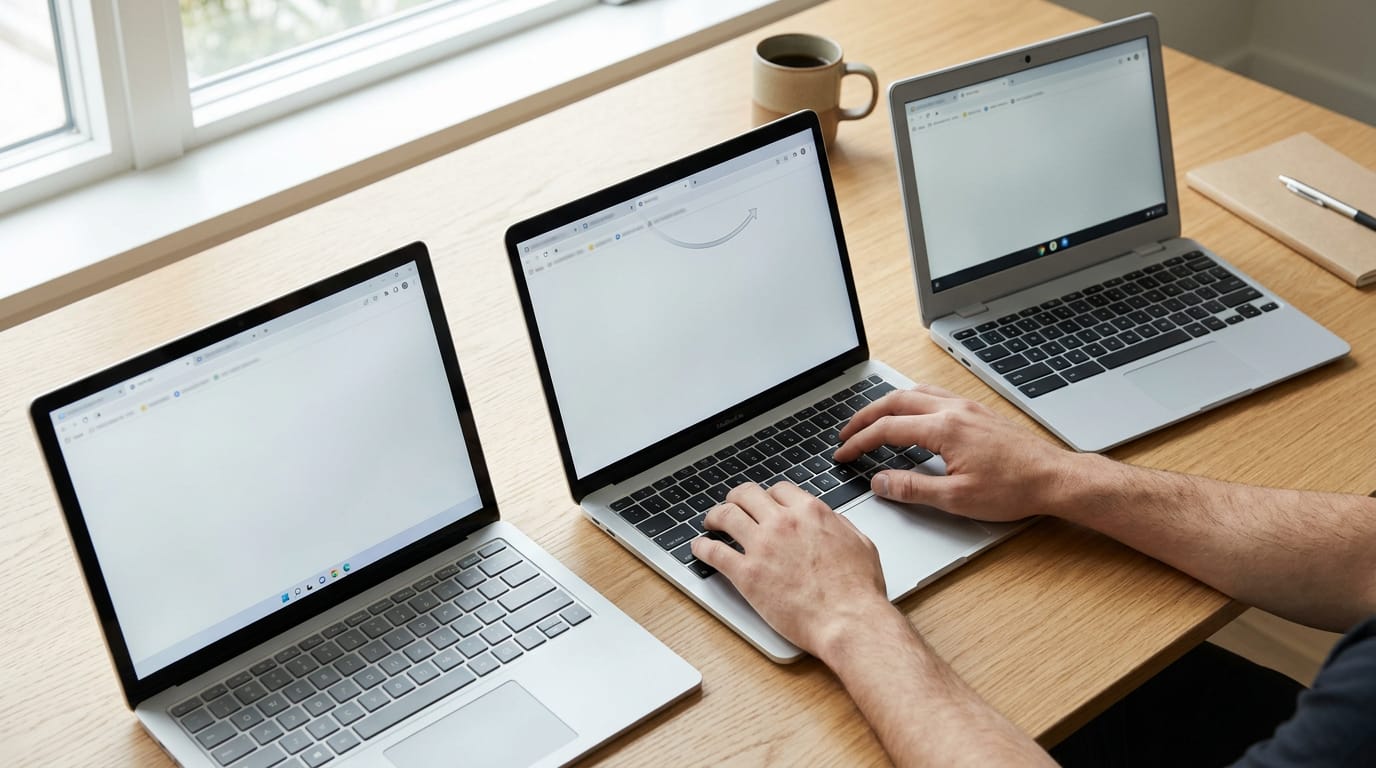
The short versionSwitching tabs with a keyboard means moving between open pages in a browser without clicking the tab bar. Ctrl+Tab moves forward and Ctrl+Shift+Tab moves back on Windows and Chromebooks, while Macs use Control with Tab or browser-specific shortcuts; number keys can jump to tabs by position in supported browsers. Learn the shortcuts for your system, and use tab search when cycling is too slow, to spend less time hunting and more time working.
Picture a stack of index cards on your desk. Browser tabs work the same way, but with twenty open at once, reaching for the mouse to flip between them adds up.
The quick answer is Ctrl+Tab to move forward and Ctrl+Shift+Tab to move back. Mac users and some browsers have a few twists, and we’ll cover every one.
Ahead, you’ll find the core shortcuts for Windows, Mac and Chromebook, the extras unique to each browser, and a keys-only workflow for home office days full of tabs and windows.
How to Switch Tabs with Your Keyboard
Your hands are already on the keys, so there’s no reason to reach for the tab bar. These shortcuts cover Windows, Mac and Chromebook, and most of them work across the major browsers. Chromebooks use Ctrl where Windows does, and Macs use Cmd.
Step forward and back through tabs
Ctrl+Tab moves you one tab to the right, and Ctrl+Shift+Tab moves you one tab to the left. Hold Ctrl and keep tapping Tab to keep scrolling, then let go on the tab you want.
Adding Shift reverses the order, so from your first tab, Ctrl+Shift+Tab wraps around to the last one.
Other key combos for moving tabs
On Windows, Ctrl+PgDn and Ctrl+PgUp do the same job as Ctrl+Tab and Ctrl+Shift+Tab, moving one tab right or left. On a Mac, Cmd+Option plus the left or right arrow key moves between tabs in many browsers.
Firefox adds a few extra shortcuts of its own, so if it’s your main browser, take a minute to check its keyboard list for the rest.
Go straight to any tab by number
Hold Ctrl (Cmd on a Mac) and press 1 through 8 to jump straight to that tab. The number tracks position, not title, so Ctrl+1 always lands on the leftmost tab, whatever it’s showing. This works only in some browsers, so test it in the one you use most.
Consider a home-based bookkeeper who keeps the bank portal in tab 1, the invoice tool in tab 2, and the client spreadsheet in tab 3. Pinned tabs stay at the left edge, so pinning those three keeps their numbers fixed as new tabs open.
Ctrl+3 lands on the spreadsheet in one press, every time, with no hunting across the tab bar.
Skip straight to the last tab
Ctrl+9 (Cmd+9 on a Mac) jumps to the last tab in the bar. It isn’t tab nine. It’s the right-most tab, every time, however many tabs you have open.
Print a one-page cheat sheet of these shortcuts and keep it by your monitor until your hands know them by heart. Hands stay on the keys.
Shortcuts for Your Operating System
Every system uses a modifier key (a key you hold while pressing another, such as Ctrl for Control or Cmd for Command), and that’s where most differences start. Here’s how we’d break it down.
Ctrl shortcuts on Windows
On Windows, Ctrl+Tab moves to the next tab and Ctrl+Shift+Tab moves back. Ctrl+1 through Ctrl+8 jump to a tab by its place in the tab strip (the row across the top), and Ctrl+9 always lands on the last one.
These work in Chrome, Edge, and Firefox, so the habit travels with you.
Ctrl+Page Up and Ctrl+Page Down are the alternative, stepping one tab left or right. Use whichever pair your hand favors.
Consider a support agent at a kitchen table with a customer ticket in the first tab and a help article in the second. Ctrl+2 gets them to the article in one press, and Ctrl+1 brings them back.
Across a full shift, those small moves add up. Hands stay on the keys.

Mac shortcuts using Cmd and Option
On a Mac, Cmd+1 through Cmd+8 jump to a tab by number, and Cmd+9 jumps to the last one. Keep your most-used tabs in the first few slots, since those keys follow position rather than name.
Cmd+Option plus the left or right arrow steps through tabs one at a time in Chrome and Safari, which helps when you’re hopping between neighbors.
Control+Tab moves forward through tabs, and Control+Shift+Tab moves back. Control and Command are separate keys, so keep them straight. Where Cmd+number jumps to a spot, Control+Tab walks through tabs in order.
Using tabs on a Chromebook
Chromebooks run Chrome, so the tab shortcuts are similar to Windows: Ctrl+Tab, Ctrl+Shift+Tab, and Ctrl+1 through Ctrl+9 work the way you’d expect.
A few shortcuts you know from Windows are missing here, so test the ones you rely on before you need them.
Tabs are central to Chromebook use. Since the browser is your main workspace, it pays to practice tab switching before a busy day.
Linux shortcuts that match Windows
On Linux, the shortcuts match Windows, so there’s little new to learn. Ctrl+Tab and Ctrl+Shift+Tab move forward and back, and Ctrl+Page Up and Ctrl+Page Down step through tabs too.
If you split time between a Windows PC and a Linux machine, that’s one set of keys to remember.
Shortcuts Unique to Each Browser
Each browser has its own tab-switching habits, so a key that works in one may do nothing in the next. Here’s what to know about Chrome, Safari, and Firefox.
Switching tabs in Chrome
Chrome uses different keys on each operating system. On a Mac, Cmd+Option+arrows (Command, Option, and the arrow keys) moves you through your tabs: Cmd+Option+Right goes forward and Cmd+Option+Left goes back.
On Windows, Ctrl+PgDn (Page Down) and Ctrl+PgUp (Page Up) do the same job.
Take a remote support agent with a customer’s account, the help center, and the ticket queue open in three tabs. Cmd+Option+Right moves between them with one keystroke, no trackpad required.
For the complete list, check the official Chrome shortcut reference.
Safari tab shortcuts to know
Safari on the Mac works a little differently. Ctrl+Tab cycles forward through open tabs, and adding Shift reverses the direction. Cmd+1 through Cmd+9 jump straight to a numbered tab.
Number keys work when you know where a tab sits; Ctrl+Tab works when you just need the next one. Cmd+T opens a new tab and Cmd+W closes the current one, so the whole routine stays on the keyboard. Your hands stay put.
Firefox tab order and settings
Firefox can cycle through tabs in recently used order, so Ctrl+Tab returns you to the tab you just left. An analyst bouncing between a dashboard and a spreadsheet can flip back and forth with a single key.
A setting lets you change Ctrl+Tab to follow the tab bar order instead. If you’d rather move by position, Ctrl+PgUp and Ctrl+PgDn are the alternative. In short, Ctrl+Tab tracks what you used last, while Ctrl+PgUp and Ctrl+PgDn track position.
Most browsers share these keys
Here’s where browsers tend to agree:
- Consistent keys. Most shortcuts match across major browsers, so your habits carry over.
- Side tab bars. Tabs running down the side of the window switch with the same keys.
- Incognito mode. Private windows (incognito in Chrome) use the same keys.
- Older browsers. Some older versions may lack support, so test a key before you rely on it.
A home office bookkeeper who runs email in Chrome and a client portal in Firefox can use Ctrl+Tab in both, so switching apps doesn’t mean relearning the keys.
Other Shortcuts for Managing Tabs
Switching is only half the job. These shortcuts handle the tabs themselves: opening, closing, and bringing back the one you shut by accident.
Opening, closing and reopening tabs
Ctrl+T (Cmd+T on a Mac) opens a new tab, and Ctrl+W (Cmd+W on a Mac) closes the current one. The one to learn next is Ctrl+Shift+T (Cmd+Shift+T on a Mac), which brings back the last tab you closed. Press it again to restore the one before that.
Think of Ctrl+Shift+T as undo for your tab strip. Picture a home office bookkeeper who closes a client’s invoice page by mistake mid-reconciliation. It brings the page back at the same address, and the work carries on. One keystroke, no detour.
Don’t confuse Ctrl+Shift+N (Cmd+Shift+N on a Mac) with a new tab. It opens a new window instead, and in Chrome and Edge that’s a private window (incognito or InPrivate) that stays out of your history.
Browsers differ, so check your menu if yours behaves differently.

Moving tabs by dragging them
Moving a tab is still a mouse job, even though switching to one never has to be. Two things to know:
- Drag to a new window. Drag a tab off the tab strip and let go, and it becomes a window of its own.
- No built-in reorder shortcuts. There’s no keystroke for moving a tab left or right, so rearranging stays with the mouse.
Think of a home office support agent with a ticket and a policy page in one window. They drag the policy page into its own window and park it on the second monitor, so the ticket stays visible while they type.
Search or Preview Tabs to Pick One
When you know the tab you need but can’t spot it among twenty others, searching beats cycling. Previews help when you remember what the page looked like instead.
Searching Chrome tabs by name
Chrome’s tab search finds any open tab by name. Press Cmd/Alt+Shift+A to open the sidebar, then type part of a tab’s name to filter the list. Audio tabs, like one playing a video or a call, are listed first, so the noisy tab never gets buried.
The search covers every window in your profile.
Picture a remote support agent with a customer call playing in one tab and a dozen help-desk pages spread across two windows. Typing the customer’s name puts the right page at the top of the list without any hunting.
Finding tabs with the Workona extension
The Workona extension adds a universal search that reaches past your open tabs. Its search shortcut also digs through your browsing history and Google Drive, so a document you closed yesterday is still a few keystrokes away.
It’s less about finding a tab once and more about never losing one again.
Workona also keeps tabs in separate spaces, so a client project and your team’s dashboards don’t share one crowded tab bar. Switch between spaces whenever a new task comes up.
Preview thumbnails and recent tabs
Hold Ctrl while you cycle through open tabs, and a thumbnail view appears so you can see each page before you land on it. That’s handy when a few tabs have vague titles.
Picture a writer with a draft in one tab and a style guide in another. Cycling recently used tabs flips between the two pages they were just working in. Their hands never leave the keys.
Other extensions worth trying
A few more extension features are worth looking for:
- Custom shortcuts. Assign your own keys to the actions you repeat most.
- Tab previews and grouping. See what’s inside a tab and collect related tabs together.
- Keyboard tab reordering. Move a tab left or right without dragging it.
Start with the built-in search, and add an extension only when it solves a problem you actually have.
Moving Between Windows and Tab Groups
Window shortcuts and tab shortcuts use different keys, and mixing them up is where mouse clicks sneak back in.
Alt+Tab switches windows, not tabs
On Windows, Alt+Tab cycles through open windows, and the Windows key plus a number (Win+1, Win+2) opens the app in that taskbar spot. On a Mac, Cmd+Shift+` cycles through the windows of the current app.
None of these land on a specific tab, so they move between windows, not tabs. Pair them instead: Alt+Tab reaches the right window, then Ctrl+Tab moves through that window’s tabs.
A remote analyst with a spreadsheet in one window and dashboards in a browser can reach the right dashboard without touching the mouse. Hands stay on the keys.

Working with Chrome tab groups
A tab group bundles related tabs under one name and color. Chrome has no built-in shortcut that jumps straight to a group, so there’s no single key for your research group. Tab search shows your groups in color, so you can pick one from the list.
That works until you have many groups, when the colors blur and the list grows long. Tab search gets you to the list fast, but finding the group still takes looking.
How do I switch a tab between screens?
Each desktop is its own workspace, and shortcuts work per desktop. Alt+Tab only reaches windows on the desktop you’re on, so switch desktop first if the tab lives elsewhere.
Moving a tab between screens works the same way: get to the screen it belongs on, then move it over. A support agent who keeps tickets on one desktop and reference articles on another switches desktops before searching, so Alt+Tab shows only the articles.
Special Cases, Fixes and Custom Shortcuts
When a tab shortcut does nothing, something else is usually getting there first.
Customizing and fixing shortcuts that fail
Most failures come from application shortcut conflicts. A remote desktop tool or screen recorder may claim the same keys first, so close it or change its shortcut.
Some browsers let you remap shortcuts in their settings.
Full-screen mode hides the tab bar, so a working shortcut can look broken. Press F11 (Windows) or Ctrl+Cmd+F (Mac) to get your tabs back.
Wondering why Ctrl+Alt+Arrow won’t switch tabs? It isn’t a standard browser tab shortcut, and on many Windows PCs the graphics driver claims it to rotate the screen. The real question is which program claims the keys, not whether the shortcut works.
Shortcuts in code editors and spreadsheets
In Visual Studio Code (VS Code), each open file is a tab, and Ctrl+Tab cycles through them. Press Ctrl+P (Cmd+P on a Mac) to open Quick Open, type part of a file name, and press Enter.
In Excel on Windows, Ctrl+Page Down and Ctrl+Page Up move between sheets.
Repetition makes shortcuts stick. Pick one, like Ctrl+Tab, and use it on purpose for a week. A home office worker juggling tickets, a spreadsheet, and a team chat will soon reach for it without thinking, and the mouse stays put.
Swipe gestures on phones and touchpads
On Android, Chrome may let you swipe sideways across the address bar to change tabs, depending on your version. On many laptop touchpads, a three-finger swipe left or right switches between open apps or desktops, based on your settings.
Gestures help when your hands are already on the screen or pad, but most of your day is spent typing. Hands stay on the keys.
Switching tabs is one of those small skills that adds up across a workday. Once Ctrl+Tab and its Mac and browser counterparts feel automatic, the search, group and window shortcuts round out a keys-only routine for busy days.
Start with the shortcuts for your system, then add the extras your browser offers. Give the workflow a week, and you’ll likely notice fewer trips to the mouse and less hunting across a crowded tab bar.
Your hands belong on the keys, and your tabs will follow.
Questions
How do I switch to another tab?
In most browsers, press Ctrl+Tab to move to the next tab and Ctrl+Shift+Tab to move to the previous one. On a Mac, Control+Tab and Control+Shift+Tab work in many browsers; Cmd+Option+Right or Left also switches tabs in Chrome and Safari.
How do I switch a tab between screens?
To move a tab to another screen, drag it off the tab bar to make it a separate window, then move that window to the other screen. There is no built-in keyboard shortcut for moving a tab between screens.
How to quickly switch between apps on windows?
On Windows, press Alt+Tab to cycle through open app windows. To switch tabs within the selected browser window, press Ctrl+Tab or Ctrl+Shift+Tab.
How do I jump from one tab to another?
Press Ctrl+Tab to move to the next tab or Ctrl+Shift+Tab to move to the previous tab. You can also use Ctrl+Page Down and Ctrl+Page Up in many Windows browsers.
How do you switch tabs quickly?
Use Ctrl+Tab to move forward through tabs and Ctrl+Shift+Tab to move backward. Ctrl+1 through Ctrl+8 jump to tabs by position in browsers that support the shortcut, while Ctrl+9 jumps to the last tab.
Why won't the Ctrl+Alt+Arrow work?
Ctrl+Alt+Arrow is not a standard browser tab-switching shortcut. On many Windows PCs, a graphics driver uses it to rotate the screen; another program may also claim the shortcut. Use Ctrl+Tab to switch browser tabs instead.
Why is the Ctrl+Alt+Arrow not working?
Ctrl+Alt+Arrow does not normally switch browser tabs. A graphics driver may use it to rotate the screen, or another app may intercept it; use Ctrl+Tab or Ctrl+Shift+Tab to move between tabs.
What does Ctrl+Shift+T do?
Ctrl+Shift+T reopens the most recently closed browser tab. Press it again to restore earlier closed tabs, one at a time.
spaceShortcut Sheets: the twenty keys to learn first in each appFind your app