Safari Keyboard Shortcuts: Complete Guide for Mac and iPad
Safari keyboard shortcuts help you move through pages, tabs, and the address bar on Mac and iPad, with tips to customize keys and fix shortcuts that fail.

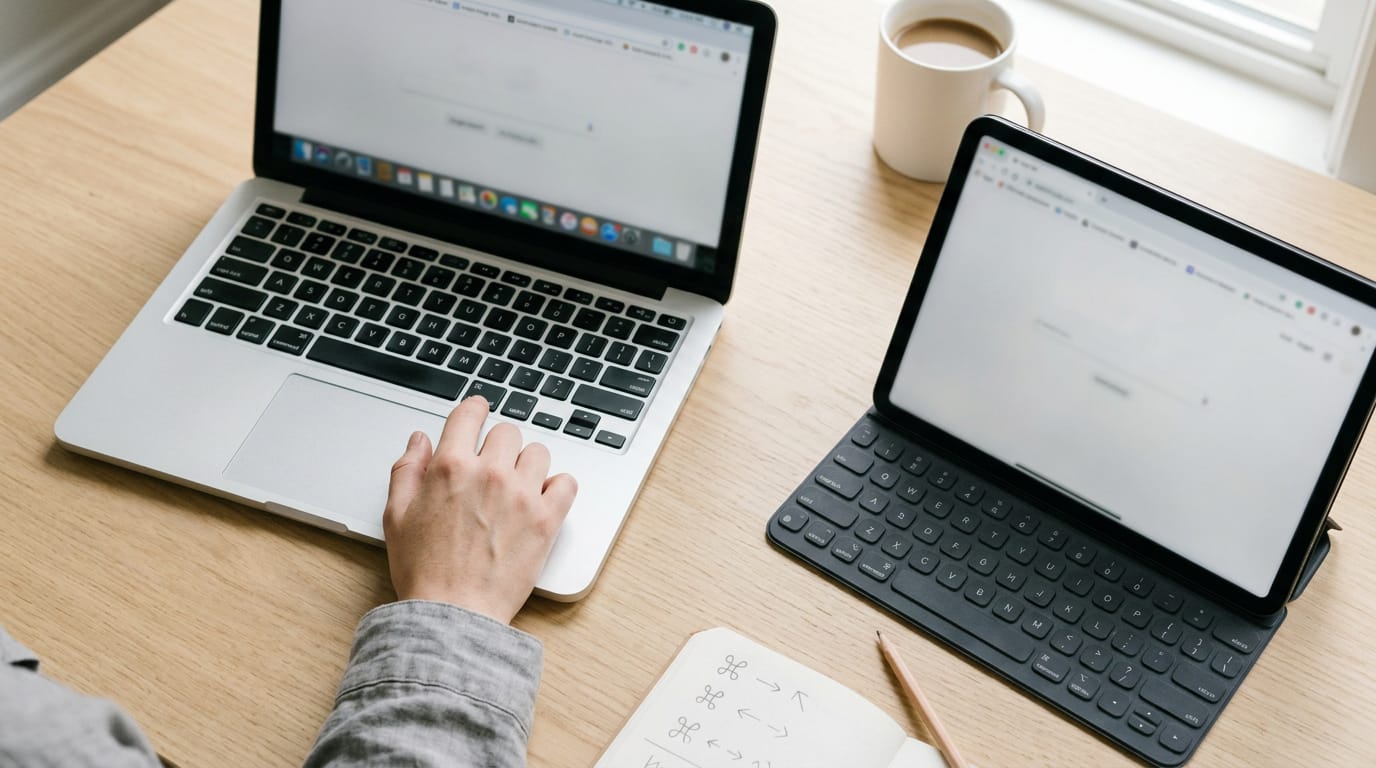
The short versionSafari keyboard shortcuts are key combinations that let you navigate webpages, manage tabs, search, and use page tools without reaching for a mouse or trackpad. Start with the commands you use most, such as opening tabs, switching between them, moving through history, and jumping to the address bar; Mac and iPad shortcuts overlap, though some keys differ. Learning a small set reduces interruptions and makes everyday browsing quicker and easier to control.
Think about how often you reach for the trackpad while you’re deep in a research tab. Each trip off the keys costs you a little focus, and those trips add up quickly.
Safari keyboard shortcuts let you move between pages, tabs, and the address bar without ever leaving the home row.
In this post, we’ll cover Safari shortcuts for Mac and iPad, from getting around pages and managing tabs to reader tools, customization, and fixes for common problems. You’ll also get a keyboard-only workflow built for home office days.
Finding Safari Keyboard Shortcuts Across Devices
Safari works a little differently on a Mac than on an iPad with a keyboard. Here’s where to find the shortcuts on each.
Using Safari on iPad with a keyboard
A Smart Keyboard, a Bluetooth keyboard, or a keyboard case gives your iPad the physical keys it’s missing. It’s less about owning a keyboard and more about knowing which keys to press.
Hold the Command key and Safari shows a cheat sheet of its shortcuts. Consider a home office support agent typing tickets from an iPad at the kitchen table.
Instead of hunting for the new-tab option, she holds Command, glances at the list, and keeps typing. Hands stay on the keys.
Many iPad combinations match Mac shortcuts. The main swap is the key you hold: Cmd+C on a Mac is Ctrl+C on Windows. When you shop for a keyboard, favor comfortable keys, since you’ll be typing on it all day.
Cheat sheets and tools for practicing
Three resources help the habit stick:
- Public shortcut collection. A broad list you can skim once to see what exists.
- Searchable shortcut table. Type a task, such as new tab, and find its combo fast.
- Practice and instant lookup tool. Test yourself, then check a combo the moment you forget it.
You may have searched for Ctrl+Shift+K. The sources we have for this section don’t confirm what it does in Safari, so we won’t guess. Windows uses Ctrl for these combos, while Safari on a Mac uses Command, so treat a Windows-style combo with caution.
Check the menu bar instead: commands with a shortcut show it beside their names, and the lookup tool can confirm it quickly.
Scrolling and Getting Around Pages
Scrolling and moving between pages are the moves you make most, so they’re the first shortcuts worth learning. Before you start, check that Full Keyboard Access is turned on in your Mac’s keyboard settings so the keys reach every control on the page.
Scrolling with arrows and the spacebar
The Up and Down arrow keys nudge the page a line at a time, so you keep fine control without reaching for the trackpad. Add the Option key to an arrow press for a larger increment. Space pages down a full screen, and Shift-Space pages back up.
That’s the real difference: arrows give you small steps, while the spacebar gives you whole screens. To jump straight to the top or bottom, press Command-Up Arrow or Command-Down Arrow. Hands stay on the keys.
Going back, forward and through history
Command-[ takes you back one page, and Command-] takes you forward. Picture a support agent who checks a knowledge base article, opens a customer’s ticket, then needs that article again.
One press of Command-[ brings them right back, and their hands never leave the keyboard. Across a full shift, those saved trips add up.
The recently visited pages list shows where you’ve been, so you can jump back several steps at once instead of pressing Command-[ over and over.
History is less about how you got there and more about where you’ve been. Look up a page by its name or its web address (URL) to find something from last week without retracing your steps.
Command-R reloads the current page, which helps when a dashboard or form looks stale.
Managing Your Open Tabs
Tabs pile up fast, and every reach for the mouse pulls your attention away from the work. Here’s how to open, close, and move between tabs from the keyboard on your Mac or iPad.
Open, close and restore tabs
- New tab: Cmd+T opens a blank page.
- Close active tab: Cmd+W closes the page you’re on.
- Reopen last closed tab: Cmd+Shift+T brings back the one you shut by mistake.
- Split view (iPad): Safari sits beside a second app, so a draft and a reference page stay visible together.
Jumping from one tab to another
Switching tabs is where small delays add up. It’s less about how many tabs you have and more about how fast you can reach the right one.
- Next and previous tab: Ctrl+Tab moves forward, and Ctrl+Shift+Tab moves back.
- Jump to first nine tabs: Cmd+1 through Cmd+9 lands you on the tab in that position.
- Show tab overview: Cmd+Shift+\ shows every open tab at once, so you can spot the one you want.
- Tab-switching routine for many open tabs: Keep the handful you use most in the first nine positions, then step through the rest with Ctrl+Tab.
Consider a remote bookkeeper with client invoices in the first tab, the bank portal in the second, and a spreadsheet in the third. Cmd+1 takes them straight to the invoices, and Ctrl+Tab steps through everything else.
That’s a few keystrokes instead of a hunt across the tab bar. Hands stay on the keys.
Using the Address Bar and Page Tools
Most of your Safari time happens in two places: the address bar and the page itself. Here’s how to move between them without reaching for the mouse.
Entering addresses and searches quickly
Press Cmd+L (Command plus L) to jump into the smart search field, the box that takes both a URL (web address) and a search term. Type your text, then press Return to go. Cmd+L also works as your open-location key, so you never have to hunt for the bar.
For example, a remote support agent looking up a vendor’s help page can press Cmd+L, type the vendor’s name, and press Return without leaving the keyboard. That’s one less trip to the mouse per ticket.
Changed your mind? Esc brings back the address of the page you’re on, not the half-typed text you started with.
How to click on Mac using keyboard?
Yes, you can click on a Mac without a mouse. These three keys do the work:
- Tab moves between fields, such as the search box and form inputs.
- Option-Tab highlights each clickable item, like links and buttons.
- Return opens whatever link or button is highlighted.
Consider an analyst filling out a long vendor form on a laptop. Tab moves through each field, and Option-Tab lands on the submit button without a single mouse trip. Your hands stay put.
To find a word on a long page, press Cmd+F to open Find on page and skip the scrolling entirely.
Printing, reading and saving pages
Press Cmd+P to print the page you’re on, so a receipt or contract goes straight to the printer.
Reader mode strips a page down to its main text and hides the clutter around it. If you’ve wondered how to do Cmd+Shift+R on Safari, hold all three keys together to toggle Reader mode on or off.
Show/hide sidebar turns the sidebar on or off, which frees up room on a smaller screen.
Reading List keeps pages you want to read later in one place. Picture a paralegal who finds a long case summary mid-afternoon: they add it to Reading List now and read it after the call without digging through old tabs.
What Are Some Common Mac Keyboard Shortcuts?
Most of the shortcuts you’ll use daily on a Mac hang off the Command key (written as Cmd, or ⌘ on the keyboard).
Cmd+Tab switches between open apps, and Cmd+Space opens Spotlight search, so you can find files and launch apps without reaching for the mouse.
Copy, paste and cut across Apple devices
Copy, paste, and cut are the editing trio you’ll lean on most:
- Copy: Cmd+C duplicates whatever you’ve selected.
- Paste: Cmd+V drops it wherever your cursor is.
- Cut: Cmd+X removes the selection so you can paste it somewhere else.
Universal across macOS and iOS: the same keys work on an iPad with a keyboard attached, so the habit carries over between devices.
It’s less about knowing the keys and more about reaching for them without thinking. Take a remote support agent who copies an order number from a customer’s confirmation page in Safari, pastes it into a ticket, and never touches the trackpad.
Repeat that all shift and the saved trips add up.

Preferences, your homepage and Home Screen
Three shortcuts cover the settings and starting points you’ll return to most:
- Open Safari preferences: Cmd+, (Command plus the comma key) opens Safari’s settings.
- Go to homepage: Shift+Cmd+H takes you straight to your homepage.
- Return to iPad Home Screen: With a keyboard attached to your iPad, Cmd+H returns you to the Home Screen.
A home office writer who bounces between research tabs all afternoon can get back to their daily dashboard with one keystroke. Your hands stay on the keys.
Customizing Shortcuts and Fixing Problems
Safari ships with plenty of shortcuts, but you can add your own and fix the few that stop responding. Here’s how to handle both without reaching for the mouse.
Setting up your own Safari shortcuts
Open Keyboard settings in System Settings to give Safari’s menu commands their own key combinations. Look for the Applications shortcut type, then pick the command you want to tie to a key.
The command name has to match what’s in the menu, not what you remember it being called. If the menu says Reload Page, type Reload Page exactly as written. Then assign your new key combination.
Watch for overlap. If you choose a combination that’s already in use, your new shortcut overrides the existing one, so check before you save.
Custom shortcuts pay off most for daily work. Consider a home office worker who files client reports from Safari all day and keeps returning to one menu command.
Give that command a key combination and the trip to the mouse disappears. Small change, big difference.
When shortcuts stop working after updates
Sometimes a shortcut that worked before an update goes quiet. Try these three checks first.
- Back shortcut on a Spanish layout. The Back shortcut can break when your keyboard uses a Spanish layout, so check which layout is active first.
- Possible VoiceOver conflict. VoiceOver, the built-in screen reader, may be claiming the same keys Safari expects.
- Cmd+Left Arrow as an alternative. While you sort things out, Cmd+Left Arrow can stand in for Back.
Try one fix at a time, not all three at once, so you know which change actually did the trick. Hands stay on the keys.
Safari rewards the people who learn its shortcuts. Once you can move through pages, manage tabs, and reach the address bar from the keyboard, the mouse becomes an occasional tool instead of the default.
That’s the heart of a keyboard-only workflow: fewer detours and more time on the work itself.
Start with the few that match your daily tasks, then add more as they feel natural. Keep your hands on the keys, and let the mouse wait its turn.
Questions
What is the shortcut to search in Safari?
Press **Command-L** to focus Safari’s Smart Search field. Type a web address or search term, then press Return.
What are some common keyboard shortcuts on a Mac?
Common Mac shortcuts include **Command-C** to copy, **Command-V** to paste, **Command-X** to cut, **Command-Tab** to switch apps, and **Command-Space** to open Spotlight. In Safari, **Command-T** opens a new tab and **Command-L** focuses the address bar.
How to trigger a shortcut on iOS?
On an iPad with a physical keyboard, hold the **Command** key while Safari is open to display its shortcut cheat sheet. Then press the listed key combination to run the shortcut.
How to click on Mac using keyboard?
Use **Tab** to move between fields and **Option-Tab** to highlight clickable items such as links and buttons. Press **Return** to activate the highlighted item; Full Keyboard Access may need to be enabled in Mac keyboard settings.
How to do cmd shift r on Safari?
Press and hold **Command-Shift-R** together in Safari to turn Reader mode on or off.
What does Ctrl+Shift+K do?
The effect of **Ctrl-Shift-K** depends on the app and operating system. It is not confirmed as a Safari shortcut; Safari on Mac commonly uses Command rather than Ctrl for shortcuts, so check Safari’s menus for the relevant command and its assigned keys.
spaceShortcut Sheets: the twenty keys to learn first in each appFind your app