Redo Shortcut Guide for Windows, Mac, and Common Apps
The redo shortcut restores an edit you just undid. Compare Windows and Mac keys, find app-specific combos, and fix redo when it stops working.

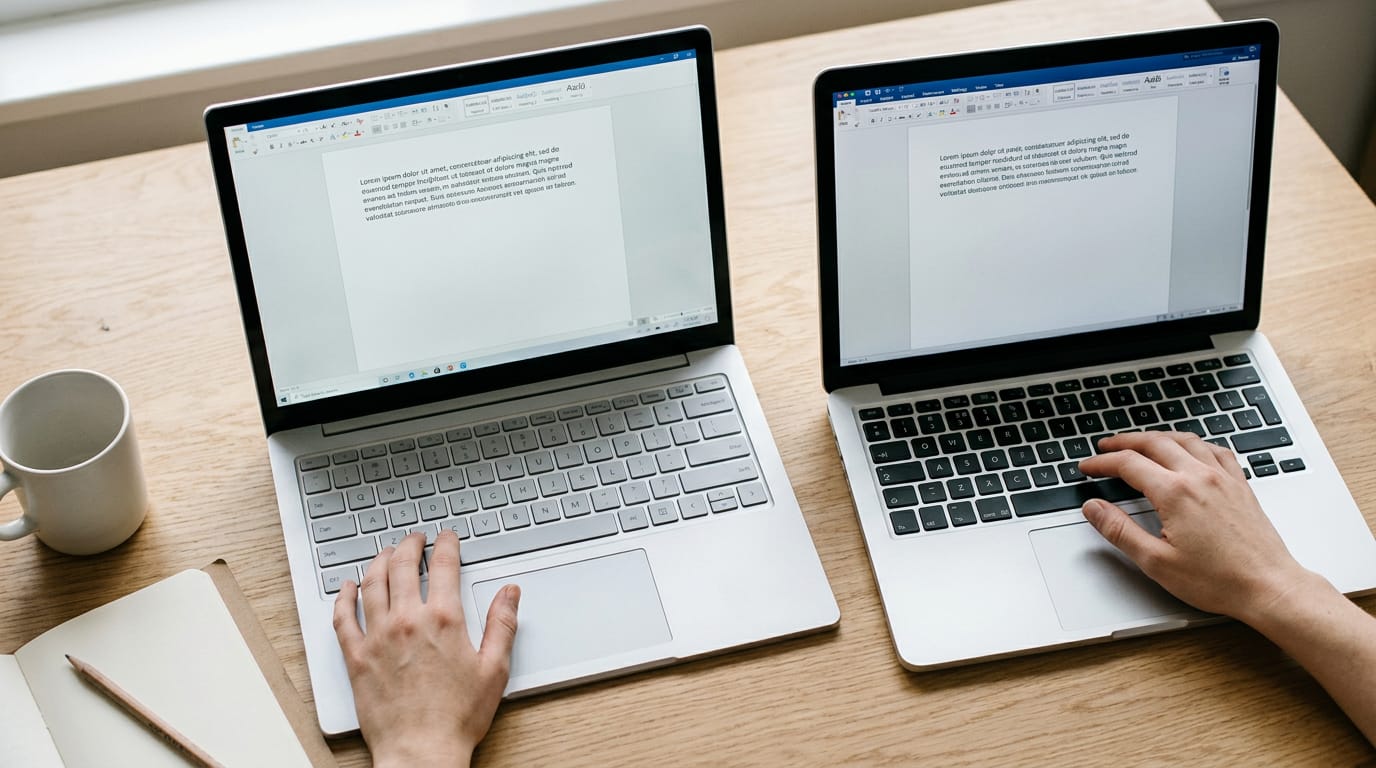
The short versionA redo shortcut restores the most recent change you removed with Undo, so you can bring back text, formulas, formatting, or other edits without repeating them. Windows commonly uses Ctrl+Y or Ctrl+Shift+Z, Mac uses Command+Shift+Z, and the right key can vary by app, so check its Edit menu or redo button if needed. Redo only works on changes you have undone, and making a new edit may clear the redo history, so use the shortcut promptly.
Ever undo a change and immediately wish you hadn’t? That’s where redo comes in. Redo reverses an undo, bringing back the edit or deletion you just stepped away from, so you don’t have to retype a paragraph.
The key combo depends on your operating system and app. On Windows you’ll often see Ctrl+Y or Ctrl+Shift+Z, while a Mac usually uses Cmd+Shift+Z.
In this post, we’ll cover the basics, each platform, the apps you use, and quick fixes when redo won’t cooperate.
Redo Shortcut Basics and What It Means
Redo is the shortcut you reach for after you’ve undone something and changed your mind. Here’s what it does, how it pairs with undo, and the quick answer to keep at your desk.
What redo actually does
Redo reverses an undo. Think of it as undoing the undo: where undo steps you back through recent changes, redo moves you forward again, to the state you had just before.
It’s the opposite of undo, and it’s less about starting over and more about picking up where you left off.
For example, a home office bookkeeper types a client’s invoice total, hits Ctrl+Z, and watches the wrong figure disappear. Then they realize the original number was right all along. One redo brings it back, and the whole fix takes a second. No retyping.
How undo and redo shortcuts pair
Undo and redo work as a pair, and their keys mirror each other. On Windows, Ctrl+Z undoes, and redo either adds Shift (Ctrl+Shift+Z) or uses Y (Ctrl+Y). On a Mac, Command+Z undoes, and adding Shift (Command+Shift+Z) redoes.
Your hands barely move, and only the direction changes.
Quick answer and printable cheat sheet
If you only remember one, make it Ctrl+Y. On Windows, it redoes your last action in a single keystroke, with no menu to hunt through. Here’s the quick reference:
- Windows: Ctrl+Y, or Ctrl+Shift+Z
- Mac: Command+Shift+Z
- Undo, for comparison: Ctrl+Z on Windows, Command+Z on a Mac
Print a redo cheat sheet and keep it by your keyboard. You’ll stop guessing which key goes with which direction.
Redo Shortcuts for Each Operating System
Undo gets all the attention, but redo rescues you after you undo one step too far. The right key depends on your system and sometimes the app, so here’s what to press:
Redo on Windows with Ctrl+Y
Ctrl+Y is the standard redo key on Windows, and it works across Office, Notepad, and Explorer. If it doesn’t respond, Ctrl+Shift+Z is the alternative, and many programs accept it too.
Picture a remote analyst at a home desk who deletes a paragraph from a report, then decides it was fine after all. One press of Ctrl+Y brings it back, and her hands never leave the keyboard.
Pressing Command+Shift+Z on a Mac
Mac users press Command+Shift+Z to redo, and it works in Pages and Notes. Mac apps look for Command, not Ctrl, so a Windows habit won’t carry over.
Safari and Finder can behave differently, so if the shortcut does nothing there, don’t assume it’s broken. Check the Edit menu at the top of the screen instead. It lists Redo with its exact shortcut for whatever app you’re using.
On MacBook Pros with a Touch Bar (the touch strip above the keys), some apps show undo and redo buttons you can tap.
If you plug in a Windows keyboard, its Ctrl key won’t act as Command by default. macOS lets you remap its modifier keys (Ctrl, Command, and Option) in keyboard settings.
Here’s how the two compare:
| System | Main redo key | Backup option |
|---|---|---|
| Windows | Ctrl+Y | Ctrl+Shift+Z |
| Mac | Command+Shift+Z | Edit menu |

Redo keys on Linux desktops
Most Linux desktops accept either Ctrl+Y or Ctrl+Shift+Z, so use whichever your fingers already know.
The desktop adds a wrinkle: GNOME and KDE, two popular Linux desktop environments (the layers that draw your windows and menus), don’t follow identical conventions, so the app often matters more.
LibreOffice, Gedit, and JetBrains editors are worth a quick check, since each one may use its own redo key. Open the Edit menu the first time to confirm.
How redo works on Chromebooks
Chromebooks use Ctrl+Shift+Z for redo, and it works in browser-based apps, since much of what you do on a Chromebook happens in a browser tab. Google Docs and Sheets respond to it too, so a writer or analyst can keep one habit across both.
Redo in terminal editors like Vim
Nano and Vim are terminal editors, text editors you run inside a command-line window. Nano uses Alt+E for redo.
Vim uses Ctrl+R, but it works differently because Vim relies on modal editing: the same key does different jobs depending on whether you’re typing text (Insert mode) or moving around and editing (Normal mode).
Ctrl+R only redoes from Normal mode, so press Esc first. Simple once you know the rule.
Redo Shortcuts for Each App You Use
Redo brings back what undo just took away, but the key changes from app to app. Here’s the quick map for the programs you’re most likely to open today.
Redoing edits in Word and Excel
In Word and Excel on Windows, Ctrl+Y redoes your last change. Press it right after an undo and your work returns as it was.
- Ribbon redo button: the redo arrow works when your hands are already on the mouse.
- F4 repeats action: F4 repeats your last action.
- Restores formulas and formatting: redo brings back formulas and formatting, not just typed text.
Think of an analyst who deletes a formula in Excel, then decides the original was right after all. One press of Ctrl+Y brings back the formula and its formatting. Hands stay on the keys.
Google Docs and Chrome redo quirks
Google Docs uses Ctrl+Shift+Z for redo, a keystroke many web apps have standardized on. The catch is Chrome: when the cursor isn’t in a document, Ctrl+Y opens your browsing history.
If the key doesn’t cooperate, the redo arrow on the Docs toolbar does the same job.
Redo steps in Photoshop and Illustrator
In Photoshop and Illustrator, redo works one step at a time. Ctrl+Shift+Z moves you forward through your edits, and Photoshop’s Edit menu calls this Step Forward. The History panel lets you click straight to any recent step.
Ctrl+Y is the trap. In Word it redoes, but in these apps it does something different: it switches how the file is displayed, so pressing it by habit changes your view instead of your work.
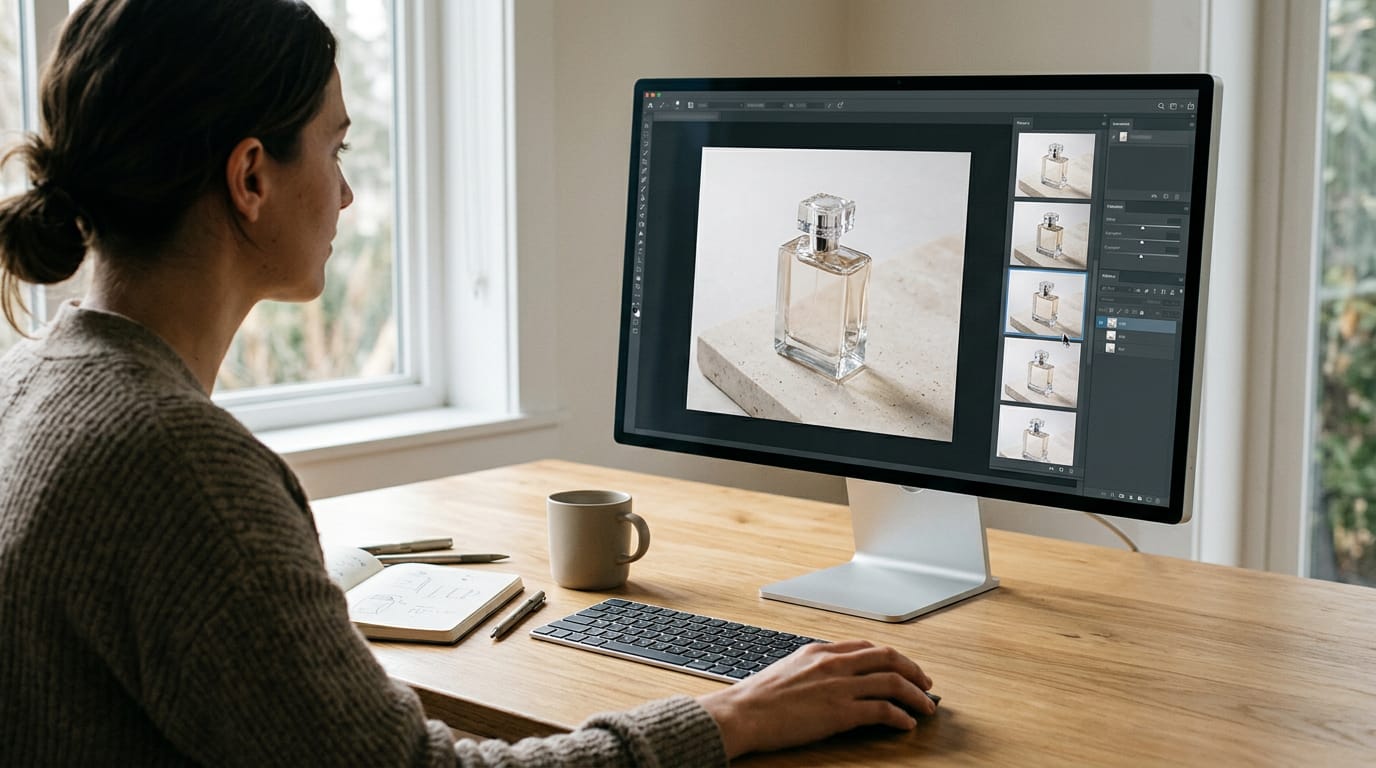
The default stack, the list of steps the program remembers, holds 20. In a long session, your earliest edits may already be gone. Picture a designer comparing six retouches on a product photo.
One click in the History panel brings back the version she wants.
Redo in VS Code and developer tools
In Visual Studio Code (VS Code), the redo key depends on your operating system, so a shortcut from Windows may not work on a Mac. Check the Keyboard Shortcuts editor for your system’s key, or remap redo there to match your habit.
IntelliJ is more forgiving: it accepts both Ctrl+Y and Ctrl+Shift+Z. A developer who codes in VS Code at home and IntelliJ at work can press the same key in both without a second thought.
Other ways to trigger redo
When a shortcut fails, try these:
- Edit menu: the fallback when you can’t recall the key.
- Toolbar redo button: one click on the redo arrow does the same job.
- Menu names like Redo Typing: on a Mac, the Edit menu often names the step, so you can confirm what you’re bringing back.
Blender, the 3D modeling app, follows the same pattern. If you’re wondering how to undo in Blender, press Ctrl+Z, and Ctrl+Shift+Z brings back the step you undid. On a Mac, use Cmd in place of Ctrl.
Mail and chat apps are less consistent. Outlook’s message window uses Word’s editor, so Ctrl+Y works there. Notion uses Ctrl+Shift+Z like Docs, and for Gmail and Slack, test the key in the message box before you rely on it.
Learn the key for your main app, and let the menus cover the rest.
Fixing Redo When It Doesn’t Work
Redo doing nothing? It’s usually one of a few common causes, and most are quick fixes.
Why your redo shortcut isn’t working
- Different app, different key. Not every app uses the same redo shortcut, so check its Edit menu.
- Conflicts or extensions. A browser extension or utility may grab the same keys first.
- No prior undo. Redo only brings back what you’ve undone. A home office editor who presses redo right after typing sees nothing, so undo once first.
- Keyboard layout. On a different layout, the key you press may not be the one the app expects.
- Restart the application. A stuck app may ignore shortcuts, and reopening it often helps.
- Redo vs. repeat last action. Redo restores what you just undid, while repeat applies your last action to a new spot.
Picking between Ctrl+Y and Ctrl+Shift+Z
Two keys are common for redo: Ctrl+Y and Ctrl+Shift+Z.
- The Windows classic. Ctrl+Y is the traditional choice, and it’s probably the one you remember.
- Mirrors undo. Ctrl+Shift+Z is Ctrl+Z with Shift added, so your hand barely moves.
- Try the other if one fails. If Ctrl+Y does nothing, switch to Ctrl+Shift+Z, and vice versa.
Redoing several steps in a row
- Repeated presses step forward. Each press restores one step, so a home office designer who undid three layout tweaks presses redo three times to recover the final version.
- Redo levels vary by app. Some apps keep long histories and others only a few steps, so test yours.
- Drill Undo and Redo as a pair. Press Ctrl+Z a few times, then redo the same number of times until your hands do it without thinking. Fewer trips to the mouse.

How Undo and Redo Evolved over Time
Undo took decades to become the Ctrl+Z you press without thinking. Here’s how it got there, and why redo sometimes behaves in ways that surprise you.
Where undo came from
In 1968, the FRESS system, which Brown University’s account describes as having many attributes of a modern word processor, already included an undo function. Xerox PARC is where the Ctrl+Z pairing enters the story.
An Interface Lineage history says undo reached the Apple Lisa (1983) and Macintosh (1984), where it was assigned the keyboard shortcut Cmd+Z. By the 1980s, multi-level undo let you step back through several changes instead of just one.
Common designs for undo systems
The simplest is the linear stack: every action goes on one pile, and undo pulls off the most recent. Consider a freelance editor at a home desk who accidentally deletes a paragraph from a client draft.
Ctrl+Z (Cmd+Z on a Mac) restores it instantly, and she can keep pressing to back out three earlier mistakes without retyping.
Other designs build on that base:
- Restricted linear: the stack keeps its order, but the program limits what you can reverse.
- Non-linear: the script model and the US&R model reverse an earlier action without undoing everything after it.
- Selective undo: you pick one change to reverse and leave the rest alone.
- Multi-user, global vs. local: a global undo reverts the latest action by anyone in a shared document, while a local undo reverts only yours.
What limits redo and how it resets
Redo works from the steps you’ve undone, but a new edit clears that list. Undo a sentence, type something new, and the original is gone from redo. Type once, and that door closes.
Some designs avoid that loss with a branching redo history tree that keeps alternate paths instead of erasing them. Stack size also varies by program, so the oldest changes eventually drop off.
A flip undo model treats undo and redo as two sides of one toggle.
Software patterns that power undo
Three patterns do the heavy lifting:
- Command pattern: each action is wrapped in an object that knows how to undo itself.
- Memento pattern: a snapshot of the earlier state is saved and restored on undo.
- Checkpoint and inverse strategies: the program saves checkpoints at intervals or computes the reverse of each change.
Redo is a small shortcut with a big payoff. Once you know the combo for your system and your apps, you can step back into a change without breaking your flow or hunting through menus.
Park the printable side-by-side sheet near your monitor until the keys feel automatic, and come back to the fixes whenever redo stalls. Muscle memory takes a few days of fumbling, but it’s worth every keystroke.
Keep your hands on the keys, and any change you undid is one press away from coming back.
References
- An early experiment teaching poetry with computers — brown.edu (2016)
- The Undo Command — interfacelineage.com
Questions
What is the command to redo something on Mac?
Press **Command+Shift+Z** to redo on a Mac. Some apps may use a different shortcut, so check the app’s Edit menu if it doesn’t work.
What is Ctrl+K on Mac?
In many Mac apps, **Control+K** has an app-specific function; it is not the standard Mac redo shortcut. Redo is usually **Command+Shift+Z**.
How to redo opposite of Ctrl+Z?
Redo is the opposite of **Ctrl+Z** (undo). On a Mac, press **Command+Shift+Z** to redo; on Windows, common redo shortcuts are **Ctrl+Y** and **Ctrl+Shift+Z**.
How do you undo in Blender?
In Blender, press **Ctrl+Z** to undo and **Ctrl+Shift+Z** to redo. On a Mac, use **Command** in place of Ctrl.
How do I undo an action on my Mac?
Press **Command+Z** to undo an action on your Mac. You can also choose Undo from the app’s Edit menu.
How to undo Shift command 5?
To undo a screenshot or screen recording started with **Shift+Command+5**, press **Command+Z** in the app where you’re editing it, if that app supports undo. The shortcut Shift+Command+5 opens the macOS Screenshot toolbar; it does not itself make an edit that can be undone.
What's the difference between undo and redo?
Undo moves back to an earlier state by reversing a recent change. Redo reverses an undo, restoring the change you just backed out of; it generally works only until you make a new edit.
Sources
- An early experiment teaching poetry with computers, brown.edu,
- The Undo Command — Interface Lineage, interfacelineage.com
spaceShortcut Sheets: the twenty keys to learn first in each appFind your app