Strikethrough Keyboard Shortcut for Word, Excel, and More
Strikethrough keyboard shortcut options for Mac and Windows cover Word, Excel, PowerPoint, Google Docs, and chat apps, plus a printable desk cheat sheet.

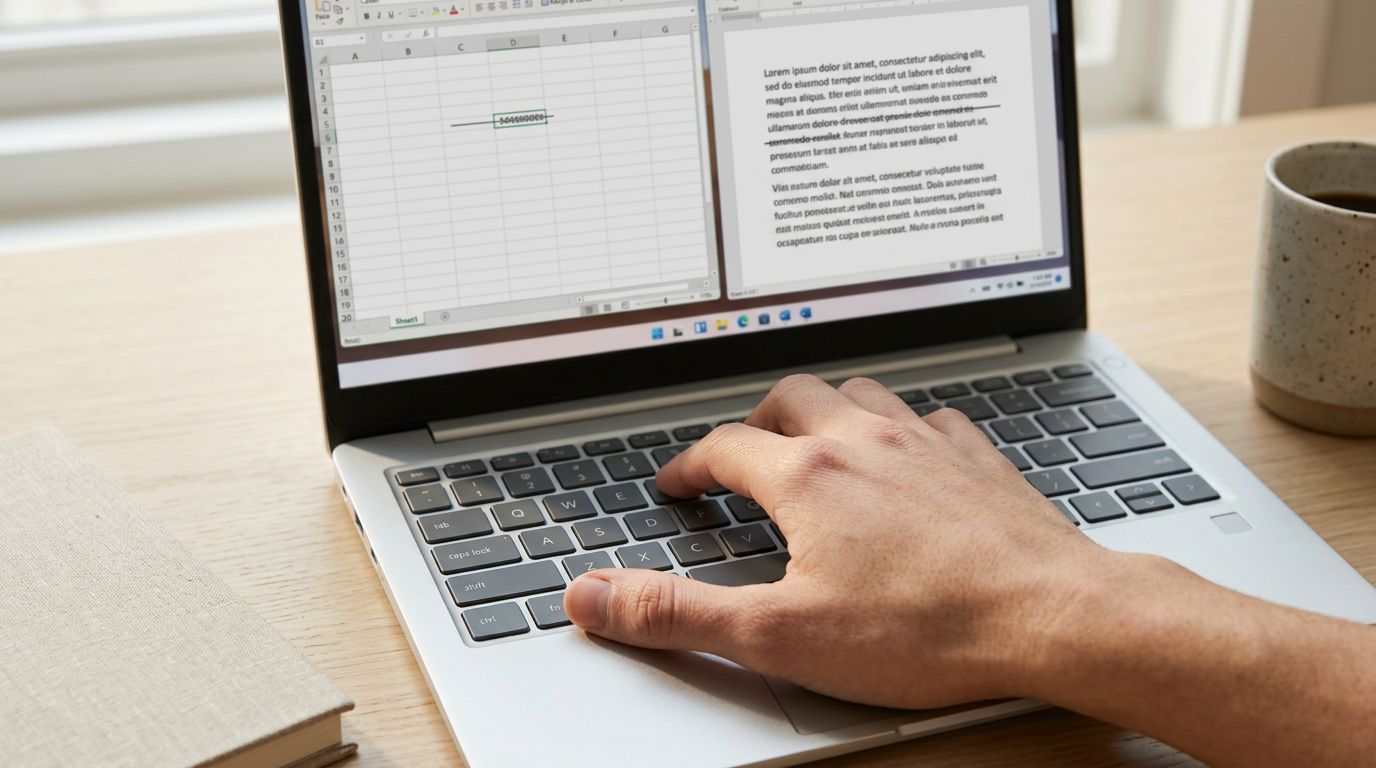
The short versionStrikethrough is a line through text that marks it as removed, revised, cancelled, or complete while keeping the words readable. Select the text and use the shortcut for your app and device, such as Ctrl+5 in Excel, Ctrl+Shift+X in Google Docs on Windows, or Cmd+Shift+X on a Mac; in Word and PowerPoint, use Alt+H, then 4 on Windows. The same toggle often removes the line, making it easy to show changes without deleting context or leaving the keyboard.
Think of a grocery list with the eggs crossed off once you’ve grabbed them. That one line tells everyone what’s done.
Strikethrough works the same way in your documents: a horizontal line through text shows it’s been removed, revised, or set aside, while the words stay readable.
Most of us reach for the mouse, then hunt through a menu and back. In this post, we’ll cover the keyboard route in Word, Excel, PowerPoint, Google Docs, and chat apps, with Mac and Windows side by side.
You’ll also get a printable cheat sheet for your desk.
Keyboard Shortcut for Strikethrough in Word
Ever needed to cross out a line in a draft without losing what it said? In Word, strikethrough is one of the easiest effects to reach from the keyboard once you know where to look.
Quick ways from the Home tab
The strikethrough button lives in the Font group of the Home tab, but it only works on text you’ve already selected. Select first, then act. Here’s the keyboard route:
- Select the text.
- On Windows, press Alt+H, then 4. Word shows small letter badges called KeyTips after you press Alt, and each one shows the next key to press.
- On a Mac, press Cmd+Shift+X.
Press the keys in sequence, one after another, rather than all at once. Take a home office worker who edits client contracts in Word all afternoon.
Each time a price changes, they select the old figure and tap Alt, H, 4 without lifting their hands, so the edit keeps moving instead of stalling while they hunt for the ribbon.
Using the Font dialog box
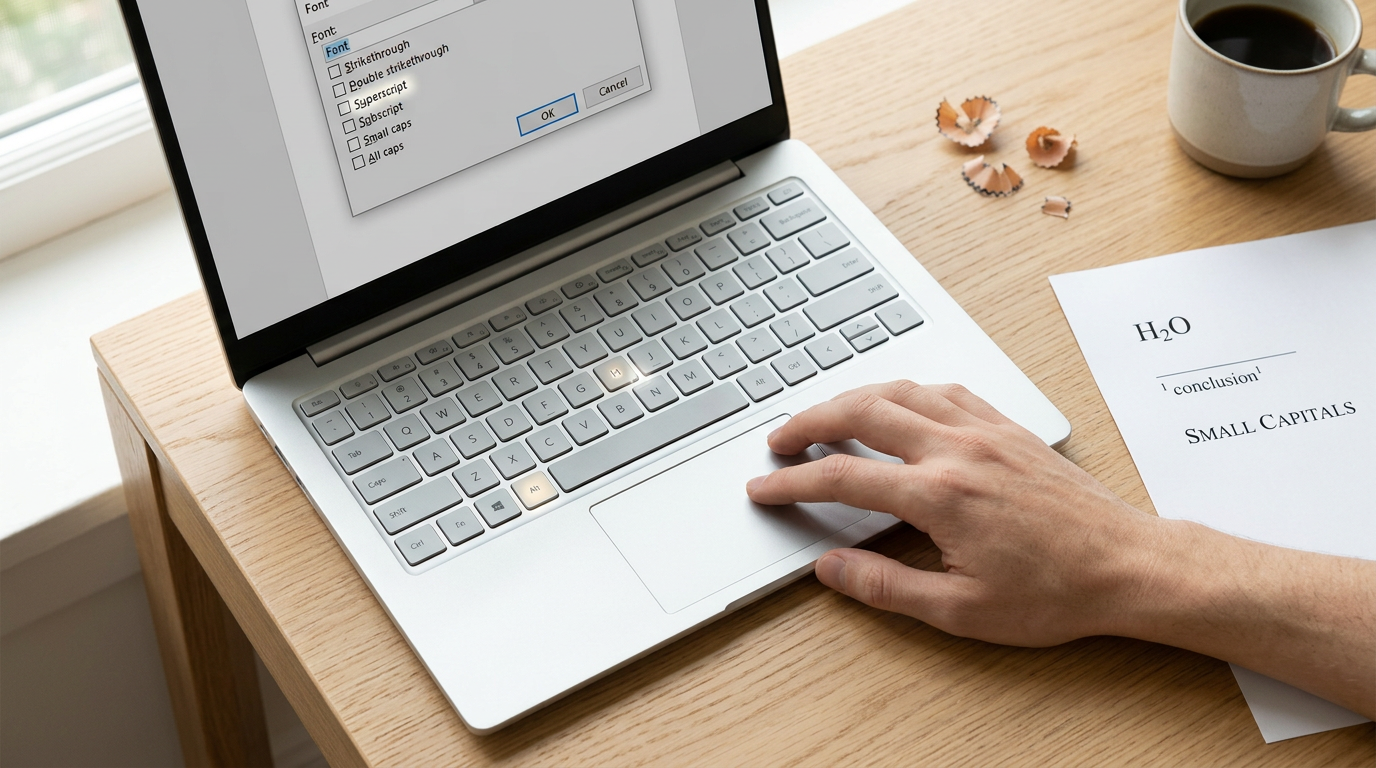
For more control, open the Font dialog box with Ctrl+D. Press Alt+K to check the Strikethrough box, then select OK. If you’d rather use the mouse to open it, click the small arrow in the corner of the Font group on the Home tab.
Other font effects worth knowing
The same dialog holds a few more effects:
- Double strikethrough, applied with Alt+L.
- Superscript and subscript, for footnote numbers and chemical formulas.
- Small caps and all caps.
- Hidden text.
Look for the underlined letter in each option’s label. That’s the key you press with Alt to select it, so the whole box works without a mouse.
Turning strikethrough on and off
Strikethrough works like a light switch: the same keys that add it also take it away. Press Alt+H, then 4 on Windows, or Cmd+Shift+X on a Mac, to remove it. You can also reopen the Font dialog box with Ctrl+D and uncheck the box.
Set up your own Mac shortcut
If Cmd+Shift+X doesn’t suit your hands, you can assign your own combination. In Word for Mac, go to Tools > Customize Keyboard, then choose the All Commands category. Find strikethrough in the list, select it, and assign the keys you want.
Consider a support agent who types replies in Word on a Mac and keeps stretching for a combination that’s awkward to reach.
Assigning one that sits under their fingers means the habit sticks, and every reply skips a trip to the menus. Hands stay on the keys.
Crossing Out Text in Excel
Sometimes a cell needs to show that something is finished without losing what it said. That’s what strikethrough is for, and Excel gives you a few ways to apply it.
Press Ctrl+5 to strike text
Select the cell or the text inside it, then press Ctrl+5 to turn on the strikethrough effect. Ctrl+5 is a toggle, so the same key works as an off switch: press it again, or press Ctrl+Z to undo. This shortcut is for Windows PCs only.
Consider a bookkeeper working from a home office who tracks unpaid invoices in one column. When a payment lands, she selects the amount and presses Ctrl+5. The line stays visible for her records, and her hands never leave the keyboard.
Using the Format Cells dialog
Press Ctrl+1 to open the Format Cells dialog. The small arrow in the Font group on the Ribbon opens it too, but that pulls your hand toward the mouse. On the Font tab, check the Strikethrough box.
Once the dialog is open, Alt+K checks it for you. Hands stay on the keys.
Cross cells out with diagonal borders
Sometimes you’ll want to cross out the whole cell, not just its text. In the Format Cells dialog, switch to the Border tab and choose the diagonal line option. It’s easy to remove: apply the same setting again.
Picture a home office worker who keeps a shared sheet of event RSVPs. A diagonal line through a guest’s cell tells the group at a glance that the spot is open, without anyone retyping the entry.
Other ways to format Excel text
There’s more in the same place. Two extra effects are worth knowing:
- Superscript: Alt+E, which suits footnote numbers.
- Subscript: Alt+B, which suits chemical formulas.
Strike Through Text in PowerPoint
Strikethrough draws a line through text so a slide can show what changed without deleting it. Here are the routes, from the Home tab to the keyboard, plus how to clear it again.
Use the Home tab or keys
- Home tab command: Select the text, then click the Strikethrough button on the Home tab.
- Windows keys: Press Alt+H, then 4.
- Mac route: Mac users need a different keyboard path, and it starts with Cmd (the Command key)+T.
Picture a freelance consultant updating a client’s sales deck from her kitchen table. She crosses out last quarter’s figures instead of deleting them, so the client can compare old and new at a glance. Her hands never leave the keys.

Shortcuts inside the Font dialog
Open the Font dialog with Ctrl (Control)+T, the simplest route. These work too:
- Ctrl+Shift+P: an alternative way in.
- Ctrl+Shift+F: another alternative.
- Alt+K: checks the Strikethrough box once the dialog is open.
There’s one catch: the dialog has no live preview. It’s for choosing the effect, not previewing it, so check the slide once you press OK.
Extra text effects to try
The dialog also holds these:
- Double strikethrough: Found only in the dialog, not on the Home tab.
- Superscript, subscript, and caps: Handy for footnote markers and all-caps labels.
- A PowerPoint-specific effect: One more option is unique to PowerPoint, so scan the full list before you assume you’ve seen every choice.
The Home tab wins on speed; the dialog wins on range.
Removing it with Ctrl+Spacebar
Strikethrough is a toggle, so applying it again to the same text takes the line away. For a full reset, select the text and press Ctrl+Spacebar, which clears the formatting in one keystroke.
A support agent who pasted in a template full of crossed-out notes can wipe it clean and start fresh.
Using Strikethrough Outside Office Apps
Strikethrough doesn’t stop at Word. You’ll find it in OneNote, Gmail, Outlook, and Notion too, and the idea stays the same while the keys change from app to app.
OneNote’s strikethrough sits in its formatting controls, and its shortcut list is the place to confirm the exact combo, so check there first.
Strikethrough keys in Google Docs
Google Docs is the one to learn if you draft in a browser. On Windows, press Ctrl+Shift+X with your text selected. On a Mac, use Cmd+Shift+X instead.
Consider an editor who cuts a paragraph from a shared draft. They select it, press Ctrl+Shift+X, and the old text stays visible for reviewers without a trip to the toolbar. Hands never leave the keyboard.
Using tildes in chats and comments
Some chat apps skip the menu entirely and read plain characters. Wrap your text in tildes, like ~this~, and the message shows it struck through. That works in WhatsApp, Slack, and Messenger, so one habit covers your work chat and your personal messages.
Think of a support agent who wants a teammate to see that a fix was already ruled out. Typing ~Restart the router~ in a Slack thread makes that clear, with no toolbar to search.
On an iPhone, the tilde method works in WhatsApp, so you can strike text without leaving your keyboard. In other phone apps, look for a formatting option rather than assuming tildes will work.
YouTube comments follow their own formatting rules, so test the tildes in the comment box before you rely on them.

Tips for Using Strikethrough Well
Strikethrough is a small tool with a big job: it shows that something is no longer in play. Here’s how we’d use it well.
When to use strikethrough
A line through text makes the crossed-out item stand out and says it’s cancelled, replaced, or done. Use it sparingly, though. A page full of crossed-out words is hard to read. Rarer is better.
For edits in shared documents, a comment explains the change better than strikethrough alone. Strike through finished items on task lists.
Consider a remote support agent who updates a refund amount in a shared template. She strikes the old figure and adds a comment, so her teammate spots the change in seconds.
Picking the right method
The ribbon shows the button but pulls your hand toward the mouse. The font dialog is slower to open but groups strikethrough with other formatting.
Start with the two or three shortcuts you’d use every week. Fewer shortcuts learned well beat more shortcuts learned halfway.
If a shortcut does nothing, check that your cursor sits in the text and that another program hasn’t claimed the combo.
Here’s a quick Mac and Windows reference for the modifier keys:
| Key role | Windows | Mac |
|---|---|---|
| Main modifier | Ctrl | Cmd |
| Alternate modifier | Alt | Option |
| Shift | Shift | Shift |
Letters and numbers don’t always match, so confirm the exact combo in your app.
Print a one-page cheat sheet with Windows and Mac columns and tape it beside your screen. A freelance editor switching between a laptop and a desktop can glance down instead of hunting menus.
Many apps let you reassign shortcuts. A combo you’ll actually remember beats a default you keep forgetting.
Once the strikethrough keystroke becomes second nature in your main apps, crossing out text stops being a detour. It becomes part of how you edit and review without leaving the keys.
Print the cheat sheet, practice in the app you use most, and let the rest follow.
Start with one app this week, and the others will feel familiar sooner than you’d expect. Your hands belong on the keyboard, and your edits will be faster for it.
Questions
What is the keyboard shortcut for applying strikethrough formatting in OneNote?
OneNote does not have a single universal strikethrough shortcut across all versions. Check the shortcut list for your OneNote version, or select the text and use the strikethrough control in the formatting options.
What is the keyboard shortcut for strikethrough in Word?
In Word for Windows, select the text and press Alt, then H, then 4. In Word for Mac, select the text and press Command+Shift+X.
How to strikethrough text on iPhone?
In WhatsApp on iPhone, type a tilde before and after the text, like `~text~`, to strike it through. Other iPhone apps may offer strikethrough in their formatting controls, but the tilde method does not work everywhere.
What does Ctrl+O do?
Ctrl+O opens the Open dialog or file browser in many Windows programs, letting you choose a file to open. Its exact behavior can depend on the app.
spaceShortcut Sheets: the twenty keys to learn first in each appFind your app