Select All Shortcut Key Guide for Windows and Mac
The select all shortcut key, Ctrl+A or Cmd+A, selects everything fast. Fix failures and customize it across Windows, Mac, browsers, and apps.


The short versionThe Select All shortcut highlights content in the active document, app, or field without dragging the mouse: use Ctrl+A on Windows and Cmd+A on Mac. What gets selected depends on where you place the cursor, and some apps behave differently, such as Excel, which can expand the selection to the whole sheet on a second press. If the shortcut fails, check focus, app settings, and keyboard layout, or reassign it carefully to avoid conflicts.
Think about how often you select everything on a page: a long email, a spreadsheet, a block of code. Most people drag across it with the mouse, then reach back for the keyboard. There’s a quicker way.
Ctrl+A on Windows (Cmd+A on a Mac) selects everything in the window you’re working in, in one keystroke.
In this post, we’ll cover select all across Windows, Mac, browsers, and common apps, plus fixes for when it stalls and ways to customize it. We’ll also share keyboard-first habits that keep your hands off the mouse.
Select All with One Shortcut Key
Selecting everything takes one keystroke, but where your cursor sits changes what gets selected. Here’s how it works in the apps you use most.
What’s the shortcut key to select all?
The shortcut key for Select All is Ctrl+A on Windows. Press it and the whole document highlights, so you can copy, delete, or restyle everything without dragging the mouse. Hands stay on the keys.
A writer formatting a 12-page report in Word can press Ctrl+A once to select every paragraph, heading, and table together.
Add Ctrl+C to copy the selection to the clipboard, the temporary holding spot for copied text. Think of a support agent pasting a customer’s email thread into a new ticket: Ctrl+A, Ctrl+C, Ctrl+V, three keystrokes instead of a long drag.
Here’s how the same keystroke behaves elsewhere:
- Windows and Mac: Ctrl+A on Windows, Cmd+A on a Mac.
- Excel: the first press selects your data, and a second press selects the whole sheet.
- Gmail: inside a message, it selects the text you’ve typed, not every email in your inbox.
- Browsers: on a plain web page, it selects all the visible text.
- Web page fields: in a search bar or form box, it selects only that box, not the page.

Try the shortcut in a practice lesson
Reading about it only gets you so far, so try it yourself. Click inside the try-it key box, press Ctrl+A (Cmd+A on a Mac), and watch the text highlight.
The full practice lesson walks you through the steps, and you can repeat the try-it box until the keystroke feels automatic. When you’re done, use the leave shortcut, Alt+Shift+L, to exit.
Shortcuts People Often Mix Up
Some of the most useful shortcuts look almost identical on the keyboard, and grabbing the wrong one can quietly change your text. Here’s where people trip up:
Key combos that look almost identical
Ctrl+A selects everything, but add Shift and you get Ctrl+Shift+A, which makes the selected text ALL CAPS. It’s an easy slip when your fingers are moving fast, and suddenly your whole paragraph is shouting.
Ctrl+S, meanwhile, saves your document, so it’s worth pressing often.
Modifier keys are the extra keys you hold with a letter, like Ctrl, Shift, or Cmd on a Mac. Watch for the same key with different modifiers: the letter stays put, but the modifier decides the outcome. Ctrl+A selects, while Ctrl+Shift+A changes case.
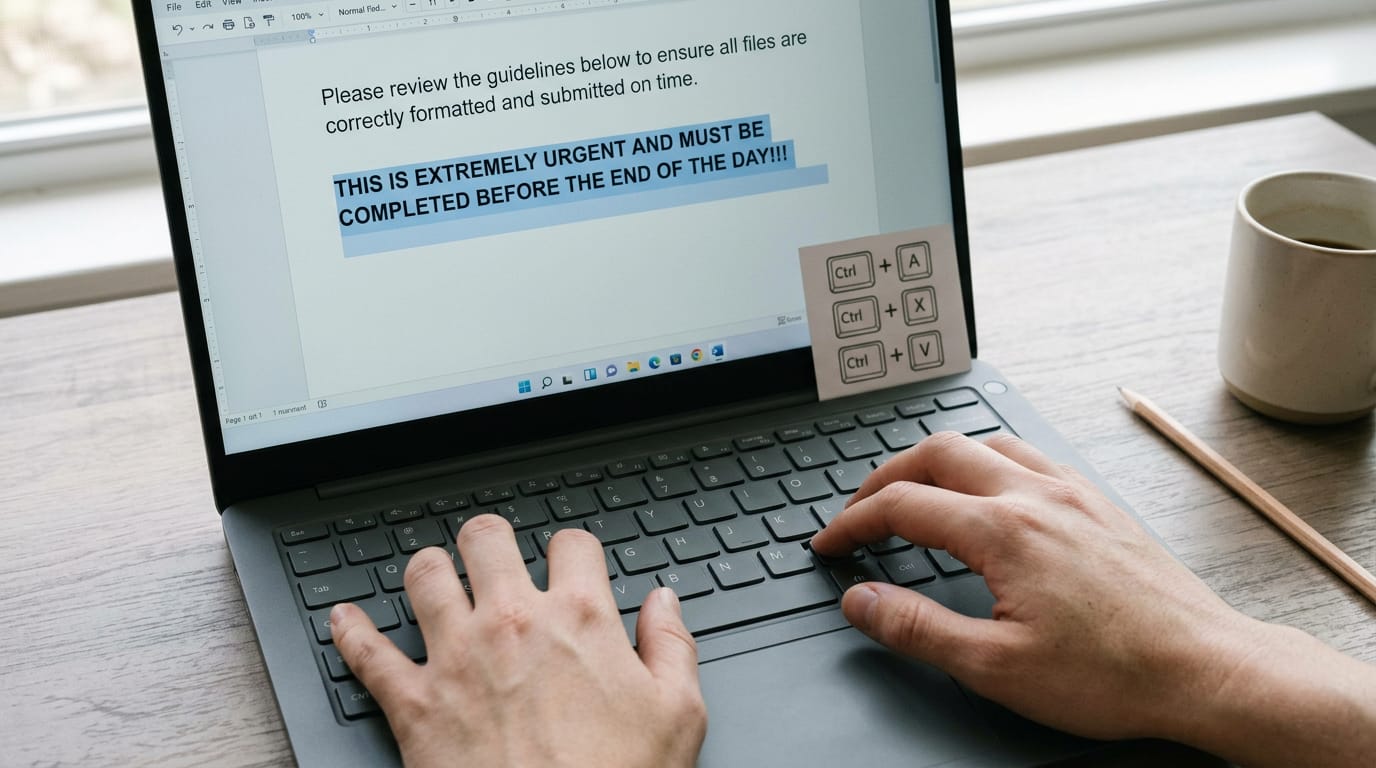
Ctrl+A then C, X, or V is the selection pair worth memorizing. Ctrl+C copies the text, while Ctrl+X cuts it so the original disappears until you paste.
For example, a home office editor reusing a full draft in a new file can press Ctrl+A, then Ctrl+C, switch files, and paste with Ctrl+V. That’s three combos instead of a drag, a right-click, and a menu hunt.
Print a short list of these selection keys and keep it near your monitor until they stick. Repetition does the rest.
Fixing It When the Shortcut Fails
When Ctrl+A (Cmd+A on a Mac) does nothing or does something unexpected, one of three causes is usually behind it. Here’s what to check for each.
Common reasons the shortcut won’t work
- Template or add-in changed key. A Word template or add-in can assign its own command to a key combination, so Ctrl+A may run something else entirely. Test in a blank document. If the shortcut works there, the template or add-in is the likely culprit.
- Word for web limitations. Word for the web runs inside your browser, so the browser can claim some shortcuts before Word sees them. Click inside the document body first, then press Ctrl+A.
- Non-US keyboard layouts (AZERTY, QWERTZ). Ctrl+A should work because it’s tied to the letter A, but your computer’s keyboard layout decides which letter a key sends. AZERTY is the French layout, where the top row starts with A, and QWERTZ is the German layout that swaps Y and Z. If your system is set to US English, a French keyboard sends Q where you expect A, so Ctrl+A triggers something else. Check your language settings first.
Consider a support agent working from home with a French keyboard plugged into a laptop still set to US English. Ctrl+A stops selecting her ticket text, and she falls back on the mouse for every select all.
Switching the input language to French brings the shortcut back, and her hands stay on the keys.

Change the Shortcut to Suit You
Select All is built in, but the default isn’t the only option. If a different combination suits how you work, you can move it to a spot your hands already go.
Reassign keys in your settings
The menu path depends on your system:
- Windows: File > Options > Customize Ribbon
- Mac: Tools > Customize Keyboard
Before you change anything, open the dialog and look. It shows the current assignment for each command, so you can spot a combination that’s already doing a job somewhere else.
If you see a clash, pick a different combination rather than overwriting a shortcut you already depend on.
Consider a remote support agent who selects all text in a ticket dozens of times a shift. If the default combination feels like a stretch, moving it to a key they can hit without shifting their hand means one less reach on every reply.
Give the new combination a few days of real use before you call it final.
Check first, then change. The goal is less about learning new keys and more about keeping the ones that already work for you.
Select all is a small shortcut, but it sets the pattern for everything else. Once Ctrl+A (or Cmd+A on a Mac) feels automatic, you’ll start noticing other tasks you can finish without leaving the keys.
Keep the troubleshooting steps handy for the day it stalls, and customize it if it clashes with your setup.
Your hands already know the way. Let them do the selecting.
Questions
What is the shortcut key for select all?
On Windows, press Ctrl+A to select all; on a Mac, press Cmd+A. In Excel, the first press selects the current data region, and pressing it again selects the entire worksheet.
What is F1, F2, F3, F4, F5, F6, F7, F8, F9, f10, f11, F12 in Excel?
In Excel, F1 opens Help; F2 edits the active cell; F3 opens the Paste Name dialog; F4 repeats the last action or cycles through cell-reference types while editing a formula; and F5 opens Go To. F6 cycles between worksheet, ribbon, task pane, and zoom controls; F7 opens spelling; F8 turns on Extend Selection; F9 recalculates formulas; F10 activates Key Tips; F11 creates a chart sheet; and F12 opens Save As. Some functions vary by laptop and may require pressing Fn as well.
Why won't the Ctrl+Alt+Arrow work?
Ctrl+Alt+Arrow is not a universal shortcut, and its behavior depends on the app and your computer settings. In Excel, it is not the Select All shortcut; use Ctrl+A instead. If Ctrl+Alt+Arrow should work in a particular app, another app or a graphics-driver hotkey may be intercepting it, or the keyboard may require an Fn key.
What does Ctrl+Shift+K do?
Ctrl+Shift+K has no single action across all applications, and it is not a standard Excel shortcut. Its function depends on the program and any custom key assignments, so check that app’s shortcut list or settings.
spaceShortcut Sheets: the twenty keys to learn first in each appFind your app