Logitech Bluetooth Keyboard Pairing: Complete Guide
Logitech Bluetooth keyboard pairing works like this: power it on, enter pairing mode, and select it in settings; use the USB receiver if Bluetooth fails.

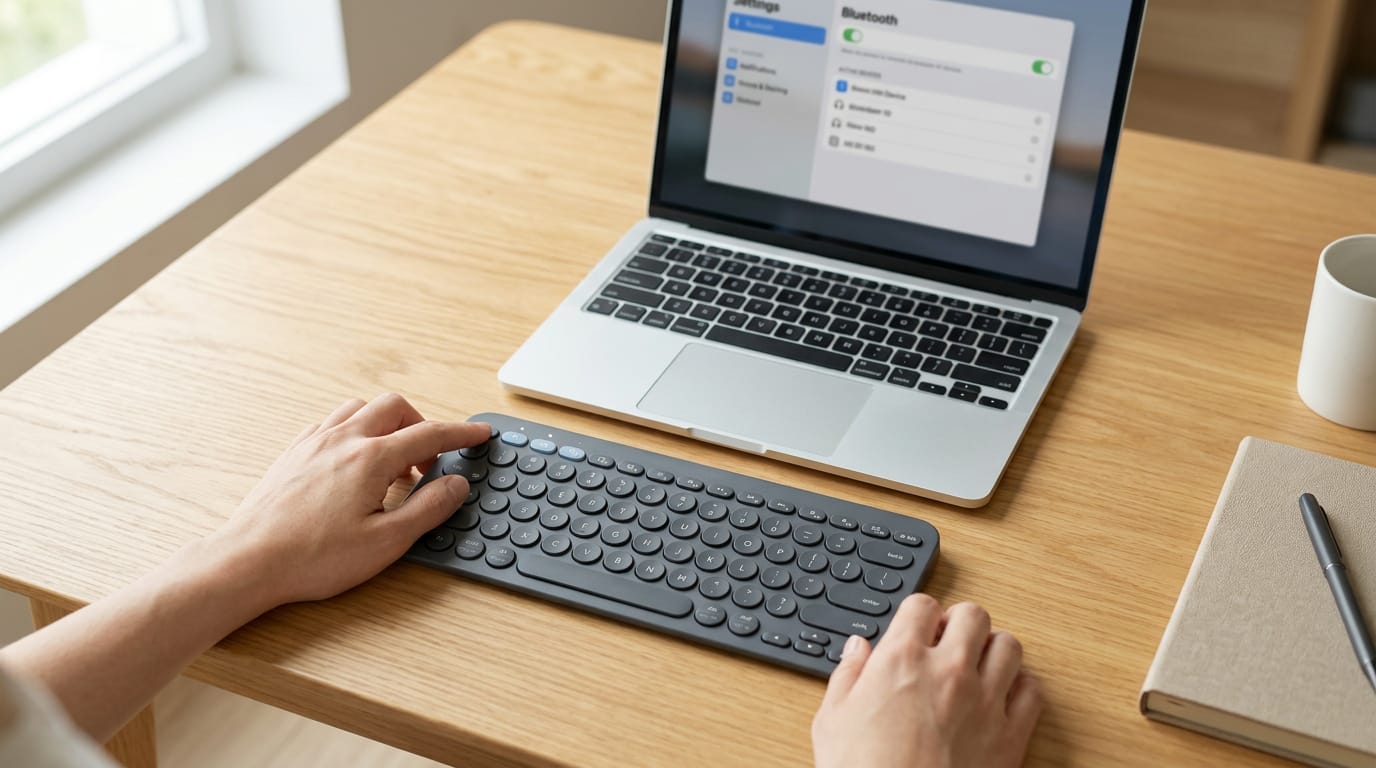
The short versionLogitech Bluetooth keyboard pairing means connecting the keyboard to a computer, tablet, or other device through its Bluetooth settings. Turn the keyboard on, hold an Easy-Switch key until its light blinks, select the keyboard in Bluetooth settings, then enter any code shown and press Enter; remove an old pairing if it blocks connection. Assigning devices to separate Easy-Switch keys makes switching easier, while a USB receiver is an alternative for compatible models.
Think of introducing two friends at a party. Both need to be ready, and then they just have to say hello. Pairing a Logitech keyboard works the same way.
Here’s the short answer: power on the keyboard, put it into pairing mode, then pick it from your device’s Bluetooth settings. If that doesn’t work, a tiny receiver that plugs into your computer is a second route.
In this post, we’ll cover every step, the fixes for when pairing fails, and tips for moving your keyboard between a laptop, desktop, and tablet.
Power on Your Logitech Bluetooth Keyboard First
Before anything can connect, your keyboard needs power. Here’s how to switch it on, and what to try if it stays dark.
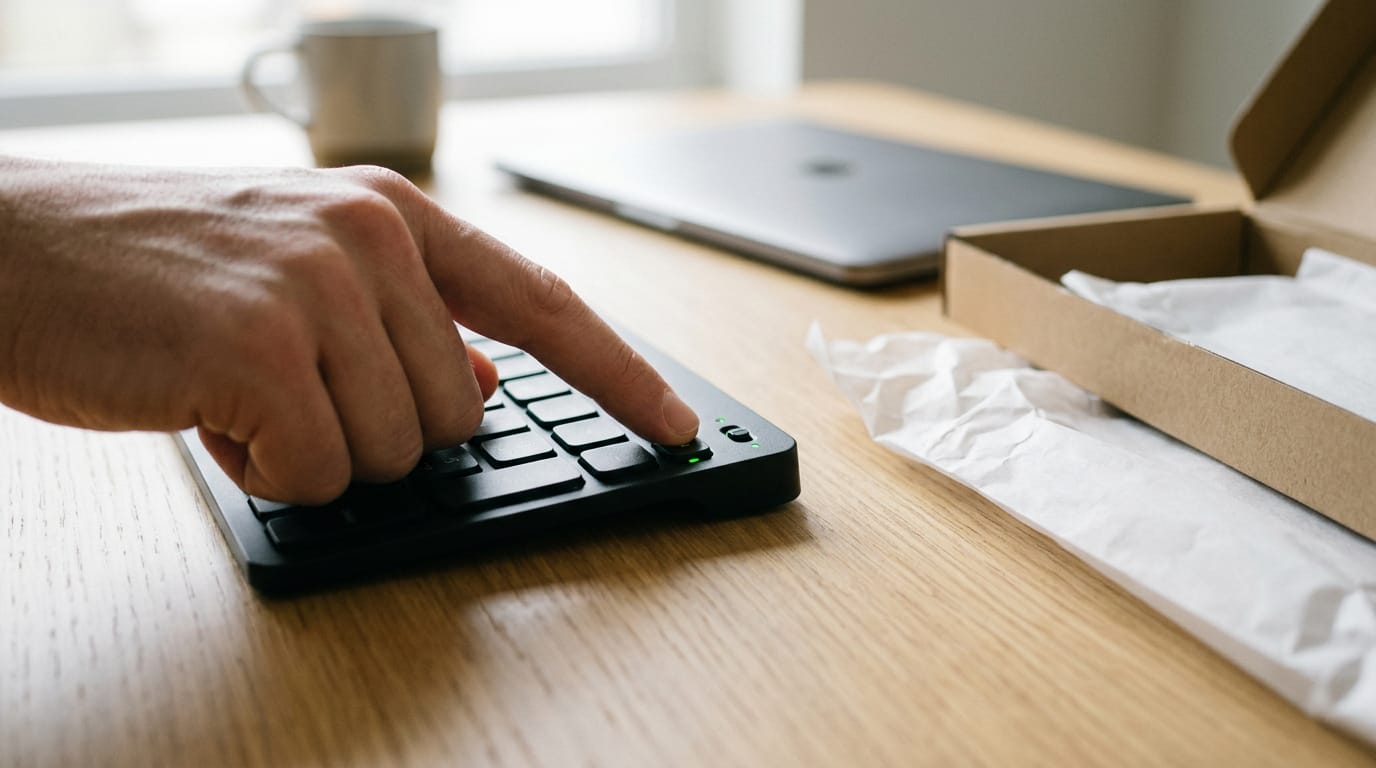
Find and push the power switch
The power switch is easy to overlook, so here’s the routine:
- Locate the power switch at the top right or along an edge of the keyboard.
- Push the switch to turn the keyboard on.
- Look for the power LED to light green. That’s your signal the keyboard has power.
Say you’ve just unboxed a new keyboard before a 9 a.m. client call. Push the switch, watch for that green glow, and you can move on with confidence instead of guessing. For now, you’re aiming for on, not connected. Pairing comes next.
Fixing a keyboard that won’t power on
If the light stays off, work through these two checks in order:
- Check for a battery pull-tab and remove it, then push the switch again.
- If it still won’t power on, plug the keyboard in with the cable that came with it, then push the switch and look for the green light.
Light first, pairing second.
Get the Keyboard into Pairing Mode
Before a Logitech keyboard can connect to a new device, it has to be in pairing mode, the state where it’s actively looking for a partner. On a Logitech Bluetooth keyboard with Easy-Switch keys, you start that right at the keys.
Hold Easy-Switch until the light blinks
Each Easy-Switch key stands for one device, or channel, so you choose the key that matches the machine you’re pairing. To start:
- Press and hold the Easy-Switch key for three seconds.
- Watch the light-emitting diode (LED) on that key. It should start blinking.
- Blinking means ready to pair, so select the keyboard from your device’s Bluetooth list.
To pair your Logitech K580 with Bluetooth, hold an Easy-Switch key for three seconds, wait for its light to blink, then pick the K580 from your device’s Bluetooth list.
Assign each channel once and you’re set for the whole desk:
- Key 1 for your laptop
- Key 2 for your desktop
- Key 3 for your tablet
Take a freelance editor who works from a laptop in the living room, a desktop in the home office and a tablet on the couch.
She pairs each device to its own key once, so switching later is one keypress instead of a fresh pairing every time she sits down. Set it up once and forget it.
Finish Logitech Bluetooth Keyboard Pairing
Your computer can’t pair with a keyboard it can’t see, so first make the keyboard appear in your Bluetooth settings. Once it’s listed, a quick code check does the rest.
Why isn’t my Logitech keyboard showing up?
Why isn’t my Logitech keyboard showing up on Bluetooth? Usually the keyboard isn’t switched on or isn’t in pairing mode, or an old entry is in the way. Start with these steps:
- Open the Bluetooth settings menu on your computer.
- Select your keyboard from the device list.
The menus differ by platform. Windows keeps Bluetooth under Settings, while a Mac uses System Settings. The labels can shift between versions, but the steps stay the same.
Take a home office writer who moves her keyboard between a laptop and a desktop. Her desktop still held an old entry, so the keyboard never appeared.
She removed that entry, switched the keyboard on, and was typing on the desktop again without reaching for a cable.
Remove old pairing first. A leftover entry can block a fresh connection, so clear it from the device list before you try again.
Type the code shown, then press Enter
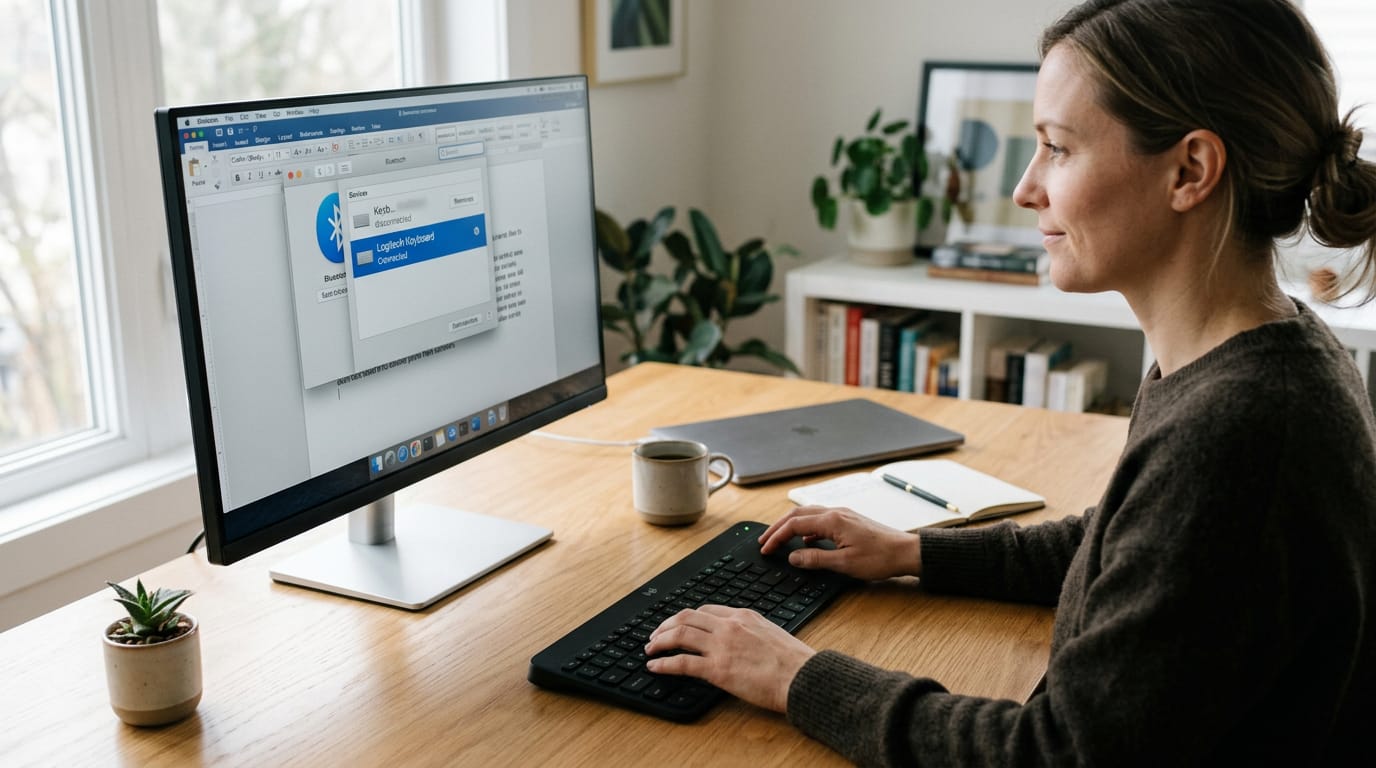
Your computer displays a pairing code, and you confirm it on the keyboard:
- Type the code shown on screen.
- Press Enter on the keyboard.
- Click connect.
Why is my Logitech keyboard not pairing? It usually stalls when the keyboard isn’t in pairing mode or the code doesn’t match. When pairing fails, start over: confirm the keyboard is on and in pairing mode, remove the old entry, then try the code again.
The menu gets your keyboard seen. The code gets it connected. Then you’re typing.
Connect with the USB Receiver Instead
Not every Logitech keyboard needs Bluetooth. If yours uses a small USB receiver (the dongle), it handles the connection for you. Here’s how to use it, and what to try when the keyboard won’t connect.
How do I resync my Logitech wireless keyboard?
When your keyboard drops out, it usually just needs to reconnect with its dongle. Try these steps in order:
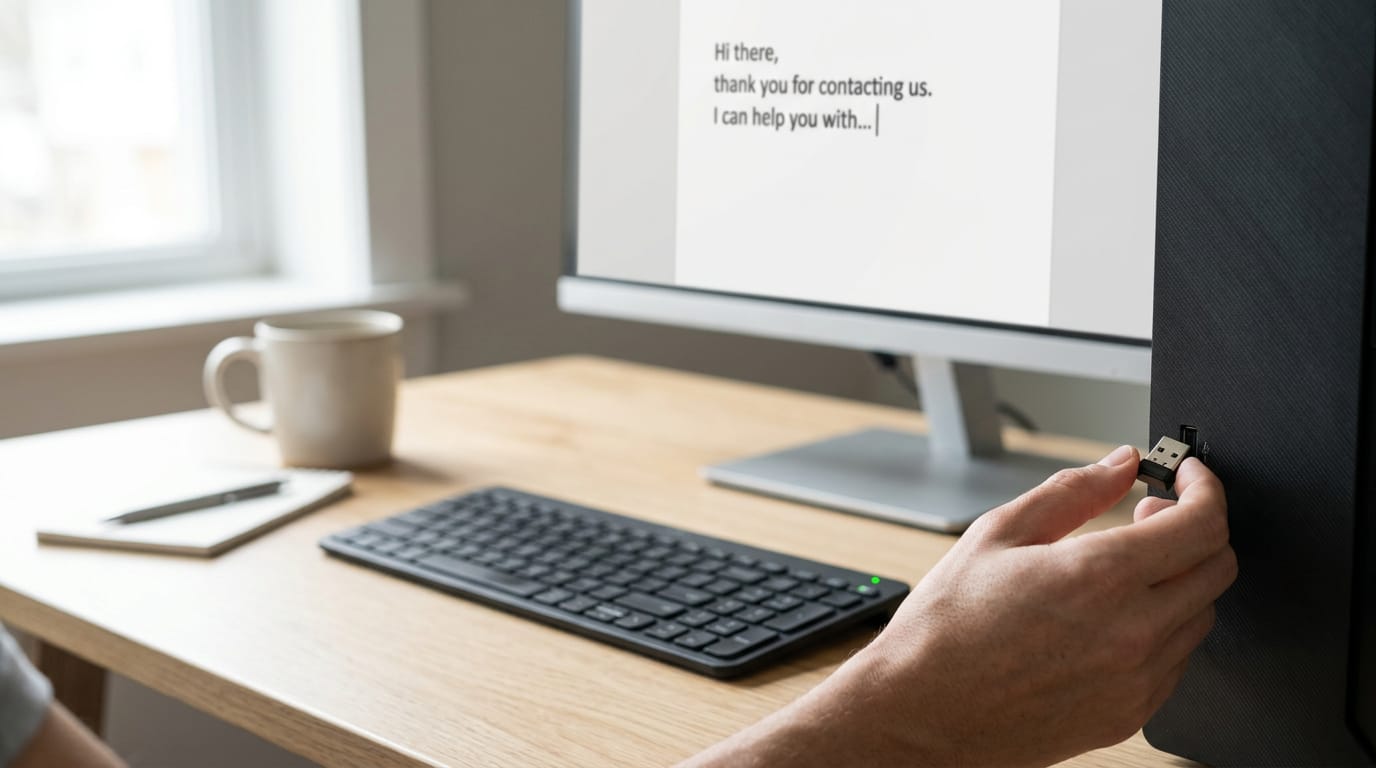
- Plug the dongle into a USB port.
- Power on the keyboard, and it should connect on its own.
- If it doesn’t connect, use Easy-Switch to reconnect it.
Resyncing a disconnected keyboard is less about pairing and more about plugging in. You’re not hunting through Bluetooth menus. The receiver and keyboard just need to find each other again.
Picture a support agent typing at a desktop when the keyboard suddenly goes quiet mid-reply. Instead of digging through settings, they unplug the dongle, plug it back into the same port, and they’re typing again in seconds. No menus, no mouse.
Wondering how to pair a K270? It follows the same receiver steps, with no Bluetooth setup at all. Plug in the dongle, power on the keyboard, and you’re typing.
Set up Your Keyboard After Pairing
Pairing connects the keyboard, but two quick steps make it fit how you actually work. First, tell it which system you’re on. Then, open the app to tune the keys.
Set your OS with a fn key shortcut
Your keyboard needs to know which operating system (OS) it’s typing for, so keys like Command and Ctrl behave the way that system expects. Set it before you type, not after a stray symbol shows up.
Hold fn plus the letter for your system for 3 seconds:
- macOS: fn + O
- Windows, Linux, ChromeOS: fn + P
Think of a home office worker who types on a Mac laptop in the morning and a Windows desktop after lunch. A quick fn + O or fn + P each time the keyboard changes hands means shortcuts work on the first try. Three seconds, and you’re set.
Install Logi Options+ to customize your keys
Logi Options+ is where you change how your keys behave, so the keyboard does more of what you need. It’s less about installing an app and more about tuning the keyboard to your habits.
Work through these steps:
- Install Logi Options+ by following a step-by-step install guide.
- Customize keyboard behavior to match the shortcuts you use most.
- Connect another device when your desk needs one, and keep working from the same app.
Once your keyboard is paired, the hard part is behind you. Power it on, enter pairing mode, connect, and tune your setup for daily use. Together those steps turn one keyboard into a tool that follows you from laptop to desktop to tablet.
Keep this walkthrough bookmarked for the next time a connection stalls, and you’ll know exactly where to start.
Your hands stay on the keys, right where they belong, no matter which screen you’re working on.
Questions
How do I put my Bluetooth keyboard in pairing mode?
Turn on the keyboard, then press and hold an Easy-Switch key for three seconds. When the key’s LED starts blinking, select the keyboard in your device’s Bluetooth settings.
How do I make my Logitech wireless keyboard discoverable?
Turn on your Logitech Bluetooth keyboard and hold the Easy-Switch key for the device you want to connect to for three seconds. The key’s LED will blink when the keyboard is discoverable; select it from your computer’s Bluetooth device list.
How do I get my computer to recognize my Logitech wireless keyboard?
Turn on the keyboard and put it in pairing mode by holding an Easy-Switch key for three seconds until its LED blinks. Open Bluetooth settings on your computer, select the keyboard, and enter any pairing code shown on screen, then press Enter on the keyboard. If it was paired before, remove its old entry and try again.
How do I resync my Logitech wireless keyboard?
If your keyboard uses a USB receiver, plug the receiver into a USB port and turn on the keyboard; it should reconnect automatically. If it does not, unplug and reconnect the receiver, then use Easy-Switch to reconnect. Bluetooth models can be reconnected by selecting their device entry in Bluetooth settings.
How do I pair my Logitech K580 keyboard with Bluetooth?
Turn on the K580, then press and hold an Easy-Switch key for three seconds until its LED blinks. Open your device’s Bluetooth settings, select the K580, and enter any code shown on screen, then press Enter on the keyboard.
How do I pair my Logitech K270 keyboard?
The Logitech K270 connects through its USB receiver, not Bluetooth. Plug the receiver into a USB port and turn on the keyboard; it should connect automatically.
Why isn't my Logitech keyboard showing up on Bluetooth?
The keyboard may be off or not in pairing mode, or an old pairing entry may be interfering. Turn it on, hold an Easy-Switch key for three seconds until its LED blinks, and remove any old keyboard entry from your Bluetooth settings before trying again.
Why is my Logitech keyboard not pairing?
The keyboard may not be in pairing mode, or the pairing code may have been entered incorrectly. Confirm it is on and its Easy-Switch LED is blinking, remove any old pairing entry, then select it again and carefully enter the displayed code before pressing Enter.
spaceShortcut Sheets: the twenty keys to learn first in each appFind your app