Check Sign on Keyboard: Every Method Explained
Check sign on keyboard: find the fastest way to type a tick, from Word’s Symbol menu and Alt codes to fonts, saved shortcuts, and version fixes.


The short versionA check mark, or tick, is a symbol used to show that something is done, correct, or approved, but keyboards have no dedicated check-mark key. The best way to type one depends on your device and app: use Word’s Symbol menu, Windows font-based shortcuts, or save a frequent tick as an AutoCorrect replacement or reusable copy-and-paste symbol. Choose a method that fits your setup, and check font support if the mark appears incorrectly.
Think of ticking off a grocery list with a satisfying little mark. Now picture needing that same symbol (✓) in the middle of a report, a status update, or a support reply, with your hands already on the keys.
Typing it is easy once you know the right route.
A check mark works like any other symbol: the fastest method depends on your app and your operating system. This guide covers the main options, from Word’s Symbol menu to the quickest keyboard-only routes for the ticks you use every day.
Uses for a Check Sign on Keyboard
Most of us don’t type a check mark often, but when we do, it usually means something is done, approved, or correct. Here’s where it shows up in everyday work, and why it’s harder to reach than it should be.
Where people actually use ticks
A check mark, or tick, is the small mark that says “done,” and it turns up in more places than you’d expect:
- Completed tasks and to-do lists: Ticking off a line is the quickest way to show progress in a shared list.
- Proofreading and grading: Editors and teachers mark correct answers or cleared sections with a tick.
- Approval and surveys: A tick on a form or survey response signals yes, or agreed.
- Gift lists and homework marking: Gift-givers tick off what’s bought and wrapped, and a parent or teacher marks finished homework with a tick.
Take a remote bookkeeper who reconciles invoices all day. Each cleared row gets a tick in the shared spreadsheet, dozens of times before lunch. If every one pulls her hands off the keys, that’s a lot of small interruptions.
A fast keyboard-only route means she never breaks her typing rhythm to mark a line done. Hands stay on the keys.
Why finding a tick is so hard
Typing a tick should be simple, but two things get in the way.
- No dedicated key: Your keyboard has letters, numbers, and punctuation, but no key is labeled with a check mark.
- Clunky on each platform: Microsoft and Apple both make the tick a detour. The route on a Windows PC isn’t the one on a Mac, so moving between machines means relearning it.
The problem isn’t that a tick is hard to understand. It’s that it’s hard to reach.
Insert a Tick from Word’s Symbol Menu
If you already live in Word, you don’t need a code or a second app to get a tick onto the page. The Symbol menu handles it, so think of this as a question of where the tick lives rather than what it’s called.
Follow the Insert tab to More Symbols
Word tucks its extra characters behind the Insert tab. Here’s the route:
- Open the Insert tab on the ribbon.
- Click the Symbol button.
- Choose More Symbols to open the full Symbol dialog.
- Select the tick, then click Insert.
This is a path you follow, not a code you recall, which is why it’s useful without a number pad.
A home office worker who sends a daily checklist to her team from a Word document can mark each finished item this way, and once the route feels familiar, she stops hunting for the symbol every afternoon. Four steps, and the tick is in place.

Which apps this method works in
Word is the starting point, but the same Insert, Symbol, and More Symbols route works in PowerPoint and Excel too. If you’re building a slide or a tracker sheet, you’ll follow the same steps.
A Microsoft video guide covers this route as well, if you’d rather watch than read.
To type ✔ in Excel, select the cell where the tick belongs, then follow the same steps from the Insert tab. The tick appears in that cell, so a status column gets the same mark a sentence would.
Alt Codes and Shortcuts for a Tick
On a Windows keyboard, there are a few keyboard-only routes to a tick, and most of them run through Wingdings, a font full of symbols. Here’s what each one needs, and we’ll start with alt codes:
Alt codes for a tick in Wingdings
An alt code is a number you type while holding the Alt key. To get a tick, switch the font to Wingdings first, then hold Alt and type 0252 on the numeric keypad.
For example, a home office bookkeeper marking off invoices in a spreadsheet can drop in a tick without reaching for the mouse. Hands stay on the keys.
Here’s how the two platforms compare side by side:
- Windows: Alt + 0252 on the numeric keypad, with the font set to Wingdings.
- Mac: the check mark shortcut in Pages, covered below.
Alt + 0254 gives you the boxed tick, which is the check box symbol. Alt codes need the numeric keypad, not the number row above your letters. On a laptop without a number pad, jump to the Wingdings 2 shortcuts below.
Shortcut keys in Wingdings 2
Wingdings 2 offers letter-key shortcuts instead. Change the font to Wingdings 2, then press Shift + P or Shift + R for tick-style symbols.
For example, a remote support agent on a slim laptop with no number pad can drop ticks into status updates without a detour to the mouse. No number pad required.
How to add a tick in Pages?
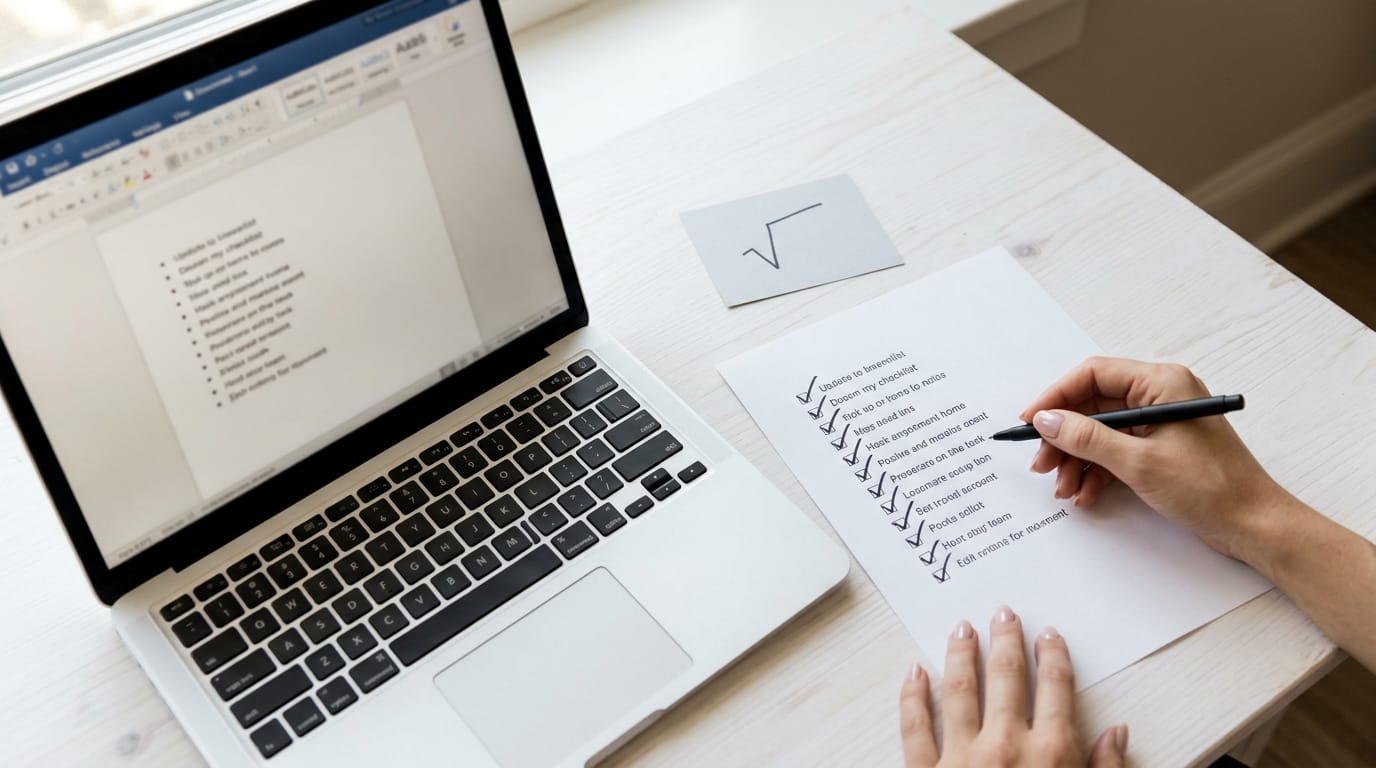
The alt code method works in any program, Pages included, so switch to Wingdings and type Alt + 0252. In Pages, Alt+V gives you a square root sign, which is a clunky tick lookalike to use only in a pinch.
On a Mac, look for the check mark shortcut in Pages first.
Set your own shortcut for a tick
If none of these fit your habits, you can assign your own. Open the Symbol dialog, find the tick, and then:
- Click the Shortcut Key button.
- Press the new shortcut key.
- Click Assign.
Once it’s assigned, the tick is always one shortcut away.
Fonts That Already Include a Tick
Some fonts already contain a tick (a check mark), so you don’t have to insert a symbol at all. You only need to switch fonts and type one letter. Here’s how that works.
Type the letter a in Wingdings
Wingdings is a symbol font, so some of its letters display as pictures instead of text. To get a tick:
- Select Wingdings in the Font group.
- Type the letter ‘a’.
- The tick appears at your cursor.
Consider a freelance bookkeeper who ticks off each reconciled transaction in a checklist. Instead of hunting through a menu for a symbol, they’re switching fonts, not inserting anything. Hands stay on the keys.
Other fonts with a tick built in
Other fonts also carry a tick, so the same one-letter method works there. Two more to know:
- Marlett font: select it in the Font group.
- Segoe UI Symbol font: select it in the Font group.
With either font selected, type ‘a’ for a tick, just as you did in Wingdings. Take a support agent who wants a tick inside an otherwise plain reply.
They switch to the tick’s font for one character, type ‘a’, then switch back and carry on without a single trip to the mouse.
Save Time on Ticks You Use Often
Ticks are characters you type again and again, so the real goal is having one ready instead of hunting for it.
Set up AutoCorrect to insert ticks
Let AutoCorrect do the typing for you. Start with these steps:
- Go to File > Options > Proofing.
- Open the AutoCorrect Options dialog.
- Pair a short keyword with the tick it should become.
AutoCorrect triggers after you press a space or punctuation mark, so you’ll see the tick as soon as you finish the word.
Consider a remote analyst who signs off a daily checklist: she types her keyword after each finished item, and the tick drops in without her hands ever leaving the keys.
If you need ticks outside Office, a text expander can handle the job. It swaps a short abbreviation for a longer chunk of text, so your daily ticks are one abbreviation away.

Copy and paste ready-made tick symbols
Ready-made tick and cross symbols need no setup: they’re one copy away and work in all applications. Save a few in a Sticky Notes note so they’re easy to find.
Choose the variant that fits the job:
- Light tick for a plain checklist
- Heavy tick for a bolder mark
- Green tick for a finished item
- Boxed tick for a checkbox look
A home office bookkeeper marking invoices as paid copies the green tick from Sticky Notes and pastes it beside each line, skipping the trip to a symbol menu.
For anything you haven’t saved, Windows’ built-in emoji and symbol panel covers the gap. Copy, paste, done.
Fixing Problems and Version Differences
A tick you typed correctly can still look wrong, showing up as a box or a question mark. The fixes below cover the font, its files, and how Word behaves across platforms.
Fix a tick that displays incorrectly
A check mark is a glyph, the shape a font uses to draw a character, so a font without one has nothing to draw with. Picture a bookkeeper whose client sees an empty box where the tick should be.
Switching the checklist to a font that supports the tick usually fixes it. Same keystroke, different drawing.
If that doesn’t work, the font file may be corrupted. Reinstalling the font replaces the damaged copy with a clean one.
Some fonts come in more than one version, and an older one may lack a glyph the newer one includes. If the tick still won’t show, try the other version of the same font. The symbol isn’t missing from your keyboard; it’s missing from the font.
Ticks across Windows, Mac, and Word versions
Different Word versions may draw the same character differently, so a tick that looks right on one computer can look off on another.
A file typed on Windows and opened on a Mac, or the reverse, can also trigger font substitution, where the program swaps in a different font because the original isn’t installed.
That swap can change the tick, so check the font before you assume the symbol is broken.
Cloud-based Word opens the same file in each person’s own browser or app, so the tick can differ from one screen to the next. Consider a support lead who shares an onboarding checklist with three teammates.
A quick message asking each one to confirm the symbol catches a mismatch before the checklist goes out.
Once you’ve settled on a method, the check mark stops being a small interruption. Pick the route that fits your app, save the ticks you use most, and you’ll spend less time hunting through menus.
If one ever misbehaves, the troubleshooting section walks through what to check. The tick lands right where you want it, and your hands never leave the keys.
Questions
What is the Alt code for the check box symbol?
For a boxed check mark in Wingdings, set the font to Wingdings, hold Alt, and type 0254 on the numeric keypad. Use the numeric keypad, not the number row above the letters.
What is Ctrl+K in Excel?
In Excel, Ctrl+K opens the Insert Hyperlink dialog, where you can add or edit a link. It is not a check mark shortcut.
How to get a check mark on Windows keyboard?
On Windows, press Windows key + . (period) to open the symbols panel, then search for or select a check mark. You can also use Alt+0252 with the font set to Wingdings and the numeric keypad.
How do I copy and paste tick and cross symbols?
Copy a tick or cross symbol, such as ✓, ✔, ✗, or ✘, and paste it where you need it. You can also keep the symbols in a note for quick access.
How do I insert a right tick in Word?
In Word, go to Insert > Symbol > More Symbols, select the check mark, and click Insert. For a keyboard-only option, set the font to Wingdings and use Alt+0252 on the numeric keypad.
How do I add a tick in Pages?
On a Mac, open the Character Viewer with Control+Command+Space, search for “check mark,” and double-click the symbol to insert it in Pages. You can also copy a tick from another document and paste it into Pages.
How to type ✔ in Excel?
Select the Excel cell, then choose Insert > Symbol and select the check mark. Alternatively, set the cell's font to Wingdings and type Alt+0252 using the numeric keypad.
Is there a keyboard command for a check mark?
There is no single universal check mark key on standard keyboards. In Windows, use the symbols panel or a Wingdings Alt code; in Word, you can also insert the mark through the Symbol menu or assign it a custom shortcut.
spaceShortcut Sheets: the twenty keys to learn first in each appFind your app