IPS Monitor Meaning and How the Panel Works
IPS monitor meaning: see how viewing angles keep colors steady, where IPS falls short, and what to compare before choosing a model for office use.

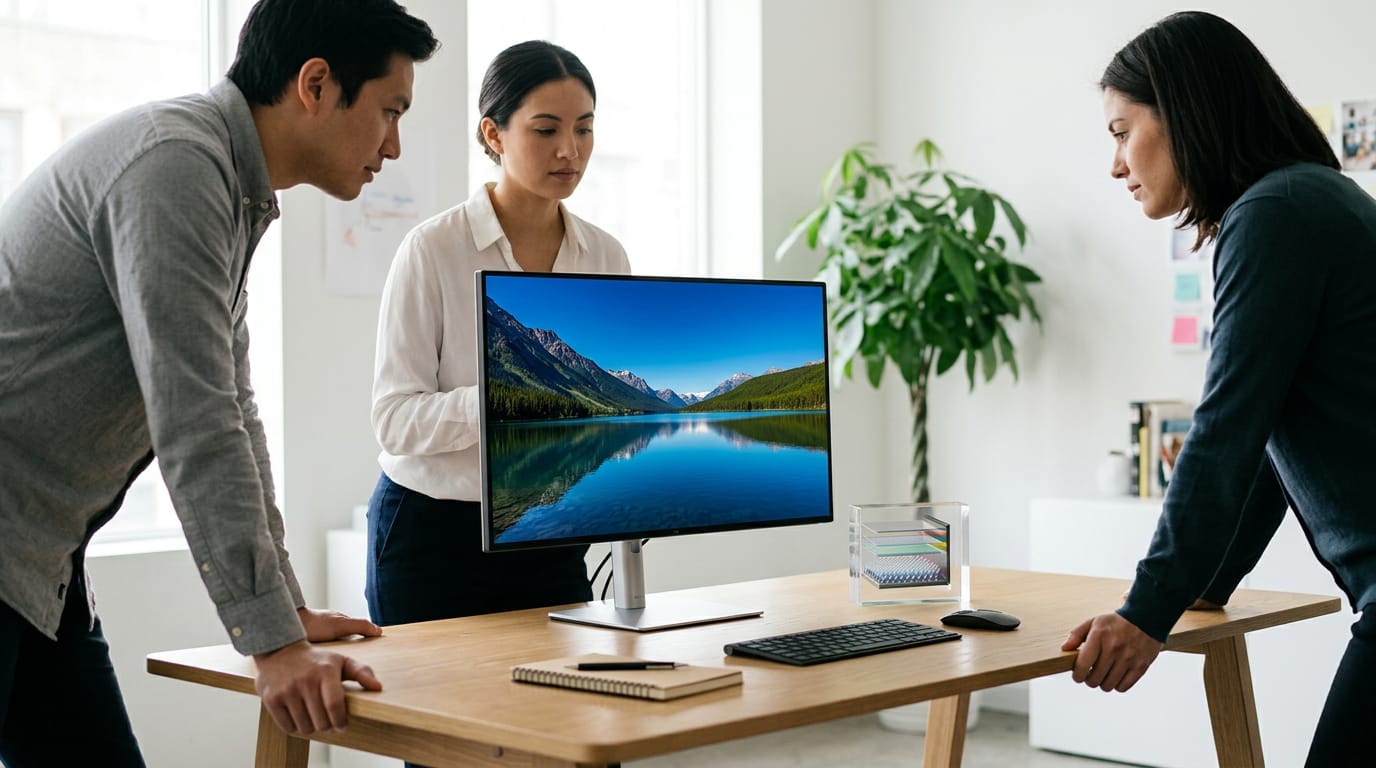
The short versionAn IPS monitor uses an LCD panel whose liquid crystals turn within the plane of the screen to control light and create an image. IPS panels are known for steady colors, wide viewing angles, and clear text, but can have weaker black levels and slower motion response than some alternatives. They suit work, design, and shared viewing when color consistency matters more than the deepest blacks or fastest response, so compare the trade-offs with your needs.
Ever tilt your head at a screen and watch the colors wash out? The panel inside your monitor decides how much of that you’ll notice.
An In-Plane Switching (IPS) monitor is one of the most common choices for office work, built to keep text sharp and colors steady whether you’re sitting dead center or leaning in to check a spreadsheet.
This post explains what IPS means, how the panel works, and how it compares with other panel types. Then we’ll look at its strengths, its weak spots, and whether it’s the right fit for long days of documents, calls, and a laptop dock.
IPS Monitor Meaning and How It Works
IPS shows up on plenty of monitor spec sheets, so we’ll unpack what the label means. Here’s how the panel builds an image, from the crystals up to your screen.
What IPS stands for
In-plane switching (IPS) describes the technique: the crystals turn within the plane of the glass rather than tipping up out of it.
IPS is a type of LCD (liquid crystal display), the flat-panel technology in many laptops and monitors, and it’s also a standard for high-end displays.
How the crystals and backlight make images
Light moves through these layers in order:
- Light from the backlight passes through a polarizer, a filter that lets only light vibrating in one direction through.
- It then reaches the liquid crystals, which lie horizontally aligned, flat between the glass layers, when no charge is applied.
- Electrodes send an electric charge that turns the crystals, changing how much light passes through a second polarizer at the front of the panel.
- Color filters split each pixel into red, green, and blue subpixels, and mixing their brightness creates the full range of colors.
That’s why a bookkeeper with a monitor beside her laptop dock sees the same colors whether she sits square to the screen or glances at it from the side.
LCD basics and how LED backlights work
Older displays used a CRT (cathode ray tube), which fired an electron beam at a phosphor screen. An LCD has no tube at all: it’s a thin panel that controls light passing through crystals.
Early LCDs used passive matrix, a grid of row and column wires that struggled with speed and sharpness. Active matrix panels, which IPS uses, add a transistor to every pixel. Each one gets its own switch.
Most modern panels use LED (light-emitting diode) backlights placed behind or along the edge of the screen. The backlight supplies the brightness, and the crystals only decide how much of it reaches your eyes.
The main IPS variants you’ll see
IPS isn’t one fixed design. Spec sheets list variants such as:
- S-IPS
- H-IPS
- e-IPS
- P-IPS
each a different refinement of the core idea. You may also see PLS (plane-to-line switching), a separate panel design. Newer labels such as IPS Black and Nano IPS show up on recent models, too.
The label tells you which design, but the spec sheet tells you how the panel performs.
What IPS Panels Do Well
In-plane switching (IPS) panels earn their reputation in three areas:
- viewing angles
- color accuracy
- sharp text
Here’s what each one means for a desk where you type all day.
See the same picture from wide angles
Viewing angle is how far off-center you can sit and still see the screen properly. IPS monitors can offer viewing angles of up to 178 degrees, and a PLOS One study that tested two in-plane switching displays lists exactly that spec.
Picture a bookkeeper reviewing invoices on a video call while her teammate leans in to check a line item. Both see the same numbers without tilting the monitor.
That’s why IPS suits collaboration: the picture stays consistent from either seat, with no color shift when viewed from an angle.

Accurate, consistent colors you can trust
IPS panels can show 8-bit color, which means 256 shades of each primary color:
- red
- green
- blue
They can also cover color spaces (the ranges of colors a screen can reproduce) such as Adobe RGB and DCI-P3.
For a remote marketing coordinator approving product photos, those vibrant, lifelike images mean she can spot a faded blue or an off-brand red before the listing goes live, not after the client does.
Sharp detail and clear text
Sharp detail matters most when text is the work. A remote paralegal reading a contract all afternoon gets clear text rendering, with edges that look crisp rather than fuzzy, so the fine print doesn’t blur into the line above it.
Sharp details and a better overall visual experience make a long day of documents feel less like a chore. Less squinting, more typing.
Where IPS Monitors Fall Short
In-plane switching (IPS) has real weak spots, and knowing them keeps a purchase from turning into a regret. Here’s where it tends to fall short, and what each issue means for a desk full of documents and calls.
Response time and blur in fast motion
Response time is how quickly a pixel changes shade. IPS panels were historically slower at this than twisted nematic (TN) panels, which mattered most for fast games and action video. Newer models are improving, but some motion blur remains.
For documents and calls, that’s rarely a dealbreaker.
Lower contrast and glow in dark scenes
Contrast is the gap between the brightest white and the deepest black a screen can show.
According to a performance comparison of four popular liquid crystal display (LCD) modes, IPS panels generally have lower contrast than vertical alignment (VA) panels.
That gap is most noticeable in dark scenes, where IPS glow makes black areas look faintly lit, especially when viewed from the side. It’s less about whether the haze appears and more about when you’ll spot it.
Backlight bleed and dimness in bright rooms
Backlight bleeding happens when light escapes past the panel’s edges, showing up as uneven, brighter patches on dark screens. Brightness is the other issue: in bright settings, IPS can look dimmer and washed out.
Take a remote bookkeeper working in a sunny front room. By mid-afternoon the spreadsheet looks faded, and they’re squinting at figures they need to check.
Turning the desk so the window sits to the side is a cheap first step. Often, the room is the culprit.
Price, power use and falling costs
IPS monitors cost more than TN models, so the premium is real if you only need a screen for documents and calls. They also draw slightly more power, a small difference that adds up across a full workday.
The good news is that prices have been falling over time, so the premium is smaller than it used to be. It’s less about what you pay upfront and more about how long you’ll keep the monitor.
What Is Better, IPS or LCD?
Here’s the short answer: IPS (in-plane switching) isn’t a rival to LCD (liquid crystal display). It’s one panel design inside that family, alongside TN (twisted nematic) and VA (vertical alignment), so the real question is which suits your desk.
Where IPS and TN panels each shine
TN is the speed and price pick: it responds faster and costs less. IPS trades a little speed for better color and angles, so the picture holds up from the side.
The gap starts with the polarizer (the film that controls how light passes through) and the liquid crystal layer behind it, whose crystals are arranged differently in each design.
Bit depth, the number of shades each color channel can show, is the other split.
TechSpot’s panel comparison notes that many TN displays, especially entry-level models, are natively 6-bit and use frame rate control (FRC, also called dithering) to reach standard 8-bit output.
Some IPS panels are 8-bit too, but that’s a common setup, not a rule.
How IPS holds up against VA panels
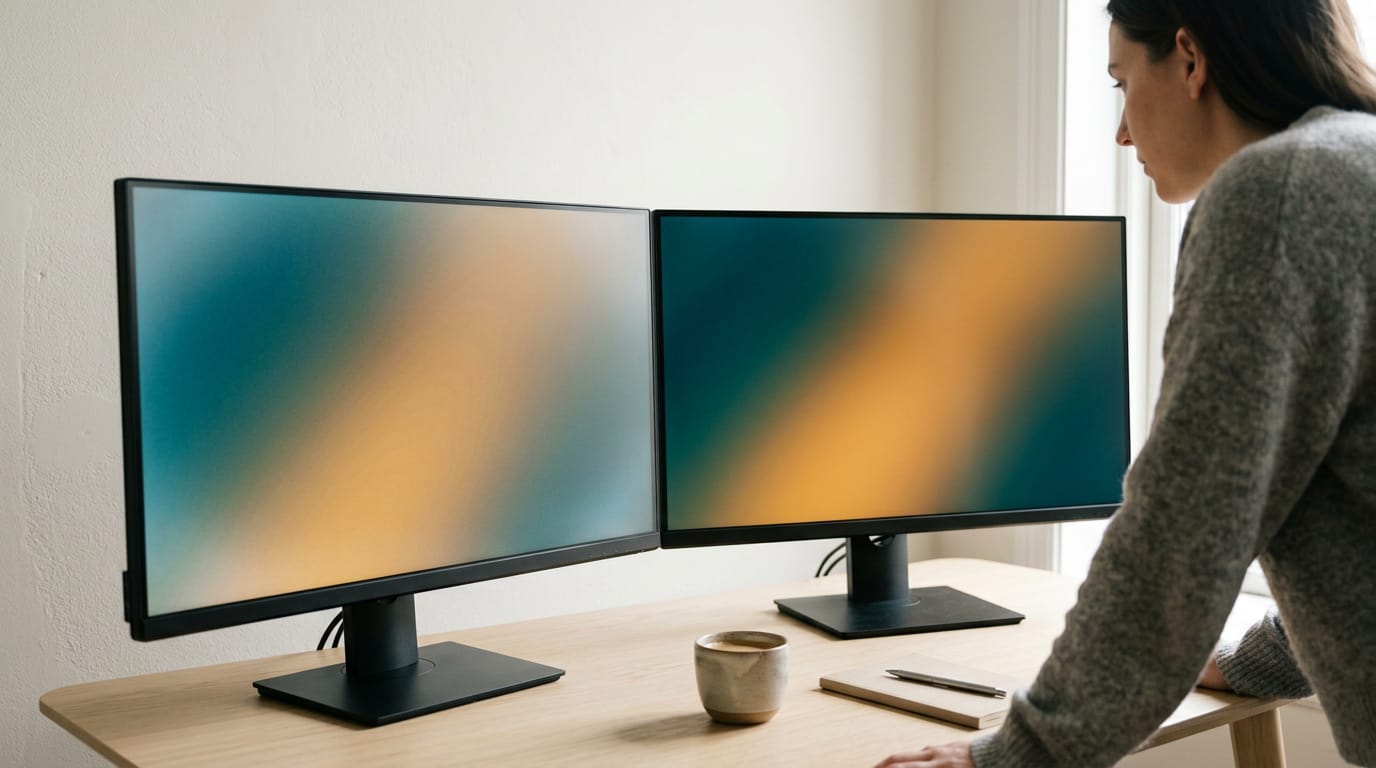
VA panels are the contrast specialists. They deliver deeper blacks and higher contrast, but respond more slowly.
IPS gives up some depth for a steadier picture, because it avoids contrast shift, the change in contrast you see when you view a screen off-center.
OLED’s perfect blacks, price and burn-in risk
OLED (organic light-emitting diode) panels offer perfect blacks, but at a premium price. The catch is burn-in, a ghost of static content, like a taskbar, left on screen.
A review in the Journal of Information Display notes that OLEDs of all kinds undergo permanent performance degradation over time, which can lead to burn-in. If your dock keeps the same email sidebar on screen all day, that’s worth weighing before you buy.
Star ratings and why no panel wins all
Here’s a rough comparison of the traits above. More stars is better, and for price that means cheaper. These are relative takes, not lab scores, and n/a means the trait isn’t compared here.
| Panel | Speed | Color and angles | Blacks and contrast | Price |
|---|---|---|---|---|
| TN | ★★★★★ | ★★ | n/a | ★★★★★ |
| IPS | ★★★★ | ★★★★★ | n/a | n/a |
| VA | ★★ | n/a | ★★★★ | n/a |
| OLED | n/a | n/a | ★★★★★ | ★ |
No panel sweeps the table, so there’s no one-size-fits-all pick. Take a bookkeeper who reads spreadsheets all morning and joins calls all afternoon.
Steady, readable text from wherever she sits may matter more to her than raw speed, so IPS could suit her better than TN. Match the trade-off to your day.
Who Benefits Most from an IPS Monitor
Not every screen suits every job. Here’s how an IPS (In-Plane Switching) panel fits common ways people spend their day.
Why photo and design pros choose IPS
Photo, video, and graphic design work all depend on colors that hold steady. IPS panels keep their color accuracy when you shift position, which matters for grading footage or matching a brand color to a print.
For color-critical work, you want accurate colors more than vivid ones.
Immersive games, but shooters favor TN
IPS delivers immersive visuals through rich color and wide viewing angles, so story-driven games look lush even from off to one side. Console gaming on an IPS screen shows those detailed scenes at their best.
Competitive shooters favor twisted nematic (TN) panels, though. Fast-moving games reward quick pixel response, so TN is the usual pick when reaction time matters more than picture quality.
Browsing, coding, movies and long workdays
Most home office days involve a little of each:
- Web browsing and documents. Text stays clean, so long reports and spreadsheets are easier to scan.
- Movies and streaming. Films look natural from almost any seat, so the couch and desk can share one screen.
- Programming and coding. Code is mostly text, so crisp fonts matter more than raw speed.
Text clarity ties it together. Picture a bookkeeper who reconciles spreadsheets each morning, takes client calls after lunch, and works from a laptop docked to her monitor.
On an IPS screen, she can read small invoice numbers without leaning in, even when she glances over from the side. Over a full workweek, that’s less squinting. Small comforts add up.
What to Weigh Before You Buy
Picture your real workday before you shop, because ports matter as much as the panel.
Questions to ask while shopping
Start with the spec sheet: the panel type should be listed plainly, and if it’s missing or vague, keep looking. IPS (In-Plane Switching) is a panel design known for steady color and wide viewing angles, so judge it by how it looks from your chair.
- Viewing range needs: Will colleagues lean in to share the screen? Then wide viewing angles earn their keep.
- Color range needs: If you mostly read and type, even, accurate color may be all you need.
- Ergonomics: Height, tilt, and swivel adjustments make long days more comfortable.
- Gaming priorities: If you also game, check the refresh rate (how often the image updates each second).
- Input types: List the ports on your laptop and desk first.
Choosing the right size and mount
- 21 to 32+ inch sizes: Measure your desk depth before choosing from 21 to 32+ inches.
- Dual-monitor compatibility: Confirm your computer can drive two screens.
- Micro-beveled edges: These very thin frames let two screens sit closer together.
- VESA wall mounts: VESA is the standard mounting hole pattern on the back of a monitor, so check for it before you buy an arm.
- Matching panels in dual setups: Mismatched panels can show the same white in two shades. Take a claims processor who reads forms on one screen and joins calls on the other. A matched pair means a dragged window looks the same on both, so her eyes don’t readjust with every glance.
Ports, inputs and useful extras
- HDMI, DisplayPort, DVI, and VGA: HDMI (High-Definition Multimedia Interface) and DisplayPort are digital, while DVI (Digital Visual Interface) is older and VGA (Video Graphics Array) is analog. Match your computer’s connector.
- Built-in speakers (optional): Handy for quick calls, though many people use a headset anyway.
- USB ports: USB (Universal Serial Bus) ports let you plug in a keyboard, mouse, or webcam without reaching behind the desk.
- Calibration options: Look for color presets if accurate color matters to your work.
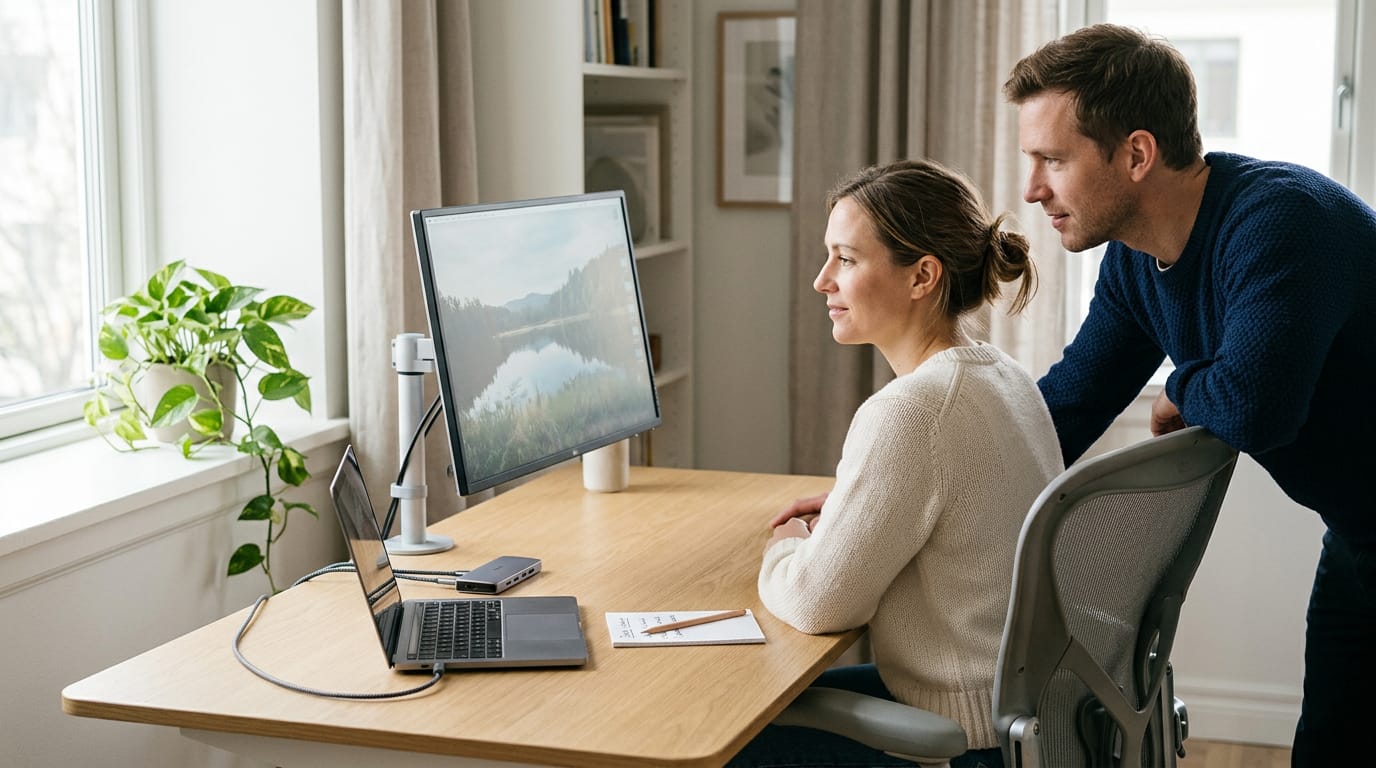
- USB-C single-cable laptop docking: One cable can carry video and connect your laptop, so confirm the monitor’s USB-C port supports video.
When IPS is worth the extra cost
- Mid-range to high-end pricing: IPS panels generally sit in the mid-range to high-end price bands.
- Worth it for color and angles: Shared screens and accurate color justify the extra cost.
- Smaller IPS beats TN on budget: On a tight budget, a smaller IPS can serve you better than a bigger TN (Twisted Nematic) panel.
Recommended IPS Monitors to Consider
Not every in-plane switching (IPS) panel suits every desk, so start with the job you do most. Here’s what the HP picks cover and the four specs to check.
HP picks for gaming, design and more
Each pick fits a different kind of desk:
- OMEN 27i for gaming. If you game in the evenings as well as type all day, this is your first look.
- HP 32s for designers. A freelance designer checking client artwork on a laptop dock needs colors that match the work, so put this one at the top of the list.
- Full HD (FHD) 24-inch models. A smaller screen suits a desk that mostly shows documents and call windows.
- EliteDisplay for multi-monitor. Picture a support agent with the ticket queue on one screen and the help center on the other, with fewer trips through Alt+Tab.
Key specs to compare before buying
Check these four before you commit:
- Resolution and refresh rate. Resolution counts the tiny dots, or pixels, that build the picture, so higher means sharper text. Refresh rate is how many times each second the screen redraws. For documents, you want sharper text more than smoother motion.
- Response time. This is how fast a pixel changes shade. It matters most for fast-moving images, so it counts for gaming far more than for spreadsheets.
- Brightness in nits. A nit is a unit of brightness, so a higher number means a brighter screen. Match it to your room, since a sunny office and a dim spare room call for different levels. Brighter isn’t always better.
- Color gamut coverage. Color gamut is the range of colors a screen can display, and coverage shows how much of a given color standard it reaches. Designers should read this closely. For most office work, it’s a welcome extra, not a must.
IPS is known for wide viewing angles and steady color, and for most home office workers, those strengths show up every day in easy-to-read documents and on-screen content you can see clearly from any seat.
Its trade-offs still matter, so weigh them against how you actually work.
Start with your own routine: the hours on documents, the calls, and the laptop you plug into a dock each morning. Match the panel to those tasks, and the right screen fades into the background while your work takes center stage.
References
- Liquid-Crystal Display (LCD) of achromatic, mean-modulated flicker in clinical assessment and experimental studies of visual systems — journals.plos.org (2021)
- Lifetime modeling for organic light-emitting diodes: a review and analysis | Journal of Information Display — link.springer.com (2022)
- Table 1 Performance comparisons of four popular LCD modes — nature.com (2017)
- Display Panel Technology: TN vs. VA vs. IPS — techspot.com (2020)
Questions
What is an IPS monitor good for?
IPS monitors are good for office work, documents, browsing, and color-sensitive tasks because they provide clear text, consistent colors, and wide viewing angles. They also work well for sharing a screen or watching movies from different seats.
What is better, IPS or LCD?
IPS and LCD are not competing technologies: IPS is one type of LCD panel. Compared with other LCD designs, IPS is often a good choice for color consistency and viewing angles, while TN may offer faster response times and lower prices, and VA typically has stronger contrast.
What are the downsides of IPS monitors?
IPS monitors can have lower contrast than VA displays, so blacks may look grayish and dark scenes may show IPS glow. Some models also have motion blur, backlight bleed, or lower brightness in bright rooms, and IPS monitors can cost more and use slightly more power than TN models.
Is IPS better than OLED?
Neither is universally better. IPS is generally a practical choice for steady colors, wide viewing angles, and everyday work, while OLED offers perfect blacks and strong contrast but usually costs more and can develop burn-in from static images over time.
Sources
- Liquid-Crystal Display (LCD) of achromatic, mean-modulated flicker in clinical assessment and experimental studies of visual systems | PLOS One, journals.plos.org,
- Display Panel Technology: TN vs. VA vs. IPS, techspot.com,
- Lifetime modeling for organic light-emitting diodes: a review and analysis | Journal of Information Display | Springer Nature Link, link.springer.com,
- Table 1 Performance comparisons of four popular LCD modes, nature.com,
spaceShortcut Sheets: the twenty keys to learn first in each appFind your app