What Does HDMI Stand For? Full Meaning Explained
What does HDMI stand for? Find out how versions, plug shapes, and cable differences help you choose the right connection for your monitor, laptop, or dock.

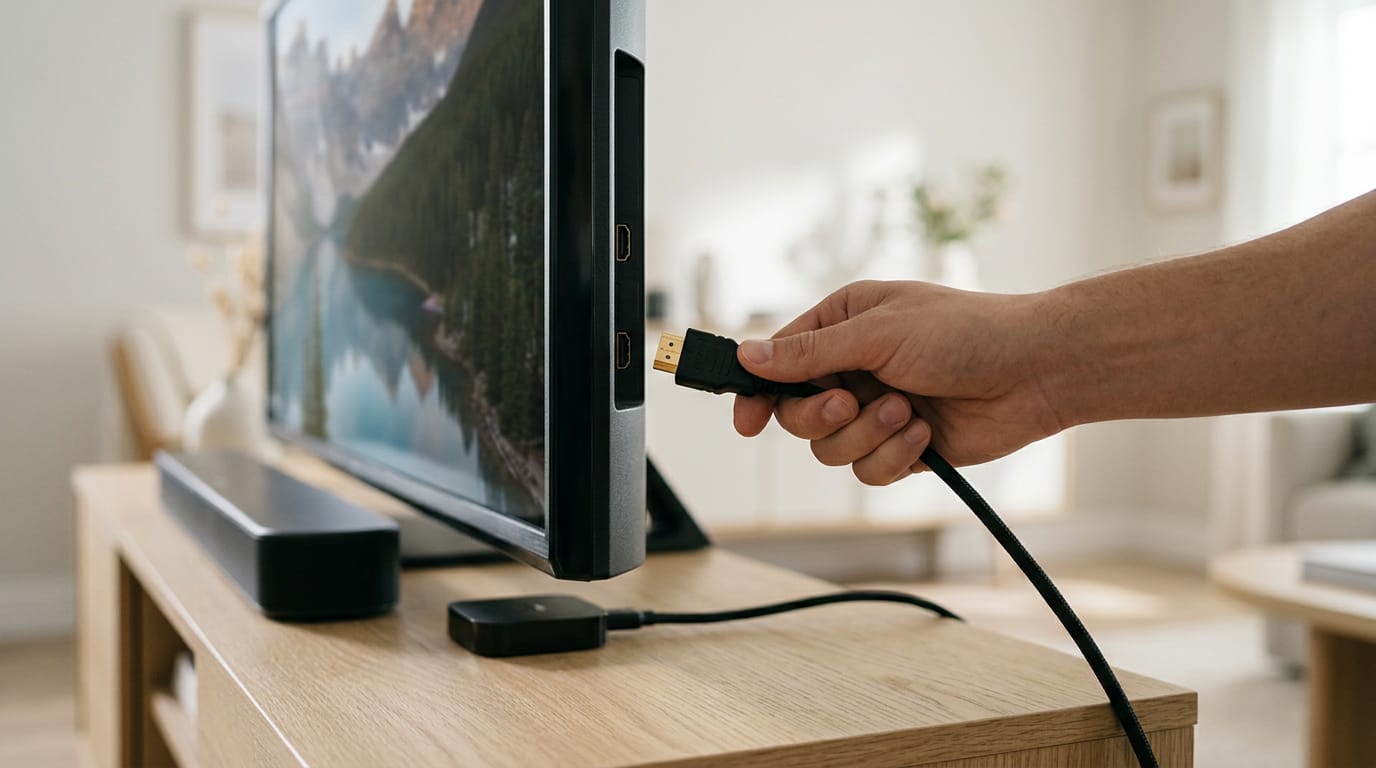
The short versionHDMI stands for High-Definition Multimedia Interface, a digital connection that carries video and audio between devices through one cable. Its versions, plug shapes, and cable certifications determine what fits and which resolutions, refresh rates, and features the connection can support. For a reliable display setup, check the ports and specifications on both devices and choose a cable that matches their capabilities, rather than paying extra for a pricier cable.
Think about the last time a monitor stayed dark after you plugged in your laptop. The cable looked fine, so you spent ten minutes guessing. There’s a good chance that plug was HDMI.
HDMI stands for High-Definition Multimedia Interface, a single cable that carries both video and audio between devices.
Here, we’ll cover the versions, plug shapes and cables, then help you pick the right cable and port for monitors, laptops and docks.
Breaking Down What HDMI Stands For
HDMI stands for High-Definition Multimedia Interface. That’s the one-line answer, and the rest of this section shows what each part means for your desk.
The words HDMI is short for
High-definition points to sharp picture quality, multimedia means picture and sound together, and interface means a connection between two devices. You’ll find the same answer again in our FAQ, so it’s worth remembering.
What HDMI does with audio and video
HDMI is a digital audio/video interface. It sends picture and sound as digital signals over a single cable, replacing older analog standards. The video and audio arrive uncompressed, meaning no compression step shrinks them along the way.
Say you’re a home office worker hooking a laptop up to a monitor for a spreadsheet-heavy afternoon. One HDMI cable carries the picture and the sound together, so there’s no separate audio cable to run under your desk. One cable. That’s the appeal.
HDMI is also a proprietary, licensed specification, so makers license it rather than using it freely.
Who created HDMI and who manages it
HDMI was introduced in 2002, and according to HDMI Technology: Specifications and Programs, almost 14 billion devices have shipped since the first specification came out that December.
A group of manufacturers created it, and starting with version 2.0, the HDMI Forum manages the specification. It succeeded older video connectors such as DVI and component.
Standard, HD and How Video Is Scanned
Monitor spec sheets use shorthand for video size and scanning, so let’s decode it for your desk.
What 720p, 1080p and 1080i mean
In 720p, 1080p and 1080i, the number is how many horizontal lines of pixels (the tiny dots that make up the picture) stack from top to bottom. The letter shows how those lines are drawn. Progressive video (the p) draws every line in one pass.
Interlaced video (the i) draws the odd lines, then the even ones, so 1080i fills only half the picture on each pass. Higher frame rate, meaning more complete pictures per second, makes motion look smoother.
How standard and HD pictures compare
Standard definition is the older, lower-detail format. High definition (HD) gives far more detail. Older video was analog, a continuously varying signal that picks up noise. Digital sends numbers, so what leaves the source is what arrives.
The older shape is 4:3, a boxier frame. Most modern monitors use 16:9, a wider shape, and that proportion is the aspect ratio. A 720p picture is 1280 by 720 pixels, while 1080p is 1920 by 1080, more than twice as many.
Picture a remote analyst working from a kitchen table on a 1080p monitor, where spreadsheet text stays readable all day.
Why digital video looks sharper
Digital connections look sharper than component video, an older analog hookup. Digital doesn’t pick up the same noise, so the image arrives crisp. Most modern monitors detect the signal and pick a matching setting, so plugging in often just works.
If it guesses wrong, you can override it.
A mismatched resolution can leave you with a black or blurry picture, so set your laptop or dock to the monitor’s native resolution, its built-in pixel grid. Match the two, and the sharpness follows.
How HDMI Versions Have Changed over Time
Every new version changed what your cables and ports can carry, so here’s the rundown.
Release years from HDMI 1.0 to 2.2
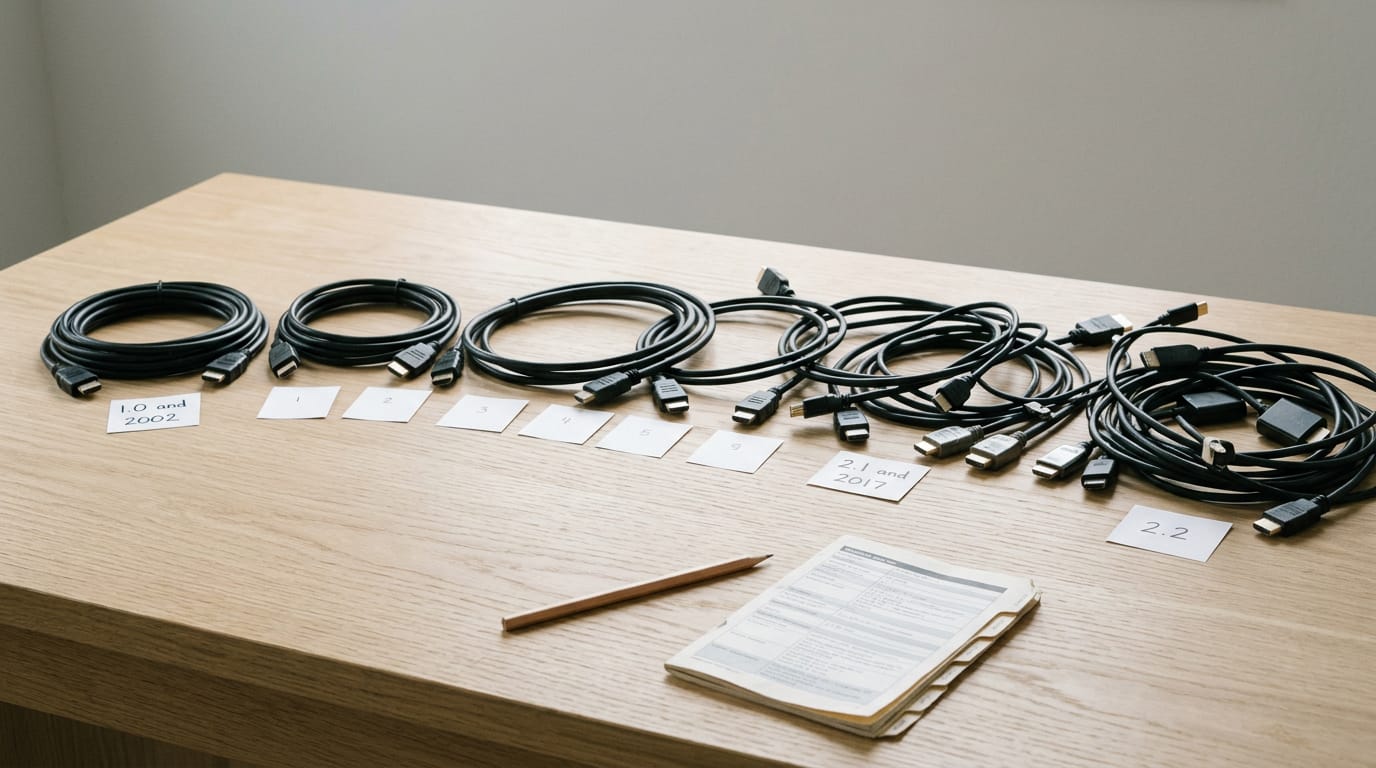
A Safeguard Blog explainer dates HDMI 1.0’s first specification to December 2002 and HDMI 2.1 to November 2017. The standard has been revised nearly a dozen times, and HDMI 2.2 extends bandwidth further still. That’s a lot to track.
How much bandwidth each version handles
Bandwidth is how much data a connection moves each second, in gigabits per second (Gbps). A paper on new TV infrastructure says HDMI 2.0 raised bandwidth to 18 Gbps to overcome earlier limits.
Then Nippon Labs reports that HDMI 2.1 nearly tripled bandwidth to 48 Gbps, unlocking 4K at 120 Hz and 8K at 60 Hz.
The two versions compare like this:
| Version | Max bandwidth | Max resolution |
|---|---|---|
| HDMI 2.0 | 18 Gbps | 4K |
| HDMI 2.1 | 48 Gbps | 4K at 120 Hz, 8K at 60 Hz |
Consider a remote analyst in a home office who wants 4K at 120 Hz for smooth spreadsheet scrolling on a desk monitor. A cable or port that tops out at HDMI 2.0 won’t get them there. The whole chain has to keep up.
Which features each version actually supports
A version number doesn’t promise every feature, and some features are optional. Here’s what the common ones do:
- Dynamic HDR metadata. High dynamic range (HDR) metadata sends brightness and color details so a compatible screen can adjust as the picture changes.
- Variable refresh rate (VRR). It matches the display’s refresh rate to the source, which cuts stutter in games and video.
- Auto low latency mode (ALLM). It switches the display to a faster-response mode on its own when the source asks.
- Display Stream Compression (DSC). It squeezes video data so more fits through the connection, and both ends must support it.
- Port labels versus real capability. A label says what a port is called, but what it can do depends on its version. Check the spec, not the sticker.
Color and sound limits in each version
Speed isn’t the whole picture. Color depth is how many shades each channel can show, and color spaces set the range of colors available.
Audio rides the same cable. A test automation paper on HDMI receivers reports support for up to 32 audio channels.
A paper on the HDMI interconnect system adds that audio can run at sample rates (samples per second) up to 192 kHz (kilohertz), though that’s optional. Optional means you should check, not assume.
Comparing HDMI 1.0 and 2.0 for 4K
Both HDMI 1.0 and 2.0 claimed 4K support, so the label alone doesn’t settle much. The real gap is in bandwidth, and 2.0’s 18 Gbps ceiling is the number to check for a 4K desk setup.
Match the cable to the refresh rate you want, not the 4K printed on the box.
Features That Make HDMI More Capable
HDMI does more than carry a picture, handling sound, device control, and copy protection too.
How HDMI handles surround sound audio
HDMI carries multichannel audio for surround sound through one cable, including formats like Dolby TrueHD and DTS-HD. Its audio rides in blanking intervals, the short gaps between video frames, so it doesn’t crowd the picture.
Audio Return Channel (ARC) sends TV sound back to a soundbar over the same cable, and enhanced Audio Return Channel (eARC) extends that to higher-quality formats.
A home office worker streaming a webinar on the TV needs just one cable to the soundbar. Problem solved.
What is HDMI CEC and how it works
Consumer Electronics Control (CEC) lets connected devices command each other, so they work together instead of needing a remote each. Three related points:
- CEC single remote: One remote handles power, volume, and inputs across your TV, soundbar, and player.
- Ethernet channel: A built-in channel lets connected devices share a network connection over the same cable.
- HDMI Alt Mode over USB-C: USB-C ports can carry HDMI signals, so a laptop can drive a monitor through a dock or adapter.
CEC is usually switched on in your TV’s settings, often under a brand-specific name, so look for an option mentioning HDMI control. Pressing play on a player can then wake the TV and select its input.
How HDMI keeps content protected
Older versions rely mainly on TMDS (Transition-Minimized Differential Signaling), while HDMI 2.1 uses FRL (Fixed Rate Link) for its higher data rates.
HDCP (High-bandwidth Digital Content Protection) authentication is the handshake confirming both ends may share protected content. Devices also run link training, a quick check that the connection is stable.
Checks first, picture second.
The Different HDMI Plug Shapes and Sizes
HDMI doesn’t come in one shape. The full-size plug on your monitor cable is just the most familiar of five.
Five HDMI plug types, A through E
- Type A (standard): The full-size plug on most monitors and laptops.
- Type B (obsolete dual-link): An older design that’s no longer used.
- Type C (mini): A smaller plug found on many cameras.
- Type D (micro): Smaller still.
- Type E (automotive): Built for in-car systems.
Each type is a different physical size, so check both ends of a cable before you buy.
A plug that fits isn’t always one that works. Monitors also use DisplayPort and USB-C (the small, reversible port), so compare the ports on your laptop and monitor first.
Small plugs for cameras and phones
- Camcorders and cameras: These often use the mini or micro plug. For example, a home office worker reviewing camcorder footage on a desk monitor needs a small-to-full-size adapter, so keeping one in the desk drawer avoids a scramble.
- Phones and media players: Many use the micro plug, so they need an adapter to reach a full-size port.
- Gold-plated contacts: Gold resists corrosion, which helps these tiny plugs stay clean through repeated use.
What each of the 19 pins does
Standard HDMI plugs carry 19 pins, and each one has a job.
- TMDS data and clock: Most pins carry picture and sound using TMDS (transition-minimized differential signaling), with the clock keeping both ends in step.
- CEC, DDC, and hot plug detect: CEC (Consumer Electronics Control) lets linked devices share one remote, DDC (Display Data Channel) lets your laptop read what the monitor supports, and hot plug detect tells your laptop when a display is connected.
- Mini pin differences: Mini and micro plugs pack the same 19-pin job into a smaller body, so they can’t plug into a full-size port.
Shape gets the plug in the door. Pins decide what gets through.
Is Every HDMI Cable the Same?
Not quite. HDMI is one standard, but cables and ports come in several types, and the label matters more than the price. Ports differ too, so check your monitor or dock.
Types of HDMI cable and their limits
You’ll mostly run into four types:
- Standard: the basic option.
- High Speed: built to carry more bandwidth, or data per second.
- With Ethernet: adds a network connection to the same cable.
- Automotive: made for in-vehicle systems, so you’ll rarely need one at a desk.
Resolution support follows bandwidth, so match the certification on the packaging to your monitor’s resolution. Cable length matters too. Measure the run from your laptop or dock to the monitor, then buy one that’s just a little longer.
Whether paying more for cable helps
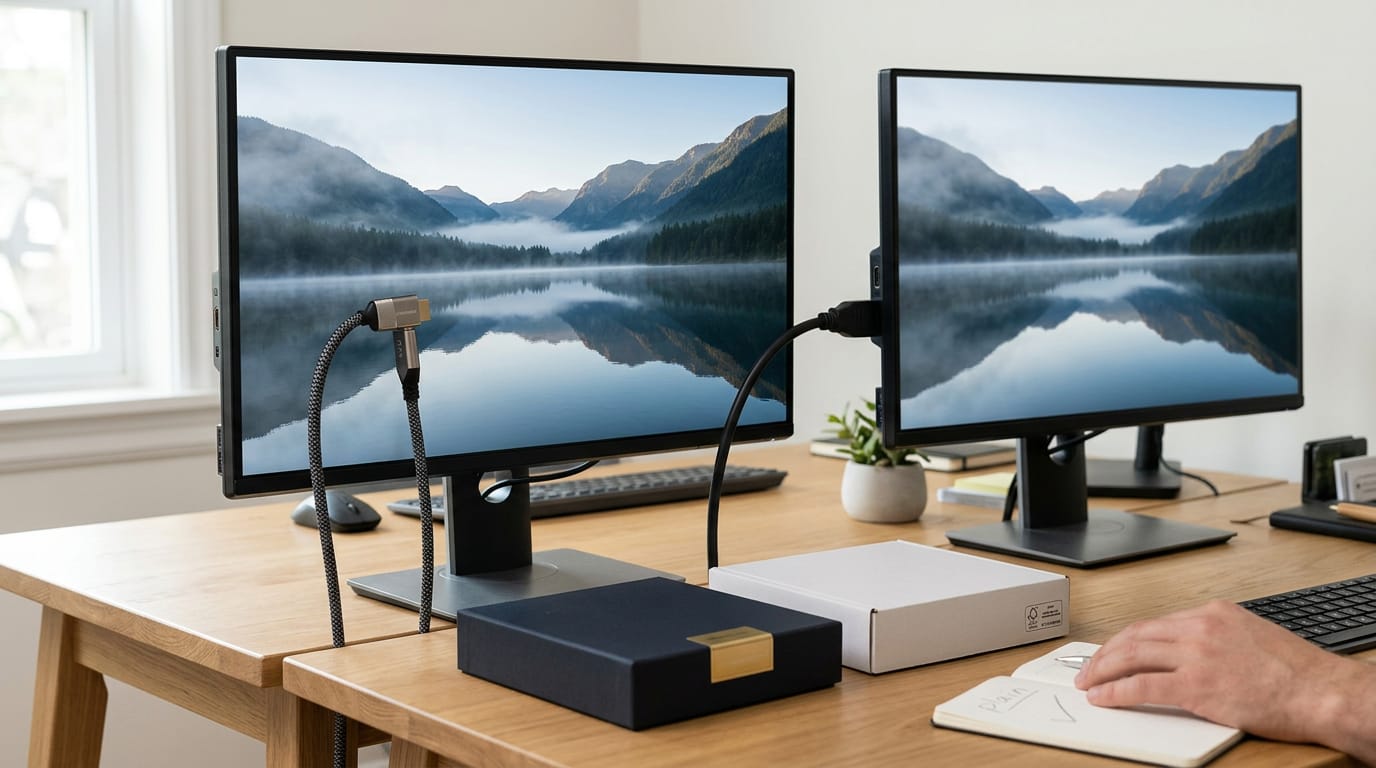
Usually not. According to Business Insider’s guide to the best HDMI cables, pricier cables don’t improve image quality. They mainly offer nicer materials or better durability. You’re paying for how the cable feels and lasts, not how the picture looks.
Type and length are what justify a price difference. Certification follows bandwidth tiers, so the box label is your best guide.
Consider a support agent who buys a premium cable for a second monitor, hoping for a sharper picture. The picture looks the same. Next time, they check the certification first and skip the premium price.
Cable either works or doesn’t. If your screen shows no signal or flickers, check the connection and try a cable with the right certification before buying a premium one.
Adapters for TVs without HDMI ports
An adapter can add HDMI to a TV that lacks it. Most modern TVs already have HDMI ports, so check the back or side panel first.
Where People Use HDMI Every Day
HDMI (High-Definition Multimedia Interface) turns up on more screens than you’d guess.
How do I connect HDMI to TV?
Your TV, Blu-ray player, and game console all connect this way, and so do streaming devices. Since one cable carries both picture and sound, you have less to untangle behind the cabinet and, often, fewer remotes to juggle.
Here’s how:
- Plug one end into an HDMI port on your TV.
- Plug the other end into the HDMI output on your device.
- Switch the TV’s input to the port number you used.
Three steps, and you’re watching.
Connecting laptops, monitors and phones
Think of a writer who plugs one cable into her laptop each morning and has her draft on a big monitor in seconds. No rearranging windows, just more room to work.
- Cameras and phones. Many cameras have an HDMI output for reviewing footage on a bigger screen, and phones often need an adapter to reach one.
- Graphics cards and docks. A desktop’s graphics card usually has HDMI ports, and a dock can add one to a laptop that lacks it.
Before you buy a cable, check the port version. Your laptop’s manual or spec sheet lists which HDMI version it supports, so pick a cable that matches.
HDMI in business, studios and medicine
- Commercial displays and projectors. Offices and classrooms show presenters’ laptops on wall screens over HDMI.
- Video production. Editors and camera crews use it to send footage to monitors.
- Digital signage (screens showing menus or announcements). Stores and lobbies often feed these screens through HDMI.
- Medical and industrial imaging. Clinics and factories use HDMI screens to show detailed images.
Same plug, very different job.
Where HDMI Is Headed Next
HDMI keeps adding capability, and the newest changes are worth knowing before your next monitor or dock purchase. Here’s what’s on the horizon and what it means for your desk.
Coming 8K, HDR and gaming upgrades
Newer versions push in three directions:
- 8K and HDR. 8K is a very high resolution, packing in far more detail than the 4K screens common today. HDR (high dynamic range) lets a single picture show brighter highlights and deeper shadows at the same time. Both need a port and cable that can carry the extra data, so check the version on the spec sheet before you assume a new monitor will look its best.
- Enhanced gaming features. Newer versions add options built for games, such as smoother motion and less input lag (the delay between pressing a key and seeing it respond). Think of a home office worker who answers support tickets on one monitor all day and plays after hours on the same screen. When the monitor and the port both support these features, one cable handles the workday and the evening session.
- Remains the de facto standard. De facto is Latin for “in fact,” meaning it’s the standard in practice even without a formal rule behind it. You’ll find HDMI on nearly every monitor, laptop, and dock. What changes over time is what the cable can carry, not which plug you need. The plug isn’t going anywhere.
So HDMI stands for High-Definition Multimedia Interface, and the letters are the easy part. Versions, plug shapes and cable types decide whether your picture looks sharp and shows up on the first try.
For a desk setup, match the port and the cable to what your monitor, laptop or dock actually supports. Check that match before you buy, and you’ll skip most of the guesswork.
Get the connection right once, and your attention can stay on the work instead of the cable.
References
- UHD Calls for New TV Infrastructure — sid.onlinelibrary.wiley.com
- Test automation in designware HDMI RX — hdl.handle.net (2020)
- HDMI propojovací systém — hdl.handle.net (2013)
- HDMI and DisplayPort Explained: TMDS, FRL, EDID, CEC and HDCP — safeguard.sh (2026)
- HDMI Technology: Specifications and Programs — hdmi.org
- The History of HDMI: 1.0 to 2.1 Explained — nipponlabs.com
- Best HDMI Cables of 2026 — businessinsider.com (2026)
Questions
What is HDMI CEC?
HDMI CEC stands for Consumer Electronics Control. It lets compatible devices connected by HDMI control one another, so one remote can manage functions like power, volume, or input selection. For example, starting a player can turn on the TV and switch it to the correct input.
What are the different versions of HDMI?
HDMI versions include 1.0 through later revisions such as 2.0, 2.1, and 2.2. Newer versions can support higher bandwidth and features such as higher refresh rates, but support for optional features varies by device. Check the specifications for the source, display, and cable rather than relying only on the version number.
How do I connect HDMI to TV?
Connect one end of an HDMI cable to an HDMI port on your TV and the other to the HDMI output on your device. Turn on the devices, then use the TV remote to select the input matching the port number you used. The cable carries both video and audio.
Is HDMI all the same?
No. HDMI is a shared standard, but cables differ in bandwidth capabilities, length, and intended use, while ports differ in the features they support. Choose a cable certified for the resolution and refresh rate you need, and check that your connected devices support them too. വാങ്ങ
Sources
- HDMI Technology: Specifications and Programs, hdmi.org
- HDMI and DisplayPort Explained: TMDS, FRL, EDID, CEC and HDCP | Safeguard Blog, safeguard.sh,
- UHD Calls for New TV Infrastructure, sid.onlinelibrary.wiley.com
- The History of HDMI: 1.0 to 2.1 Explained – Nippon Labs, nipponlabs.com
- Test automation in designware HDMI RX, hdl.handle.net,
- HDMI propojovací systém, hdl.handle.net,
- Best HDMI Cables of 2026 - Business Insider, businessinsider.com,
spaceShortcut Sheets: the twenty keys to learn first in each appFind your app