dwm.exe Desktop Window Manager: A Complete Guide
Desktop Window Manager (dwm.exe) keeps windows and transitions smooth. Check if it’s safe, fix high CPU or memory use, and use graphics-reset shortcuts.

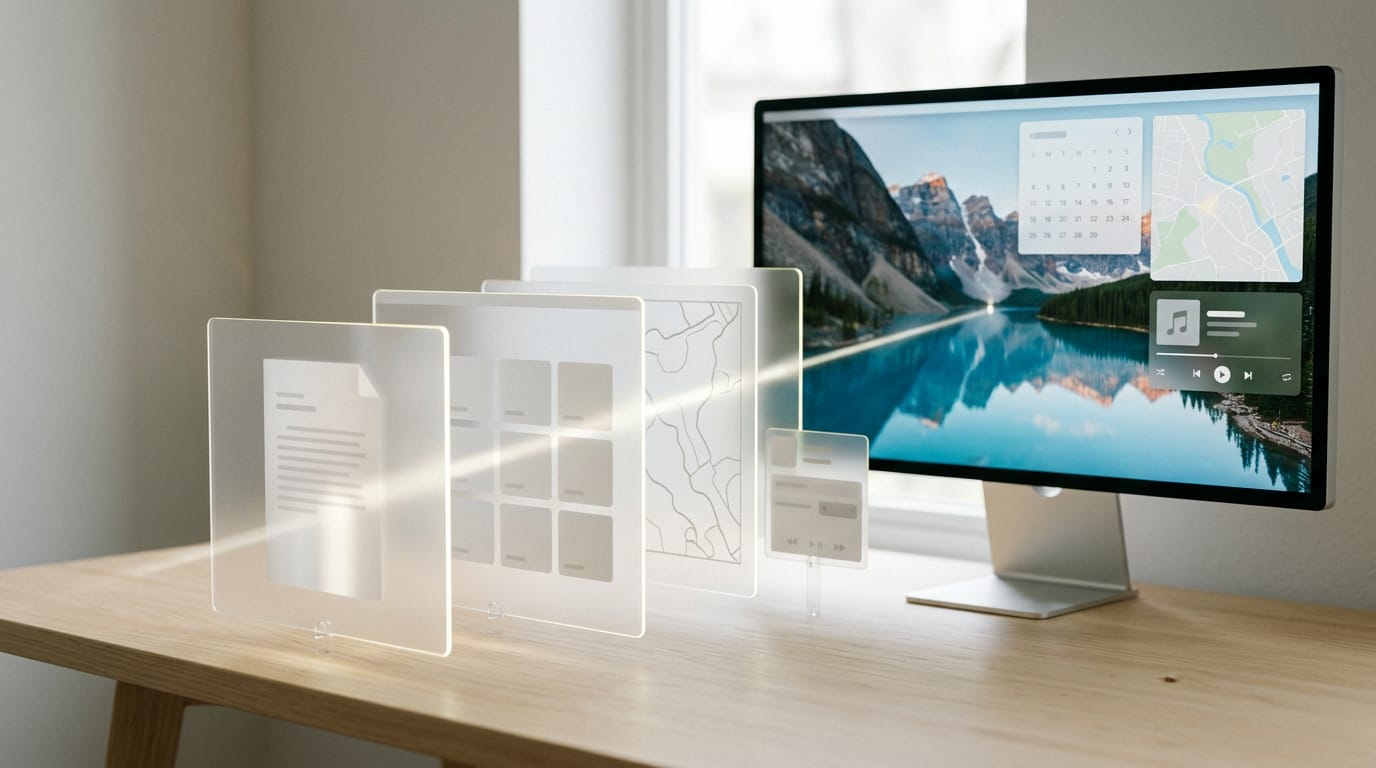
The short versiondwm.exe, or Desktop Window Manager, is the Windows process that combines open windows, the taskbar, and visual effects into the image shown on your screen. It uses graphics hardware to keep windows layered and movement smooth, and on modern Windows it is a core component that cannot be disabled; the legitimate file is in C:\Windows\System32. If it uses unusually high resources, check Task Manager, reduce visual effects, update graphics drivers, and scan for malware if its location seems wrong.
Picture a busy kitchen where every cook is plating at once. Someone has to make sure each dish reaches the right table, looking right. On your Windows computer, that someone is dwm.exe, the Desktop Window Manager.
It assembles everything on screen: open windows, the taskbar, and smooth transitions between apps. It usually hums along unnoticed, but when it misbehaves, it can slow you down or leave you wondering whether it’s safe.
We’ll cover what it does, how it works, whether you can turn it off, and how to fix high resource use. Along the way, you’ll pick up keyboard-first Task Manager and graphics-reset shortcuts.
What the Dwm.exe Desktop Window Manager Does
Every window on your screen has to be drawn and layered correctly, and dwm.exe, the Desktop Window Manager (DWM), is the Windows process that handles it. Here’s how it started, what it does, and how to spot it yourself.
How DWM got its name and history
DWM was formerly called the Desktop Composition Engine, a name that describes its job. Windows Vista introduced it to power the Aero experience, and later versions of Windows included it too.
How compositing merges windows into one image
Compositing means combining several separate images into one. Apps don’t draw straight onto the screen. Each one writes its window to its own buffer, a separate block of memory that holds that window’s picture.
DWM merges those separate buffers into one image for the display. It replaces an older stacking manager that worked from a single buffer, so the change is about merging rather than stacking.
The GPU (graphics processing unit) takes rendering work off the CPU (central processing unit), so the heavy lifting happens out of sight.
Consider a freelance editor working at a kitchen table with a laptop and a second monitor. She drags a manuscript across to the second screen while a video call runs in the corner. The GPU handles that rendering, so her CPU stays free for the editing.
Visual effects that DWM powers
DWM powers the look you see every day:
- Transparency and glass frames
- Live taskbar thumbnails, the previews of open windows on your taskbar
- 3D transitions and Flip 3D, the effects used when you switch between windows
- Themes and wallpapers
- High-DPI and high-resolution support, where DPI (dots per inch) describes how densely pixels are packed on a screen
Windows features that depend on DWM
Several everyday Windows features rely on it:
- Taskbar and Start menu
- Multi-monitor support, for setups with more than one screen
- Touch and gesture rendering, for touchscreens and gesture input
- Window layering and scaling, which control how windows overlap and resize
Spotting DWM in Task Manager
Press Ctrl+Shift+Esc to open Task Manager, then look for dwm.exe on the Processes and Details tabs. You’ll see it using CPU, memory, and GPU resources, usually with a low power rating. It’s a legitimate Windows process.
Think of a support agent whose laptop feels busy during a long shift of video calls. She opens Task Manager, finds dwm.exe on the Details tab, and sees a low power rating.
That’s the usual case for this process, so she can get back to her queue instead of chasing a problem.
The exe for Task Manager itself is taskmgr.exe, the file you’d look for if you ever need the program on disk.

How DWM Works Under the Hood
The Desktop Window Manager (DWM) combines every open window into the single picture on your screen. Here’s how, starting with the graphics card.
Drawing the desktop with Direct3D shaders
DWM draws the desktop as a Direct3D surface, Microsoft’s 3D graphics interface, so the work runs on your graphics card. Each window is a textured mesh: a rectangle with its contents pasted on.
Effects come from pixel shaders, small programs that decide each pixel’s color, and DWM ships with built-in ones for blur. Per-pixel transparency gives each pixel its own opacity, so edges and shadows fade smoothly.
Retained caching shared with WPF
DWM shares its foundations with Windows Presentation Foundation (WPF), the framework for building app interfaces. Both build the screen as a composition tree of nested nodes, each one sitting inside its parent.
The key is retained-mode caching: DWM holds each window’s last picture instead of rebuilding it every frame. The goal is reusing what’s on screen rather than redrawing it, so DWM doesn’t need to send apps a WM_PAINT message asking them to redraw.
Consider a freelance editor at a home desk, dragging a manuscript across a second monitor. The window stays smooth because DWM already holds its picture, so the editor never waits on a redraw.
Redirecting GDI and DirectX app drawing
Many programs still use Graphics Device Interface (GDI), the classic 2D system. Its output passes through the Canonical Display Driver into a system-memory buffer, which gets copied onto a surface DWM can compose.
DirectX apps keep their surfaces on the graphics card, and the Windows Display Driver Model (WDDM) lets DWM use them directly. GDI apps hand DWM a copy, while DirectX apps hand over the surface itself.
Mixing the two is where trouble starts: moving pictures between memory and the card takes time, which can mean lag or flicker. Windows 7 added hardware-accelerated GDI, letting the graphics card handle some of that work.
Speed tricks and full-screen game handling
Several techniques keep motion smooth:
- Double buffering. Frames are drawn to a hidden back buffer, then swapped onto the screen in one step, which prevents tearing (when a screen shows slices of two frames at once).
- Culling and skipping. Anything hidden is skipped, and so are unchanged areas. The fastest pixel is the one nobody draws.
- Full-screen games. There’s no compositing, so DWM steps aside and the game draws straight to the display.
- Multi-monitor awareness. DWM tracks every screen, so each one gets the right picture.
What developers can build with DWM
DWM exposes a public thumbnail API (Application Programming Interface, the functions apps call), so apps can show live, resizable previews of other windows.
The functions are declared in dwmapi.h, a header file in the Windows SDK (Software Development Kit). Aero Flip, the 3D window switcher, is built into the same engine.
What Hardware and Windows Versions DWM Needs
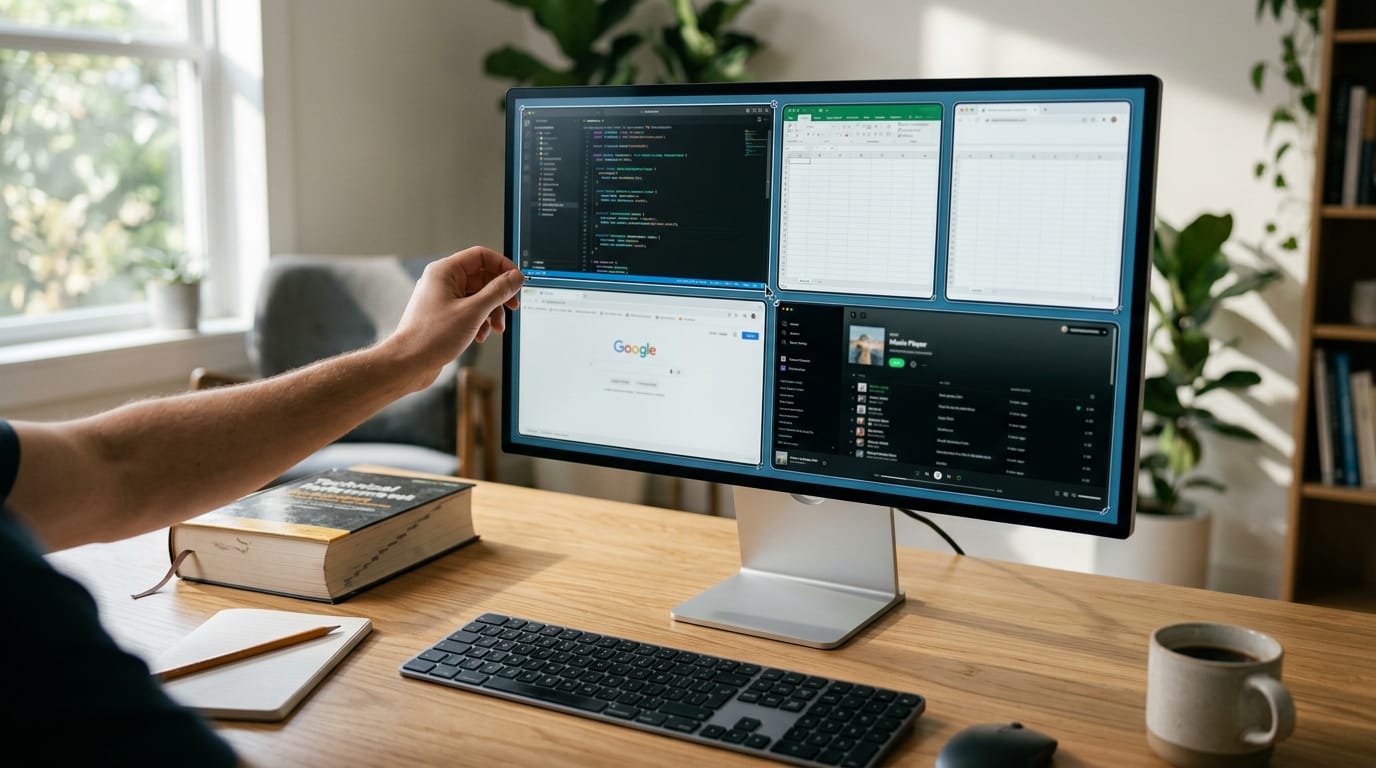
Whether Desktop Window Manager (DWM) runs well comes down to what’s under the hood. Your graphics card, its driver, and your Windows version set the bar.
Graphics card and driver needs
Your graphics card needs to meet a few requirements, and it’s the driver as much as the card that counts:
- WDDM-capable GPU. A GPU (graphics processing unit) with a driver built for WDDM (Windows Display Driver Model), the framework that lets Windows share the card across your apps.
- Direct3D 9 and Pixel Shader 2.0. Direct3D is Microsoft’s graphics interface, and Pixel Shader 2.0 is a programmable drawing feature.
- Direct3D 10 or 11 on Windows 8. Windows 8 expects one of these two versions.
- DirectX GPU in general. DirectX is Microsoft’s family of graphics interfaces, and DWM generally needs a GPU that supports it.
Hardware sets the floor.
Consider a freelance copy editor with a refurbished desktop in her spare bedroom. Before she trusts it with client work, she checks its Windows version and graphics driver, which saves her from guessing later.
Falling back to WARP CPU rendering
When the hardware falls short, Windows can hand the drawing to WARP (Windows Advanced Rasterization Platform), a software renderer. On Windows 8, basic display adapters use it.
The CPU (central processing unit) does the drawing instead of the graphics card, so you’ll notice lower performance than with a GPU.
Running DWM on servers and virtual machines
DWM isn’t limited to physical desktops. On Windows Server 2008, you get DWM through the Desktop Experience feature. VirtualBox and VMware both support DWM, and Windows Virtual PC works with RDP (Remote Desktop Protocol) for remote sessions.
Whether DWM Can Be Turned Off
The answer depends on your Windows version. Desktop Window Manager (DWM) could be switched off on older releases, but newer ones treat it as a permanent part of the system.
How each Windows version handles DWM
Here’s how each version treats it:
- Vista and 7: DWM is optional, so you could turn it off.
- Windows 8 and later: It’s always on.
- Windows 10 and 11: You can’t disable it.
- Removing it: Breaks apps and the Start menu.
Turning DWM off on Windows 7
On Windows 7, you can switch it off through the Services window. Here’s the process:
- Open
services.mscand find the Session Manager service. - Set its startup type to Disabled.
- Stop the service. This also disables themes, so the look of your desktop changes.
- To re-enable it, set the startup type back to Automatic.
Why ending the process won’t work
Ending dwm.exe in Task Manager might seem like a quick fix. It isn’t. Here’s why:
- End process doesn’t work: Using End process on dwm.exe won’t shut it down.
- Protected system process: Windows guards dwm.exe as a core system component, so you can’t simply stop it.
- Removal breaks your PC: Taking dwm.exe out of the system leads to the app and Start problems described above.
Consider a freelance editor who works from a spare-room office and has a deadline that afternoon. She spots dwm.exe near the top of Task Manager and tries to end it to speed up her laptop.
Nothing changes, and she’s lost time she can’t spare. That’s a dead end.

Fixing High CPU and Memory Use
Start by checking which app lines up with the spikes in Task Manager, then work through these fixes from the quickest changes to the bigger ones.
Cut back on visual effects and personalization
Fewer visual effects mean less for dwm.exe to draw. Simplify what you see, not what you can do:
- Turn off animations.
- Disable transparency effects.
- Switch to a simpler theme with a solid wallpaper.
- Adjust for best performance.
- Change the default app mode.
- Check whether a dock or extra monitors are adding load.
Consider an analyst who works from a laptop docked to two monitors at home. If her spreadsheets start to lag, she turns off animations and transparency, then checks whether the dock is adding load. Change one thing at a time.
That way, she knows which change actually helped.
Keep Windows and graphics drivers updated
- Install pending Windows updates.
- Update drivers via Device Manager, the built-in tool that lists your hardware.
- For the newest graphics driver, check your manufacturer’s website.
- If you’re on Windows 10 version 1903 and use Remote Desktop Protocol (RDP), look for the RDP bug fix.
Other fixes to try next
- Turn off the screen saver.
- Disable hardware acceleration in Office, which hands drawing work to your graphics card.
- Run the performance troubleshooter.
- Uninstall recent applications if the spikes started after you installed something new.
- Restart to reduce memory, the simplest reset when apps have been open for days.
For a lighter reset than a full restart, press Win+Ctrl+Shift+B to restart the graphics driver.
Checking If Dwm.exe Is Safe and Legit
Seeing dwm.exe in your process list doesn’t mean something’s wrong. Checking where the file lives tells you more than its name does, and a couple of quick checks will settle whether it’s the real thing.
Confirm dwm.exe lives in System32
In Task Manager, right-click the dwm.exe process and choose Open file location. The file should sit in C:\Windows\System32. If it’s somewhere else, treat that as a red flag and keep digging.
Spoofing (malware disguising itself as a trusted file) is rare. The folder check costs you nothing, though, so it’s a smart first step.
Scan for malware with antivirus tools
If the location checks out but the process still seems off, start with your antivirus tool.
A virus can cause high central processing unit (CPU) usage, so scanning makes sense whenever your computer runs hot or slow for no clear reason. Scan before you tinker.
Picture a bookkeeper working from the kitchen table whose laptop crawls every afternoon. A full scan can rule out malware before they start changing settings they don’t need to touch.
Here’s the order we’ll follow:
- Run an antivirus scan.
- If the slowdown continues, run a Microsoft Defender Offline scan.
Dwm.exe is the quiet expediter behind your screen, keeping every window in its place so you can focus on your work. When it acts up, you now know how to check it without guessing.
Keep Task Manager one shortcut away and a graphics reset close at hand, and a sluggish display stops being a mystery. Your hands stay on the keys, and your screen keeps up, no matter how many windows you’ve got open.
Questions
What is the exe for Task Manager?
Task Manager’s executable file is **taskmgr.exe**. You can find it in the Windows system folder, typically `C:\Windows\System32`.
What is dwm.exe on my PC?
**dwm.exe** is the Desktop Window Manager, a legitimate Windows process that combines open windows and other desktop elements into the image shown on your screen. It also supports features such as the taskbar, window effects, and multiple monitors. The genuine file is located in `C:\Windows\System32`.
Can I end the Desktop Window Manager?
On current versions of Windows, you can’t disable the Desktop Window Manager by ending dwm.exe in Task Manager. Windows protects it as a core component, and stopping or removing it can cause problems with apps and the Start menu.
spaceShortcut Sheets: the twenty keys to learn first in each appFind your app