Word Count on Google Docs: Complete Guide
Check word count in Google Docs, select only the passage you need, and see whether footnotes count so you report the right total across tools.

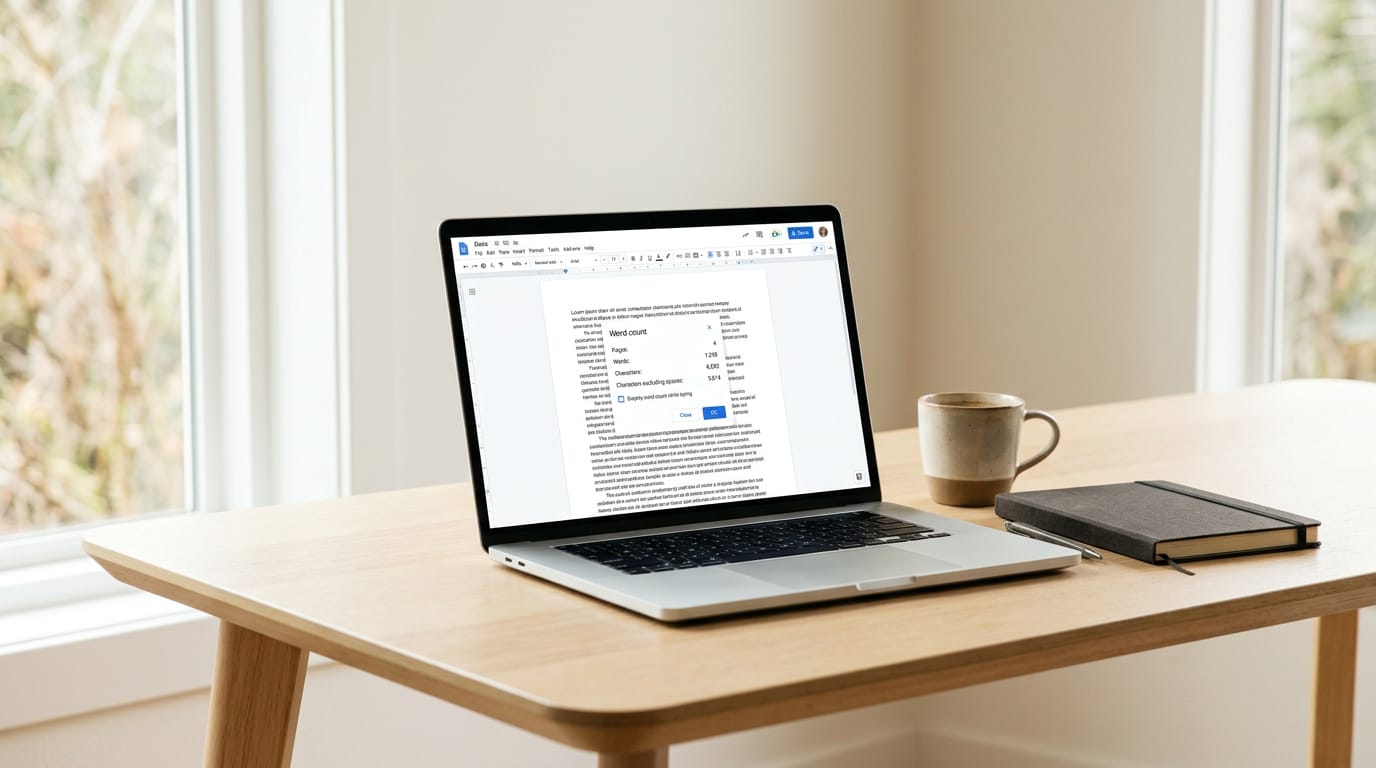
The short versionGoogle Docs word count is a built-in total for the text in a document, available through Tools > Word count or Ctrl+Shift+C on Windows and Command+Shift+C on Mac. You can turn on a live desktop counter or select a passage to count only that section, but the full-document total skips headers, footers, and footnotes, while links and unaccepted suggestions may affect the number. Match the count to the limit’s rules, and recount after your final edits.
Think of a word count like the odometer in your car. You don’t need it to drive, but the moment someone sets a length limit, you want a number you can trust.
Google Docs has a built-in word count, but the number depends on what you select and what it chooses to include.
Here we’ll walk through finding that count, narrowing it to part of a document, and reporting the right number, plus keyboard-first routes for hitting length limits without touching the mouse.
How to Find Word Count on Google Docs
Google Docs gives you two ways to check your count: a trip through the menu or a single keystroke. Both open the same window, so the only real question is how you get there.
Use the menu or a keyboard shortcut
Open Tools in the menu bar and choose Word count. If you’d rather keep your hands on the keys, use the shortcut instead:
- Windows: Ctrl+Shift+C
- Mac: Command+Shift+C
The word count dialog shows pages, words, and characters. Characters appear twice, once with spaces and once without, so you can check against whatever limit you’ve been given.
Consider a home office writer whose client wants a draft under a set length. A quick Ctrl+Shift+C (Command+Shift+C on a Mac) shows where the draft stands without a detour to the mouse. Hands stay on the keys.
Word count on Android, iPhone and iPad
On a phone or tablet, open the three-dot menu and tap Word count. There’s no pinned live box on a phone, so the number doesn’t sit on screen while you type. Think of it as a checkpoint you check in on, not a running tally.
How Can I Check How Many Words I’ve Typed?
The quickest answer is a live counter that sits right on the page, so you can see your total without stopping to hunt for it. Here’s how to switch it on and what to expect.
Turn on the live counter
Find the Display word count while typing option and tick it. Once it’s on, your count appears in the bottom-left corner of the page and updates as you work. This is a desktop web feature, so it only shows when you use Google Docs in a desktop browser.
The setting is saved per browser and stays on until you untick it.
Using the live counter while you draft
Picture a freelance copywriter in a spare bedroom who must keep a product description under 300 words. With the counter on, she doesn’t check after she finishes.
The number climbs with every keystroke, so she knows the moment she’s close to the cap. Nothing to copy, nothing to paste.
Click the small arrow in the counter to flip between words, pages, and characters. If the number starts to distract you, untick the same option to hide it. At any point, glance down to see the running total of words typed so far.
Keep the counter visible while you draft, and you’ll never be guessing.
If the box is missing, check that the option is still ticked and that you’re using the desktop web version, since that’s the only place the counter appears. Because the setting is per browser, a different browser may not display it either.

Counting Just Part of Your Document
Sometimes a limit covers one section, not the whole file. Google Docs can measure just that part, and it’s quicker than you might expect.
Count only the text you highlight
Google Docs gives you a selection count, which tallies only the words you’ve highlighted. Here’s what to know:
- Select text, then open Word count. Highlight the passage you need to measure, then open Word count.
- Shows selection out of total. The result reads as your selected words out of the document’s total, so both numbers are in view at once.
- Live box switches to selection. While the Word count box is open, it follows your highlight, so the number changes as you move the selection.
- Useful for sections with limits. It’s the fastest way to check one section against its limit without touching the rest.
- Works in web and mobile apps. The same selection count works in the web app and the mobile apps.
Pieces that sit apart need a little more care. Since the count reflects only what’s highlighted at that moment, measure each section on its own and add the totals yourself.
Consider a remote grant writer who has to keep the project summary under its word limit while the budget narrative sits elsewhere in the same file.
Highlighting just the summary gives you that number, not the total for the whole file, so the budget text doesn’t skew the result. They can see whether they’re over before submitting, not after. That’s the whole point.
What Google Docs Counts and Skips
Google Docs doesn’t count every word on the page, and the gap matters when a limit is on the line. Knowing what gets left out, and what quietly pads the total, keeps your number honest.
Headers, footers and footnotes are skipped
The full-document count skips headers, footers, and footnotes. No setting changes that. The total reflects the body, not the page. Need the notes’ length? Select them, and Google Docs counts the selection separately.
Consider a freelance grant writer on a home office laptop with a 500-word limit. She selects her footnotes, checks their separate count, and confirms the body fits without cutting a single citation.
How links and symbols affect the total
Links are the sneaky part. A long URL can split into several words, so a page of links can inflate the total faster than you’d expect. Symbols like < and > aren’t counted, but em dashes are, so dashes add up.
If you’re near a limit, check whether citations are doing the padding.
How comments, suggestions and bibliography count
Comments stay out of the live word count box, so margin feedback won’t move that number. Unaccepted suggestions may inflate the count, so accept or reject them before you trust the total.
A typed bibliography counts as body text, so every hand-typed citation counts toward your limit.
Tables and images round out the picture: words inside a table count as body text, while an image adds none.
Adding Footnotes to Your Google Docs Total
Footnotes are easy to forget when a length limit is close, and the default count leaves them out. Here are three ways to include them, from doing the math yourself to letting another app handle it.
Tally footnotes yourself, page by page
The simplest route is a manual tally: count the footnotes page by page, then add that figure to the body count. Select the footnotes on one page and read the word count for that selection. Repeat for each page with notes.
The footnote figure goes on top of the body count, not in place of it.
For example, take a freelance grant writer in a spare-bedroom office with a 2,500-word limit. Her body text reads 2,400 words, and her footnotes add 60 on page 2, 45 on page 5, and 75 on page 9.
That’s 180 footnote words, and 2,400 + 180 = 2,580, which is 80 over. She trims those 80 words before she submits.

Get one total using Microsoft Word
If you’d rather skip the arithmetic, let Word do the adding:
- Download a copy in Word format.
- Open it in Microsoft Word and go to the Review tab.
- Select Word Count, then tick the option to include textboxes and footnotes.
You get one number that already includes your footnotes, not two you add yourself. Less arithmetic, fewer slips.
Count footnotes in a separate document
Another option keeps your original file untouched. Copy the footnote text, paste it into a blank scratch document, and run the word count there. That number is your footnote total, ready to add to your body count.
Once the real file is submitted, delete the scratch copy so your notes don’t live in two places.
Why Word Counts Vary Between Tools
Two tools can report different totals for the same text. The gap usually comes down to what each one counts.
What each tool includes in its count
Not every counter looks at the same parts of a page. Some totals include headers, footers, footnotes, and captions, while others skip them. Text boxes and tables of contents may be treated differently too.
Always compare like with like. Consider a freelance editor with a 500-word pitch cap. Google Docs says 498, but the submission portal says 506. Instead of trimming blindly, she runs both tools on the same paragraph and reports the number the portal uses.
How tools decide where words split
Tools also disagree about where one word ends. Hyphens, slashes, and dashes may make a term like well-known or and/or one word in one tool and two in another. Numbers with punctuation, like 3,500, can be read differently too.
The question isn’t how much text there is but how each tool reads it. Counters tally tokens, the chunks between spaces, and generally count one only when it has letters or digits.
Google Docs also splits some joined words, so its count may differ from a tool that keeps them whole. Same text, different count.
Where character counts can disagree
Character counts add another layer. Line breaks, tabs, and special spaces, like non-breaking spaces, may be counted differently between tools.
A single emoji can also count as more than one character, since the Full Emoji List, v18.0 notes that emoji sequences have more than one code point, the numbered building blocks of Unicode text.
Last, check whether spaces are included. Some totals count them and some don’t, so confirm before you compare against a limit.
Checking Word Count in Microsoft Word
Word makes the number easy to reach, so the real question is which route fits your hands and your task. Here’s where we’ll look for each one.
Where to look on Windows, Mac and web
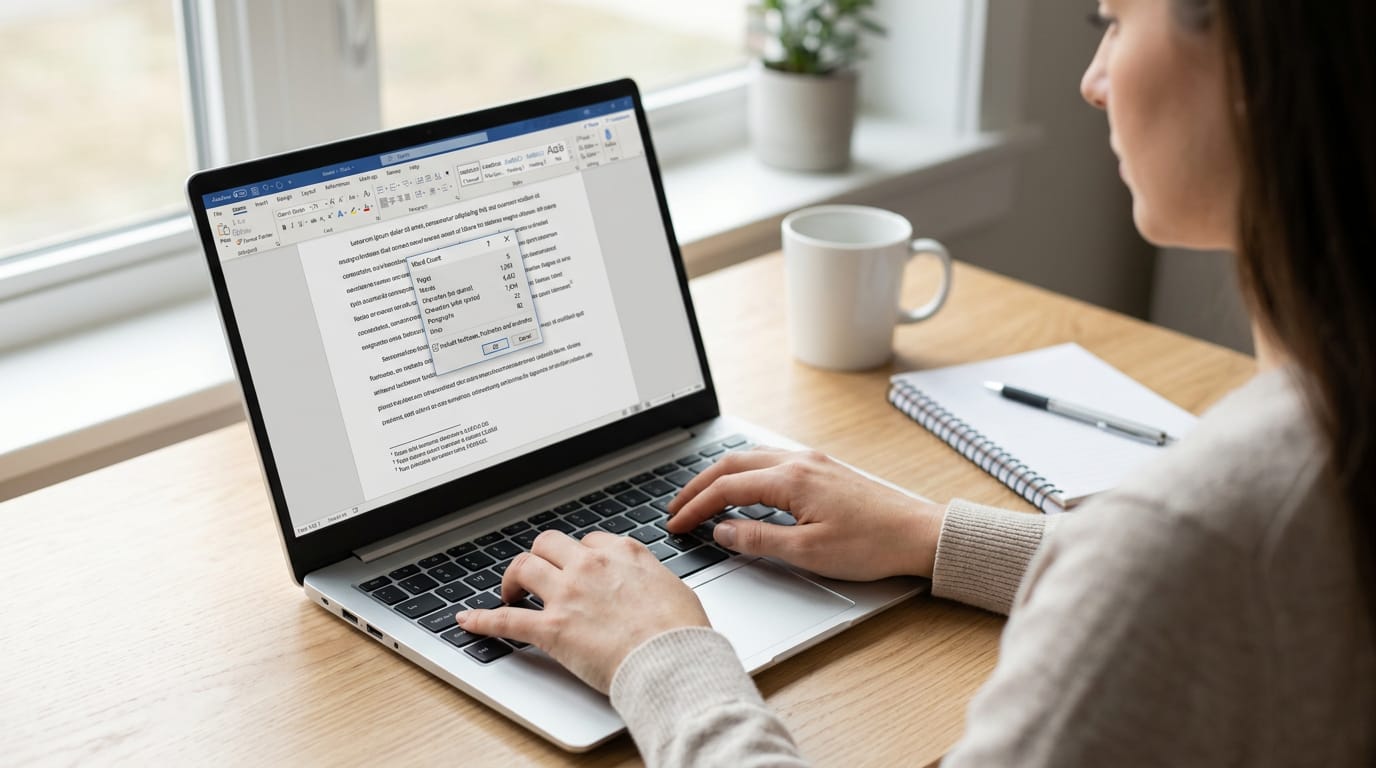
Word keeps a running count in the status bar at the bottom of the window, so you can watch the total climb as you type. For the full breakdown, open the Word Count dialog:
- Windows: Review > Word Count, or press Ctrl+Shift+G
- Mac: Tools > Word Count
Once the dialog is open, look for the checkbox labeled Include textboxes, footnotes and endnotes. Check it, and text in those three places joins the total. Leave it unchecked and those extras stay out.
Think of a freelance writer working from a spare bedroom, with a word cap from a client who doesn’t count footnotes.
Before she sends the draft, she presses Ctrl+Shift+G on her Windows laptop, toggles that checkbox to compare the two totals, and reports the body number she needs. No guessing, no scrolling back through the document.
It’s less about finding the number than about knowing what’s inside it. Your hands never leave the keys.
Picking the Right Count to Report
A word count only helps when it measures what the rule measures. Your job is to make the number fit the rule, not the other way around.
Match your count to the word limit
Work through these six checks in order:
- Use the limit-setter’s tool. If the person or site setting the limit offers a counter, theirs is the number that decides.
- Read the rule’s wording. About 500 words and no more than 500 are different targets, so note exactly which one you’re aiming for.
- Ask what is included. Check whether headings, the title, or a reference list count. If the rule doesn’t say, ask the person who set it.
- State what you counted. Note the scope in one line, for example: body text, not references.
- Leave a margin near the limit. Aim a little under the cap, so one late addition or a different counting method can’t push you over.
- Recount after final edits. Last week’s number won’t match this week’s draft, so run the count again once the text is locked.
Consider a freelance writer working from a spare bedroom on a 500-word essay. She drafts at 540 words, trims the intro, and her last pass lands at 492.
She reports 492, notes in her cover email that the count covers body text only, and skips the frantic late-night cut she’d have needed if her editor had flagged the number. Your last edit is the one that counts.
How Long Is 500 Words in a Google Doc?
Five hundred words is about two minutes of reading at 250 words per minute, and it sits inside the blog-post range below. It’s also only about a fifth of the 2,500-word floor for a marketing paper, so the right length depends on what you’re writing.
Common lengths for different documents
- Marketing papers: 2,500 to 6,000 words. A call for papers from Henry Stewart Publications sets the range at “between 2,500 and 6,000 words.”
- Blog posts: 400 to 1,700 words in some benchmarks. One PLOS Computational Biology outreach guide says well-received posts are usually 400 to 800 words, with plenty of images and videos.
- Bios: under 100 words.
Google Docs also has a maximum length, but we don’t have a verified figure to share, so check Google’s help pages before you plan something huge.
How long reading takes at different speeds
The count tells you how much you wrote. Reading time tells you how long your reader will spend with it, and the estimate shifts with the material:
- About 250 words per minute: a study on skilled reading notes that literate English-speaking adults read at nearly 250 words per minute.
- About 200 for difficult content: Word Length, Prose Difficulty, and Reading Rate found college students slowed from about 315 to 200 words per minute as difficulty climbed from about Grade 2 to Grade 17.
- About 300 for easy content: Optimal Rate of Reading Prose found efficiency peaked near 300 words per minute for material from Grade 5 through Grade 14.
- Online counters: they show reading time, so you can skip the math.
Think of a remote analyst sending a 500-word summary before a Monday handoff. At 250 words per minute, the teammate reading it needs about two minutes, so the analyst knows it’s a quick read before hitting send. Two minutes, and nobody has to ask.
A word count is only as useful as your understanding of what it measures. Once you know what Google Docs counts, what it skips, and which selection you’re looking at, the number stops being a guess and becomes something you can report with confidence.
Keep the keyboard-first habits close. When you can check length without leaving the keys, staying inside a limit becomes a quiet part of your writing rhythm instead of a last-minute scramble.
Know what the number means, and it will never catch you off guard.
References
- Call for papers: Governance, Safety, and Ethics in AI for Marketing Analytics — henrystewartpublications.com (2025)
- Prediction as a basis for skilled reading: insights from modern language models — pmc.ncbi.nlm.nih.gov (2022)
- Word Length, Prose Difficulty, and Reading Rate — journals.sagepub.com
- Ten Simple Rules for Effective Online Outreach — journals.plos.org (2015)
- Optimal Rate of Reading Prose — doi.org (1982)
- Full Emoji List, v18.0 — unicode.org
Questions
How can I check how many words I've typed?
Turn on **Display word count while typing** in Google Docs to see a live total in the bottom-left corner as you type. You can also open **Tools > Word count**, or press **Ctrl+Shift+C** on Windows or **Command+Shift+C** on Mac.
How long is 500 words in a Google Doc?
Five hundred words takes about two minutes to read at an average pace of 250 words per minute. In a Google Doc, the page length varies with formatting, such as font size, spacing, and margins.
How long is the longest Google Doc?
There is no verified maximum length available here. For an unusually large document, check Google’s current help pages for the limit.
Sources
- Call for papers: Governance, Safety, and Ethics in AI for Marketing Analytics - Henry Stewart Publications, henrystewartpublications.com,
- Ten Simple Rules for Effective Online Outreach | PLOS Computational Biology, journals.plos.org,
- Prediction as a basis for skilled reading: insights from modern language models, pmc.ncbi.nlm.nih.gov,
- Word Length, Prose Difficulty, and Reading Rate, journals.sagepub.com
- Optimal Rate of Reading Prose, doi.org,
- Full Emoji List, v18.0, unicode.org
spaceShortcut Sheets: the twenty keys to learn first in each appFind your app