Surface Keyboard Peeling: Signs, Causes, and Fixes
Surface keyboard peeling can start at one edge and spread across keys; spot the signs, compare replacement options, and learn habits that may prevent it.

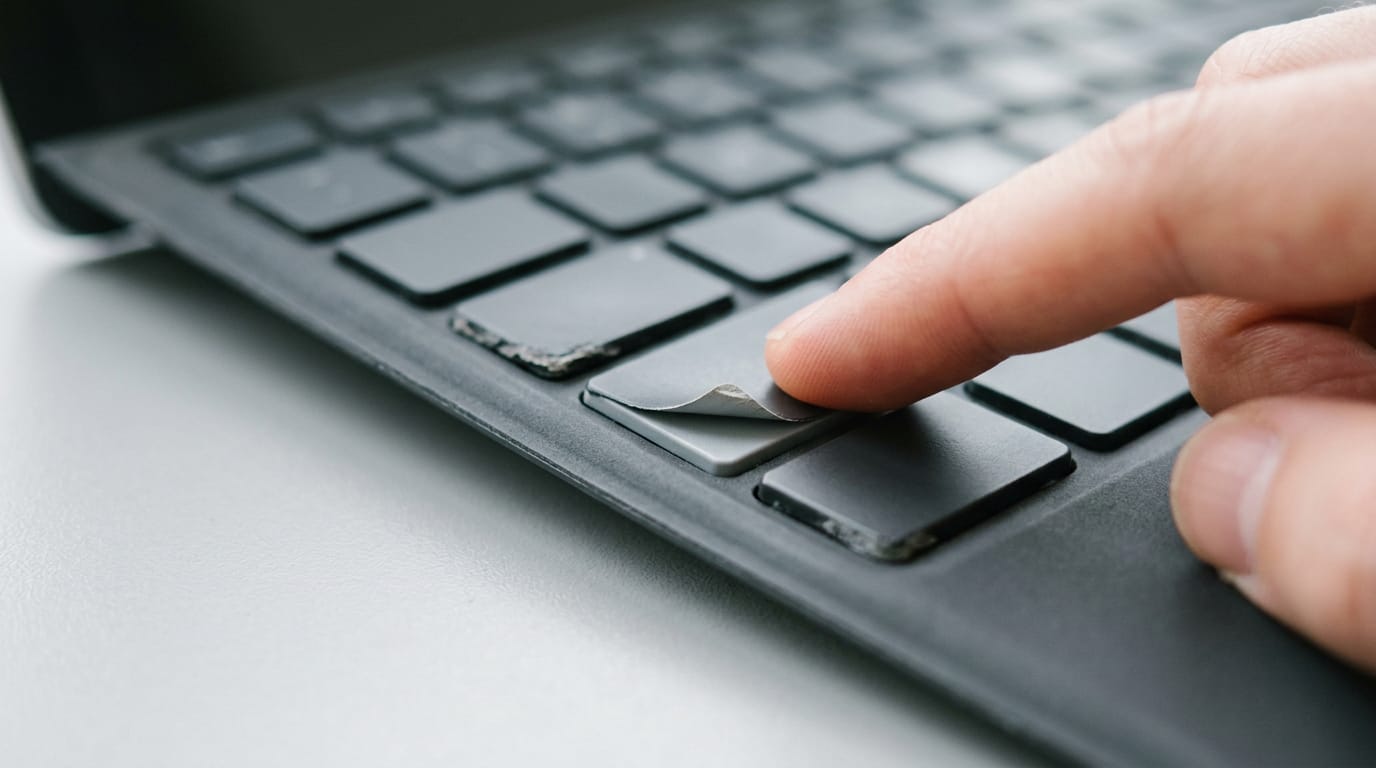
The short versionSurface keyboard peeling is when the thin outer layer of a Surface keyboard lifts, flakes, or separates at the seam, sometimes exposing internal wires. It may relate to manufacturing variation, design weak spots, or repeated strain from folding, leaning on, or propping the cover; gentle handling can reduce pressure on the seam. Check warranty coverage and document the damage before contacting Microsoft about repair or replacement, and use an external keyboard to keep working if needed.
Think of the rubber grip on an old bike handlebar. It holds up fine for years, then one day an edge starts lifting, and every ride gets a little more annoying.
Surface keyboard peeling works much the same way: the thin coating on the keys begins to lift or flake, and the surface you rely on all day starts to look worn early.
In this post, we’ll cover the signs and how far the problem can spread, what may be causing it, and the replacement routes available. We’ll also walk through warranty and documentation steps, plus keyboard options that keep you typing while it’s resolved.
Signs and Spread of Surface Keyboard Peeling
Peeling can start small, so knowing what to look for matters. Here’s what we’ll cover: how keyboard peeling shows up, how widely it’s been reported, and what owners worry about next:
What the peeling looks like
Watch for these four signs:
- Loose top layer. The surface starts to lift away from the keyboard.
- Split seam. The seam where the keyboard meets the screen join comes apart.
- Exposed wires. Internal wires become visible.
- Peeling logo. The Surface logo starts to peel off.
Think of a freelance writer who types eight hours a day at a home desk. One morning she notices a lifted edge near the screen join. Catching it early rather than late gives her time to plan a fix before it interrupts her work.

How many owners are affected
Reports have surfaced on Surface forums, and news outlets have covered the issue, so it’s clearly more than a rumor. Microsoft calls it a small number of cases, and support reps say they’ve seen few returns for it. Rare doesn’t mean ignorable.
Worries about how long the cover lasts
Owners worry about the thin, curved area near the hinge. The strong magnets that hold the keyboard in place add stress there, and the fear is that peeling will only get worse. If you type on a Surface every day, that’s the edge worth checking.
What May Be Causing It
Peeling rarely has one tidy cause. Here’s what may be behind it, starting with how the keyboard is built and then how it gets used day to day.
Factory variation and design weak spots
Some peeling may trace back to manufacturing variance, meaning small differences between units built to the same design. That’s suspected rather than confirmed, so treat it as a possibility, not a verdict.
The design itself may also carry a weak spot. The cover can give way just before the hard bar, the firmer bar in its construction, so the edge there may take more stress than the rest of the keyboard.
We don’t yet know whether replacement keyboards share this weak spot. A new unit isn’t guaranteed to be immune, so don’t assume a swap settles the problem for good.
Strain from how people use it
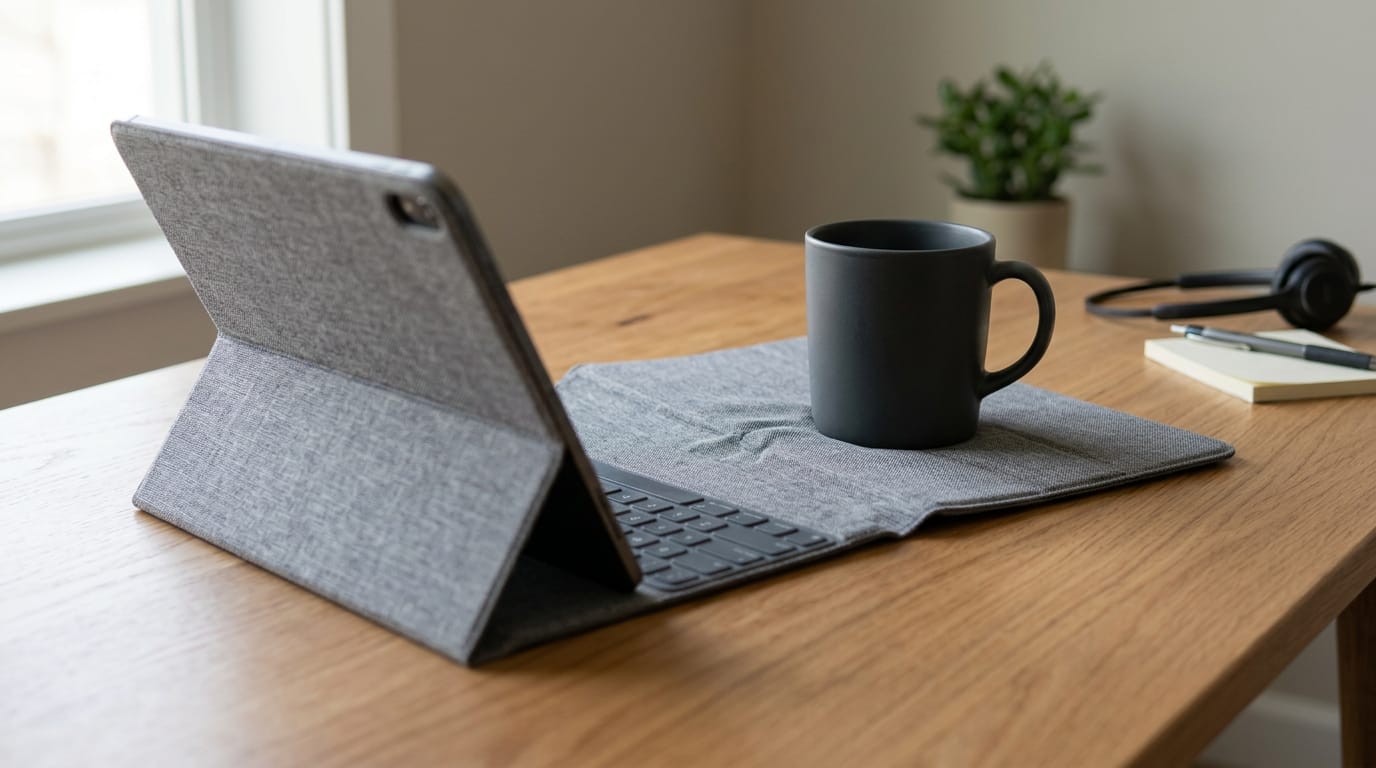
This is where daily habits come in. Consider a remote support agent who folds the cover behind her tablet during a long shift, props the screen against the spine, and rests her coffee mug on the folded seam.
None of those moves feels dramatic on its own, but all three push on the same spot.
Three habits tend to add the most pressure:
- Folding the cover behind the device. This bends the cover back on itself, and repeating it daily keeps the same area under load.
- Resting weight on the folded seam. A mug, a stack of papers, or a forearm presses right where the cover bends.
- Propping the tablet on the spine. Leaning the device against the keyboard’s edge pushes on the same area again.
Each habit points at the same place: where the pressure lands, not just how much of it there is. Same seam, same strain.
Ways to Get It Fixed or Replaced
There are three routes to a new keyboard, and where you live decides which ones are open to you. Before you start, check whether your warranty still covers the keyboard and when it expires.
Reaching out to Microsoft support
Start with a call to Customer Support, and mention that the keys are peeling and that Microsoft is aware of the problem. Think of a copywriter who types all day on her Surface at the kitchen table.
Her replacement instructions then arrive by email, so she has a clear next step instead of guessing.
Swapping it at a Microsoft Store
If a store is within reach, you can exchange the keyboard in person. It’s a quick and easy process.
Remove any personal media cards before you hand the device over, and remember that your device settings sync back afterward, so you aren’t starting from scratch.
Mail it in if no store nearby
Many UK readers won’t have a Microsoft Store nearby, so mailing it in becomes the fallback. Follow this order:
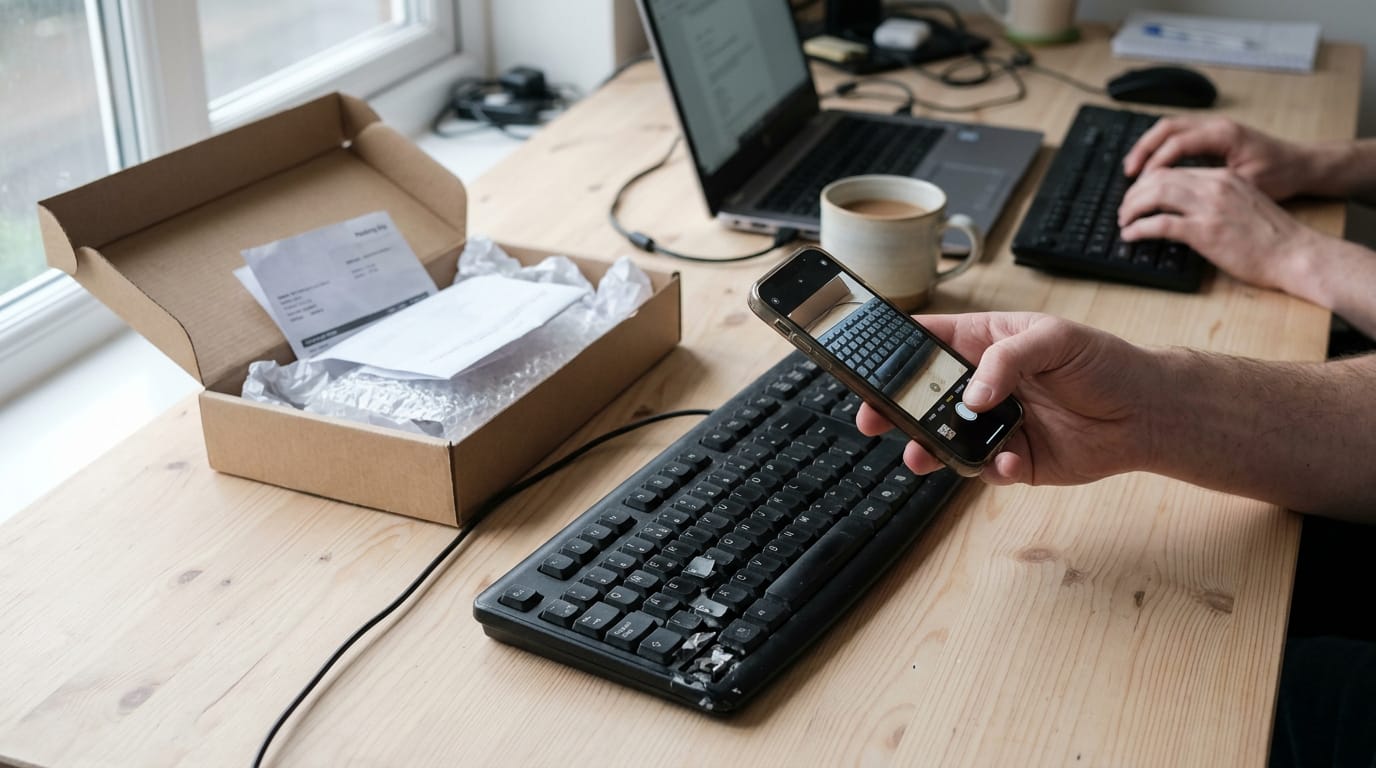
- Photograph the damage. Shoot the peeling from a few angles before you pack anything.
- Ask about cross-shipping. Request a cross-ship, where the replacement goes out before your faulty unit comes back.
- Send the faulty unit first unless support agrees to cross-ship.
If you do cross-ship, you may see a funds reservation on your card while the exchange is open, so don’t panic if one appears. Your typing doesn’t have to stop while you wait. Borrow an external keyboard, or plug in one you already own, and keep working.
Habits That Help Prevent Peeling
The seam, the thin line where the keyboard meets the screen, holds up best when you handle it gently. These habits cost nothing and fit into how you already work.
Protecting the seam day to day
Build these into your routine:
- Detach the cover before propping. Lift the keyboard off before you stand the screen up on its kickstand, so the tilt doesn’t pull on the seam.
- Skip lap use with the cover folded back. Typing on your lap with the keyboard bent behind the screen puts the seam under pressure from an awkward angle.
- Use it closed or flat. Carry it closed, and type with it lying flat, never folded back.
- Don’t count on the cover for back protection. It’s made for typing and covering the screen, not for guarding the back of the device, so don’t wrap it around as a shield.
- Keep the cover flat on the desk. At your desk, lay it flat instead of bent up at the edge or leaning against something.
Consider a remote bookkeeper who props her Surface on a stack of folders with the keyboard still attached. Every time she tilts the screen, the strain lands on the seam.
Detaching the cover first takes only a moment and keeps the seam out of that line of fire. Gentle handling wins.
If the seam has already started to lift, the next decision is bigger: a replacement cover or an external keyboard. We’ll walk through both routes, and either one can keep you typing while you sort out the repair.
Peeling is frustrating, but it’s rarely a reason to stop working. Once you can spot the early signs, understand what’s likely driving the wear, and know your repair, replacement, and warranty options, you’re back in control.
Add a few simple habits and a backup keyboard within reach, and your typing can stay steady while the fix gets sorted. Keep your hands on the keys, and let the repair happen in the background.
spaceShortcut Sheets: the twenty keys to learn first in each appFind your app