What Is Option Key on Windows Keyboard? Meet the Alt Key
What is the Option key on a Windows keyboard? See which Windows key matches it on a Mac and how to easily remap modifiers for familiar shortcuts.

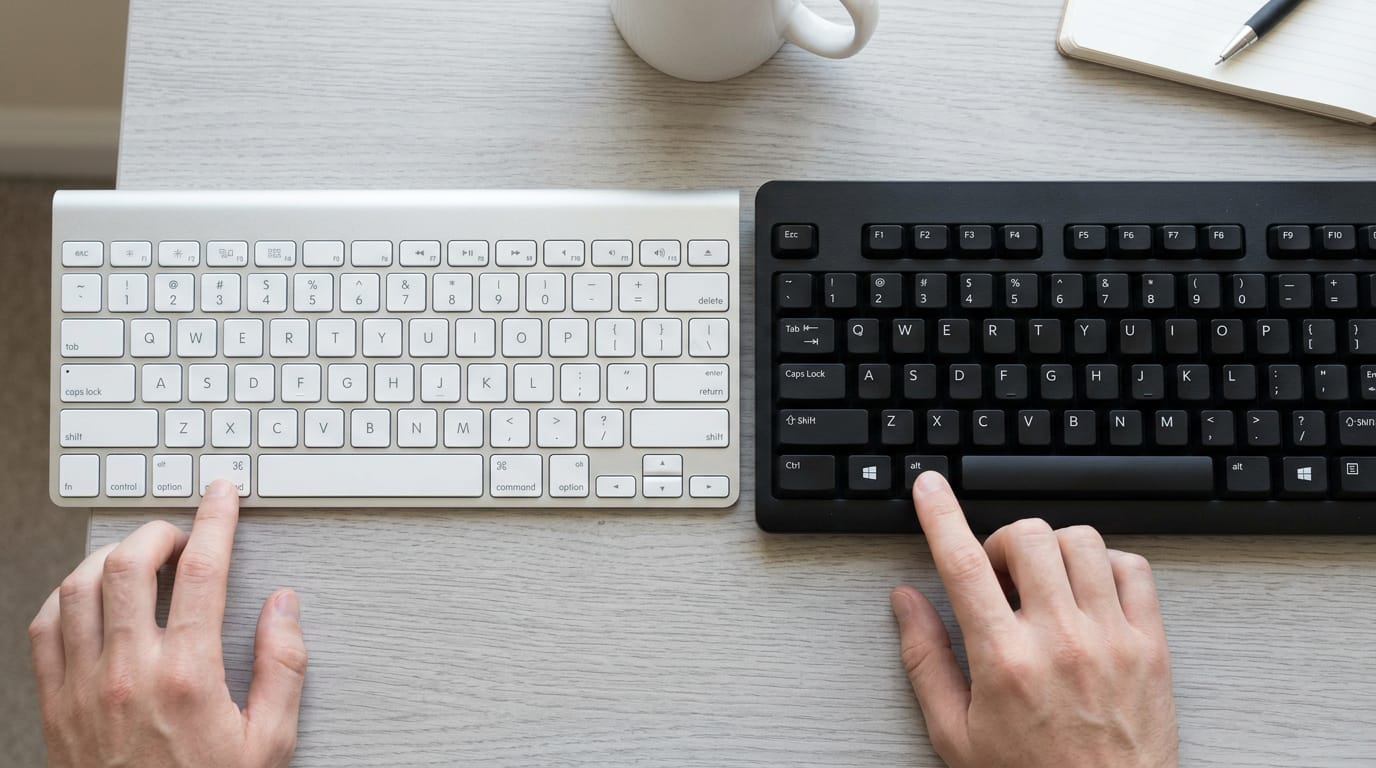
The short versionThe Option key is a Mac modifier key, usually labeled Option or marked ⌥, that changes what another key does; its closest Windows equivalent is Alt. On a Mac, Option sits between Control and Command, while Windows keyboards place Alt elsewhere, so the keys can feel swapped when you switch computers. You can remap modifier keys in macOS to make a PC keyboard feel more familiar, but check the layout and test shortcuts afterward.
Ever read a Mac shortcut guide, looked for Alt, and found only a key labeled Option? It’s a bit like arriving in a new city where the streets have different names but still lead to the same places.
The Option key on a Mac is the Mac’s version of the Alt key you already know from Windows, and it sits right beside the spacebar.
In this post, we’ll cover what Option is and how Mac names it, where to find it, which Windows keys match it, and how to remap your modifiers so your Windows keyboard acts more like a Mac one.
What the Option Key Is and How Mac Names It
The Option key is the Mac’s version of Alt, a modifier key you hold to change what the next key does.
Option and Alt are the same key
Think of it as one key with two names, so there’s nothing new to memorize. Apple’s Mac keyboard shortcuts page notes that on Windows keyboards, the matching key is usually labeled Alt.
Every Apple keyboard has an Option key, though the printed name varies by region, and older keyboards used only the symbol.
Consider a home office worker who moves from a Windows laptop to a Mac. Their fingers still reach for Alt, and that habit lands on Option. Their shortcuts work after one label swap, not a week of relearning. It’s the label that changes, not the job.
What the ⌥ symbol looks like
According to Apple’s shortcut guide, the ⌥ symbol identifies the Option key on Apple keyboards. The glyph looks like a backslash with a flag attached.
Apple now spells out labels on its keys, so you can read the word instead of decoding the mark. Seen once, it’s hard to forget.
Where the Option key name came from
Several explanations get passed around, and we’ll walk through four:
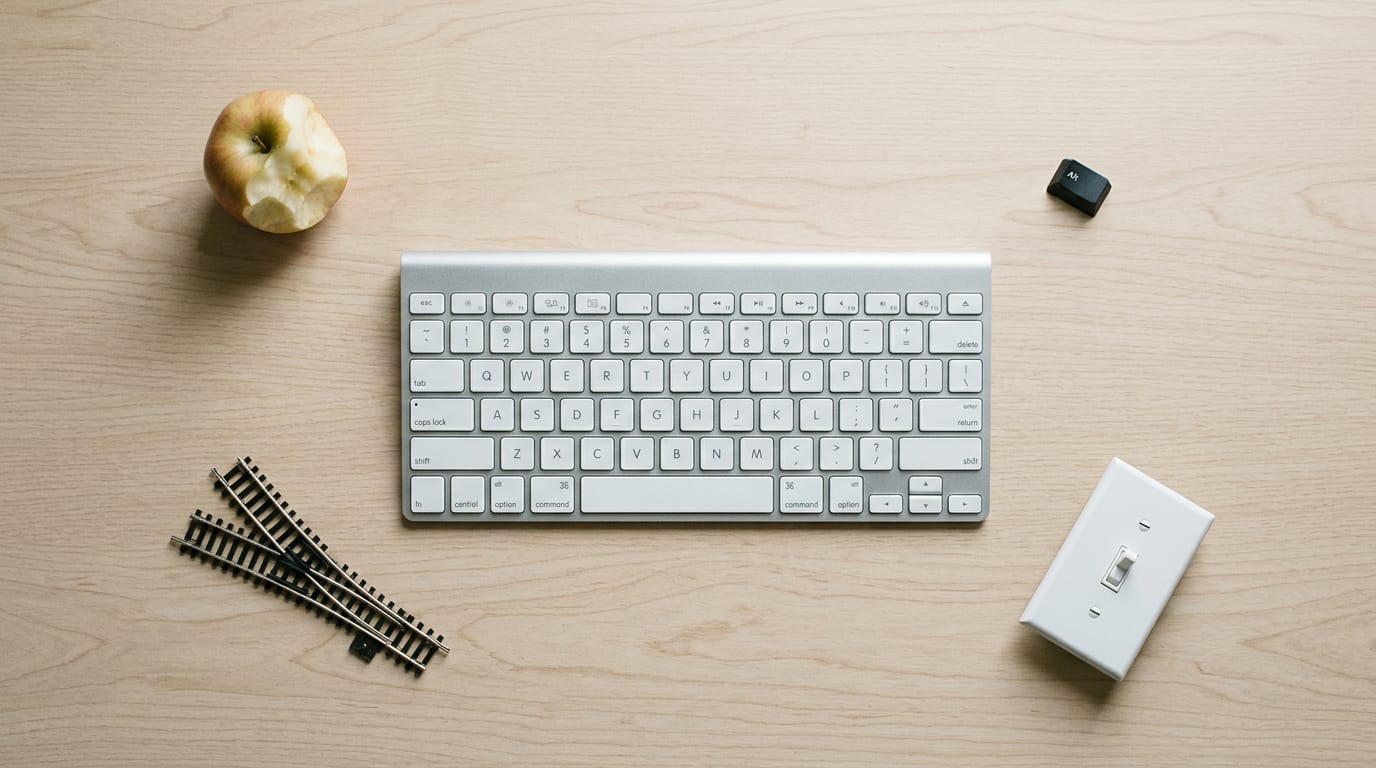
- Open and closed apple keys. One explanation links the name to the open and closed apple keys.
- Alt label for Windows switchers. Windows keyboards print Alt on the matching key, so switchers already recognize the name.
- Railroad bifurcation theory. One theory compares the symbol to a railroad track that splits in two.
- Electrical switch symbol theory. Another says the glyph resembles the symbol for an electrical switch.
Finding the Option Key on Your Keyboard
The Option key is the Mac’s version of the Alt key, and it’s in a different spot than most people expect.
Where Option sits among modifier keys
On a Mac, the bottom row reads Control, Option, Command from left to right, so Option sits between the other two. A Windows keyboard reads Ctrl, Win, Alt, which puts the Windows key in Option’s spot.
Option matches Alt by function, not by position, and that’s why people reach for the wrong key after switching machines. Same job, different spot.
How layouts differ across keyboard types
- US and North American: Mac keyboards put Control, Option, and Command on the left side of the space bar, in that order.
- European and UK: The Mac order holds, but many Windows keyboards here add an AltGr key, which unlocks extra characters like the euro sign. On a Mac, Option covers those characters too.
- Japanese: Input-switching keys sit beside the space bar, so the bottom row looks busier. The modifiers are still there, so look for the ⌥ or Alt label.
- iPad Smart Keyboard: It’s built for iPad, so its bottom-row modifiers may not match a Mac’s. Check the keys before you count on Option.
- MacBook and external keyboards: A standard MacBook has an Option key on each side of the space bar. Plug in a Windows keyboard and macOS maps Alt to Option and the Windows key to Command by default.
Consider a home office bookkeeper who types on a Windows desktop all week, then grabs a MacBook for Friday client calls.
Once she knows Option lines up with Alt, she stops hunting the bottom row whenever a client’s name needs an accent, and her Alt habits carry over.

Windows Keyboard Keys That Match Option
The Option key is the Mac’s Alt key, and a Windows keyboard doesn’t have one. Quick answer: the Alt key on Windows is the closest match by name, but its spot on the bottom row doesn’t line up. Here’s how the keys compare.
How Windows and Mac keys line up
- Windows key stands in for Option. On a Mac, Option sits between Control and Command. On Windows, that middle spot belongs to the Windows key, so it’s the key your thumb expects to play Option’s role.
- Windows Alt acts as Command. Alt sits where Command lives on a Mac, right beside the space bar.
- Keys swapped versus Mac. Compared with a Mac, the names and spots don’t line up, so the two layouts feel swapped. The difference is where keys sit, not what they’re called.
- Ctrl and Alt sometimes swapped. Some people also swap Ctrl and Alt when they remap, which changes which key your thumb reaches first for shortcuts.
Consider a home office worker who moves from a MacBook to a Windows desktop. Their thumb keeps landing on the Windows key where Option used to be, so they pop open the Start menu by accident.
Once they know which key sits where, they can stop fighting the layout and get back to their work. It’s a swap, not a mystery.
Remap Windows Keyboard Modifiers on Your Mac
If your PC keyboard feels backwards on a Mac, you can swap its modifier keys in a few clicks.
Follow these steps to remap keys
- Connect your USB or Bluetooth keyboard.
- Open System Preferences, then choose Keyboard.
- Click the Modifier Keys button.
- Select your PC keyboard from the list.
- Swap Option and Command.
- Click OK, then test.
Take a home office worker who types on a PC keyboard but runs a Mac for work. After swapping Option and Command, Command+W closes a tab under their thumb, and the mouse stays off the desk.
Check your remap and newer macOS differences
Try Command+Shift+3 or Command+W to confirm the swap worked. The labels on your keys stay put, but what each key sends changes. On newer macOS, search System Settings for Modifier Keys instead of digging through older menus.
These steps work on any Mac and keyboard. Test it before you trust it.
Common remap problems and their limits
Remapping covers the modifier keys, but a few things won’t match up:
- Function and media keys. Their layout varies by keyboard, so F-keys and volume keys may not match.
- Home, End, and Page keys. Some keyboards don’t have them at all.
- No fn key. Most PC keyboards lack one, so Mac shortcuts that use it won’t line up.
- Auto-swapping keyboards. Some already swap these keys, so check first or you’ll swap them twice.
- Third-party remap software. PowerToys or AutoHotkey can make a remap permanent, though they’re extra apps to manage.
- Remap once for mixed desks. Remap each keyboard once rather than redoing the steps every time you switch between a Mac and a PC.
Mac Keyboard Tips for Windows Switchers
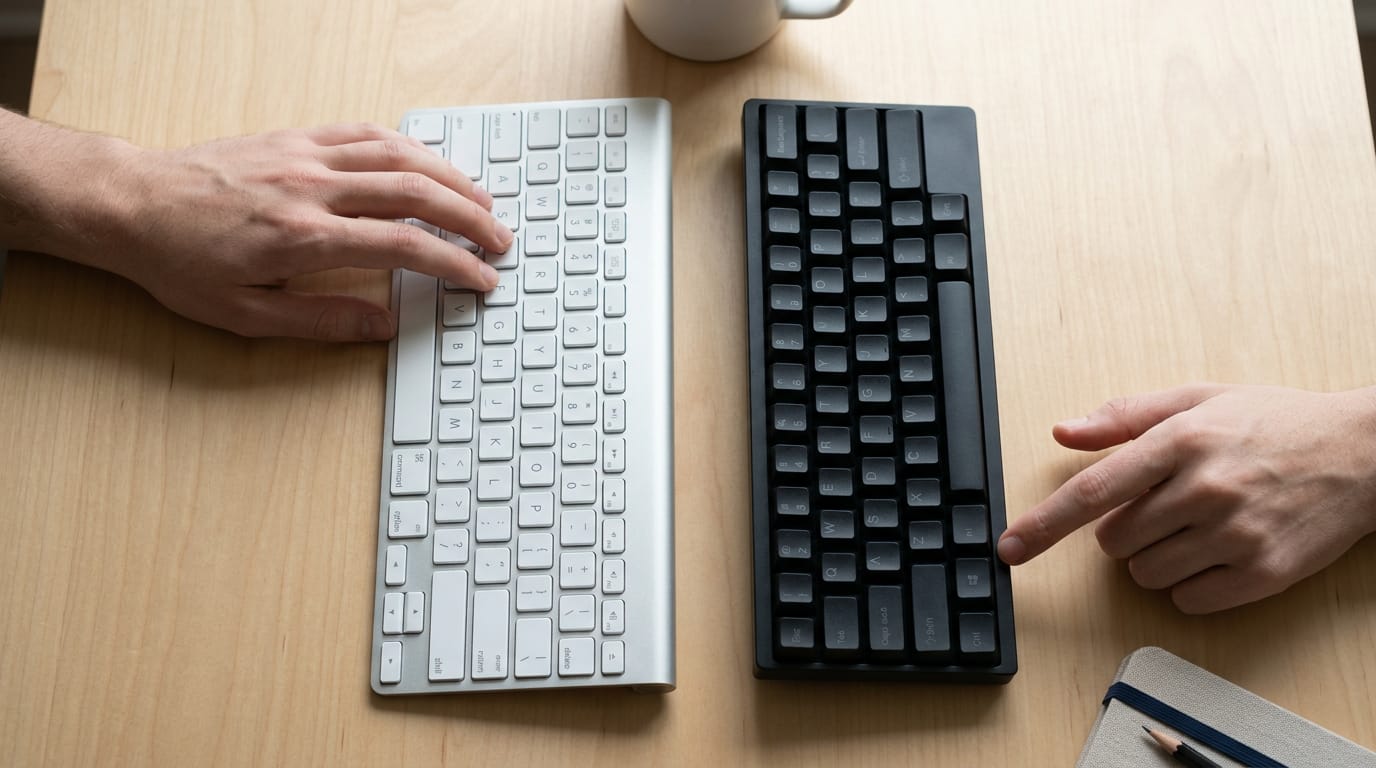
Most of the gap sits in the modifier keys, the ones you hold to change what another key does: Windows uses Ctrl for Cmd and Alt for Option. The goal isn’t to memorize the Mac layout but to recognize the handful you use daily.
Option shortcuts and their Windows equivalents
- Option plus a function key can open preferences without a trip through menus.
- Home and End: Fn plus the Left or Right arrow does the job on many Mac keyboards.
- Print Screen: The closest Mac match is Cmd+Shift+3, which captures the whole screen. Cmd+Shift+4 selects just part of it.
- Forward delete and Page Up/Down: Fn plus Delete acts as forward delete, and Fn plus the Up or Down arrow handles Page Up and Page Down.
- Symbols: Mac menus show ⌘ for Command, ⌥ for Option, ⌃ for Control, and ⇧ for Shift.
- Special characters: Option plus G makes ©, Option plus 2 makes ™, and Option plus E, then E, makes é.
- Printable cheat sheet: Consider a home office writer who switches between a MacBook and a Windows desktop. A printed page of these pairs beside the monitor means you won’t stop mid-draft to guess.
Apple keyboards on Windows or Boot Camp
Boot Camp is Apple’s tool for running Windows on a Mac.
- Apple Wireless Keyboard Helper: Apple’s software tells Windows how to read the keys on an Apple keyboard.
- Using an Apple keyboard on a PC: The keys are the same, but Windows expects different labels, so the helper translates.
- UAWK with AutoHotkey: For finer control, UAWK is a script that runs on AutoHotkey, a free Windows tool for reassigning keys.
Hands stay on the keys.
Once you see that Option is the Mac’s Alt key, the rest of the layout starts to make sense. Windows Alt covers the same role, and a remapping tool can line up the modifiers so they feel natural under your fingers.
Keep the setup simple: map the keys once, practice the handful of shortcuts you use every day, and let your muscle memory take over. Your hands will stop hunting, and the switch becomes one less thing to think about.
Set it once, and your fingers can finally stop guessing.
References
- Mac keyboard shortcuts — support.apple.com (2026)
Questions
What is the Option key for Mac on a Windows keyboard?
On a Windows keyboard connected to a Mac, the Alt key usually serves as Option. macOS maps the Windows key to Command by default, so the matching key depends on whether you mean function or position.
Where to find options on keyboard?
On a Mac keyboard, look beside the space bar for the key labeled Option or marked ⌥. It sits between Control and Command; on a standard MacBook, there is one on each side of the space bar.
Is Alt the same as Option?
Yes. Option on a Mac and Alt on a Windows keyboard are the functional equivalent, though their positions on the bottom row differ. When a Windows keyboard is connected to a Mac, macOS maps its Alt key to Option by default.
Can I use an Apple keyboard on Windows?
Yes. Apple keyboards can work with Windows over USB or Bluetooth, though some keys may behave differently or need remapping. Apple's keyboard helper software can help Windows interpret the keys, and third-party remapping tools offer more control.
Sources
- Mac keyboard shortcuts, support.apple.com,
spaceShortcut Sheets: the twenty keys to learn first in each appFind your app