On-Screen Keyboard Shortcut Guide for Windows and Mac
An on-screen keyboard shortcut can rescue a deadline when your keys fail: see quick Windows launch options, modifier shortcuts, and the Mac equivalent.

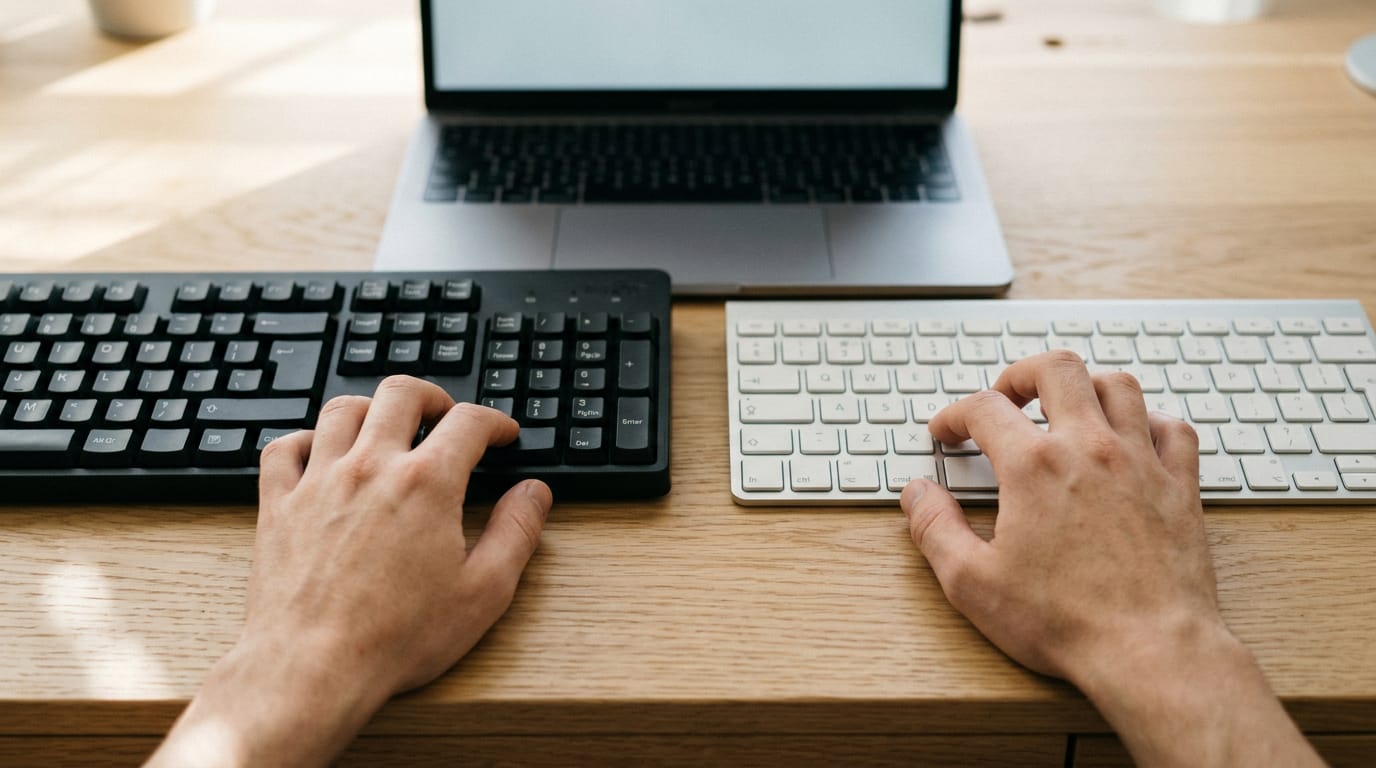
The short versionThe Windows on-screen keyboard is a clickable virtual keyboard that lets you type with a mouse or touchscreen when a physical keyboard is unavailable or difficult to use. Press Win + Ctrl + O to open it, or launch it through Settings, Search, or Run; you can also click modifier keys such as Ctrl before selecting a letter to use common shortcuts. Set it up or pin it before you need it, and treat it as a practical backup, not a replacement or a guarantee of safe password entry on public computers.
Picture your physical keyboard giving up in the middle of a report with a deadline an hour away. That’s when an on-screen keyboard earns its spot.
It’s the virtual keyboard Windows draws on your display, and you click its keys with a mouse or your finger on a touchscreen.
Think of it as a spare tire: you hope you’ll never need it, but you’ll be glad it’s there. In this post, we’ll cover every way to open it, how to switch it on, and the modifier shortcuts that keep you moving, plus the Mac equivalent.
Why Use an on Screen Keyboard Shortcut
Your hands stay on the keys most of the day, so it pays to know the on-screen keyboard before you need it. It’s a virtual keyboard you operate with a mouse.
What if your keyboard stops working?
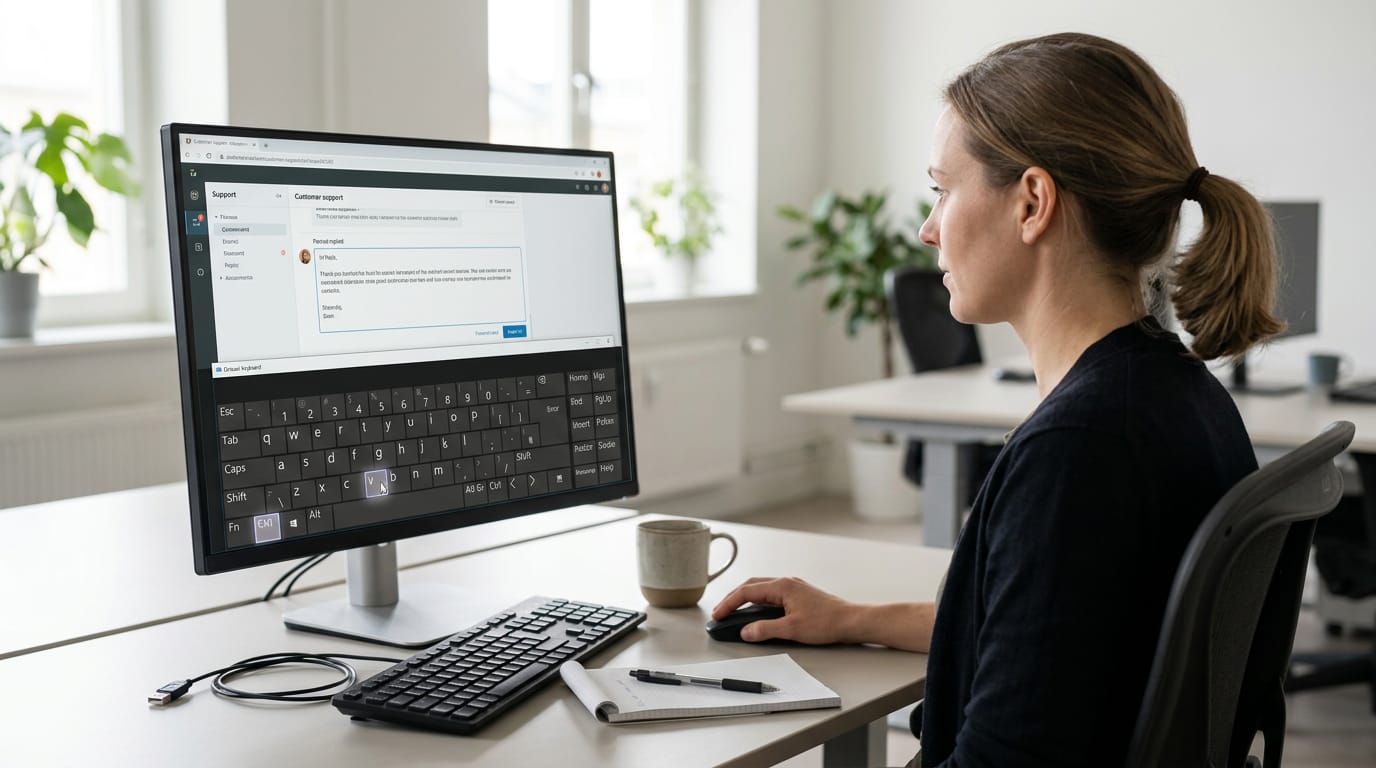
Picture a support agent whose keyboard quits halfway through a ticket reply. Pressing Win + Ctrl + O, or switching it on through Ease of Access in Settings, lets them finish the reply.
With a touchscreen, they can even tap the keys if the mouse is dead too.
Think of it as a spare tire: a backup, not a replacement, but it gets you to the shop.
If the keyboard isn’t typing at all, check the cable or Bluetooth connection, then restart the computer. Meanwhile, the on-screen keyboard keeps your work moving.
Keeping your data safe on public PCs
Public computers carry a risk you can’t see. A research paper on spy-resistant keyboards describes on-screen keyboards built so you can enter private text without revealing it to observers.
That makes it one possible precaution for confidential data, not a complete fix.
Consider a freelance bookkeeper signing into a client’s invoicing portal from a library PC.
Clicking in the password with the on-screen keyboard may help keep it away from a hardware keylogger, a device that records what you type, which matters when the account holds client money.
An analysis of keyloggers in cybersecurity describes a virtual keyboard as a detection technique against both software and hardware keyloggers. Treat it as a layer of defense, not a guarantee. Stay cautious.
Quick Ways to Open the On-screen Keyboard
The on-screen keyboard is a built-in Windows tool that shows a clickable keyboard on your screen. Here are the quickest ways to open it, starting with the one worth memorizing.
Press Win + Ctrl + O to open it
Hold Win and Ctrl, then press O, and the keyboard appears. It works in both Windows 10 and Windows 11, and because it’s a default built-in shortcut, there’s nothing to install or switch on first.
Think of a bookkeeper whose laptop’s Shift key sticks halfway through a month-end invoice. One press of Win + Ctrl + O puts a working keyboard on screen, and the invoice gets finished without a trip to the repair shop.
The key is remembering one combo, not hunting for the tool. One combo, no menus.

Launch it from Run, Search or Command Prompt
If you’d rather not memorize a combo, you can reach the same tool in three other ways:
- Run dialog: Open the Run dialog, type osk, and press Enter.
- Windows Search: Type on-screen keyboard into the search box and select the result.
- Command Prompt: Type osk at the prompt and press Enter.
Each route launches osk.exe, the executable file that runs the on-screen keyboard. You’re choosing how to open it, not what you’re opening. Same program, different door.
Other key combos that launch Windows tools
These combos open other Windows tools:
- Win + U opens the Ease of Access Center.
- Win + C opens Charms search.
- Win + X opens the Quick Access Menu.
- Win + I opens Settings.
- Win + K is the cast shortcut.
So what does Windows key + K do? It opens cast, the feature that sends your screen to another display. These combos get you to a tool faster, but they don’t teach you how to use it.
Create a desktop shortcut to open it
A desktop shortcut puts the keyboard one click away, and you can give it a custom key too. Here’s how we’d set one up:
- Right-click an empty area of your desktop, then choose New and Shortcut.
- Enter the path to osk.exe, which lives in the System32 folder: C:\Windows\System32\osk.exe
- Name the shortcut and click Finish, then right-click it and open Properties.
- On the Shortcut tab, click the Shortcut key box and press the combination you want to assign.
Set it up once and the keyboard is always within reach.
Turn on the Keyboard from Settings
Settings is the most direct route to the On-Screen Keyboard, a virtual keyboard you click or tap on screen. The goal is to set it up once rather than hunt for it in a hurry.
The menu names shift between versions of Windows, so here’s where we’ll look on each one:
Find it in Windows 10 Settings
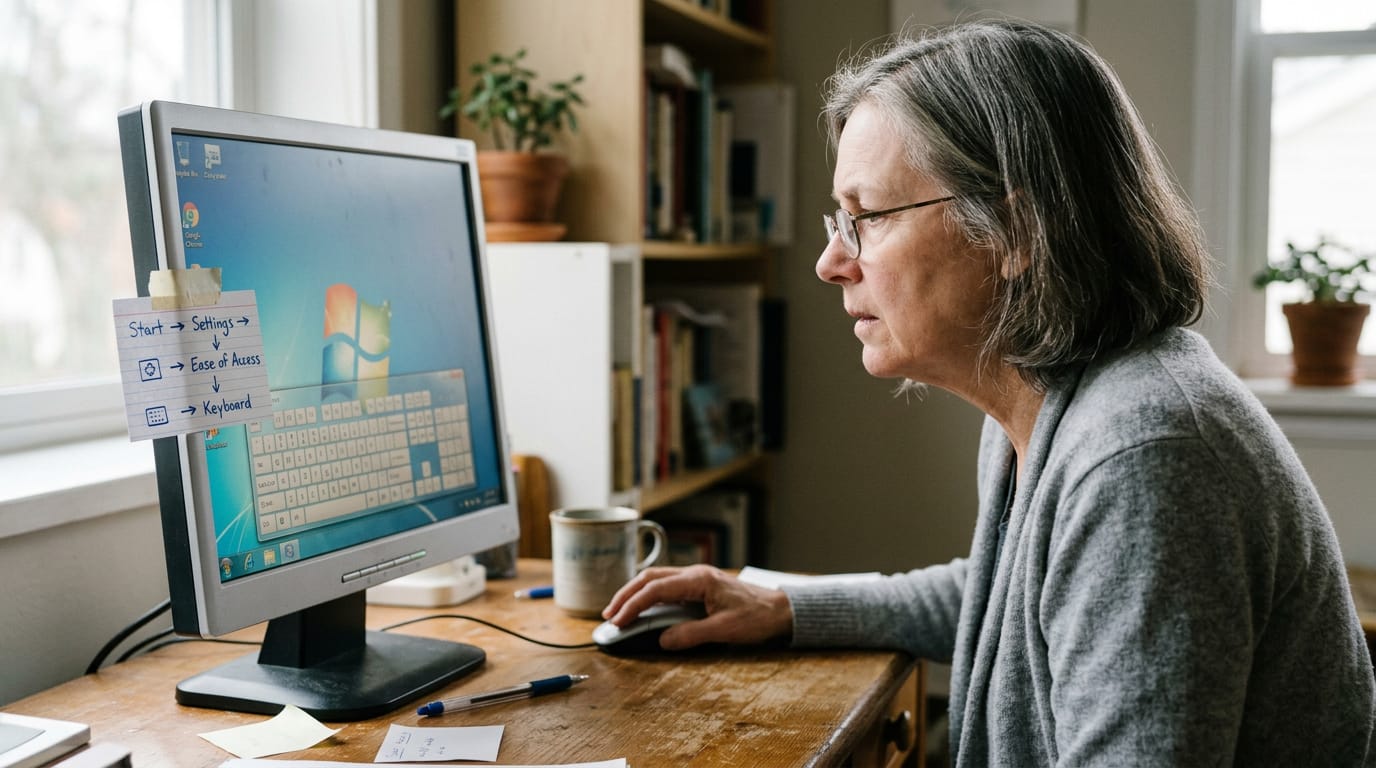
- Go to Settings > Ease of Access.
- Select Keyboard from the left pane.
- Turn on the toggle labeled Use the On-Screen Keyboard.
Flip that toggle on and the keyboard appears right away.
Windows 11 taskbar, touch icon and accessibility
Windows 11 also offers a route through the taskbar. Open Personalization > Taskbar and turn on the touch keyboard toggle. A small keyboard icon then appears in the taskbar corner, ready whenever you need it.
Prefer the main Settings app? Go to Accessibility > Keyboard and use the on-screen keyboard setting there. If the keyboard won’t open, confirm the toggle is still on, then try another route from this section.
Older Windows versions and Control Panel
Older versions of Windows tuck it into other menus:
- Ease of Access Center. Open Control Panel and select Ease of Access Center.
- Start On-Screen Keyboard. In that window, select Start On-Screen Keyboard to launch it.
- Windows 8.1 PC Settings. On Windows 8.1, open PC Settings to find the keyboard option.
- Charms menu. To reach PC Settings, open the Charms menu and select Settings.
Open it at sign-in or startup
- Ease of Access button on sign-in. On the sign-in screen, select the Ease of Access button to reach the keyboard before you log in.
- Start automatically at login. Turn on the option to start the keyboard when you sign in.
- Stop the auto pop-up. Uncheck that same option if it appears when you don’t want it.
Pin to taskbar or turn it off
Once you’ve found the keyboard, pin it to the taskbar and it’s one click away instead of buried in menus. If you never use touch, turn off the touch keyboard toggle so its icon stops appearing.
That also helps you avoid accidental clicks, since an icon where your mouse hand often lands can pop the keyboard open mid-task.
Think of a home office bookkeeper whose laptop keys start sticking halfway through an invoice batch. With the keyboard pinned, one click gets them typing again. Less hunting, more typing.
How Touch and On-screen Keyboards Differ
Windows has two on-screen keyboards, and they’re easy to mix up. The on-screen keyboard (OSK) works on any PC, while the touch keyboard is built for touch devices. Knowing which one you’re looking at tells you where to find it and how to change it.
When each keyboard shows up
The OSK is a floating window, and you can move it anywhere on the screen to keep it out of your way. It doesn’t need a touchscreen, so a laptop or desktop with only a mouse can use it. The OSK is the one you click.
The touch keyboard appears on touch devices. In tablet mode, tapping a text box brings it up automatically. The touch keyboard is the one you tap.
For example, a support agent working from her kitchen table might have a sticky key on her laptop. She opens the OSK, drags it to the bottom of the screen, and keeps answering tickets while she waits for a replacement.
Her tickets don’t wait for a new keyboard.
Finding the options button and gear icon
The OSK has an Options button, and the touch keyboard uses a gear icon. Click Options on the OSK, or tap the gear on the touch keyboard, to reach its settings.
Mac users who want a similar on-screen keyboard will find the closest match in the Accessibility Keyboard.
Customize How the Keyboard Works
Out of the box, the on-screen keyboard assumes you’re clicking, so a few tweaks will make it feel closer to your desk keyboard. Here’s how we’d set it up once, so it’s ready when you need it. Hands stay on the keys.
Settings in the Options menu
Open the Options menu to change how it behaves:
- Click sound plays a tone with each press, so you know it registered.
- Show keys toggles the key layout on screen.
- Numeric keypad adds a number pad for entering figures.
- Text prediction suggests whole words as you type.
Click, hover, scan or switch to type
You can change how the keys respond:
- Click on keys: the default, one mouse click per key.
- Hover over keys: rest the pointer on a key until it selects.
- Scan through keys: keys highlight in turn, and you pick one when it lights up.
- Mouse, joystick or switch input: the hardware that makes each selection.
Hover swaps clicking for pausing, so test it before you rely on it.
Ctrl+A to Z are Ctrl-plus-letter shortcuts for common commands, such as Ctrl+A to select all, Ctrl+C to copy, Ctrl+V to paste, and Ctrl+Z to undo. Apps vary, so check yours. On the on-screen keyboard, click Ctrl or Alt, then the letter.
The modifier stays highlighted until you click that letter, so you won’t have to hold it down. A support agent whose physical keyboard fails mid-shift can click Ctrl, then V, to paste a saved reply and keep the ticket moving.
Resize it and change how it looks
- Resize by dragging edges: pull any edge or corner to change the window size.
- Fade transparency: lets the keyboard fade, so the text underneath stays readable.
- Touch keyboard themes: these restyle the separate touch keyboard, not this one.
- Key and keyboard size: changes how easy keys are to hit, not which keys you get.
- Layout and language: the layout follows your input language, so pick the one that matches your physical keyboard.
Extras like docking and handwriting
- Right-click button: sends a right-click so you can open context menus without the mouse.
- Dock: pins the keyboard to a screen edge, out of your document’s way.
- Handwriting: with a pen or touchscreen, writing on the panel converts it to text.
Set it up once and stop hunting.
Related Tools and Helpful Guides
The on-screen keyboard isn’t the only option when typing goes sideways. A few related tools and fixes are worth keeping in your back pocket.
Other keyboards and common fixes
- Virtual keyboards for Windows. The built-in on-screen keyboard is a solid starting point, and other virtual keyboards are available if it doesn’t fit. Picture a support agent whose laptop keyboard starts dropping keystrokes mid-queue. Opening a virtual keyboard keeps replies moving while the hardware gets sorted, and tickets don’t pile up. Treat it as a backup rather than a replacement.
- Password recovery tool. If you’re locked out, typing on a virtual keyboard won’t help you remember a password. A password recovery tool handles a forgotten password, which is a different problem. Match the tool to the problem in front of you.
- Turning off keyboard sounds. Some virtual keyboards click with every press, which can be distracting in a shared office. Check the keyboard’s settings for a sound option and switch it off if the noise bothers you.
- Fixing the sign-in screen pop-up. If the on-screen keyboard keeps appearing on your sign-in screen, there’s a fix for that. The troubleshooting steps in this article walk you through it, so you can sign in without the keyboard getting in your way.
For a keyboard-first worker, the on-screen keyboard is less about typing with a mouse and more about having a backup plan. Win + Ctrl + O gets you there quickly, and the Settings route is there when you want to set it up properly.
Learn the shortcut while your physical keyboard still works, so the backup is already in your muscle memory. Mac users have an equivalent worth setting up before you need it.
Your hands stay on the keys, and the on-screen keyboard is there for the day the real one isn’t.
References
- Spy-Resistant Keyboard: More Secure Password Entry on Public Touch Screen Displays — dl.acm.org
- Analysis of Keyloggers in Cybersecurity — doi.org (2020)
Questions
What is the keyboard shortcut for the keyboard on-screen?
On Windows, press **Win + Ctrl + O** to open the on-screen keyboard. You can also type `osk` in the Run dialog or Windows Search.
How to fix keyboard not typing?
Check the keyboard’s cable or Bluetooth connection, then restart the computer. To keep working while you troubleshoot, open the Windows on-screen keyboard with **Win + Ctrl + O**.
What does Ctrl+Alt+T do?
**Ctrl + Alt + T** commonly opens a terminal in some Linux desktop environments, such as Ubuntu with the default keyboard shortcuts. Its function can vary by operating system and settings.
What does Windows key +K do?
**Windows key + K** opens the Cast panel, which lets you connect to a compatible wireless display or other casting device.
Sources
spaceShortcut Sheets: the twenty keys to learn first in each appFind your app