Logic Pro Shortcuts: Find, Customize, and Fix Key Commands
Logic Pro shortcuts keep mixes moving. Find and customize key commands, fix broken bindings, and automate repetitive tasks with macros or a Stream Deck.

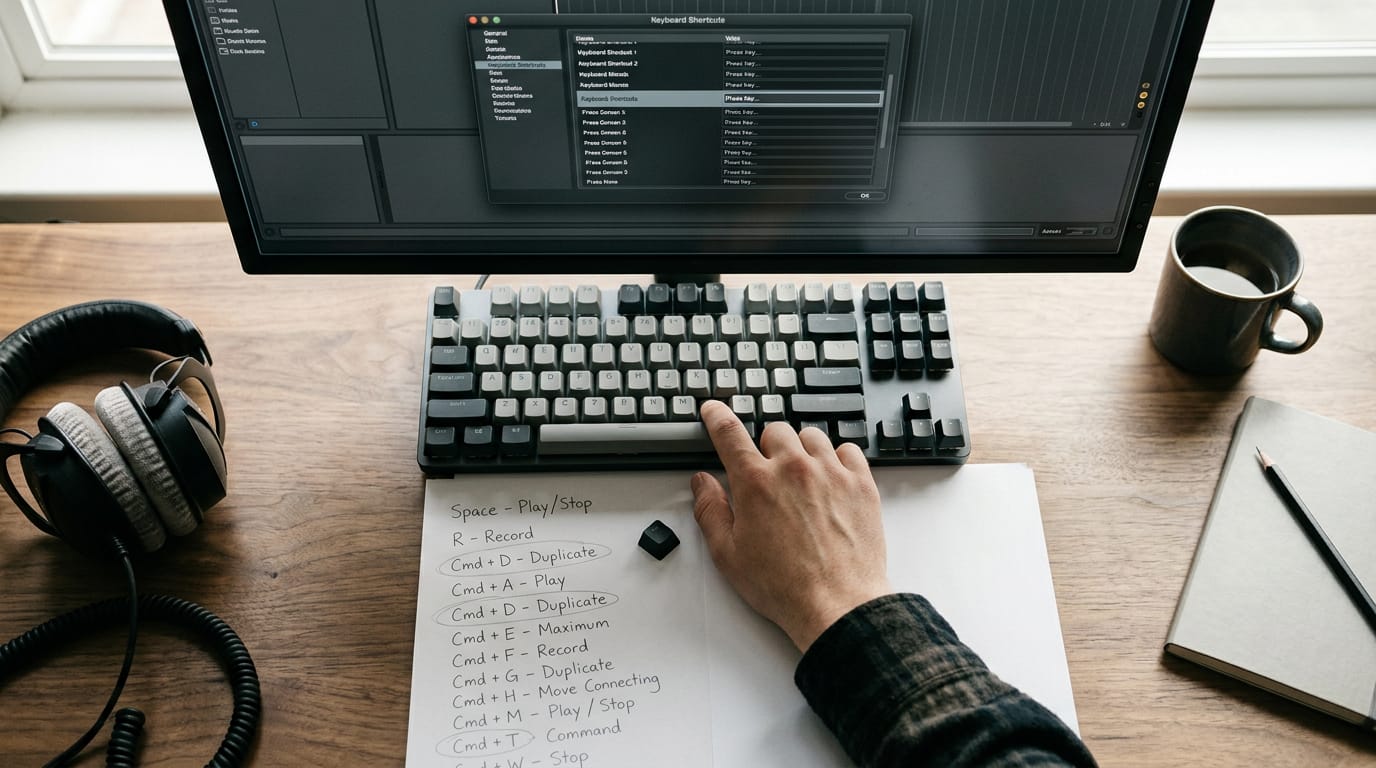
The short versionLogic Pro shortcuts, also called key commands, are keyboard combinations that trigger actions in the music-production software. Find commands and gaps in the Key Commands window, customize the actions you use most, and check macOS for conflicting shortcuts when bindings fail; remapping, macros, and Stream Deck buttons can automate repeated steps. A setup tailored to your workflow means fewer menu searches and mouse trips, so you can keep your attention on the music.
Picture a late-night mix session. Your hands are on the keys and the groove is locked in, then you reach for the mouse to dig through a menu. By the time you find it, you’ve lost the momentum.
A key command is a keyboard shortcut tied to a Logic Pro action, and the right ones keep you in the flow.
This guide covers the essentials, how to find and customize key commands, and how to fix broken bindings. Then we’ll automate repetitive steps with remapping, macros, and a Stream Deck so your work stays on the keyboard.
Where to Find Logic Pro Shortcuts
Before you memorize anything, start with a reference you can keep in view. Here’s where to find one and how to put it to work.
Download a printable shortcut cheat sheet
A cheat sheet is a quick-reference list of key commands, and a Key Commands PDF has been shared for Logic Pro users. Here’s what to know before you download it:
- Version 1.0 release: this is the first edition, so treat it as a starting point.
- Community feedback requested: if a shortcut is missing or wrong, speak up so the next version improves.
- Recommended by an expert user: someone who knows the app well vouches for it.
Print the Mac-layout version and keep it on your desk. A cheat sheet you print beats one you bookmark, because paper stays in your line of sight while a browser tab slips out of view.
Consider a home office editor who cuts audio in Logic Pro between client calls. With the sheet taped beside her monitor, she checks a command at a glance instead of digging through menus. Hands stay on the keys.
Scan the sheet for the most essential shortcuts by task, such as:
- playback
- editing
- navigation
That’s where you’ll want to start.

Finding and Changing Your Key Commands
Logic Pro has a key command for plenty of actions, but those shortcuts only save time once you can find them and change them. The Key Commands window handles both jobs, so it’s where we’ll start.
Finding commands that have no shortcut
Some functions simply don’t come with a shortcut, and that’s the first thing to rule out. The goal is less about memorizing every binding and more about spotting the gaps.
Detect Tempo is a good example because it has no shortcut, so you’ll need to assign one yourself. Option+Command+T is one combination you could use, as long as nothing else in the window already claims it.
If a function isn’t listed in the Key Commands window at all, there’s no binding to find, so don’t waste time hunting for one. Shortcuts can also shift between versions, so after you update to Logic Pro 12.3, check the window again.
Give specific functions their own shortcuts
Some functions earn a dedicated key because you reach for them constantly. Three are worth considering:
- Region speed. If you change a region’s speed often, a key of its own keeps your hands on the keyboard.
- Plugins on Stereo Out. Effects on the Stereo Out channel are worth a key when you adjust them on every mix.
- Controller assignments. If you use a hardware controller, you can tie a function to a physical knob or fader instead of a key combo.
Consider a home office podcaster who edits in Logic Pro every evening and keeps adjusting a region’s speed by hand.
Giving that function its own key turns a mouse hunt into a single keystroke, and across a month of episodes, those trips add up. Hands stay on the keys.
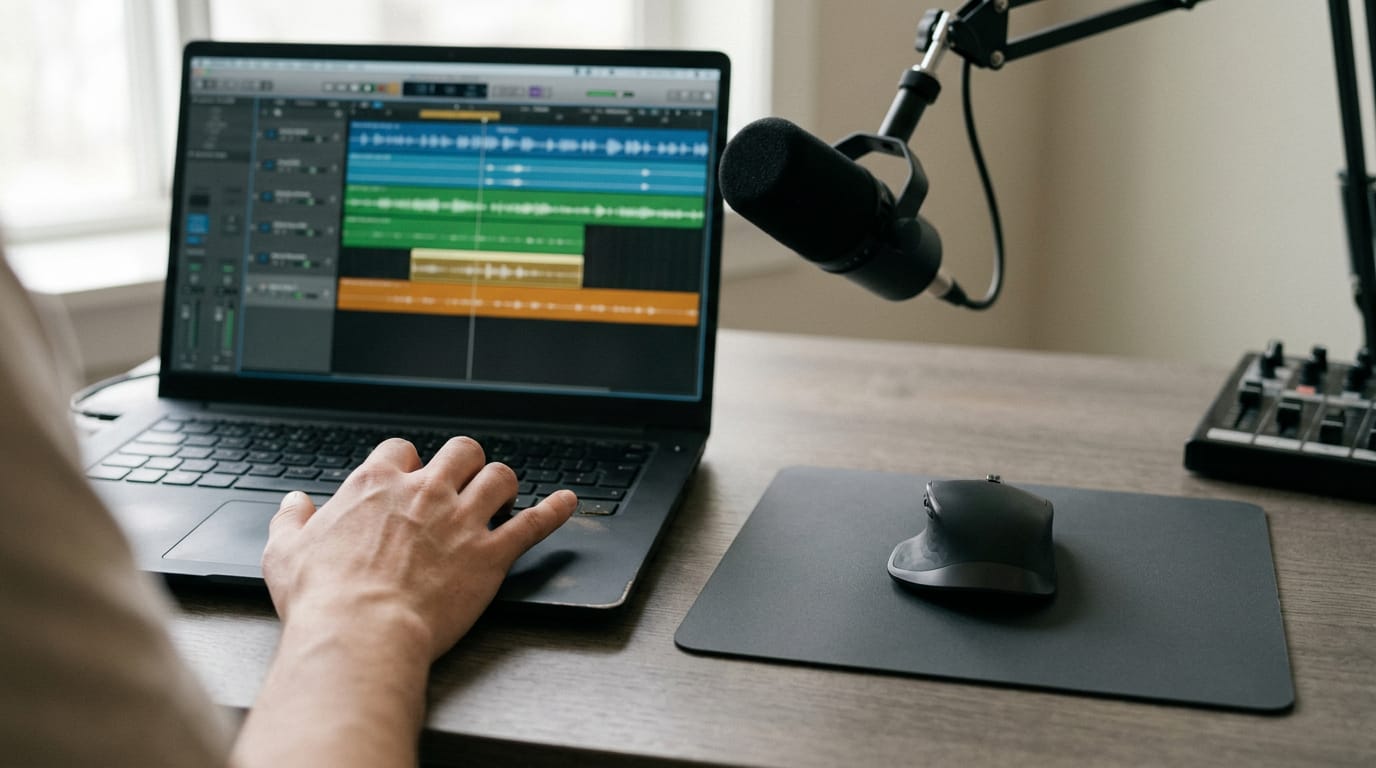
Using Other Tools Alongside Your Shortcuts
Once your key commands are set, other tools can take the repetitive work off your hands. Some of that help comes from hardware, and some comes from a second digital audio workstation (DAW), the music software you use to record and arrange tracks.
Hardware controllers and Stream Deck setups
A Stream Deck is a pad of programmable buttons, and its integration with Logic is simple: each button fires a command you already know. Consider a home office producer who edits a podcast every week and runs the same three steps each session.
Give those steps one button, and every session starts with one press instead of three trips to the mouse.
Repeated sequences can go further. Logic’s key command chains let one trigger run several commands in a row. That’s a macro, in plain terms. It’s less about more buttons and more about fewer trips for your hands.
If a command doesn’t suit your keyboard, you have two alternatives:
- Assign it to a knob or button on a hardware controller.
- Remap keys with Karabiner or Shortcuts so the command sits on a key you already reach.
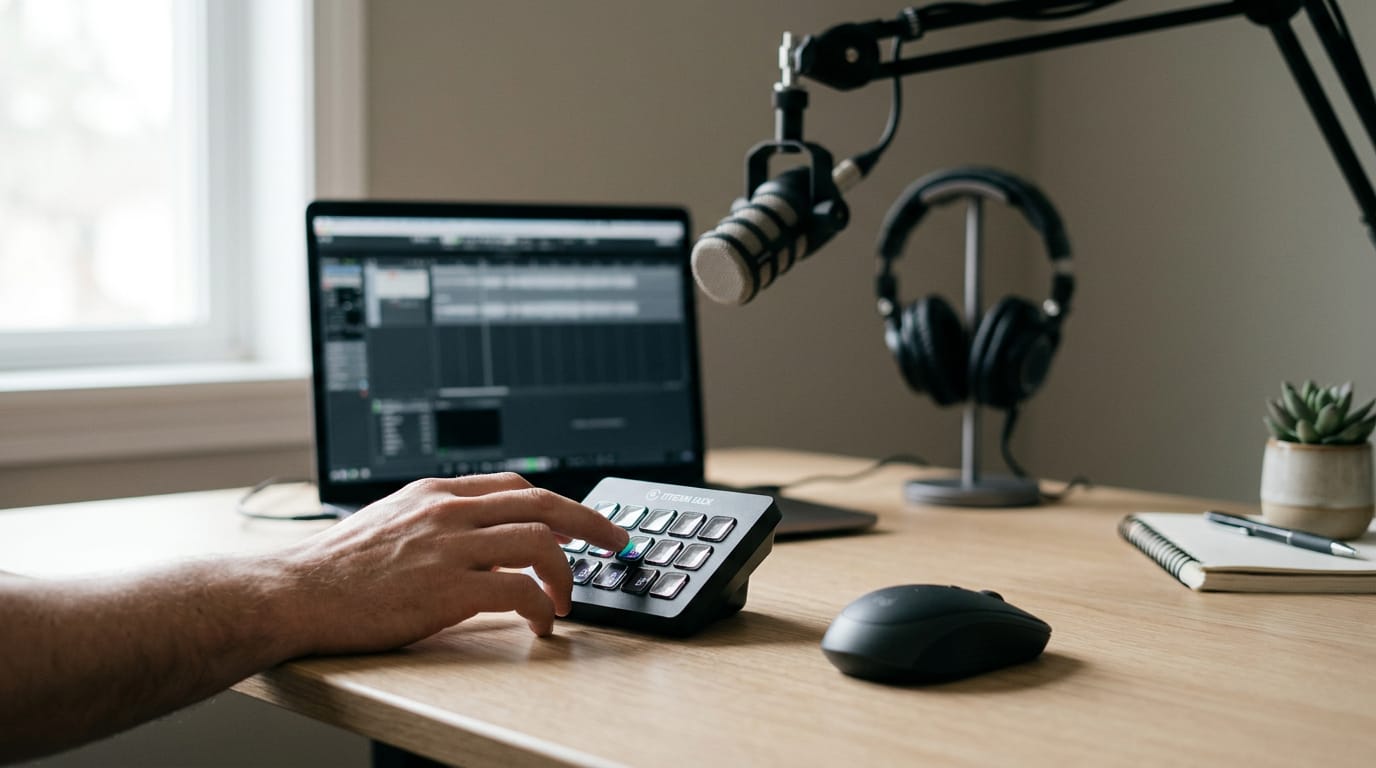
Using Logic commands in another DAW
Some producers also work in Ableton, another DAW, and its shortcuts aren’t identical to Logic’s. You don’t have to relearn everything. Start with the handful of Logic commands you use most, and assign each one to the same key in Ableton wherever you can.
A dual-DAW workflow means using two programs for different stages of the same music. Consider a songwriter who sketches ideas in Ableton on a laptop at the kitchen table, then finishes the track in Logic at a desk.
With matching keys, the switch feels like one workspace. Your hands stay put.
When Shortcuts Misbehave or Stop Working
When a shortcut suddenly stops working, it’s easy to blame yourself or the app. Here’s how to rule out the usual culprits first.
Why key bindings behave inconsistently
A key binding is the link between a key combination and the command it triggers. When that link misfires, the same keys can work in one spot and fail in another, which is frustrating when your hands are already moving fast.
Here’s where the trouble usually starts:
- Unreliable key bindings. A combo fires most of the time, then quietly stops, so you can’t count on it.
- Issues reported in Logic Pro 10.8 and later. Some shortcut problems have been reported since that version, so if your trouble started after an update, that timing is worth noting.
- Shortcuts not behaving consistently. The same command may respond in one window and ignore you in another, which makes it look random.
- Check macOS shortcut conflicts first. macOS can claim a key combination for its own features before Logic sees it, so look for a match in your macOS keyboard shortcut settings and resolve it there.
The question isn’t so much whether you pressed the right keys as what else on your Mac is listening for them. Think of a home office editor cutting a podcast episode who presses the split key and nothing happens.
She restarts the project twice before checking system settings and finds the combo already taken. One settings change saves the rest of the afternoon. Start there.
Logic Pro shortcuts aren’t about memorizing a long list. It’s about building a setup that fits how you work. Start with the essentials, find or customize the commands you use most, and fix bindings the moment they misbehave.
Each small win means fewer trips to the mouse.
Add remapping, macros, and a Stream Deck for the steps you repeat, and the keyboard starts doing the heavy lifting. Your attention stays on the music, right where it belongs. Hands on the keys, ears on the mix.
spaceShortcut Sheets: the twenty keys to learn first in each appFind your app