Strikethrough in Excel: Apply, Remove, and Automate
Strikethrough in Excel marks completed or stale items without deleting them. Apply it by hand, tie it to checkboxes or rules, and remove it anytime.

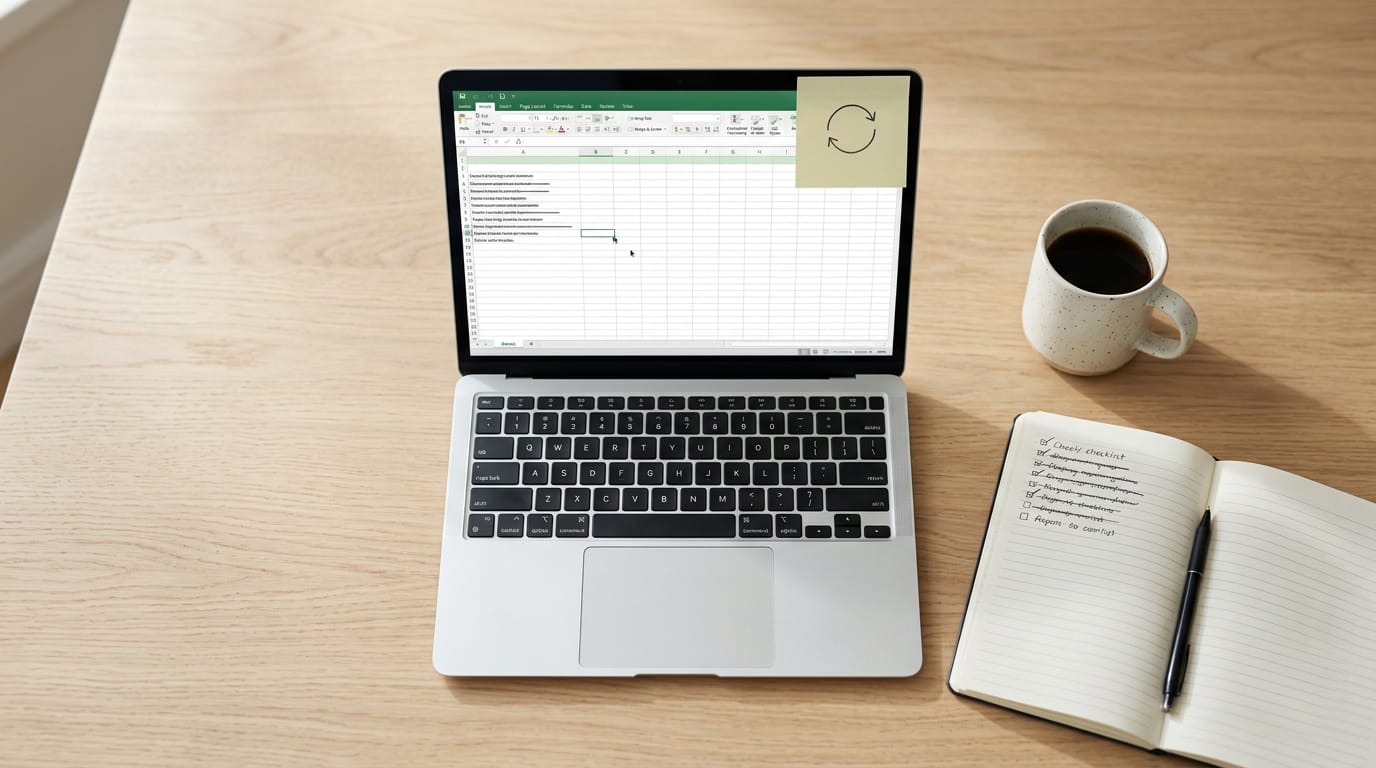
The short versionStrikethrough in Excel is a font effect that draws a line through cell text or numbers without deleting or changing the underlying value, so formulas still use it. Apply it manually with a shortcut or formatting menu, or use conditional formatting with checkboxes or status values to mark items automatically; stale-value marks instead indicate formulas may need recalculating. It helps show completed, outdated, or questionable entries while keeping them visible, but crossed-out values still count in most calculations.
Think about a grocery list stuck to the fridge. Once you’ve grabbed the milk, you draw a line through it, and the list suddenly looks a lot more manageable.
Strikethrough works the same way in Excel: it draws a line through a cell’s text so you can see what’s done, on hold, or no longer relevant, without deleting a thing.
That’s the short answer. Strikethrough is a text format you can apply by hand, remove when you change your mind, or even trigger automatically based on what’s in a cell.
In this post, we’ll walk through each method and show you how to do it all without reaching for the mouse.
When to Use Strikethrough in Excel
Sometimes you’ll need to mark something as finished or no longer valid without losing it. A line through the text handles that at a glance.
A visual line that leaves data unchanged
Strikethrough is a font effect that draws a horizontal line through the contents of a cell. It works on text and numbers alike. The important part is that it changes how the value looks, not what it is.
The underlying value stays put, and formulas that reference the cell still calculate normally.
For example, a home office bookkeeper who strikes through a declined quote keeps the number in the cell. If a formula totals that column, the crossed-out figure still gets counted. The math ignores the line.
Everyday situations where strikethrough helps
Here’s where it earns its place:
- Completed tasks: a to-do list where finished items stay visible, just marked done.
- Deleted or outdated values: an old deadline or phone number you can still see but no longer trust.
- Price changes and revisions: the old figure sits next to the new one, so the change is obvious.
- Rejected options: a vendor shortlist where the ruled-out names stay on the page.
- Flagged errors: a noted mistake in a report, marked for review rather than quietly erased.
Consider a home office team lead who keeps a shared budget sheet. When a vendor’s hourly rate changes, the old rate gets a line through it and the new one sits right beside it. The team spots what moved at a glance, without digging through old emails.
Applying Strikethrough by Hand
Sometimes you want to show an item is finished without erasing it, and that’s what strikethrough is for. Here are the manual routes, from the fastest keys to the menus you’ll fall back on when a shortcut slips your mind.
Quick keys that apply strikethrough
Select the cell, then use one of these:
- Windows: Ctrl+5
- Mac: Cmd+Shift+X
Strikethrough works as a toggle, not a one-way switch, so press the same shortcut again to remove it.
For example, a home office bookkeeper ticking off paid invoices in a tracking sheet can strike each row and clear it if an invoice is reopened, without leaving the keyboard.
If you share files between a Windows PC and a Mac, learn both shortcuts so you’re never stuck.

Using the Format Cells window
When you want more control, open Format Cells with Ctrl+1 on Windows or Command+1 on a Mac. Switch to the Font tab, tick the Strikethrough checkbox, and confirm.
You can also combine strikethrough with other formatting, such as bold or a font color, in one pass. Set it once and move on.
Apply it from the ribbon or toolbar
If you’d rather click, put the command where your hands can reach it. Add strikethrough to your Quick Access Toolbar (QAT), then press Alt and the number shown over it to trigger it.
The Home tab’s Font group also has a strikethrough button for a direct click. A support agent logging resolved tickets can strike each row this way without reaching for the mouse.
Excel for the web supports strikethrough too, with one limit: you can’t use a non-adjacent selection, meaning cells that aren’t next to each other, so select a continuous range first.
Choose which cells or text to format
- Single or multiple cells: Select one cell or a whole range, and the formatting applies to all of it.
- Part of a cell: Double-click the cell or press F2 to edit it, then highlight only the words to strike.
- Select text in edit mode: Strikethrough touches only the highlighted text, so highlight first, then format.
If you also work in Google Sheets, strikethrough is available there too, so the idea carries over even though the keys and menus differ.
Let Rules and Checkboxes Apply Strikethrough Automatically
Set a rule once and you’ll never strike a finished task by hand again.
Build a conditional formatting rule
Start with conditional formatting: on the Home tab, open Conditional Formatting, choose New Rule, and pick the formula option. Enter =$B2="done", click Format, tick Strikethrough, and optionally pick a grey font color.
The $ before B makes a mixed cell reference: the column stays fixed while the row adjusts as the rule copies down. The rule decides when the strike appears, not what the cell holds.
For date-based rules, =$D2<>"" strikes rows with a completion date. A dropdown works the same way with =$B2="Completed". Copy and paste the cells with Ctrl+C and Ctrl+V, and you won’t rebuild the rule.
Turn checkboxes into a working to-do list
On Microsoft 365, choose Insert, then Checkbox for native checkboxes that store TRUE or FALSE in their own cell. Older versions use legacy form control checkboxes instead. Right-click one, choose Format Control, and set its cell link to column C.
Add a rule with =$C2=TRUE to strike ticked rows. Spacebar toggles a selected native checkbox, so you never reach for the mouse. To show only open tasks, use =FILTER(A2:B200,C2:C200<>TRUE).
Picture a bookkeeper at a kitchen table. Each paid invoice gets a tick, strikes through, and drops off the FILTER list. Hands never leave the keys.
Strike tasks based on a status dropdown
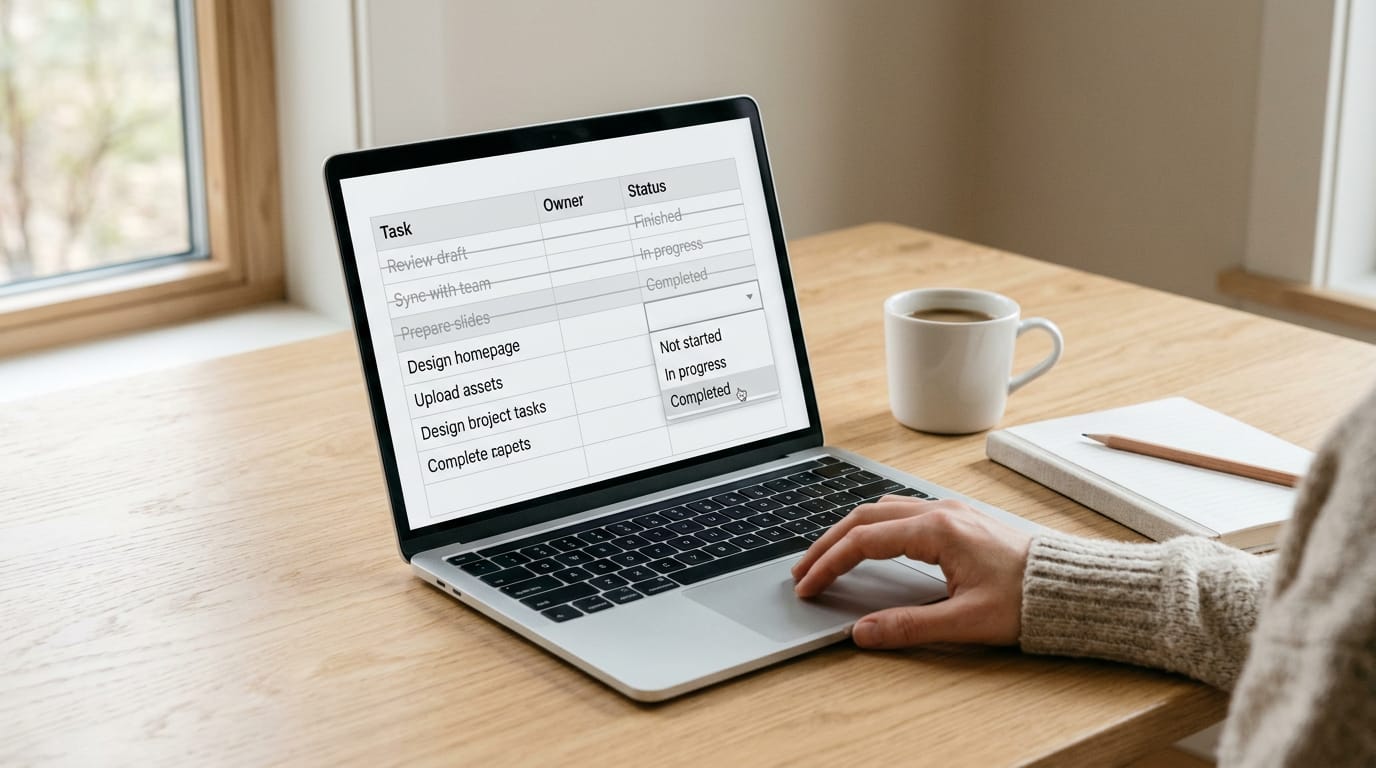
Select the status column, go to Data, choose Data Validation, pick List, and type options such as Not started, In progress, Completed. Alt+Down Arrow opens that dropdown from the keyboard.
With the rule above, you’ll see Completed rows strike themselves out.
How Do I Stop Strikethrough in Excel?
A strikethrough in a sheet comes from one of two places: you applied it yourself, or a rule is applying it for you. Figure out which, and the fix takes seconds.
If you’re really asking how to keep struck items out of your totals, that’s a separate job, since most formulas ignore strikethrough entirely.
Turn off a manually applied strikethrough
When you struck the text yourself, you can clear it just as quickly:
- Shortcut. Press the same key combination again, and the formatting toggles off.
- Format Cells. Open the Format Cells dialog, untick Strikethrough, and select OK.
Lost track of where you’ve struck things? Open Find & Select on the Home tab, search by format for strikethrough, and choose Find All to select every struck cell at once.
Delete the rule causing automatic strikethrough
If struck text shows up on cells you never touched, a conditional formatting rule is probably behind it. Rather than clearing cells one by one, delete the rule instead.
- Manage Rules. Open Conditional Formatting on the Home tab and pick the Manage Rules menu.
- Delete. Select the rule that applies strikethrough, then delete it.
Picture a home-based bookkeeper whose client tracker suddenly shows every overdue invoice struck through. Deleting that one rule clears the whole column in a single pass, with no cell-by-cell cleanup. Check the rules first.
Strikethrough That Flags Stale Values
Seeing a line through a number can make you think something broke. It didn’t. Here’s what the mark means and how to clear it from the keyboard.
Why this feature exists, not an error
Excel marks a stale value when a formula result may no longer match its data. Microsoft introduced this strikethrough recently to close a visibility gap.
In manual calculation, Excel waits for you to ask for an update, so results can drift out of date unseen.
It’s a flag, not a fault. Your formulas aren’t broken, and the workbook isn’t damaged. The line simply says this cell needs recalculating.
When the strikethrough shows up
You’ll usually see it in four situations:
- Manual Calculation mode, where Excel waits for your command
- Partial Calculation mode, where some formulas update and others hold back
- Data tables that haven’t been refreshed
- Changed inputs that haven’t been recalculated
Picture a home office worker who keeps a budget workbook on Manual so it stays snappy while they type. They change one income figure, and the totals below pick up a line through them. Nothing is broken. The workbook is simply waiting for them to say go.
Spotting which cells are stale
Look for three signs:
- Strikethrough text over the displayed value
- A warning icon that appears when you click the cell
- A prompt to recalculate or switch to Automatic
Each one clears from the keyboard, as shown below.

Ways to recalculate and clear it
Clear the marks with these shortcuts:
- F9 recalculates open workbooks that have changed since the last update.
- Shift+F9 recalculates only the active worksheet, which is quicker in a large file.
- Ctrl+Alt+F9 recalculates every formula in every open workbook, so it’s the heaviest option.
Prefer the ribbon? The Calculate Now button on the Formulas tab does what F9 does.
Switching to Automatic clears the marks too, since Excel updates as you go. The tradeoff is speed. On a big workbook, that constant recalculation can make typing feel sluggish.
Deciding whether to turn it off
Some people want the mark gone. Go to Formulas > Calculation Options and uncheck Format Stale Values. You can also adjust how Excel flags these cells through Error Checking Rules instead.
Here’s the catch: cells remain stale when hidden. Turning it off changes what you see, not whether the value is current.
For modelers, we’d keep it enabled. Those marks are an early warning.
How it shows up in financial models
Financial models are where this mark earns its keep. A.CRE models, a type of financial model, use Partial mode, so the rest of the workbook stays responsive while data tables, which recalculate a lot at once, wait for a refresh.
Consider an analyst who changes an interest rate. The cash flow lines below it take on the strikethrough, so they know exactly what to check. One press of F9 later, the numbers are current.
Using Strikethrough in Word
Word gives you a few quick ways to apply strikethrough to text, and each one is a short hop from the keyboard. Here’s how each one works.
Click the button or use a shortcut
Picture a support agent editing a shared FAQ who needs to cross out an outdated refund window without deleting it. Select the text first, then choose whichever route fits how your hands are already working:
- Button: Click the strikethrough button and you’re done.
- Windows: Press Alt, then H, then 4.
- Mac: Press Command + Shift + X.
- Toggle: Because it’s a toggle, the same shortcut that adds the line also removes it.
The agent can select the old window, press the shortcut, and start typing the new one without ever touching the mouse. A few keystrokes per edit beats a trip to the ribbon and back, so the reply keeps flowing. Hands stay on the keys.
Each takes a moment to learn, but once it’s muscle memory, the mouse stops being your default.
Strikethrough is a small change with a big payoff. It keeps your sheet readable while you track progress, and it can stay accurate on its own once you set up the right rules.
Whether you format cells by hand, let checkboxes do the work, or flag stale values, you now have a clear path from start to finish.
The next time a task wraps up or an item drops off the plan, you’ll know exactly how to strike it off. Hands stay on the keys, and the list stays honest.
Questions
How do I get rid of strikethrough?
Select the cell and press Ctrl+5 on Windows or Cmd+Shift+X on Mac to toggle strikethrough off. If a rule is applying it automatically, remove that rule under Home > Conditional Formatting > Manage Rules.
How do I not include strikethrough in Excel?
To prevent strikethrough, toggle it off with Ctrl+5 on Windows or Cmd+Shift+X on Mac, or untick Strikethrough in Format Cells. If conditional formatting is adding it, delete the relevant rule through Manage Rules.
How to remove strikethrough for stale values in Excel?
Stale-value strikethrough means Excel is flagging a formula result that may need recalculation. Press F9 to recalculate changed workbooks, Shift+F9 for the active worksheet, or Ctrl+Alt+F9 to recalculate all formulas; you can also turn off Format Stale Values under Formulas > Calculation Options.
How can I strikethrough text in Excel?
Select the cell or text, then press Ctrl+5 on Windows or Cmd+Shift+X on Mac. You can also open Format Cells with Ctrl+1 on Windows or Command+1 on Mac, choose the Font tab, and check Strikethrough.
How do I format a stale value in Excel?
To mark a value as stale, Excel generally applies the formatting when a formula result may not reflect changed inputs, such as in Manual or Partial Calculation mode. You can also use Format Cells > Font and check Strikethrough to mark a value manually, or set a conditional formatting rule to apply it based on a condition.
Why is Excel showing strikethrough?
Strikethrough may be manually applied, triggered by a conditional formatting rule, or used by Excel to flag a stale formula result that needs recalculation. For a stale value, recalculate with F9; for manual formatting, toggle it off, and for a rule-driven mark, remove the rule.
What does Ctrl+K do in Excel?
Ctrl+K opens the Insert Hyperlink dialog in Excel, where you can add or edit a link for the selected cell or text. It does not apply or remove strikethrough.
spaceShortcut Sheets: the twenty keys to learn first in each appFind your app